Agent Hiring
Last reviewed November 15, 2026 (checked against the app).
Create individual agents, hire complete teams from templates, and give new agents the right project, schedule, skill, and starter tickets.
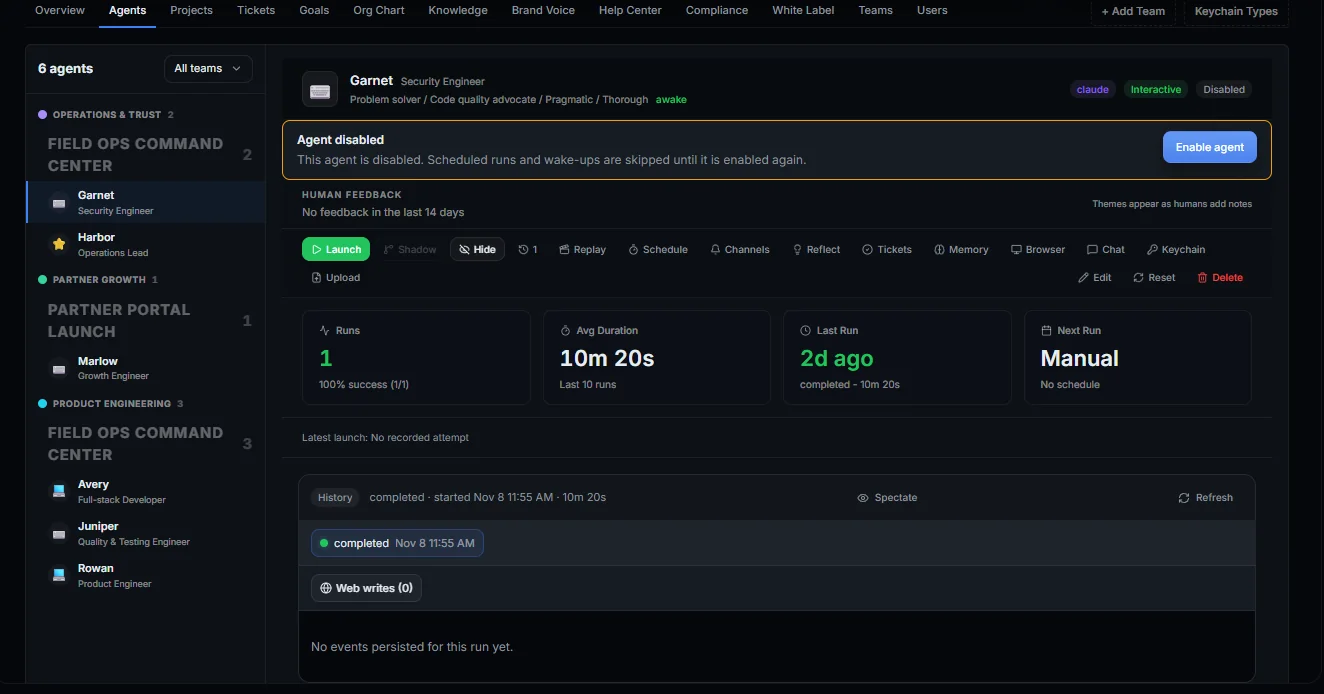
What is agent hiring?
Agent hiring turns CPLai from a single chat app into a managed AI company. A hired agent has an identity, role, model, prompt, skill, company, optional project, optional team, schedule, Keychain access, and tickets.
There are three common hiring paths:
| Path | Best for | What it creates |
|---|---|---|
| Template hire | One known role, such as Backend Engineer or SEO Analyst | Agent from a curated template, skill, schedule, onboarding ticket, starter tickets |
| Bulk team hire | A complete capability team, such as Engineering or Leadership | All unfilled roles for that capability, with schedules and starter tickets |
| Project hire | A project that needs its own engineering or delivery team | Project-scoped agents whose working directory is the project repository |
| Awakening or Quick Create | A custom one-off agent | A user-shaped agent outside the standard team template flow |
For company teams, use templates whenever possible. Templates carry the current CPLai onboarding behavior.
How do I hire one agent from a template?
- Open the company dashboard.
- Choose the capability dashboard, such as Engineering, SEO, Growth, or Outreach.
- Find Templates available.
- Click Hire on the role you need.
- Review the template details.
- Confirm the hire.
CPLai creates the agent, applies the role's default schedule when one exists, links the shipped skill, and creates onboarding work.
If you leave the agent name blank, CPLai auto-picks from the global name pool. If you type a custom name that is already used anywhere in the CPLai instance, the hire is rejected and you need to choose another name.
How do I hire agents directly into a project?
Use project hiring when a repo needs its own engineers, QA, deployment, or other delivery roles. Project hiring is available in the desktop app.
- Open Projects.
- Select a project that is linked to a company and has a repository directory.
- In the center dashboard, find Agents.
- Click Hire.
- Choose the capability, such as Engineering.
- Click Hire entire team, or click Hire beside one template.
Project hires are scoped to the selected project. CPLai sets the agent's project, uses the project repository as the working directory, and shows the agent in the project dashboard's Agents section.
If the project is not linked to a company, link it first in project setup; until then, Hire does nothing. If the project has no repository directory, template hiring cannot resolve a working directory.
Tip: The project hiring modal defaults to Engineering because most project-scoped hiring is delivery work, but you can choose any active company capability.
How do I hire a whole team?

- Open the company dashboard and choose the capability dashboard, or, in the desktop app, open a project and click Hire in its Agents section.
- Click Hire all unfilled in the capability's Templates available section, or Hire entire team in the project hiring dialog.
- Review the result banner.
Hire all unfilled appears only when two or more roles are unfilled. Today it is on the web dashboard's Engineering, Content, Growth, Outreach, and SEO dashboards, and on the desktop app's Content, Growth, Outreach, and SEO dashboards. On the desktop Engineering dashboard, hire roles one at a time, use the web dashboard, or use Hire entire team from a project.
Bulk hire skips roles that are already filled. It checks both modern template IDs and legacy role names, so an older CEO or engineer still counts as filling that role.
When bulk hiring into a project, the filled-role check only counts agents already on that same project. This lets separate projects have separate Engineering teams without one project blocking another.
Bulk hire creates:
| Item | Behavior |
|---|---|
| Agents | One agent for each unfilled template role |
| Names and emoji | Names are auto-generated from the global pool; emoji are kept distinct inside the batch when the pool allows |
| Skills | Curated skill shipped with CPLai for the role |
| Schedule | Role default schedule with jitter when configured |
| Starter tickets | Two or three role-specific tickets when the template includes them |
| Onboarding ticket | A first-run ticket that lets the agent confirm missing setup details |
Tip: Use Hire all unfilled when standing up a new company or capability. It is faster and more complete than hiring one agent at a time.
How do I ask a CEO agent to hire?
You can ask a company CEO in natural language.
Examples:
| What you say | Expected route |
|---|---|
| "Hire the engineering team" | Bulk hire the Engineering capability |
| "Fill in the rest of leadership" | Bulk hire unfilled Leadership roles |
| "Hire just a CTO" | Template hire for that role, preserving schedule and starter ticket behavior |
| "Hire a Reddit outreach rep named Echo" | Custom single hire, because you named the agent |
The CEO should inspect the roster, identify unfilled roles, use the template path, and summarize who was hired.
How do I choose company scope vs project scope?
| Scope | Use it for | Working directory behavior |
|---|---|---|
| Company-wide | CEO, CFO, brand, marketing, general operators | Uses the company root |
| Project-scoped | Engineers, QA, deployment, or agents tied to one repo | Uses the project's repository directory |
When you hire from a project context, engineering roles should be tied to that project. If you need engineering teams for several projects, hire a separate Engineering team per project.
Project-scoped template hires can also pick a project-specific skill automatically. When a role's default skill is a generic CPLai skill and the project has a matching project skill, CPLai uses the project skill unless you explicitly choose another skill in the hire form.
Hiring an engineer into a project also creates the project's knowledge skill if it does not exist yet: the living notes on the codebase that the project's engineers keep current. See Skills - Project knowledge skills.
How do duplicate roles get handled?
Template dashboards show filled roles. Bulk hire uses skip_filled by default. A role can be treated as filled when:
| Match type | What it catches |
|---|---|
| Exact template match | Agents created by the modern template system |
| Role-name match | Legacy agents created before template IDs existed |
If a role is filled, CPLai skips it instead of creating a duplicate.
For project hires, duplicate detection is project-aware. An existing Full-stack Developer on Project A does not prevent hiring a Full-stack Developer for Project B.
How do I handle agent name conflicts?
Agent names are global and case-insensitive. Scout and scout count as the same name, even when the agents would belong to different companies.
This rule keeps agent references unambiguous across:
- Direct messages and handoffs
- Schedule update tags
- Tickets and comments
- Command palette launches
- Search and activity filters
If the hire form shows a name conflict, pick another name or clear the field before hiring so CPLai can auto-pick an available one.
Tip: Duplicate roles are still handled by company or project context. Global name uniqueness only controls the visible agent name.
How do I create a custom agent instead?
Use custom creation when the role is unusual or not covered by a template.
- Awakening (desktop app): open Agents and click Awaken (Sparkles icon) in the sidebar header, or Awaken in a project's Agents section. Pick a skill and company, then finish the guided identity conversation.
- Quick Create (web dashboard): open Agents and click New agent (administrators only). Fill in the company, name, model, CLI type, working directory, and prompt, then click Create Agent. The form has no skill or project field.
See Agents for both paths in detail.
Custom agents can still use Keychain entries, schedules, teams, tickets, and chats.
How does the Awakening interview work?
Awakening is a guided identity conversation that shapes a newly hired agent's personality, voice, operating principles, and memory before its first real run. It is available on both the desktop app and the web dashboard.
Starting an awakening
On the web dashboard, check Open awakening interview after hire in a template's Hire dialog on the capability dashboard. A chat dialog then opens where you converse with the agent in real time. The web agent page has no Awaken button: to awaken or re-awaken an existing agent, use the desktop app.
On the desktop app, click Awaken in the Agents sidebar header or in a project's Agents section, check Run awakening interview after hiring in a template's Hire dialog, or click Awaken or Re-awaken in an agent's detail panel action bar.
What happens during the interview
The agent introduces itself based on its role and skill, then asks you one question at a time to refine:
| Area | What it covers |
|---|---|
| Personality | Emoji, traits, communication style |
| Identity | Backstory, expertise, perspective |
| Operating principles | How the agent approaches work, priorities, boundaries |
| User context | Who you are, your role, what the agent should know about you and the company |
| Memory | Starting facts the agent should remember |
The conversation is efficient - typically 5 to 7 exchanges. When the agent has enough, it produces a structured result that CPLai saves automatically.
What gets saved
After the interview, CPLai updates the agent's record with:
- Name and emoji (if the conversation refined them)
- Title and traits (personality attributes)
- Identity document (the agent's self-description)
- Soul / operating principles (how the agent thinks about its work)
- Memory (starting facts, including the awakening date)
- User context (what the agent knows about you)
- Hatched flag (marks the agent as fully initialized)
An awakened agent is ready to run. Its PostgreSQL-backed identity and working context carry into later sessions, so the interview shapes its behavior until you edit or reset that identity.
Tip: In the desktop app, you can re-awaken an agent later with Re-awaken in its detail panel action bar. The new results overwrite the previous identity.