Vault
Last reviewed October 28, 2026 (checked against the app).
Browse, search, and connect your knowledge vault to AI conversations.
Where to find it: Vault in the sidebar, under Knowledge. It has no number shortcut.
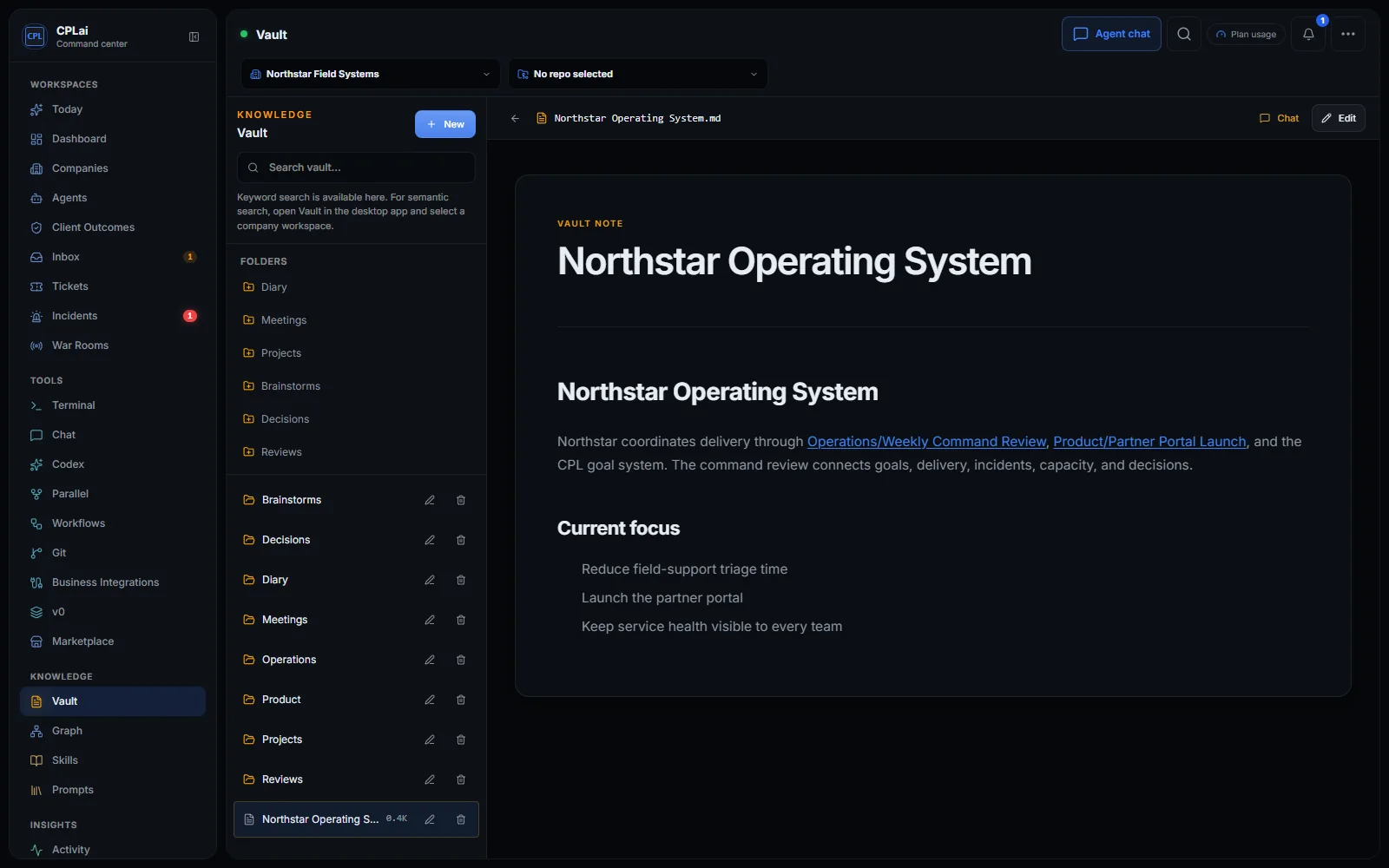
What is the Vault Page?
The Vault is CPLai's own built-in knowledge store: a folder of plain Markdown notes that CPLai creates and manages. It does not need Obsidian or any other app. The Vault page lets you navigate your notes, read them with full markdown rendering, and most importantly, connect your vault to CPLai's AI systems. Your notes become a knowledge base that AI can search, reference, and learn from.
Works with Obsidian, does not depend on it. Vault notes are standard Markdown files with [[wikilinks]], so the same folder can also be opened in Obsidian if you already use it. CPLai never requires it.
How do I connect my vault?
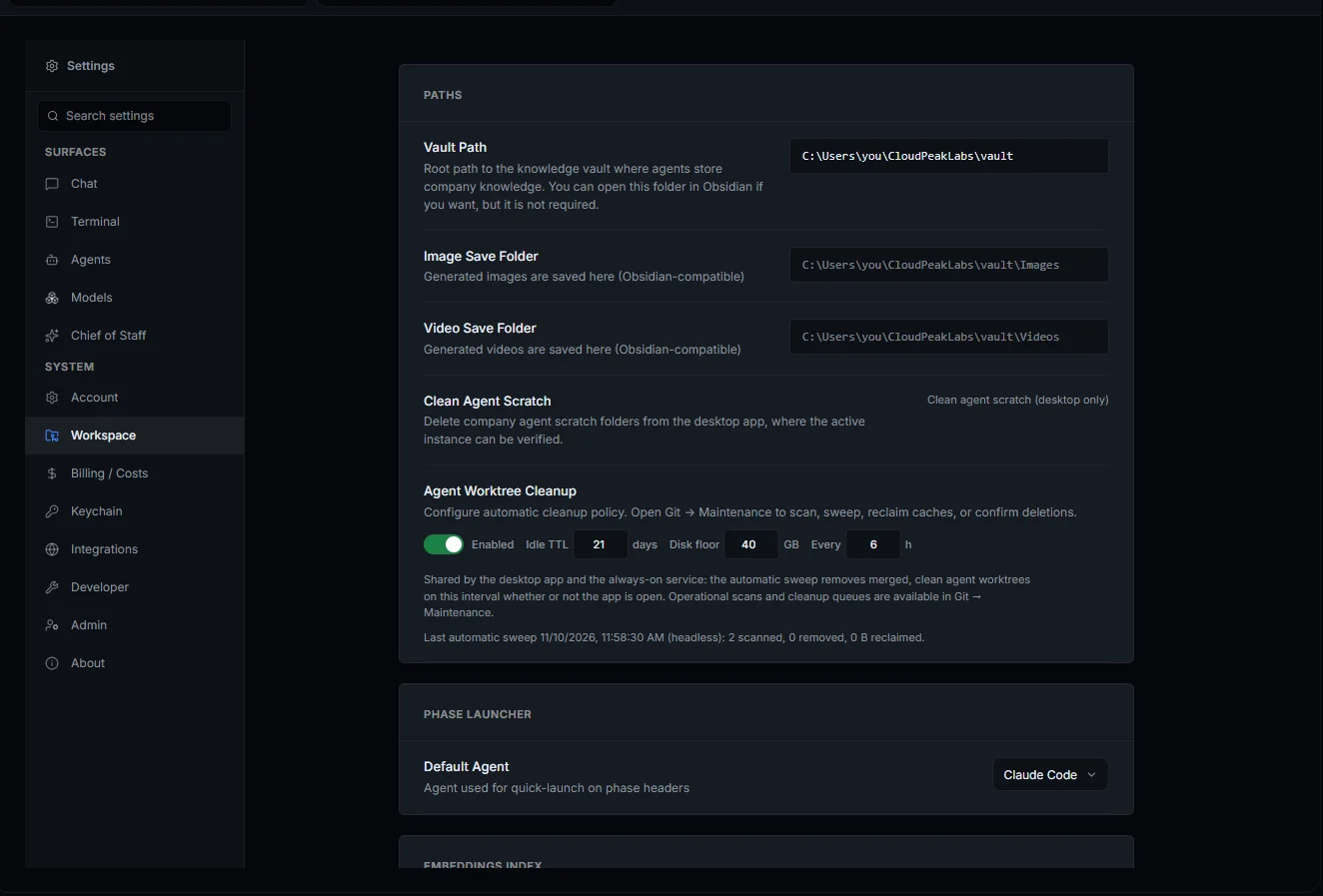
- Open Settings > Knowledge & memory
- Find the Vault folder field in the Vault and librarian card
- Type the full path to your vault folder. There is no Browse button.
- The Vault page will now show your vault's file tree
File Tree Navigation
The left panel shows your vault's folder structure:
- Click folders to expand/collapse
- Click any
.mdfile to view it in the reading panel - The tree loads recursively, showing your complete vault hierarchy
Markdown Viewer
Desktop and web use the same focused reading experience. A note opens inside a centered reading card with a hero-style header, then the rendered Markdown body.
The header turns common frontmatter into readable context instead of showing raw YAML:
- site or note type;
- title and description;
- author, published date, and word count;
- Open original for a safe
httporhttpssource; - tags as chips;
- uncommon frontmatter under a collapsible Note details property grid.
System fields such as IDs, hashes, company and project IDs, capture status, and librarian timestamps stay hidden from the reading header. On web, selecting a tag chip starts a tag search.
The reading panel renders:
| Feature | What It Renders |
|---|---|
| Standard markdown | Headers, bold, italic, lists, tables, code blocks |
| GitHub-Flavored Markdown | Task lists, strikethrough, tables |
| Wikilinks | [[Note]] and [[Note|Display Text]] links |
| Callouts | [!note], [!warning], [!tip], etc. with icons and colors |
| Frontmatter | Common metadata in the note hero, tags as chips, and remaining properties under Note details |
| Rich images | Responsive, rounded images loaded lazily with no referrer |
| YouTube media | A click-to-load player for allowlisted YouTube links used as Markdown images |
How do privacy-enhanced YouTube embeds work?
When a Markdown image points to an allowlisted YouTube watch, short, live, or embed URL, CPLai shows a video thumbnail and play control. The iframe is not created until you click play. Playback uses youtube-nocookie.com, a restricted iframe sandbox, and a strict referrer policy. Watch on YouTube remains available below the player.
Other Markdown images render as normal responsive images. Invalid or non-HTTP YouTube-like URLs are not promoted to players.
How do I search my vault?
Full-Text Search
Type in the search bar to filter notes by filename and content.
Semantic Search (AI-Powered)
In the desktop app, select a company workspace before searching. Semantic results are limited to that company's indexed notes; All Workspaces does not run an unscoped semantic search. Switching workspaces clears the current search results.
The web Vault currently supports keyword search. Use the desktop Vault for semantic search.
- First, index your vault (see How do I index my vault for semantic search?)
- CPLai generates embeddings using your configured provider: local Ollama, OpenAI, or OpenRouter
- Once indexed, open Search on the desktop Vault home and choose the Semantic tab (sparkle icon) instead of Keyword
- Semantic search finds notes by meaning, not just matching words
Example: Searching "how to deploy" might find a note titled "Production Release Process" even though it never uses the word "deploy."
Note: Desktop Vault semantic search currently has a known issue that returns no matches even for indexed notes. Use Keyword search or browse the vault tree while this is being corrected. This limitation is separate from knowledge-graph recall.
How does Knowledge Vault RAG work?
This is one of CPLai's most powerful features. It is controlled by Smart context engine in desktop Settings > Chat > Chat tools (on by default) and by the per-conversation Smart toggle in the web Chat header. When enabled:
- For a company-scoped chat, CPLai first requests relevant notes and connected context from the knowledge graph
- If no graph digest is available, CPLai can fall back to indexed semantic matches and add them to the AI's context
- The AI can reference your personal knowledge without you having to mention specific notes
- This runs in the background, lazy-loaded, and non-blocking
What this means in practice: If you have a note about your company's API conventions and you ask the AI to build an API endpoint, it will automatically reference your conventions note. Your vault becomes the AI's long-term memory.
Requirement: Indexed semantic matches need a configured embedding provider: local Ollama, OpenAI, or OpenRouter. Indexing, Vault search and Chat's automatic Smart Context all use the same provider, so no cloud key is needed when local embeddings are selected. See knowledge retrieval settings.
How do I bring a vault note into Chat?
Use one of the shipped Chat integrations:
- Open Chat.
- In the desktop app, type
@and choose a vault file. On desktop or web, you can also ask the AI to use thesearch_vaulttool. - If Knowledge Vault RAG is enabled and indexed, CPLai can add relevant notes automatically.
On web, open a note and click Chat (Send note to chat) to load the note path and content into a new Chat draft. On desktop, open a note and click Discuss to start a new conversation that sends the note to the AI right away, or use a Chat @ mention, search_vault, Knowledge Vault RAG, or the global File Browser Send to Chat action.
Chat Integration
Your vault is connected to the Chat page in several ways:
| Method | How to Use It |
|---|---|
| @mention | Desktop only: type @ in chat and select a vault file |
| search_vault tool | AI can search your vault autonomously using the search_vault tool |
| Knowledge Vault RAG | Relevant graph context, with indexed semantic matches as a fallback |
| Discuss | Desktop Vault button on an open note: starts a new chat named "Discussing: [file]" and sends the note |
| Send to Chat | Web Vault Chat button for the open note; desktop File Browser action for regular files |
Note Templates
Create new notes from 6 built-in templates:
| Template | Purpose |
|---|---|
| Blank | Empty note |
| Meeting | Meeting notes with attendees, agenda, action items |
| Project | Project overview with goals, timeline, resources |
| Brainstorm | Idea capture with categories |
| Daily Review | End-of-day reflection |
| Decision Log | Decision record with context, options, rationale |
How do I index my vault for semantic search?
- Navigate to the Vault page
- On desktop, click Search on the Vault home, choose the Semantic tab, and click Index Vault. The tab stays disabled until an embedding provider is configured. On web, click Semantic index on the Vault home.
- CPLai scans all
.mdfiles in your vault - Each note is chunked and embedded using your configured embedding provider and model
- Embeddings are stored by the CPLai service for fast retrieval
- Re-indexing detects changes via content hashing
Choose the provider and local embedding model in desktop Settings -> Vault & search -> Search and embeddings. When you change embedding models, review the Search index row and use Re-index now for outdated rows.
Note: With local Ollama, indexing runs on your own hardware and has no per-note charge. With OpenAI or OpenRouter, indexing is billed to that key at a small amount per note; with OpenAI, a vault with 500 notes typically costs less than $0.10 to index.
Embedding Sources
CPLai's semantic search isn't limited to vault notes. The embeddings system indexes three content types:
| Source | What Gets Indexed |
|---|---|
| Vault | Your vault notes |
| Chat | Conversation messages (auto-indexed on updates) |
| Code | Codebase files (30+ extensions, auto-skips node_modules/.git/dist) |
The Brain toggle in the desktop Chat sidebar search switches to search by meaning across these indexed sources and groups results into chats, vault notes, and code.
Federated Knowledge Search
Beyond the embedding index, CPLai's knowledge search API queries four federated sources:
| Source | What's Searched |
|---|---|
| Memory | Agent memory entries |
| Code | Codebase files from the embeddings index |
| Tickets | CPLai ticket titles and descriptions |
| Vault | Your vault notes (company-scoped) |
This means agents can surface relevant tickets and agent memory alongside vault notes and code, without you manually linking them. The Chat Brain toggle does not use this API; it searches only the embedding index above, so it does not show tickets or agent memory.
Knowledge Graph
Your vault notes and their [[wikilinks]] are also visualized as an interactive, GPU-accelerated graph on the Vault page's Graph tab. See the Knowledge Graph page for the full guide to exploring, filtering, and diagnosing your vault's structure.