Designer
Last reviewed November 15, 2026 (checked against the app).
Designer (formerly Web Designer) builds web pages and app front-end prototypes from a brief. You describe a page, pick a model, and watch it being built: the build stream lists each step, and the live preview refreshes every time the page changes. When a version is done you can ask for changes in the same chat, try the same brief on another model, send the version to your client for review, or download the files.
Any model you can run builds here, not only v0: models covered by your Claude, ChatGPT or Google AI plan, models charged to an API key such as OpenRouter or v0, and local models on your own machines. This page used to be called v0, and every design made on the v0 page is still here.
Open it from Designer in the sidebar, from the Command Palette, or with the terminal command /web-designer (/v0 still works). On web its address is /web-designer, and an old /v0 link opens the same page and design.
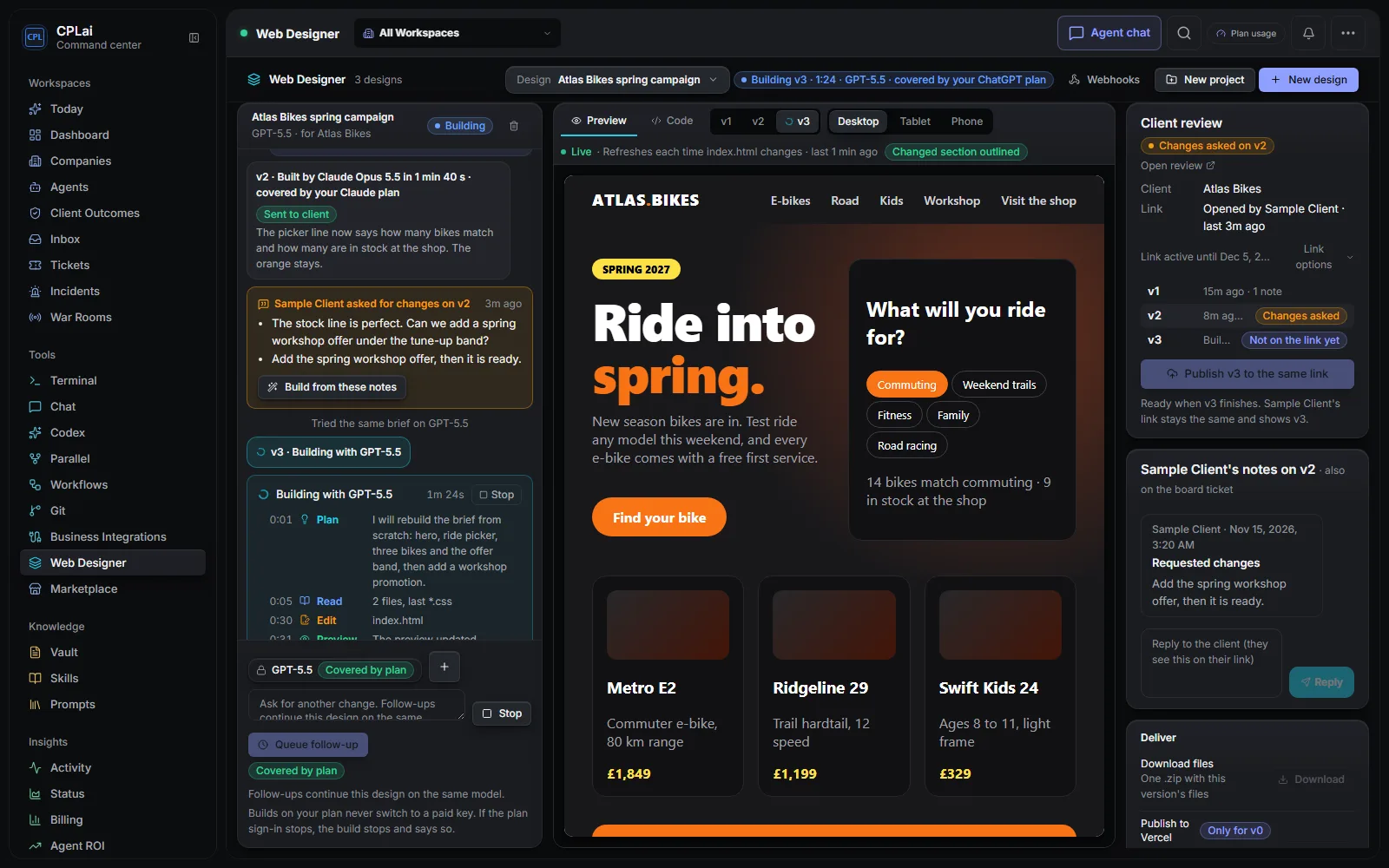
How the page is laid out
The page picks its layout from the room it has, not from the window size, so opening the sidebar or the agent chat dock can change it.
- Wide (about 2,700 px of page and up): five columns: Designs, the design chat with its build stream, the live preview, the code, and Client review and Deliver.
- Three columns (from about 1,200 px): the chat, the preview and Client review and Deliver. The designs list moves into the Design switcher in the page header, and the code moves behind a Preview / Code switch above the preview.
- Tablet (from about 900 px, such as an iPad in landscape): the chat and the preview sit side by side, with Client review and Deliver under the chat. The designs list and the code fold away as in the three-column layout.
- Stacked (narrower, such as a phone): the panels stack in one column and the page scrolls.
The main actions stay in view at every width: New design in the page header, Send in the chat box, and Send to client for review (or Publish vN to the same link) at the top of the right column.
Designer works for the owner of the installation, in the desktop app or signed in to the web dashboard. Other users, agents and paired fleet machines cannot start builds, send versions to a client or delete designs.
Choose a model
The model picker in the chat box lists every model you can run. Type in Search N models you can use to find one, or use the chips (All, Covered by a plan, Charged per build, On your machines) to show one group. The groups are:
| Group | Chip on each model | What it means |
|---|---|---|
| On your plans | Covered | Covered by a subscription you already pay for, with no charge per build: Claude through Claude Code, GPT through Codex, Gemini through Antigravity, and open models on an Ollama Cloud plan. The first model of each plan also shows how much of the plan is used, such as Covered · plan 41% used. |
| Charged per build | $3 / $15 per M, About $0.09 a build, Charged per build or v0 account | Paid from an API key or account, such as OpenRouter or v0. An OpenRouter model shows OpenRouter's own price per million input and output tokens; hold the pointer on it to read both in words. A model with no stated price shows an estimate from your recent builds on it, or Charged per build if you have not built with it yet. |
| On your machines | Free · local | Local models on an Ollama or vLLM server you have turned on in Settings. No charge, but slower on big pages. Each row shows the memory fit check, such as "fits in memory" or, in amber, "won't fit now". |
- The order within each group follows the WebDev Arena board, the front-end design ranking arena.ai publishes. CPLai reads it once a day, and again when you choose Read again in Settings -> Models, and keeps the last copy it read. The line at the bottom of the picker names the date of that copy, for example "The order within each group follows the WebDev Arena board (Nov 18)." Until CPLai has read the board once, it uses a copy built into the app from Nov 11 and says so. Reading it sends nothing about you or your work: CPLai only asks for the published board. Offline, or while a company is in Local Only with "Ask a cloud model" off, CPLai does not read it and keeps the last copy.
- Each model says where it runs and its place on that board, such as "OpenRouter key · #3 on WebDev Arena". In Charged per build, the top 50 ranked models that OpenRouter offers you come first, in board order; every other OpenRouter model is found by search. A ranked model OpenRouter does not offer is left out. The v0 models follow, with a small v0 badge.
- Providers that are not set up are hidden. The line at the bottom names them, for example "Not shown: Google AI plan (not signed in)", and Add more providers in Settings, Integrations opens the API keys in Settings.
- A new design starts on the Default model set in Settings -> Models. Left on Automatic, it starts on the first provider you have set up (plan sign-ins first, then API keys, then local models) and that provider's first model in CPLai's built-in order, the WebDev Arena board as of Nov 11. A new copy of the board never changes it, so the default does not move to another model by itself; it changes only when the providers you have set up, or the models they offer, change. The setting shows which model it is right now. Either way, the charge shows in the chat box before your first send.
- If your Default model cannot run right now, the picker shows an amber Default unavailable chip, and the menu says which model stands in and how it is billed, for example "Your default model, Claude Opus 5.5, cannot run right now, so GLM 5.2 is used instead (charged to your OpenRouter key)." Choose Use Automatic in Settings to stop using your pick.
- The chosen model shows on the picker button with a short billing chip: green Covered by plan, amber About $0.05 or v0 account for charged builds, and Free · local. A model you chose earlier that can no longer run shows Not available now. A version built on a model CPLai cannot tell the billing of, such as an OpenCode model from a provider other than OpenRouter or Ollama Cloud, shows a plain Billing unknown, never a charge.
- The page header says what the design is doing and how it is billed, such as "Building v3 · 1:12 · GPT-5.5 · covered by your ChatGPT plan" or "Ready · v2 · Claude Opus 5.5 · covered by your Claude plan".
- Follow-ups keep the design's model, so once a design has a version the picker is replaced by a locked chip with that version's model and billing. To build the same brief on a different model, use Try the same brief on another model.
- A build on a plan never switches to a paid key. If the plan sign-in stops working, the build stops and says so; sign in again and send the message again.
- v0 reports billing for your whole v0 account, not per message, so a v0 build says charged to your v0 account and shows no amount.
v0 needs its own API key: open Settings > Integrations, add the v0 API key, and refresh the page. The web page sends v0 requests through the CPLai service, so the browser never needs the stored key.
Create a design
- Choose New design in the page header.
- Describe the page in the chat box: what it is for, the sections it needs, how it should behave on a phone, and the look you want.
- Optionally attach reference images.
- Pick a model.
- Choose Send and watch the build.
Do not put passwords, keys or customer data in the brief or the reference images.
To delete a design, choose the bin icon next to its title (Delete this design) and confirm.
Start from existing code
A design can start from a page you already have. Its files become the design's first version, v1, and any model, v0 included, continues from them with follow-ups, like a version it built itself.
- Desktop: on a new design, under Deliver, choose Import next to Start from existing code ("A folder or .zip becomes v1, or paste code"), then Choose a folder or Choose a .zip. Reading a folder skips build and tool folders such as
node_modules,.git,.next,distandbuild. - Web: choose Import a .zip on the start view, or next to New design in the designs overview. The web app takes a .zip; to bring in a folder, zip it first.
After the import, the thread shows v1 · Imported with the design's title and the number of files. Pick a model in the chat box and say what to change. A command-line model continues on a new track with your message; v0 opens a v0 chat with the files, then builds your message.
If the imported code has an index.html at its top level, the preview shows it right away. A source tree without one, such as a React or Next.js project, has nothing to preview: the preview pane says so, and the files are under Code.
A .zip can be up to 50 MB, and up to 100 MB and 5,000 files unpacked, with no single file over 20 MB. CPLai refuses an import with paths that lead outside it, a .git folder, links, or a file name longer than 255 bytes. A refused import leaves no empty design behind.
You can still paste code instead: on desktop, paste it under Or paste code into the brief in the same dialog and choose Use in the brief. Pasted code goes into the brief in the chat box, so review it there before you send.
Review imported files before you send a follow-up: the model works on them as they are. Publish to Vercel is not available on an imported design; send it to the client, or download it and host it yourself.
When there is nothing yet
A company with no designs yet shows No designs yet with a reminder of what to put in the brief. If no model is set up at all, the page shows Set up a model to build with and an Open Settings button instead.
How a build runs
- Every model except v0 writes the page as one self-contained
index.htmlin the design's own folder on the machine that runs the CPLai service. The live preview refreshes each time the page file changes (the preview header shows Live with "Refreshes each time index.html changes" and how long ago it last did), and the section that was just edited gets a green Changed outline, with Changed section outlined in the header. The code panel shows the page as it is being written (Written live by the model), with the new lines marked. - v0 builds React files through the v0 API. v0 reports status lines while it works and sends the page when it is finished, so its preview appears at the end. A v0 build that shows no preview until the end is working normally.
The build stream in the chat follows the work. Its heading says Building with the model, then Built with, The build on the model failed, or You stopped the build on the model, with the time taken. Each step shows the time since the build started and is labelled Read (a run of reads folds into one line, such as "3 files, last index.html"), Plan, Edit (with the file name and the lines added and removed, when the model reports them), Preview ("The preview updated") or Problem.
Each finished version then stays in the chat as one card, such as "v2 · Built by Claude Opus 5.5 in 1 min 40 s · covered by your Claude plan", marked Sent to client once it is on the client's link.
The chat box says Each send is one build. While a build runs, Stop (on every model except v0) ends it, and Queue follow-up holds your next message and sends it when the build finishes; the queued message shows above the chat box until then, and you can remove it. A stopped or failed build still keeps what it wrote as its version, earlier versions are never touched, and the design takes your next follow-up right away.
What a build reads
What a build reads depends on what is selected when you start the design:
- A company and a project. Every build of the design, including follow-ups and Try the same brief on another model, first reads the project, so the page fits what the project is. It reads the project as last committed: a fresh copy of the files the project's git repository tracks, made for that build and deleted when the build ends. Work you have not committed is not in the copy.
- All companies, or a company with no project. A build reads only your brief, as before.
The chat header says which: Builds read the project , read-only, as last committed, or Builds read only your brief. v0 builds never read the project.
The project is read-only for a build because the build is given a copy: the project's folder itself is never handed to it. Committed files are sent to the build's model, including any secret committed by mistake inside an ordinary file. Some files are never copied:
- files the repository does not track, such as
.env, installed packages and build output; - files whose names mark them as secrets, even when the repository tracks them (
.envfiles, keys and certificates, credentials and secrets files, SSH and cloud tool folders); - files over 1 MB. For a project with more than 3,000 files or 20 MB, the copy holds only its README, docs and package manifests, and the build is told so.
If the project has no folder on this computer, or its folder is not a git repository, the header says so and builds read only your brief. If the copy cannot be made for a build, that build fails and says why; it never quietly builds from the brief alone.
Ask for changes
Send a follow-up in the same chat, such as "make the pricing table stack on a phone" or "use a darker header". Each follow-up continues the same design on the same model and produces the next version: v1, v2, v3 and so on. You only need to describe the change:
- A Claude model picks up its earlier conversation about the design.
- A v0 design continues its chat on v0.
- Every other model starts a fresh run in the same folder, with your brief and the current page in place. It does not see the earlier conversation, but it works on the current files, so nothing built so far is lost.
Versions
The version switch above the preview lists every version of the design (v1, v2, v3), with a spinner on the one that is building. Point at a version to see its model and state (Building, Ready, Failed or Stopped), and which try it belongs to when there is more than one. Choose a version to preview it; the latest stays the current version.
Try the same brief on another model
A finished version offers the Try the same brief on another model card. Pick a model and choose Build it with that model: the brief builds again from the start as a separate try, from your original brief only, not from another try's files. The chat marks the start of the new try with "Tried the same brief on" the model. It becomes its own version, so you can switch between the tries in the version switch and compare. Version numbers run across all tries (v1, v2, v3...), and follow-ups on a try continue on that try's model.
Where designs are kept
Each design has its own folder under the CPLai data folder on the machine that runs the CPLai service; the setting web_designer_storage_root moves where new designs go, and existing designs keep their folder. Every version is saved as a git commit in that folder, and each try on another model is its own git branch, so you can also compare any two versions with git.
Preview and code
- Preview shows the page at Desktop, Tablet and Phone widths.
- Code has two tabs. This version's changes shows what the selected version changed, with a summary such as "3 files changed, +40 -12" (the first version of a try says First version on this track.). Files shows every file. A design built by any model except v0 is one
index.htmlthat you can host as it is. A v0 design is several React files, which need a build step before you can host them yourself. At three columns the code sits behind the Preview / Code switch.
A v0 design can occasionally be impossible to show in the local preview. In that case, read the code and use v0's own demo link (Demo) when one is offered.
Send a design to your client
Designer uses Client Reviews to put a version in front of your client on a private link, with no login for them.
A design built with a project selected may show what the model learned from the project: names, features and text from its files. Look at the version before you send it.
- Open the design. The Send to client for review card is at the top of the right column.
- Check Title the client sees and Client, which are filled in from the design.
- Choose Send to client for review. The first time, CPLai creates the client review in Client Outcomes with a ticket on the board, publishes the current version to the review's link, and creates the link. The link text is shown once: copy it and send it to your client through a channel you trust.
On desktop the card also says whether your public dashboard address is set, because the link only works outside your network when it is (Settings > Integrations > Remote Access).
When the client asks for changes, build the next version and choose Publish vN to the same link. The client's link never changes, and their earlier rounds stay under Previous rounds on their page. Publishing is always a separate click: a finished build never goes to the client on its own, and the version list marks a new version Not on the link yet until you publish it.
The right column then shows the review status; the client link in one row (Link active until a date, with Link options to extend, replace or revoke it); every version on the link with the client's decision on it; and the client's notes with a reply box. Client feedback also arrives in the design chat as one card, such as "client name asked for changes on v2", placed in the conversation where it came in, with the notes and a Build from these notes button that puts them in the chat box for your next build.
Designs in the From the v0 page group are kept as they were and cannot be sent. A design made on this page can be sent whichever model built it, v0 included.
What the client's browser loads
- A page built by any model except v0 is hosted as its own files.
- A v0 version is sent as one page that loads React, Tailwind and Babel from public CDNs (unpkg.com and cdn.tailwindcss.com). The client's browser must be able to reach both. If the client's network blocks them, publish the design to Vercel and add the deployment to the review as a URL version instead.
Designs list
The Designs list (in the Design switcher at narrower widths) holds every design in the company, in three groups:
- With a client: designs that have a client review.
- Not sent yet: designs that have never been sent.
- From the v0 page: designs made on the v0 page, kept as they were.
The v0 projects you made on the old v0 page are kept too. v0 projects in the page header opens them, where you can start a new one or choose Sync from v0.dev to bring in the projects and designs you made on v0.dev. A sync adds and refreshes; it never deletes. A design that comes back without files keeps the files it had, and a build that is running is left alone. Synced designs are listed under From the v0 page. One sync brings in up to 50 projects and 200 designs, and its message says how many are left for the next sync.
The chips above the list (All, With a client, Not sent, From v0) show one group at a time. Each row shows its client review status (Changes asked, Approved, In review, Rejected, Closed or Draft) and the number of unread client notes, such as 2 notes. Designer says Changes asked where the Client Reviews page says Changes requested; they mean the same.
Deliver
Deliver, at the bottom of the right column, holds the actions that take a design out of CPLai.
Download files
Every design can be downloaded, whichever model built it.
- Desktop saves the selected version's files to a folder you pick.
- Web downloads the selected version's files as one .zip.
Review downloaded code before adding it to a repository. A generated page may assume libraries, fonts or styles that your project does not use.
Publish to Vercel (v0 only)
On a v0 design, choose Publish to Vercel to request a shareable deployment. CPLai stores the returned deployment address. v0's demo link and a Vercel deployment are different links and can expire at different times.
Which actions are v0 only
Some actions work through v0's own services, so they are only available on a design built by v0. They are marked Only for v0. On a design built by another model they stay visible but disabled, with the reason: "Built by Claude, so not available. Send to client, or download and host it." under Publish to Vercel (on an imported design, "Imported code, so not available"), and "Only v0 designs have a v0 chat" under Open on v0.app.
| Action | Any model | v0 only |
|---|---|---|
| Build, follow-ups, versions | Yes | |
| Try the same brief on another model | Yes | |
| Live preview while the build runs | Yes (every model except v0) | |
| Download files | Yes | |
| Send to client | Yes | |
| Start from existing code (Import) | Yes | |
| Publish to Vercel | Yes | |
| Open on v0.app | Yes | |
| Demo link | Yes | |
| Webhooks | Yes |
Open on v0.app opens the design's chat on v0.app.
Webhooks (v0 only)
Webhooks in the page header opens the manager for v0 webhooks, on desktop and web. Treat webhook addresses and signing values as credentials, and check that deliveries arrive before you rely on them.
v0 on other CPLai pages
- Desktop Chat can offer the
generate_uitool when v0 is set up. Web Chat does not offer this tool. - Desktop Parallel can include v0 racers for UI-heavy races. The web race launcher has no v0 racers. See Parallel Agent Racing.
- Desktop Projects can show v0 designs linked to the project.
Differences between desktop and web
The desktop and web pages share one layout, the same model picker, and the same words for a design's state. Desktop saves downloads to a folder you pick and imports a folder or a .zip; web downloads and imports a .zip. Both apps build, preview and send through the CPLai service, so they list the same designs.
Troubleshooting
The model picker is empty or a model is missing
The provider is not set up. With no provider at all, the picker button says No model set up and the picker says "No provider is set up yet. Add one in Settings, Integrations to start building." Otherwise the line at the bottom of the picker names what is hidden; open Settings from it and add the key or sign in. A local model also needs its server turned on and the model downloaded.
A plan build stopped
The plan sign-in stopped working. Sign in again (Claude Code, Codex or Antigravity), then resend the message. CPLai never moves a plan build to a paid key on its own.
The preview is not updating
A build by any model except v0 refreshes the preview each time it saves the page. If nothing changes for a long time, read the build stream for an error. A v0 build shows its preview only when it is finished.
API key required (v0)
Add the v0 key under Settings > Integrations and reload Designer. Check that the key belongs to a v0 account with usage available.
The client sees a blank page
For a v0 version, the client's network may block unpkg.com or cdn.tailwindcss.com. Publish to Vercel and add the deployment as a URL version. For other versions, open the link yourself in a private window to check it.
Publish to Vercel fails
Read the error shown, then check the v0 and Vercel account permissions and that the design has a finished version.