Inbox
Last reviewed October 28, 2026 (checked against the app).
A focused triage surface for your active and blocked work - keyboard-driven, company-aware, and built to keep you moving.
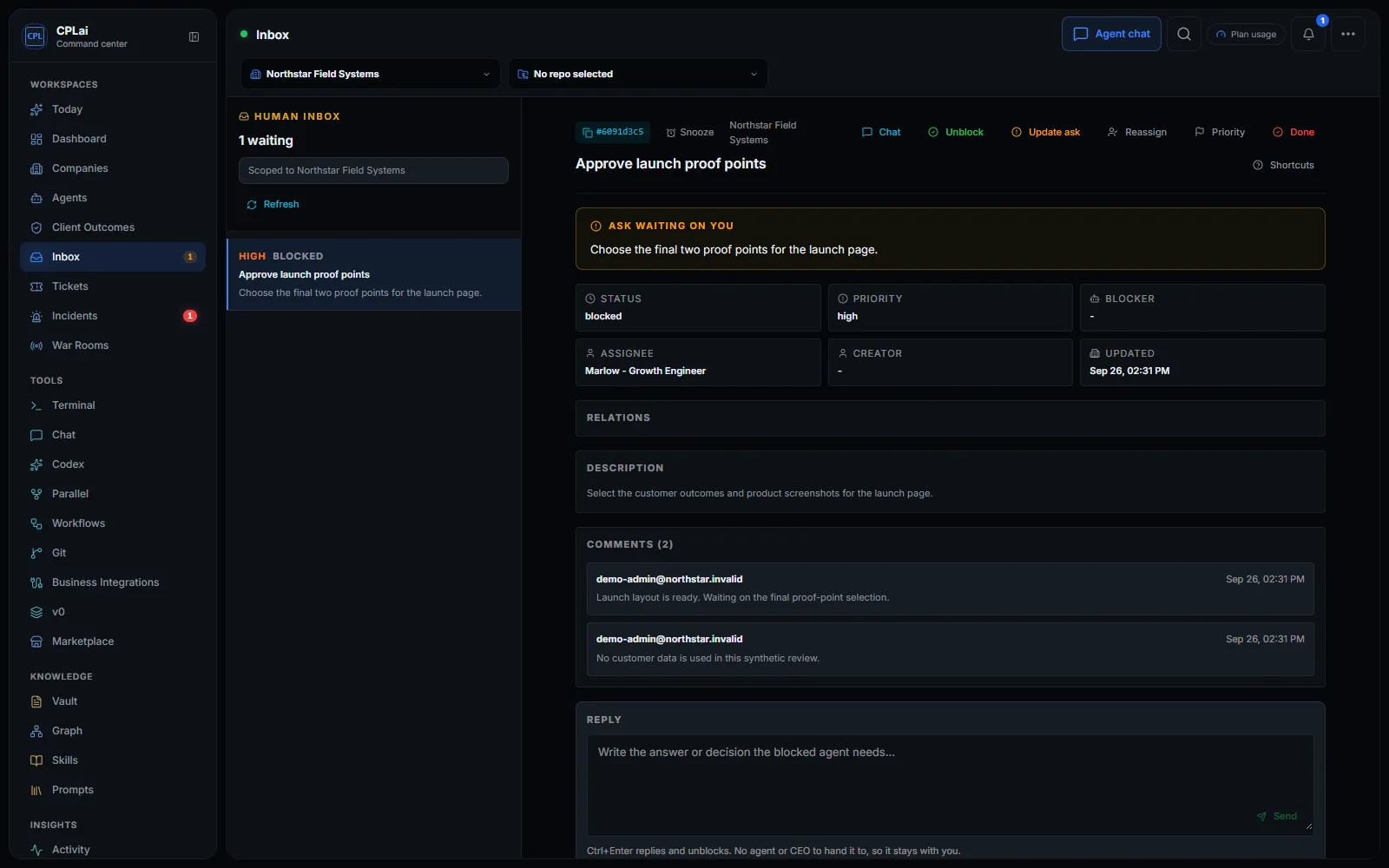
What is the Inbox?
The Inbox is a focused page for processing tickets that need your attention right now. At wider widths it uses a list-and-detail layout; compact web widths switch to one pane at a time. It adds the ticket's ask, comments, agent context, reply-and-auto-unblock behavior, and fast triage actions without sending you to the full Ticket Board.
The Inbox is different from the full Ticket Board. The board is for scanning all company work across every status. The Inbox is specifically for triage: answering agents, unblocking stalled work, and advancing tickets without leaving the page.
How do I open the Inbox?
Click the Inbox icon in the left sidebar. An amber badge shows the count of pending tickets in your triage queue. Zero means there is nothing waiting.
You can also click a ticket in the Pending approvals panel on the Dashboard - it opens the Inbox with that ticket pre-selected. The My Tickets list on the Companies page is different: its rows open the ticket itself (a ticket detail window on desktop, the Tickets page on web), and its all tickets / View all tickets link opens the Inbox.
Pending attended-session and one-time approval requests appear in the Exception Inbox at the top of the page. The card is hidden when there are none.
What tickets appear in My Tickets?
My Tickets uses the same actionable predicate in the desktop and web Inbox:
- Any ticket with status
blocked - Any
todoorin_progressticket explicitly assigned to the human sentinel (assignee_agent_id = "__user__")
Tickets with status done, cancelled, backlog, or in_review are excluded, even when they are assigned to you. in_review is agent peer review, so it never reaches the human Inbox. An agent-owned in_progress ticket does not appear merely because work is active.
How does the layout work?
The layouts preserve the same ticket workflow while adapting to the available space:
| Surface | Layout |
|---|---|
| Desktop app | Split pane with the ticket queue on the left and selected-ticket detail on the right |
| Web above 1100px | Split pane with company/team filters, grouped ticket list, and detail/reply pane |
| Web at 1100px or below | Single-pane flow: list, detail, then reply; Back and Reply controls move between panels |
| Web at 860px or below | Touch-first single-pane flow with visible action buttons and bare-key shortcuts disabled |
How do I navigate between tickets?
Use the keyboard or click any row in the list. Web keyboard triage is available above 860px:
| Key | Action |
|---|---|
j or ↓ |
Next ticket |
k or ↑ |
Previous ticket |
Enter or i |
Focus the reply box |
Esc |
Leave reply box, return to list navigation |
? |
Toggle keyboard shortcut reference |
x |
Leave Inbox and return to Companies |
Selection automatically advances in display order when the active list shifts - for example after you unblock or mark done. Navigation stays within the current company and project until it is emptied, then rolls to the next group.
How do I track unread tickets or snooze one?
Opening a ticket marks it read on the current device or browser. A ticket is unread when you have not opened it or it has changed since you last viewed it.
On desktop and web, open a ticket and choose Snooze, then select For 1 hour, For 4 hours, Until tomorrow 9:00, or Until next Monday 9:00. The morning times use your local clock.
Snoozed tickets leave the active list until their snooze expires. Expand Snoozed to see them and use Unsnooze to return one early. Snoozing changes your local Inbox view; it does not change ticket status, assignment, or the agent's schedule. Read and snooze preferences do not sync between devices or browser profiles.
Tip: Use Snooze for a decision you want to revisit later. Use a reply or ticket status change when you want to move the work forward.
What is the Ask Panel?
The Ask Panel appears at the top of each ticket detail. It shows a summary of what the agent is waiting for, drawn from one of three sources:
| Source | Display | How it was set |
|---|---|---|
ask_for_human |
Amber border, bold text | The agent wrote this explicitly when blocking the ticket |
| AI extraction | Indigo border, Sparkles badge, "AI summary" label | CPLai used Haiku to extract the blocking question from the description and recent comments |
| No ask found | Dim text, informational | Either extraction was attempted and found nothing specific, or no API key is set |
The desktop app can run AI extraction the first time it opens a blocked ticket without an agent-written ask. The result is cached on the ticket. The web Inbox displays an existing ask_extracted value but does not start extraction itself.
How do I reply to a ticket?
- Select the ticket in the left list.
- Click in the reply box, or press
Enterorito focus it. - Type your reply.
- Press
Ctrl+Enteror click Send to submit.
Hand-back behavior: A reply always takes an Inbox ticket off your plate, whether it is blocked or simply assigned to you. CPLai sets it to todo and hands it to:
- the agent that blocked it, if that agent runs on its own;
- otherwise the agent that created it, if that agent runs on its own;
- otherwise the company's CEO, who decides who it goes to or closes it. A short note on the ticket tells the CEO why it arrived.
"Runs on its own" means the agent is enabled and is autonomous or on a schedule. Console identities from your terminal sessions, Merge Desks and other interactive agents never qualify, so a ticket they raised goes to the CEO. A paused agent still counts: it picks the ticket up when it resumes. If the company has no CEO either, a blocked ticket is unblocked and stays with you, and a reply to an unblocked one is only a comment. The hint under the reply box names who the ticket will go to before you send, and the Inbox advances to the next ticket after sending.
A 5-second undo toast appears after a hand-back. Undo restores only the ticket's prior status, assignee, and blocker routing. The reply remains in comments, so newer ticket content cannot be overwritten by the undo. On desktop, Undo also deletes the CEO note; on the web, it posts a short note saying the hand-back was undone.
How do other ticket actions work from the Inbox?
Beyond sending a reply, every common action is available as a visible button in the web detail header. Above 860px, the same actions also have keyboard shortcuts:
| Key | Action |
|---|---|
u |
Unblock without a comment - marks the ticket todo, hands it off the same way a reply does, and advances |
d |
Mark the ticket done - moves it out of the active list |
b |
Block again - prompts for a new ask before re-blocking |
r |
Open the reassign picker - choose a different agent |
p |
Cycle the priority through low, medium, high, critical |
Chat opens the app-wide agent chat dock for the most relevant agent on the ticket. Reassign only lists agents in the ticket's company and compatible project scope. On mobile web, use these visible buttons because bare-key shortcuts are intentionally disabled.
How do I handle an Exception Inbox request?
The Exception Inbox checks for pending requests about once a minute. Each request has its own card showing the agent, company, action type, blast radius when provided, expiry countdown, and request summary.
Long summaries collapse to three lines. Choose View full request for an attended-session request or View exact payload for a one-time action. The expanded payload stays inside a scrollable region, and the request list has its own height limit, so one large consent payload cannot hide the rest of your Inbox.
An attended-session request is a short window for authentication, browser interaction, restart verification, testing, or another task that needs you present. You work it together with the agent, in a session you can type into:
- Open chat opens the agent's chat with the request as your first message. The agent starts on it and asks you there when it needs something (sign in, click, approve, watch a restart). Answer it in the chat, and it carries on.
- Open terminal opens a Terminal tab running the agent's own Claude Code, Codex, OpenCode or Antigravity screen, already working on the request. Type to it like any terminal tab. It runs as the agent (its folder, its credentials and its model) and keeps running if you close the tab, so you can pick it up later from the web dashboard or another device.
- Decline closes the request without opening anything.
Both work for every agent, including agents on local models (Ollama or vLLM): a local agent works through Codex against your model server, or OpenCode when the server cannot run Codex, so it can run commands and edit files with you.
Each request opens once. If another session already opened it, CPLai tells you instead of opening a second one. If the agent is in the middle of a run, CPLai asks you to wait for it to finish and keeps the request. If the session cannot start (for example, the agent's folder is missing or the local model server is down), the request stays approved and you can open it again once that is fixed. An approved request you have not opened yet (including one approved from its review card in the chat dock) stays in the Exception Inbox, marked approved, with Open chat and Open terminal until it expires.
Other Exception Inbox cards request one exact, time-boxed action:
- Approve once authorizes only the displayed payload.
- Decline denies that request.
Review View exact payload before approving. Approval does not create an open-ended permission for later actions.
How does Workspace scope work?
The Inbox follows the app-wide Workspace selector. It deliberately ignores the global Repo selector because the Inbox is a human-action queue across every project in the selected workspace.
- A selected Workspace locks the Inbox to that company and shows Scoped to workspace name. Tickets remain grouped by project, but a remembered Repo selection does not narrow them.
- All Workspaces shows the combined queue. When more than one company has tickets, a company dropdown appears for optional narrowing.
- Team filter narrows the current workspace or company selection when the visible queue spans more than one team.
In the all-workspaces view:
- All companies (default) - shows tickets grouped by company, then by project within each company. Project sections with 5 or fewer tickets expand automatically; larger project sections start collapsed. Project subheaders make the codebase boundary visible inside each company.
- Single company - priority-sorted list with project subheaders within the selected company.
The company dropdown is hidden when the Workspace selector already provides the company boundary or when only one company has Inbox tickets.
What do the row icons mean?
Each ticket row in the left list may show one of two status glyphs:
| Glyph | Meaning |
|---|---|
⚠ |
Ticket is blocked but has no ask - neither agent-written nor AI-extracted |
✦ (indigo) |
Ticket has an AI-extracted ask |
Tickets with an agent-written ask_for_human show no glyph - they are the normal case.
How does the ticket detail show which agent is involved?
The Inbox picks the most relevant agent using this priority order:
| Priority | Label | When shown |
|---|---|---|
| 1st | Blocker | An agent blocked the ticket and is waiting for you |
| 2nd | Working on | An agent has the ticket checked out right now |
| 3rd | Assignee | An agent is assigned but not actively checked out |
| 4th | Created by | The agent that originally created the ticket |
The desktop detail renders agent chips. The web detail shows blocker, current worker, assignee, and creator metadata, then exposes a Chat button that opens the app-wide chat dock with the relevant agent selected.
How does Done today work?
The desktop Inbox keeps tickets completed during the current session in a collapsible Done today section. The web Inbox removes completed tickets from the actionable queue immediately and advances to the next visible ticket.