Skills & Prompt Library
Last reviewed November 15, 2026 (checked against the app).
Extend AI capabilities with knowledge plugins and reusable prompt templates.
Part 1: Skills System
What are Skills?
Skills are knowledge plugins - markdown files that give AI specialized expertise on demand. Instead of the AI knowing a little about everything, skills let it load deep knowledge about specific topics when needed. CPLai ships with a library of built-in skills, and you can add your own, covering everything from API development to SEO optimization.
Think of skills as expert consultants the AI can call in when it needs them.
How do skills work?
- You configure skill directories in Settings (folders containing
.mdskill files) - CPLai scans those directories and imports skills into the local skills database
- A compact index of enabled skills (name + description) is injected into tool-capable AI prompts
- When the AI encounters a task that matches a skill, it calls
load_skill("skill-name")to load the full content - The skill content informs the AI's response with specialized knowledge
The AI decides when to use skills on its own. You don't need to manually invoke them.
Codex lists CPL skills individually while their descriptions fit its startup budget and uses one searchable library index when they exceed it.
How do I add skills?
Import from Directories
- Open Settings > Developer tools in the desktop app
- Find the Skills card
- Click Add Directory and select a folder containing
.mdskill files - Click Refresh Skills to import
- Skills appear on the Skills page
You can also click Directory on the desktop Skills page to add a folder. It imports the folder's skills right away.
Tip: If you use Claude Code, your existing skills at
~/.claude/skills/are compatible. Just add that directory.
Skill File Format
Skills are markdown files with optional YAML frontmatter:
---
name: my-skill
description: Expert guide for building REST APIs with Express.js
category: backend
tags: [api, express, node]
activation: ai-decided
---

# Express API Development

[Skill content - detailed knowledge, patterns, examples...]
Skills without frontmatter use the filename as the name and the first line as the description.
Skills Browser Page
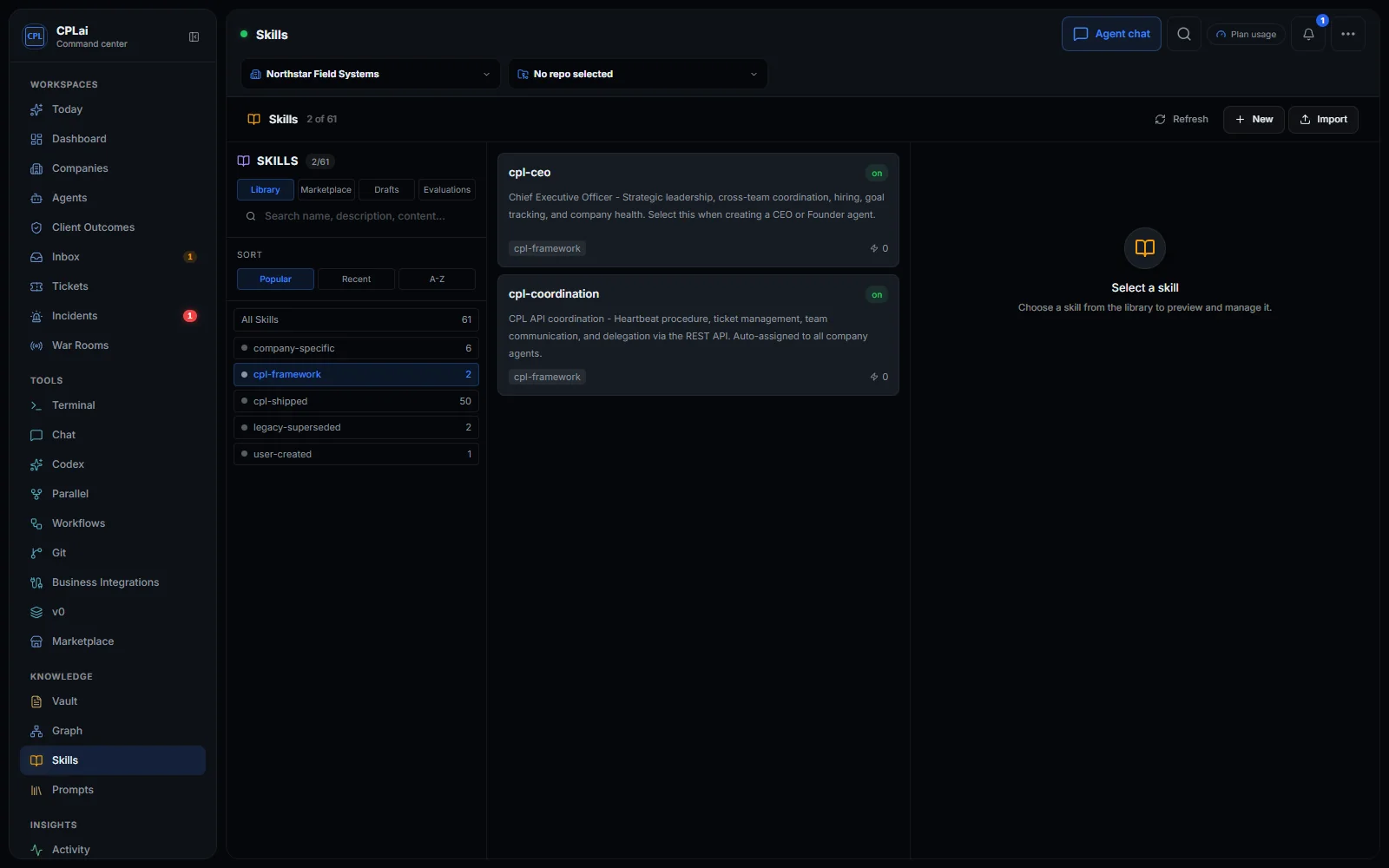
The Skills page provides a dedicated browser for managing your skills:
- Full-text search - Search names, descriptions, tags, categories, and skill content
- Category filters - Select one or more categories from the sidebar
- Sort modes - Sort by Popular, Recent, or A-Z
- Skill cards - See category, activation mode, enabled state, and load count
- Preview pane - Click any skill to read its rendered markdown body
- Load in Chat - Start a new chat with the skill loaded as context
- Edit and delete - Update skill metadata and body, or delete the skill along with its saved versions, evals and edit proposals. Only the instance owner can delete, in the desktop app or the web dashboard
- Import and export - Share skills through
.mdfiles or portable.skill.jsonfiles - Marketplace tab - Browse portable local skills and bundled toolbox starters by type, category, and search terms
How do I use the Skills Marketplace?
Open Skills and choose the Marketplace tab. This local plugin catalog combines:
- every skill already in your skill library, with its category, tags, enabled source, load count, and Share action;
- bundled toolbox starters, including the PowerShell Repo Status Report and Node.js JSON Field Picker, with their runtime, source preview, and Download action.
Use All, Skills, or Tools to filter by type. Search matches names, descriptions, categories, types, source labels, and tags. Category filters can narrow the catalog further.
Share exports a selected skill as a portable .skill.json package. Download saves the selected toolbox starter as a script you can review before installing or running it.
Tip: The Skills Marketplace is not the sidebar Marketplace page. The Skills tab packages individual local skills and starter toolboxes. The Marketplace installs whole Company Packs from a registry, including agents, skills, teams, goals, and selected memories.
The Skills Marketplace currently uses the local catalog only. Remote discovery, ratings, and one-click community plugin installation are planned but are not available in this release.
How do I find a skill?
- Open the Skills page.
- Type in the search box to search across names, descriptions, tags, categories, and content.
- Select one or more categories if you want to narrow the results.
- Choose Popular, Recent, or A-Z to change the sort order.
- Click a skill card to open the preview pane.
Tip: Search supports multiple words. A skill must match every word you type, so add terms gradually when narrowing a large library.
How do I load a skill into Chat?
- Open the Skills page.
- Select the skill you want to use.
- Click Load in Chat.
In the desktop app, CPLai creates a new conversation named "Using [skill name]" and adds the skill body to the conversation's system context.
On the web dashboard, Load in Chat opens Chat with the skill body in the message draft, starting with [Using skill: name]. Nothing is sent until you add your request and send it.
How do I import a skill file?
- Open the Skills page.
- Click Import Skill (Import on the web dashboard, where only admins see it).
- Select a markdown skill file or a
.skill.jsonexport. - If a skill with the same name already exists, choose whether to replace it.
Markdown imports use frontmatter when present. JSON imports preserve metadata such as name, description, category, tags, globs, activation mode, enabled state, and content.
How do I export a skill?
- Open the Skills page.
- Select the skill you want to share or back up.
- Click Export.
- Save the portable
.skill.jsonfile when prompted.
On desktop, export also writes SKILL.md to your skill library folder so the skill can be reused by other local AI tooling. That is the skill library folder chosen during first-run setup, or skills under your Data Root when none was chosen.
Activation Modes
| Mode | Behavior |
|---|---|
| AI-decided | AI sees the skill description and decides when to load it (recommended) |
| Manual | Only loaded when you explicitly @mention the skill |
| Disabled | Hidden from the AI entirely |
Auto-Categorization
When importing skills, CPLai automatically assigns categories based on keyword matching in the skill name and description. Categories include: api, frontend, backend, database, devops, testing, mobile, ai, security, marketing, git, productivity, writing, media, desktop, and xr.
How do I create a new skill?
In the Desktop App - Skill Maker Wizard
- Open the Skills page
- Click Create
- Choose a mode:
- AI Interview - The AI asks you questions about what expertise the skill should contain, then generates it
- Manual - Write the skill yourself in the editor (name, category, description, tags, globs, activation, and body)
- Preview the skill content
- Save to disk. A new skill is written as
SKILL.mdin a folder named after the skill, inside the first skill directory listed in Settings > Developer tools > Skills. Editing an existing skill without renaming it writes back to its own file.
The Skill Maker uses Claude Sonnet for structured output quality and has access to web_search, read_file, and grep_search tools for research.
In the Web App - Quick Create Form
- Open the Skills page
- Click New (shown to admins only)
- Fill in the form:
- Name - Required; must be unique
- Description - Short summary of what the skill does
- Category - Determines the color badge (defaults to
general) - Tags - Comma-separated list for filtering
- Content - The full skill body in markdown; required
- Click Save
The skill is saved directly to the database and appears in the skills list immediately.
Manual Creation
Create a .md file in any of your configured skill directories with the frontmatter format shown above.
How do I edit an existing skill?
Select the skill, then click Edit in the preview pane. In the desktop app, the Skill Maker wizard loads the existing content and re-enters the editor step. Make changes and save.
On the web dashboard, Edit is shown to admins only and opens an Edit Skill form with the same fields as the quick create form.
Sync Behavior
- An edit to an existing skill's file reaches CPLai's library within about five minutes while the desktop app is open, and at its next start. Agents CPLai launches read the library, so they follow the same instructions as a terminal session, which reads the file. Only that case is automatic. New skill folders, deleted files, and skills changed both in CPLai and in the file wait for Refresh. A skill changed on both sides shows one notice.
- Content hash detects file changes
- Removed source files are cleaned up from the database on Refresh. A skill folder or file that exists but cannot be read, or a whole directory that cannot be reached (an unplugged drive), is left as it is and reported, never treated as deleted
- New files in configured directories are auto-imported on sync
- Imported portable skill files are stored as database records unless you also export them to disk
- Changes made in CPLai to a disk-backed skill (accepted proposals, auto-accepted edits, edits from the web dashboard or API) are written to its source file automatically: right away when you accept or roll back a proposal in the desktop app, otherwise within about a minute while the desktop app is open, or the next time it starts
- A source file is only rewritten when it has not also been edited on disk since the last sync, and only inside a configured skill directory
- If disk and database both changed, CPLai preserves the database version under
_cpl-salvage/and reports a conflict on Refresh instead of silently choosing one - Built-in skills (such as
cpl-coordinationandcpl-ceo) ship with CPLai; a file with the same name in a skill directory is ignored, never imported over them
Review the refresh result for imported, salvaged, and conflicted counts. A salvaged conflict is a recoverable copy for comparison; it is not automatically activated over the source skill.
Project knowledge skills
Each project has one knowledge skill, named after the project with -platform on the end (a project called SimDashboard gets simdashboard-platform). It holds the living notes on that codebase: stack, build and test, branches and deploy, conventions, gotchas, and security notes. Every agent on the project reads it.
- Created for you. CPLai creates it from a starter outline when you hire an engineer into the project, or the first time one of the project's agents asks for it. It is an ordinary skill: it shows on the Skills page, and CPLai writes it into each machine's own skill library folder, so terminals on that machine see it too.
- Kept current by the project's engineers. The project's own agents read and save it through CPLai, never by writing a file, so a save reaches every agent and terminal on every machine. Your own terminal sessions can save it too (they run as the company's Console), and so can company-wide agents on the company's leadership team, such as its CEO and COO. Both may save the knowledge skill of any project in their company. Agents from other projects in the company can read it but not change it. Agents from other companies can do neither.
- Every save is a version. The text before and after each save is kept in the skill's version history, where you can view and compare earlier versions (see Version history).
- Your own skill wins. If you already wrote a skill with that name (for example
cplai-platform, imported from your skill folder), CPLai uses it as the project's knowledge skill but leaves it in your hands. Agents read it and describe changes on a ticket instead of saving. - Older agents. Engineers hired before this existed may still have an instruction in their prompt to write the skill to a folder such as
D:/Example Vault/Skills. A platform-provided instruction in every engineer's prompt supersedes it.
Skill Evaluation
The Skill Evaluation harness lets you define test cases for any skill and run them to measure quality over time. Open the dedicated Skills page, choose Evaluations, select a skill, then use the Evals and Runs tabs.
Defining eval cases
- Select a skill and open the Evals tab.
- Click New eval.
- Fill in the eval fields:
- Question - The prompt or scenario to test against the skill
- Scorer kind - How the response is graded (see table below)
- Expected pattern - Required for Rule match and Composite scorers
- Rubric - Required for LLM judge and Composite scorers
- Weight - Relative importance of this eval case (1 to 10)
- Save the eval case.
| Scorer Kind | How It Works |
|---|---|
| Rule match | Tests the response against a pattern: regex, contains: keyword list, or json: key check |
| LLM judge | An AI model grades the response against your rubric on a 0-10 scale |
| Composite | Combines rule match (40%) and LLM judge (60%) for a blended score |
You can edit or delete eval cases at any time. The eval set is per-skill and persists across versions.
Running evals
- Open the Runs tab for the skill.
- Click Run eval to execute all eval cases against the current skill version.
- The run status shows as Running, Completed, or Failed.
- Expand a completed run to see per-case results: score, model response, and judge reasoning (for LLM-judged cases).
The total score is shown as a percentage of the maximum possible score. Historical runs are preserved so you can track how skill quality changes across versions.
Version history
The Content tab includes a version dropdown showing all saved versions of the skill. Select any version to view its content. Use the compare button to open a side-by-side diff between two versions.
Skill Edit Proposals
Agents can propose changes to skills through the proposal system. Instead of editing skills directly, an agent submits a proposal with the suggested new content and a rationale. A human reviewer then accepts, rejects, or requests changes.
Reviewing proposals
- Open the Skills page, choose Evaluations, and select a skill.
- Open the Proposals tab. A badge shows the count of pending proposals.
- Select a proposal from the list to see:
- Who proposed it (agent or user) and when
- The rationale for the change
- A unified diff showing exactly what changed
- Current eval scores and score delta (if evals have been run)
- Filter proposals by status: pending, under review, eval running, eval passed, eval failed, accepted, rejected, or archived.
Taking action on a proposal
- Run Eval - Execute the skill's eval harness against the proposed content to see if quality improves or regresses. The proposal status updates to eval_passed or eval_failed automatically.
- Accept - Apply the proposed content as the new skill version. An optional decision reason can be recorded. If the skill has changed since the proposal was created, a rebase conflict is shown with an option to copy the proposal to a new one based on the current version.
- Reject - Decline the proposal. A decision reason is required.
- Rollback - Revert an accepted proposal back to the previous version. A decision reason is required.
Tip: Only instance administrators and company owners or administrators can accept, reject, or roll back proposals. Non-admin users can view proposals and run evals.
How agents create proposals
Agents with the propose_skill_edit tool can submit proposals during chat or autonomous runs. The agent provides the proposed content, a rationale explaining the change, and an optional diff summary. The proposal enters the queue as "pending" and waits for human review.
Part 2: Prompt Library
What is the Prompt Library?
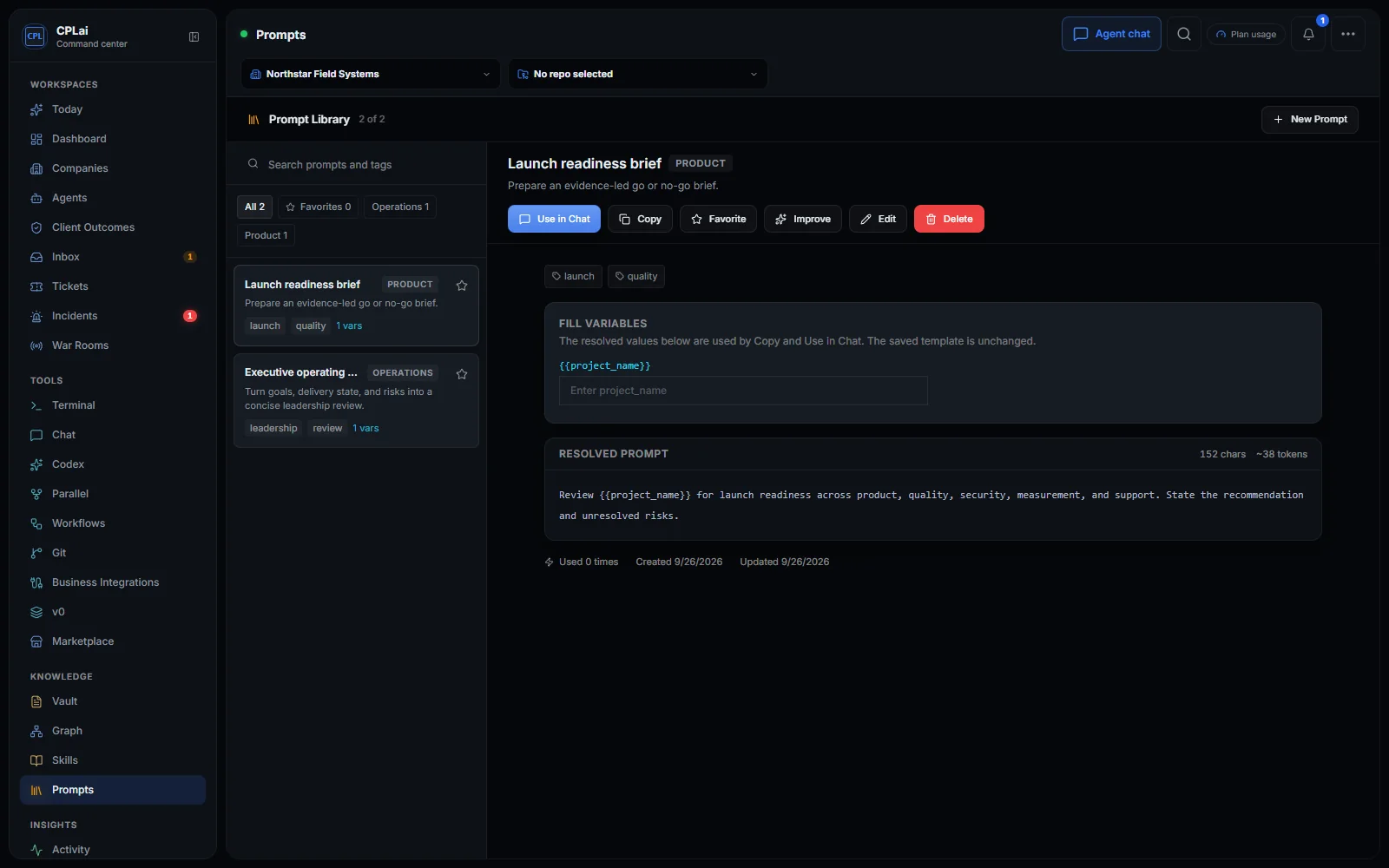
The Prompt Library is a collection of reusable prompt templates. Unlike skills (which are AI knowledge), prompts are ready-to-use messages you can fire off with one click. They support variables, categories, and favorites.
Keyboard shortcut: The Prompts page is accessible from the sidebar (Library icon).
Getting Started
CPLai comes with 20 starter prompts across 7 categories:
| Category | Examples |
|---|---|
| Coding | Code review, refactoring, debugging |
| Review | PR review, architecture review |
| Planning | Sprint planning, feature breakdown |
| Writing | Technical documentation, blog posts |
| Debugging | Error analysis, performance profiling |
| Creative | Brainstorming, naming |
| Research | Technology comparison, trend analysis |
How do I create a prompt?
- Navigate to the Prompts page
- Click New Prompt
- Fill in:
- Name - Short descriptive title
- Category - Select from available categories
- Tags - Optional tags for filtering
- Content - The prompt text (supports variables)
- Save
Variables
Prompts support {{variable}} placeholders that get filled in when you use the prompt:
Review the following code for {{language}} best practices:

{{code}}

Focus on: {{focus_areas}}
Desktop prompt detail detects variables and shows input fields so you can preview or copy a resolved version. The Chat slash picker inserts the template text into the input, where you can replace placeholders before sending.
How do I use a prompt?
From the Prompts Page
In the desktop app, select a prompt and click Use in Chat. CPLai creates a new conversation, increments the prompt usage count, and sends the saved prompt content.
In the web app, select a prompt and click Use in Chat. CPLai loads the prompt into the Chat draft without sending it automatically, so you can review variables or add context first.
From Any Chat Input (/ Slash Picker)
Type / in any chat input field (empty state or active chat). A picker appears showing:
- Commands - Built-in actions
- Skills - Available skills
- Prompts - Your prompt library
Select a prompt to insert it into the input.
Tip: If a prompt contains
{{variable}}placeholders, review and fill them before sending. Desktop prompt detail can show a resolved preview, and the Chat input lets you edit the inserted text before it is sent.
Favorites and Usage Tracking
- Star any prompt to mark it as a favorite
- Usage count increments when a prompt is used through supported Chat actions
- Prompts sorted by recency of use
Searching Prompts
- Category sidebar with counts per category
- Full-text search across name, description, content, and tags
Skill References in Prompts
When editing a prompt, you can type / or @ in the content textarea to insert skill references inline. This lets you create prompts that automatically invoke specific skills.
Custom Toolboxes (Script Extensions)
Beyond skills and prompts, CPLai supports toolboxes - custom scripts that become tools the AI can call.
How do I create a toolbox?
- Create a script file in
.cloudpeaklabs/toolboxes/. - Add header annotations:
// @tool analyze-logs
// @description Analyze application log files for errors and patterns
// @param logPath string "Path to the log file"
// @param severity string "Minimum severity level (info/warn/error)"
// @safe

const args = JSON.parse(process.env.TOOLBOX_ARGS);
// ... your script logic
- CPLai auto-discovers the script and adds it as
toolbox_analyze-logs
Supported Languages
| Extension | Runtime |
|---|---|
.js / .ts |
Node.js |
.py |
Python |
.ps1 |
PowerShell |
The @safe Flag
Add @safe to skip user approval when the AI calls this tool. Only use this for read-only operations.
Arguments
- Node.js/Python: Arguments passed via
TOOLBOX_ARGSenvironment variable (JSON string) - PowerShell: Arguments passed via
-ArgsJsonparameter