Parallel Agent Racing
Last reviewed November 15, 2026 (checked against the app).
Race 2-5 AI agents against each other on the same task, each working in complete isolation. Watch them work in real time, compare their output side by side, pick the winner, and apply its changes.
Racing exists because model output on the same prompt varies. Instead of betting on a single model and iterating on its answer, you run several in parallel and choose from finished attempts.
Where to find it: choose Parallel in the Tools section of the sidebar, or search for Parallel with Ctrl+K. On web, Parallel is visible to admins only.
How It Works
The core loop is simple:
- You write a prompt describing what you want built, fixed, or researched.
- You pick which AI agents to race (2-5 of them).
- CPLai creates isolated git worktrees - one per agent - so they each get their own copy of your repo.
- All agents execute in parallel, streaming events in real-time.
- You watch them work, compare results, and pick a winner (a metadata-only decision).
- When you explicitly apply the winner, its changes are copied into your repo and committed on the current branch, after a confirmation showing exactly what will change. Uncommitted work blocks the apply only when it could be harmed (see Step 11).
That is it. Every agent gets a fair shot. You pick the best output. No guessing which model would have done it better.
If you want several models to inspect evidence, critique one another, resolve disagreement, and return one answer without editing files, use Council instead. Racing produces separate attempts for you to compare; Council produces a deliberated synthesis and preserves dissent.
Step-by-Step: Running Your First Race
Step 1: Open the Parallel Racing Page
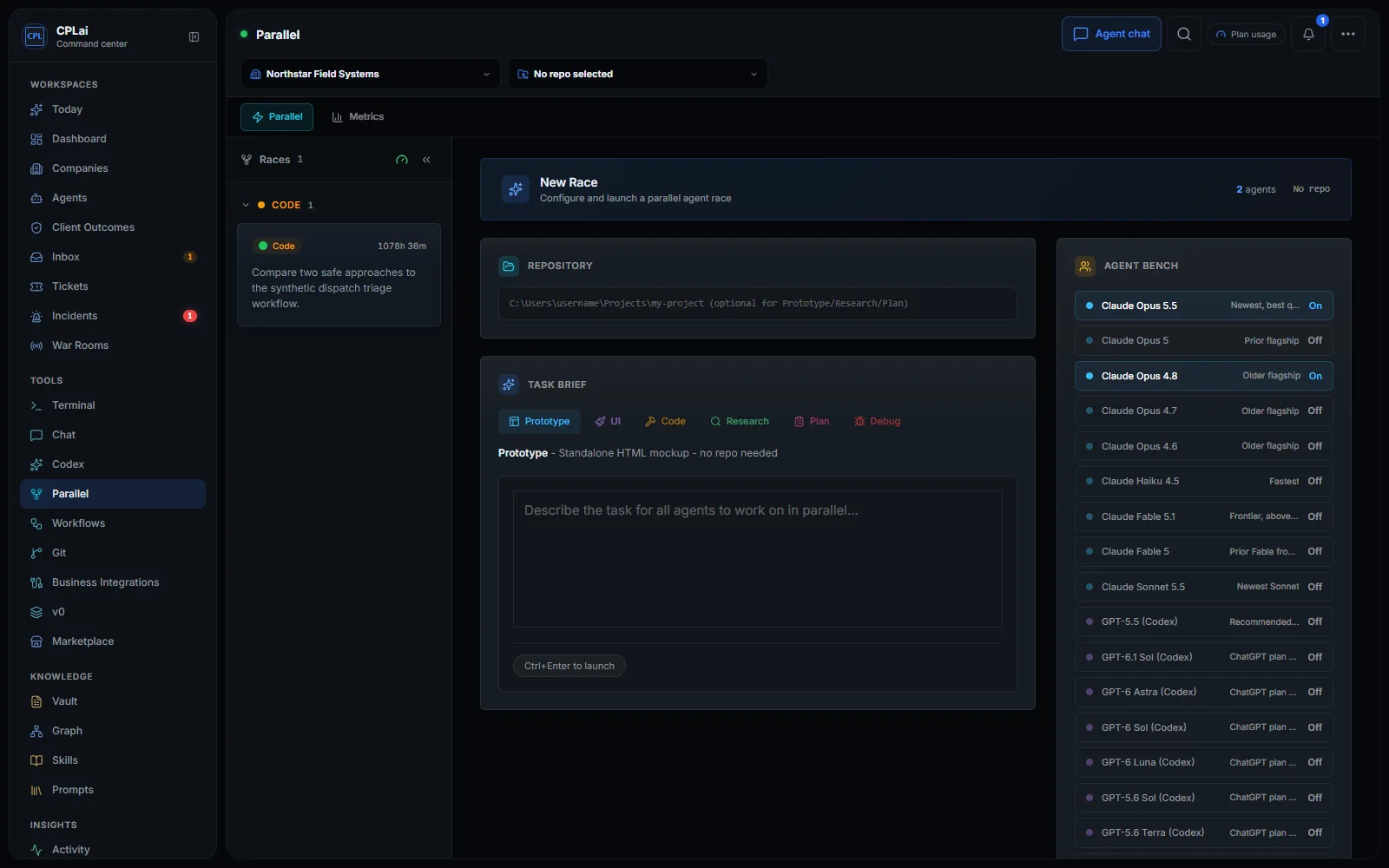
Choose Parallel in the Tools section of the sidebar. You will see the race configuration panel in the center and the race list on the left.
Note: These steps describe the desktop launcher. The web launcher has the same sections with these differences: you type the repository path instead of choosing a folder; images are picked from the device you are browsing on (PNG, JPEG, GIF or WebP, up to 8 images of 5 MB each); the Attach Plan button lists the plans of the repo selected in the header; and there is no v0 section, because a race started on the web runs on the CPLai service and v0 racers only run in the desktop app.
Step 2: Write Your Prompt
Type what you want the agents to do in the prompt textarea. Be specific - the same prompt goes to every agent, so clarity matters.
Tip: The more context you provide, the better the results. Include file paths, expected behavior, and constraints. Treat it like a detailed ticket, not a casual ask.
Step 3: Attach Images (Optional)
Click the image button to attach screenshots, mockups, or reference images. These get copied into each agent's worktree so every agent can see them. This is especially powerful for UI tasks where you want agents to match a design.
Step 4: Select a Working Directory
Click the folder icon to choose your git repository. This is the codebase the agents will work on.
The directory follows the app-wide Workspace and Repo selection until you browse to another folder. Once you choose a directory in the race launcher, later context changes do not overwrite that explicit choice.
Tip: You can leave this empty. CPLai will create a temporary git repo automatically. This is great for prototyping and one-off experiments. When you apply the winner on a temp race, you will be prompted to select a destination folder.
Step 5: Choose a Task Mode
Click one of the six mode buttons to tell agents what kind of output you expect:
| Mode | What It Does | Output |
|---|---|---|
| Prototype | Standalone HTML mockup, no repo needed | Single index.html with inline CSS/JS |
| UI | Frontend-only changes (components, styles, layout) | Modified UI files in your project |
| Code | Full-stack, any code changes | All necessary files written to disk |
| Research | Analyze codebase, produce findings | RESEARCH.md document |
| Plan | Create an implementation plan | plan.prd document |
| Debug | Find and fix bugs | Bug fix applied to source files |
Each mode injects specific behavioral instructions into the prompt. For example, Prototype mode forces agents to produce a single self-contained HTML file, while Research mode prevents agents from modifying any existing code.
Tip: Prototype mode is perfect for rapid UI exploration. You do not need a repo at all - just describe what you want and watch 4 different agents interpret your vision.
Step 6: Select Your Agents
The Agent Bench groups racers into collapsible engine sections: Claude, Codex, Via OpenRouter, Antigravity, v0, and Local models (shown when an Ollama or vLLM server is turned on in Settings and serves at least one chat model). Each section header shows the preset count and how many are selected. Click a section header to expand or collapse it.
Pick 2-5 agents by clicking their cards. Each card shows the model name, provider color, and a short description tag. Click to toggle agents on and off.
The Claude, Codex and Antigravity sections also list the models their provider offers now, beyond the built-in cards: a Claude model newer than the built-in ones ("Newly offered by Anthropic"), every model your Codex sign-in offers, and every model Antigravity offers. A new model appears there on its own once the provider lists it, with no update to CPLai.
Tip: Sections with a missing API key (OpenRouter, v0) collapse by default and their presets appear greyed out with a tooltip explaining what key to add. Claude, Codex, and Antigravity sections are always available because they use subscription logins rather than API keys.
Compare compact output (under the Agent Bench) runs each selected agent twice in the same race: once with compact command output and once without, so you can compare their token use and results side by side. The compact lanes are labelled "(compact)". It doubles the number of lanes, so a race can hold up to 4 selected agents (8 lanes) with it on. It does not change the Settings switch for your other agents; turning it on for a race downloads the small compact-output helper first if it is not installed yet.
Step 7: Attach a Plan (Optional)
If you are working on a project with a plan document, click "Attach Plan" to include it as context. The plan content is injected as a [SPEC] block before your prompt, giving every agent the same requirements baseline.
Step 8: Start the Race
Click the Start Race button. CPLai will:
- Verify your selected directory is a valid git repository
- Create isolated git worktrees (one per agent) in a
-parallel/sibling directory - Spawn all agents simultaneously
- Begin streaming events in real-time
The race card appears in the left sidebar with a progress bar showing how many agents have finished.
Step 9: Watch and Compare
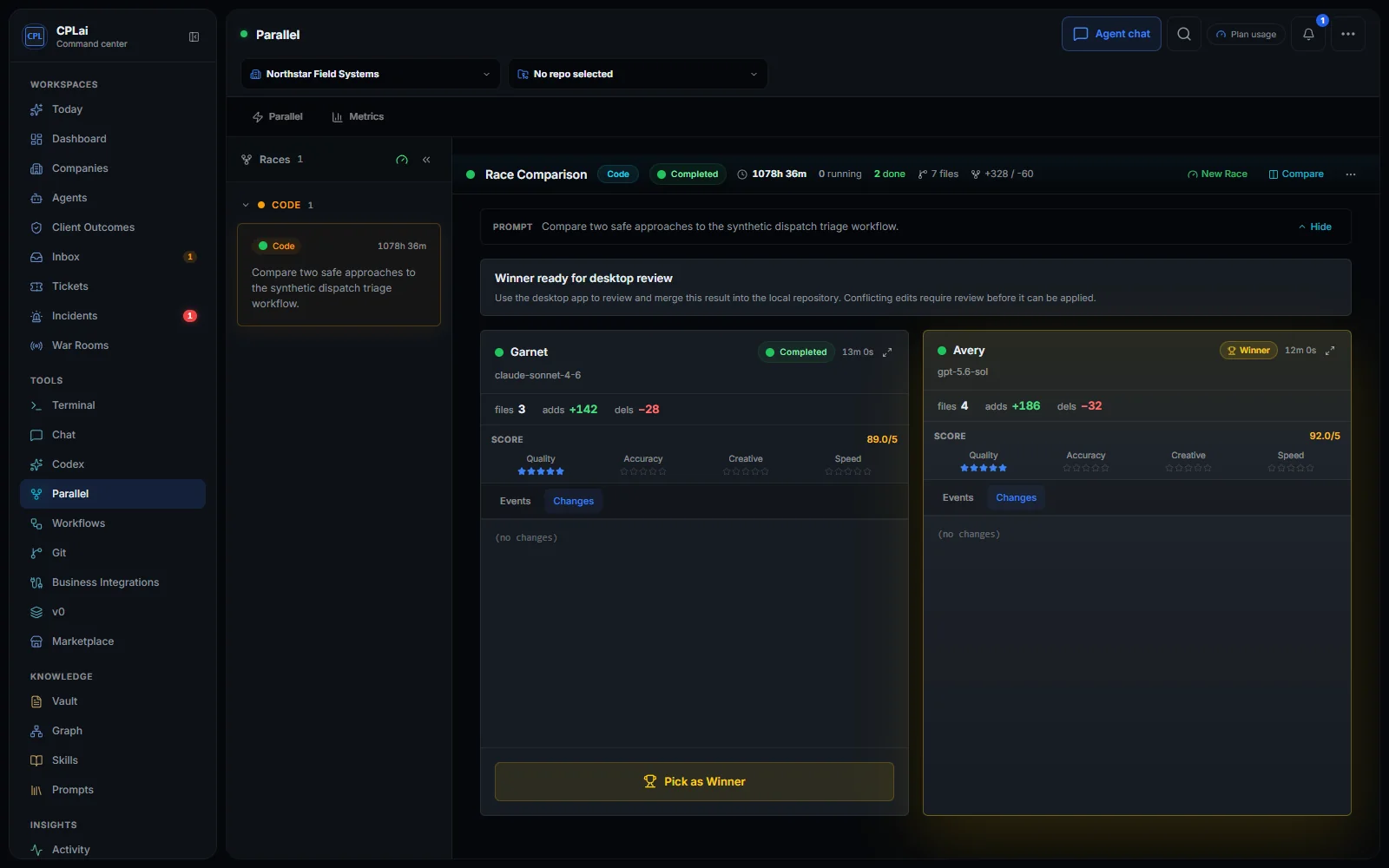
Each agent gets its own column in the race view with four tabs for reviewing output:
- Events - Compact, real-time status log of the agent's thinking, tool calls, messages, and file changes
- Preview - Live iframe rendering of web output (HTML, TSX, JSX, Vue, Svelte, PHP)
- Changes - Unified diff view with green additions and red deletions
- Document - Rendered markdown for Research and Plan mode output
How do I read the Events status log?
Every racer uses the same compact status format, including Claude, Codex, Antigravity, opencode, and v0. While an agent is running, the Events tab shows the agent name, elapsed time, and one short line for each meaningful step. Older lines dim as the run progresses, while the newest line stays highlighted. Long assistant messages wrap below the shorter status lines.
V0 and opencode also report their work step by step, so you can follow their progress without waiting for the final result. When a run finishes, CPLai opens the mode's completion tab unless you already selected another review tab.
Step 10: Pick a Winner
When agents finish, review their work and click Pick as Winner on your preferred agent. Picking is a decision, not a change: it records your choice and nothing in your repo is touched yet. While a winner is merely picked, you can switch your pick to a different agent at any time.
Step 11: Apply the Winner
The picked agent's card shows an apply button labeled per mode:
| Mode | Apply Button |
|---|---|
| Prototype | "Save Prototype" |
| UI | "Apply UI Changes" |
| Code | "Apply to Codebase" |
| Research | "Save Research" |
| Plan | "Import Plan" |
| Debug | "Apply Fix" |
Clicking it opens a confirmation showing the target repo, the branch that will receive the commit, and the full list of changed files. On confirm, the winner's changed files are copied from their worktree into your repo and committed on the current branch.
Applying is blocked only when it could actually harm your work in progress: when your repo has staged changes (the apply commit would sweep them in), or when you have uncommitted edits to the same files the winner changed (the copy would clobber them). Unrelated uncommitted files elsewhere in the repo do not block - the apply stages and commits only the winner's files. Files the winner writes that exist in your repo but were never committed are committed first as a snapshot, so nothing is lost.
Step 12: Change Your Mind (Optional)
Not happy after applying? Click Revert to undo the applied changes with a normal git revert commit - history is preserved, and any commits you made after applying are untouched. Then pick and apply a different agent. You can revert and re-pick as many times as you need.
Sharing Race Results
Operators can create public race share links for completed race snapshots. Share URLs are bearer tokens: anyone with the URL can open the redacted snapshot until the token expires, so treat them like secrets and avoid posting them in public channels.
Public snapshots omit local filesystem paths and project identifiers, redact known API-key patterns from prompts and run output, and expire after 30 days by default. Creating a share link requires at least member access on the race's company or server-owner access.
Community Voting
Public race share pages include a voting system. Anyone who opens the share link can vote for the agent run they think produced the best result.
How voting works:
- Open a public race share link. Each completed run is displayed as a card with its output, duration, and model name.
- Click the thumbs-up icon on the run you think did the best job. Your vote is highlighted in green.
- Vote totals and percentages update after each submitted vote. Each card shows the share of total votes it has received.
Voter identity: Each browser gets a unique anonymous voter key stored in localStorage. You can only vote once per race - clicking a different run changes your vote, it does not add a second one.
What operators see: In a race view, choose Vote Link to create and copy the public voting URL. On desktop it is in the row of share buttons under the race toolbar; on web it is in the race's More actions menu. Vote totals appear on that public share page. The desktop and authenticated web race views do not currently show community vote totals.
Benchmark Cards
A benchmark card is a shareable public page that summarizes a whole race: the race title, the winning model, the number of models, total cost, total duration, a result card for each model with its cost and duration, and the prompt when it is included. Create one with Benchmark Card on desktop or Card Link in the web race's More actions menu. CPLai copies the card's public link.
Exporting as PNG: On the card page, click Download PNG to save the card as a 1200x630 PNG image, sized for social media sharing. The image captures the card layout, color coding, and metrics in a format ready for Twitter, LinkedIn, or blog posts. Download JSON saves the card data.
Available Agents
CPLai ships with preset agents grouped into engine sections, plus a section for your own local models. The web launcher has the same sections and presets except v0.
Claude (Anthropic) - Sky Blue
| Agent | Tag | Best For |
|---|---|---|
| Claude Opus 5.5 | Newest, best quality | Complex tasks requiring deep reasoning |
| Claude Fable 5.1 | Frontier, above Opus (2.5x cost) | Highest-capability manual pick; API-equivalent rate is $10 input / $50 output per 1M tokens |
| Claude Fable 5 | Prior Fable frontier | Previous Fable model at the same $10 / $50 API-equivalent rate |
| Claude Sonnet 5.5 | Newest Sonnet | Opus-class agentic coding at Sonnet speed |
| Claude Opus 5 | Prior flagship | High-quality fallback |
| Claude Sonnet 5 | Prior Sonnet | Same price as Sonnet 5.5 |
| Claude Opus 4.8 | Older flagship | High-quality fallback |
| Claude Opus 4.7 | Older flagship | High-quality fallback |
| Claude Opus 4.6 | Older flagship | High-quality fallback |
| Claude Sonnet 4.6 | Balanced | General-purpose, good speed/quality tradeoff |
| Claude Haiku 4.5 | Fastest | Quick iterations, simple tasks |
GPT Codex (OpenAI) - Purple
| Agent | Tag | Best For |
|---|---|---|
| GPT-5.5 Codex | Recommended for complex coding | Current default for code-heavy tasks |
| GPT-6.1 Sol Codex | Newest Sol (1M context) | Codex's top pick on your ChatGPT plan |
| GPT-6 Astra Codex | Frontier (1M context) | Hardest tasks on your ChatGPT plan |
| GPT-6 Sol / GPT-6 Luna Codex | Balanced GPT-6 (1M context) / fastest GPT-6 | Newer models on your ChatGPT plan |
| GPT-5.4 Codex | Strong everyday coding | Careful, structured code generation |
| GPT-5 Codex | Legacy coding baseline | Kept for saved selections |
The Codex section also lists GPT-5.6 Sol, Terra, and Luna previews, GPT-5.4 Mini, GPT-5.3 Codex Spark, and the legacy o3 and o4 Mini presets, plus any other model your Codex login offers. A preset your plan no longer offers drops off the bench unless it is already selected.
Via OpenRouter (Metered) - Teal
These presets route through OpenRouter and require an OpenRouter API key in Settings. CPLai auto-declares each model at spawn, so no manual configuration is needed beyond the key.
Open and community models:
| Agent | Tag | Best For |
|---|---|---|
| GLM 5.2 | Open-weight flagship | Strong coding, competitive open-model alternative |
| Grok 4.3 | xAI via OpenRouter | xAI's latest reasoning model |
| Kimi K2.7 Code | Coding model via OpenRouter | Moonshot's code-specialized model |
| DeepSeek V4 Pro | Open model via OpenRouter | Strong coding at low cost |
| Qwen3 Coder | Coding model via OpenRouter | Alibaba's code-specialized model |
| MiniMax M3 | Open model via OpenRouter | Affordable general-purpose alternative |
Frontier models via OpenRouter:
| Agent | Tag | Best For |
|---|---|---|
| Claude Opus 4.8 (via OpenRouter) | Metered | Same model as the native Claude preset, billed per-token through OpenRouter |
| Claude Fable 5.1 (via OpenRouter) | Metered, $10 / $50 | Frontier Anthropic model billed per 1M input / output tokens through OpenRouter |
| Claude Fable 5 (via OpenRouter) | Metered, $10 / $50 | Prior Fable model via OpenRouter |
| Claude Sonnet 5.5 (via OpenRouter) | Metered | Newest Sonnet via OpenRouter |
| Claude Sonnet 5 (via OpenRouter) | Metered | Prior Sonnet via OpenRouter |
| Claude Sonnet 4.6 (via OpenRouter) | Metered | Older Sonnet via OpenRouter |
| GPT-6.1 Sol (via OpenRouter) | Metered, $2 / $10 | Newest Sol via OpenRouter, no ChatGPT login needed |
| GPT-6 Astra (via OpenRouter) | Metered, $10 / $50 | OpenAI frontier via OpenRouter |
| GPT-5.5 (via OpenRouter) | Metered | Prior OpenAI flagship via OpenRouter |
Tip: The frontier presets are intentionally separate from the native Claude and Codex presets. Native presets use your Claude or ChatGPT sign-in. Via OpenRouter presets are metered per-token. This split prevents a subscription race from silently becoming a paid-API race.
Claude Opus 5.5 is the top native Claude race preset. Claude Fable 5.1 and Fable 5 are opt-in in both groups. CPLai does not add Fable to default racers or choose it automatically.
Race any model from the live OpenRouter catalog:
The Via OpenRouter section also includes a dropdown that populates from OpenRouter's full live model catalog. You can pick any tools-capable model that OpenRouter currently offers and add it as a custom racer, not just the curated presets above.
- The dropdown shows models sorted newest-first, with per-token pricing labels so you can see costs before committing.
- The catalog refreshes automatically (1-hour cache) whenever you expand the Via OpenRouter section. If OpenRouter is unreachable, the dropdown is disabled with a placeholder.
- If you pick a model that already matches a curated preset, CPLai selects that preset instead of creating a duplicate.
- Custom racers appear as removable cards below the curated presets and count toward the same 5-agent cap.
Tip: This is useful for racing brand-new models the day they appear on OpenRouter, without waiting for CPLai to add a curated preset.
Ollama Cloud models are an agent model option, not a race preset. The race bench lists only the curated OpenRouter presets and the live OpenRouter catalog.
Antigravity (Google login) - Green
| Agent | Tag | Best For |
|---|---|---|
| Gemini 3.5 Flash | Fast | Quick iterations on your Google sign-in, with no API charge; plan limits apply |
v0 (Vercel) - Amber
| Agent | Tag | Best For |
|---|---|---|
| v0 Mini | Fast UI | Quick UI component generation |
| v0 Pro | UI generation | Production-quality UI components |
| v0 Max | Best UI quality | Complex multi-component interfaces |
| v0 Max Fast | Premium speed | High quality with faster turnaround |
Tip: For most tasks, racing one agent from each provider (Claude + Codex + Antigravity + opencode) gives you diverse approaches. Add a v0 agent when the task is UI-heavy.
Tip: When Antigravity uses your Google plan login, Gemini 3.5 Flash adds no per-token API charge. API-key-only mode uses provider billing instead.
Local models (your servers) - Cyan
This section has no presets. It lists every chat model your Ollama and vLLM servers serve at the moment you open the launcher, and it is hidden when no server is turned on in Settings or none answers. Embedding and decision models are left out.
- A local racer costs nothing per token.
- A local racer always runs with the tool harness, so it can read and write files in its worktree like the other racers. The Local Harness setting for agents does not change this.
- A small local model may take several minutes on a task a hosted model finishes in one, and a model whose server cannot run tools ends its lane with the server's own error.
See Local Models for setting up the servers.
Task Modes in Detail
Prototype Mode
Forces agents to create a single index.html file with all CSS and JavaScript inline. No frameworks, no bundlers, no package managers. Pure HTML/CSS/JS that renders perfectly by opening the file in a browser.
This is the fastest way to explore visual ideas. No repo needed, instant preview.
UI Mode
Restricts agents to frontend/UI code only - components, pages, styles, layouts. Agents will not touch backend, API, database, or server-side code. They match your project's existing design system and component patterns.
Code Mode
Full-stack, unrestricted. Agents implement whatever is needed - frontend, backend, database, configuration. All code is written to disk immediately.
Research Mode
Agents produce a RESEARCH.md document in the project root. No source code is modified. Use this to analyze codebases, audit dependencies, evaluate architectures, or investigate technical questions.
Plan Mode
Agents produce a plan.prd document with file paths, code snippets, and step-by-step tasks. No code is implemented. Use this before a Code race to get multiple implementation plans, then execute the best one.
Tip: A powerful workflow is to run a Plan race first, pick the best plan, then launch a Code race with that plan attached as context.
Debug Mode
Agents investigate the issue you describe, find the root cause, and apply fixes directly to the source files. They explain what they found and what they changed.
Live Preview
Every agent gets a live iframe preview that updates as the agent works. The preview system detects and renders:
index.htmlfiles (direct rendering).tsx/.jsxfiles (React component extraction).vuefiles (Vue SFC stripping).sveltefiles (Svelte SFC stripping).blade.phpfiles (Laravel Blade directive stripping)
The preview reads from the agent's worktree while the race is running. After worktree cleanup, it can fall back to files persisted by the CPLai service.
Dev Server Preview
For projects that require a build step (React, Next.js, Vite, etc.), CPLai can launch a dev server directly from an agent's worktree:
- Click Test on an agent's card.
- CPLai auto-detects the appropriate dev command
- A free port is assigned automatically
- The running application is embedded as an iframe
The test server runs inside that agent's isolated worktree; CPLai does not copy the candidate into your main repository just to preview it. While the server is active the button changes to Stop Test. Stop it before deleting the race or when you no longer need the interactive preview.
Fullscreen Preview
Click the expand button on any preview to open a fullscreen overlay. Use the agent tab bar at the top to switch between agents without leaving fullscreen. Press Escape to close.
Agent Follow-Up Chat
After a race completes, you can continue the conversation with any agent about their work.
How do I open follow-up chat?
Click the chat icon on any agent card, or the chat button in the agent header. A collapsible panel slides in from the right side.
How does it work?
- The agent can read all the files it created during the race
- If the worktree has been cleaned up, CPLai can restore persisted output files before a follow-up action
- A sliding window keeps the last 6 turns (3 user + 3 agent exchanges) to prevent prompt bloat
- Switch between agents using the dropdown at the top of the chat panel
What is it good for?
- Ask an agent to explain its approach
- Request modifications to specific files
- Debug issues in the agent's output
- Compare reasoning between agents by chatting with each one
Cross-Agent Diff Comparison
How do I compare two agents' output?
Click Compare (two-column icon) in the race toolbar to open the cross-agent diff overlay. The button appears once at least two agents have completed.
What does it show?
- A fullscreen overlay with a file list sidebar
- Side-by-side comparison of how two different agents solved the same problem
- Select any two agents from the dropdowns at the top
- Click any file in the sidebar to see the diff
This is incredibly useful for understanding why one agent's approach is better than another, not just that it is better.
Model Focus/Expand Mode
How do I focus on a single agent?
Click the maximize button (expand icon) on any agent's header. The view switches to a full-width single-agent layout.
How do I switch agents while focused?
An agent switcher bar appears at the top of the focused view. Click any agent name to switch.
How do I exit focus mode?
Click the maximize button again, or click Exit Focus at the start of the switcher bar.
Scoring System
How do I rate agents?
After an agent finishes, a scoring row appears below its output. Rate on four categories:
| Category | What to Evaluate |
|---|---|
| Quality | Code cleanliness, best practices, error handling |
| Accuracy | Does the output match what was asked? |
| Creativity | Novel approaches, elegant solutions, bonus features |
| Speed | How quickly the agent completed the task |
Click stars (1-5) for each category. An average score is calculated and displayed. Click a selected star again to clear that rating.
Tip: Scoring is optional but valuable over time. It helps you build intuition for which agents perform best on different types of tasks.
Prompt Versioning and Playground
Completed races keep a prompt version number. The first run in a lineage is v1. When you create another version from that race, CPLai links it back to the parent and assigns the next version number.
How do I create a new prompt version?
- Open a race in the Parallel Racing page.
- Find the Prompt Playground panel under the race prompt.
- Edit the prompt.
- Click Re-run as next version.
CPLai creates a new race with the same mode, project, and working directory as the current race. The new race stores parent_prompt_id so the Race Metrics dashboard can group prompt versions together.
Tip: Use prompt versions when you want to compare small wording changes without losing the context of the original run.
How do I see which version I am viewing?
Race cards and race headers show a v1, v2, or later badge. A child version also shows a parent marker in the Prompt Playground panel.
Race Metrics Dashboard
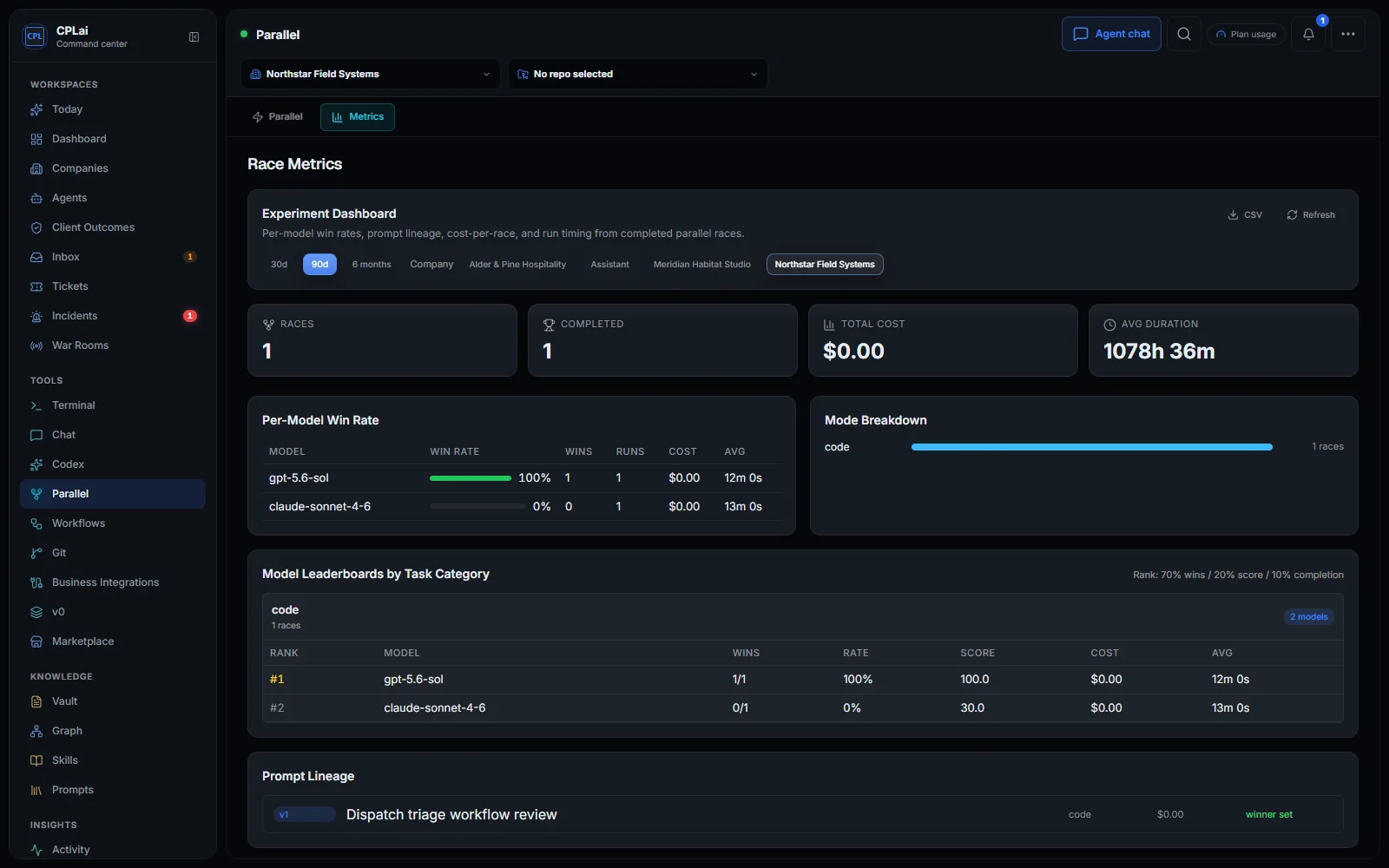
Race Metrics turns completed races into experiment analytics. It is built into the Parallel Racing page on both desktop and web as a top-level tab alongside the race list.
How do I open Race Metrics?
The Parallel Racing page has a Races / Metrics tab bar at the top. Click Metrics to switch to the analytics dashboard. Click Races to return to the race list and launcher.
- Desktop: Choose Parallel in the sidebar, then click Metrics in the tab bar.
- Web: Choose Parallel in the sidebar (admins only), then click the Metrics tab.
What does Race Metrics show?
| Section | What it shows |
|---|---|
| Summary cards | Total races, completed races, total cost, and average duration |
| Per-Model Win Rate | Each model's races, runs, wins, win rate, total cost, and average duration |
| Mode Breakdown | Race volume, completion count, cost, and duration by task mode |
| Prompt Lineage | Versioned prompt chains grouped by parent race |
| Prompt / Model Matrix | Which model ran for each prompt version, status, winner, and cost |
| Run Timeline | Horizontal timing bars for each agent run |
How do I filter Race Metrics?
Use the range buttons to view the last 30 days, 90 days, or 6 months. If you have access to multiple companies, use the company filter to narrow the dashboard.
How do I export Race Metrics?
Click CSV in the Race Metrics header. The export includes summary, model, mode, prompt lineage, matrix, and timeline rows.
What do the model task leaderboards show?
The Race Metrics page includes per-category leaderboards that rank models by task mode. Each leaderboard card shows:
| Column | What it shows |
|---|---|
| Rank | Models are sorted by a composite score (70% win rate, 20% average star rating, 10% completion rate). Web shows the position and the score in separate columns; desktop shows the score |
| Model | The AI model name |
| Wins | Races won out of total runs |
| Win Rate | Percentage of wins |
| Quality | Desktop only: average star rating across scored runs |
| Cost | Average cost per run in the category |
| Avg Duration | Mean execution time |
Leaderboards are grouped by race task mode (Prototype, UI, Code, Research, Plan, Debug), so you can compare how models perform on code races versus research or plan races.
Tip: Use Race Metrics to find which models win specific task modes before you start a high-cost race.
Smart Model Router (Race-History Recommendations)
Every race you run teaches CPLai which models perform best for different kinds of work. The Smart Model Router uses your accumulated race history to automatically recommend the right model when you start a new task.
How does it work?
The router classifies incoming prompts into task types (bugfix, test, docs, refactor, research, feature) using keyword analysis, then checks your race history to find which model historically wins that kind of task in your company. The recommendation includes a confidence score based on how much evidence is available.
What task types does the router recognize?
| Task Type | Example Triggers |
|---|---|
| bugfix | "fix", "crash", "broken", "regression", "hotfix", "patch", "doesn't work" |
| test | "test", "coverage", "vitest", "jest", "pytest", "unit test", "integration test" |
| docs | "documentation", "README", "docstring", "changelog", "doc comment" |
| refactor | "refactor", "cleanup", "simplify", "extract", "rename", "tech debt" |
| research | "investigate", "analyze", "explore", "figure out", "root cause", "look into" |
| feature | "implement", "build", "create", "add a", "new feature", "support" |
When a prompt does not match any category, the router still works - it just uses your overall win-rate data without a task-type filter.
When does the router have enough data?
The router requires at least 5 comparable races for the winning model before it gives a confident recommendation. Below that threshold, it falls back to your configured default model and flags the recommendation as low confidence.
How does the router pick a winner?
For each model in your history, the router considers:
- Win rate across scored races
- Success rate (how often the model completed without errors)
- Average quality score from your race ratings
- Cost per run (factored in when "prefer cheaper" is active)
- Average duration
These signals are combined into a composite score. The model with the highest score for your task type becomes the recommendation.
Does this affect agent runs too?
Yes. The same task-type classifier tags agent runs and parallel races with a task_type label (stored in the database). Over time, this builds a per-company performance profile that gets more accurate as you run more races and score more results.
Tip: Score your race results consistently. The router's recommendations improve directly with the quality and quantity of your ratings. Even rating just "Quality" on each agent is enough to build useful signal.
Race Completion Notifications
When a race started from the web dashboard finishes, CPLai sends a notification to the user who created it. You do not need to keep the Parallel page open to know when results are ready. Races started in the desktop app do not send this notification.
The notification shows:
- Race name as the title
- "N of M completed" in the body, where N is the count of successful agent runs and M is the total
- Severity -
successif all agents finished cleanly,warningif some failed,errorif all failed
The notification appears in the Notification Center (the bell icon) on desktop and web, and the race itself also shows up on the Activity page. Click the notification to jump directly to the finished race.
Race Management
Race Sidebar
The left panel shows all your races, grouped by mode with color-coded headers. Each race card displays:
- Task mode indicator with color dot
- Prompt preview (first 3 lines)
- Progress bar (agents completed / total)
- Elapsed time
Click any race card to load it. The sidebar is collapsible - click the chevron to minimize it to an icon strip.
How do I cancel a running race?
Click Cancel in the race toolbar. CPLai stops the active agent processes and development servers, marks any running or pending agents as cancelled, saves that terminal state, and cleans up the race worktrees after the processes release their file locks. Saving first prevents an interrupted cleanup from bringing the race back as active after a restart.
What happens if CPLai restarts during a race?
Race workers do not survive a desktop restart. The next time CPLai loads the race, it marks any agents that were still running or pending as failed with an interruption message, closes the race as completed, and saves the recovered state. Race drafts that were still being configured are left unchanged.
How do I relaunch a race?
Click the Relaunch button (refresh icon) on a completed race. CPLai creates a new race with the same prompt, agents, and mode.
How do I delete a race?
Click the Delete button (trash icon). CPLai performs full cleanup:
- Kills any running agent processes
- Stops any active dev servers
- Removes git worktrees from disk
- Deletes the race from the CPLai service database
How do I collapse the prompt?
Long prompts (over 360 characters or 5 lines) are automatically collapsible. Click the chevron to expand or collapse.
No-Directory Mode
Every task mode works without selecting a working directory.
How does it work?
- Leave the directory field empty when configuring a race
- CPLai creates a temporary git repository automatically
- Agents work inside the temp repo as normal
- When you apply the winner, CPLai prompts you to select a destination folder
- The winning files are copied to your chosen location
When should I use it?
- Prototyping ideas without polluting an existing repo
- Quick experiments and throwaway tests
- Research and plan generation (no repo needed)
- Comparing agent capabilities on a clean slate
Plan Integration
How do I attach a plan to a race?
Click the "Attach Plan" button in the race configuration panel. Select a plan from the plan picker dropdown.
What happens to the plan content?
The plan is injected as a [SPEC] block before your prompt:
[SPEC - Source of truth for requirements]
... plan content ...
[END SPEC]

Your prompt here
Every agent receives the same spec context.
Phase-Aware Racing
If your plan has multiple phases, you can launch races for specific phases:
- Open a plan in the Projects page
- Click the "Race" button next to a phase
- CPLai pre-fills the prompt with that phase's requirements
- The race view shows a progress grid tracking step completion per agent
Phase racing adds a progress table to the race view showing which steps each agent has completed, with checkmarks, X marks for failures, and pulsing dots for in-progress steps.
Race badges appear in the plan viewer showing "Racing N" for active races and "Raced" for completed ones.
v0 as a Race Agent
v0 (Vercel's AI UI generator) runs as a full race participant alongside Claude, Codex, Antigravity, and opencode.
Tip: To build one page from a brief, with versions you can compare and send to a client for review, use Designer. It builds on v0 or on any other model you can run, including the Claude, Codex, Antigravity, OpenRouter and local models raced here.
How is v0 different?
- v0 uses API-based execution rather than CLI spawning
- It specializes in UI component generation
- Files are written to the worktree and persisted through the CPLai service like other race output
- Cost is tracked per request
When should I include v0?
- UI-heavy tasks where you want a specialized UI perspective
- Comparing v0's design sensibility against general-purpose models
- Prototyping React/Next.js components
File Persistence
Agent output files are persisted by the CPLai service when an agent completes. This is critical because worktrees are temporary.
What gets persisted?
- All files the agent created or modified
- File content stored in CPLai's database
- Associated with the agent's ID for retrieval
What uses persisted files?
- Preview panel - Falls back to DB files when the worktree is gone
- Document panel - Loads research/plan documents from DB after cleanup
- Follow-up chat - Writes files back to disk so the agent can read them
- Winner apply - Follow-up chat writes files back into the worktree, so applying picks up post-race changes; applying itself requires the worktree on disk
Tips and Best Practices
Start with 3-4 agents. One from each major provider (Claude, Codex, Antigravity, opencode) gives excellent diversity without overwhelming you with output to review.
Use Prototype mode for exploration. No repo, no setup, instant visual results. It is the fastest way to see how different models interpret a UI concept.
Race plans before racing code. A Plan race gives you 2-5 different implementation strategies. Pick the best one, then launch a Code race with that plan attached.
Check the Changes tab, not just Preview. The diff view shows you exactly what an agent changed. A beautiful preview can hide messy code underneath.
Score your agents. Even rough scores build valuable intuition over time about which models excel at which tasks.
Use follow-up chat to debug. If an agent's output is 90% right but has a bug, do not start over. Chat with the agent and ask it to fix the specific issue.
Check cost before starting. Subscription, API, and OpenRouter execution paths have different billing. The runner label and Usage dashboard are more reliable than assumptions about a provider being free.
Experimentation boundaries
Race Metrics now includes prompt lineage, model results, a prompt/model matrix, costs, timelines, and CSV export. Desktop also has a Suggest Winner button, which asks CPLai to recommend a winner with a short reason; web does not have this button. Both surfaces can export a race (Export JSON and Export MD on desktop, Export and JSON in the web More actions menu). The backend also has an evaluation-grid contract with no control on either page. Do not assume every backend contract has a finished control on both race pages; use only actions visible in the current desktop or web interface.
Race history can be reopened and a completed race can be relaunched. Agent run replay is available from Agent Detail, while race output is reviewed through the race's event, change, preview, document, and metrics views.