Trust Center
Last reviewed November 15, 2026 (checked against the Trust Center v2.1 branch).
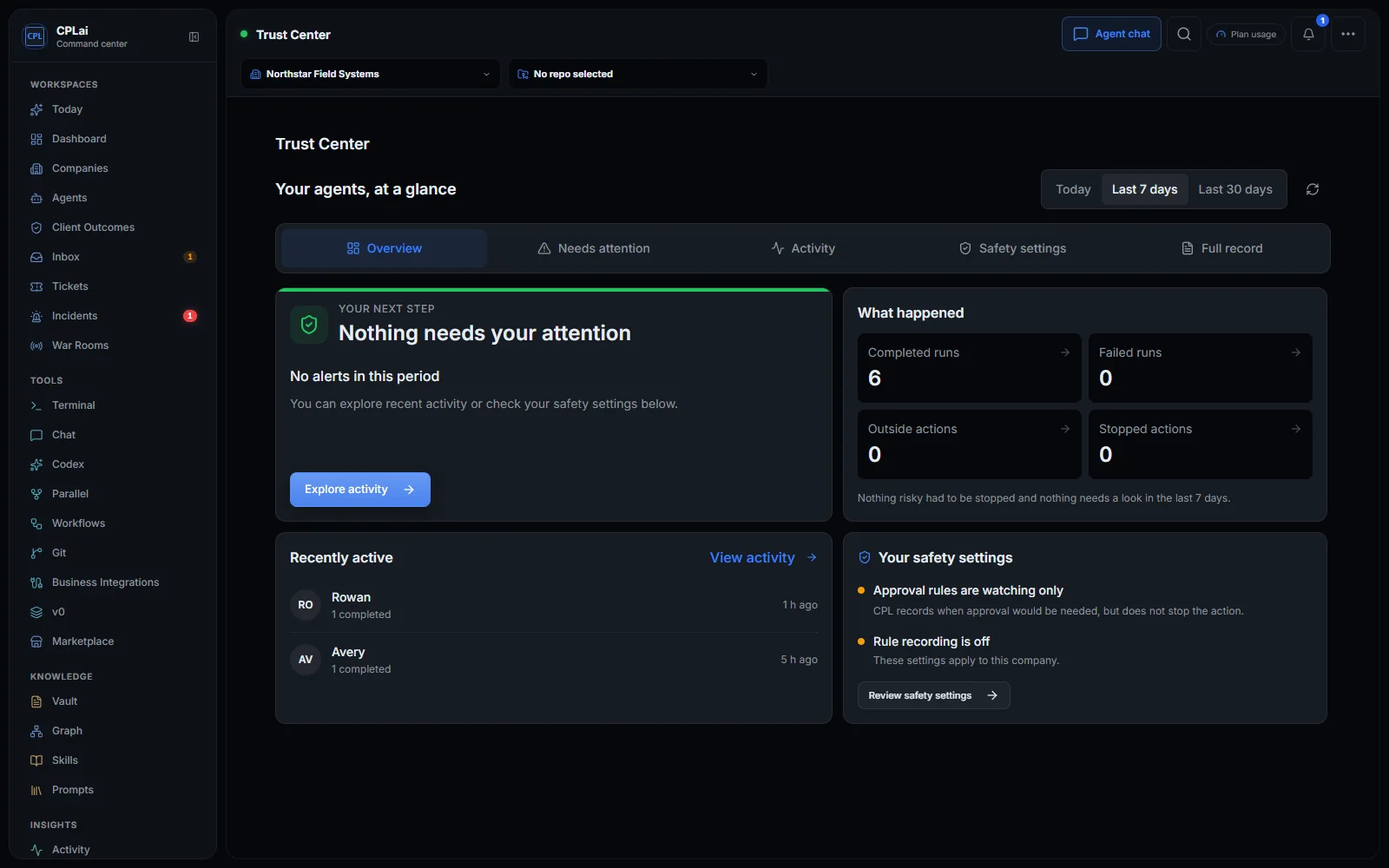
Trust Center answers three questions about a company's agents: what did they do, did anything risky get stopped, and is there anything you should look at. It also shows the safety rules in plain words, with the switches that change them, what leaves your machine, whether the service is healthy, and the full record for audits. The Activity timeline and System Status are tabs here.
Approvals are decided in the chat dock. A request waiting on you shows under Needs attention with what it asks for and how the agent got there; Approve once and Deny open it in the chat dock. Requests are also in Today > Needs you.
How do I open Trust Center?
Choose Trust Center in the desktop or web navigation. It shows the company selected in the Workspace breadcrumb in the page header (see App-Wide Features). With All Workspaces selected, the Activity and Status tabs still work; the other tabs ask you to choose a company.
On web, the page is at /trust-center, and each tab has its own address: /trust-center?tab= followed by overview, attention, activity, vuln, status, facts, safety or record. The old /activity and /status addresses open those tabs. On desktop, anything that used to open the Activity or Status page opens its tab here.
A link to an approval, such as an older notification, opens that request in the chat dock rather than on this page.
How do I find what I need?
Trust Center is a compact workspace. Choose a tab to open one view at a time. The navigation stays in place while you explore. On a phone, use the Section menu instead of tabs.
| Tab | What you will find |
|---|---|
| Overview | Counts of completed runs, failed runs, outside actions (email, pull requests, web posts) and stopped actions for the period (failed runs open Needs attention, the others open Activity); what needs attention; the latest activity; a Vulnerability Watch summary; and a health line for the service. |
| Needs attention | Requests waiting on you, then alerts, most important first. Select one to see what it means, what you can do, and how it got here. |
| Activity | The Activity timeline: everything agents did, including outside actions and stopped actions, with filters. |
| Vulnerability Watch | Known problems in your projects' packages, each with its record, and the checks by project. |
| Status | The service's health right now, its self checks over 24 hours and 7 days, and the dashboard addresses. See System Status. |
| Facts | Statements your agents rely on, with their sources, and any that are out of date or disputed. |
| Safety settings | Company rules, agent limits, what leaves your machine, and who changed a setting. |
| Full record | Search, inspect, and export recorded actions. It loads only when opened. |
Choose Today, Last 7 days or Last 30 days to change the overview period. Today starts at midnight on this computer. The full record has its own date filters.
Your next step says whether anything needs a look. Nothing needs your attention means there are no alerts for that period; it does not mean every protection is turned on. Check the safety summary for whether approval rules actually stop actions or only record them.
The overview's buttons open the relevant view. They do not jump down a long page. Larger lists use search and page controls. Arrow keys, Home and End move between the tabs.
What needs attention?
Waiting on you lists requests an agent is holding for your answer. Select one to read What it asks for, the agent's Earlier requests from the last 30 days, and How it got here: the run's steps up to the request. Nothing has happened yet. Approve once and Deny open it in the chat dock, where it is decided, and Show in the full record opens its record.
Alerts follow, marked Important or Worth a look. Each says what it means and what to do, with a link to the details or the agent.
What counts as an alert?
| Alert | What to do |
|---|---|
| Agents can reach a key, such as "39 agents can reach an AWS access key in a command-line tool's settings file" | A high-risk key or token that agent runs could read. It is listed once, however many runs saw it. Move the key out of that file, or give agents their own scoped key in Keychain. An agent's own sign-in is expected and is not an alert. |
| Paused for spending or went over its spending limit | The agent hit a budget limit. Raise the limit or leave it paused. |
| Has used 80% (or more) of its monthly budget | A warning before the limit. |
| A run failed | Runs that failed, grouped by agent and reason. Choose Open to see the agent's runs. |
What does Stopped show?
Choose Stopped in the Activity tab's type filter for recent actions that did not happen, newest first, with the agent's name and the reason (the overview's Stopped actions count opens the Activity tab). They include:
- A CPL Browser write blocked by the company's Posting on websites rule. The reason is the rule's own message.
- An action an agent's approval level does not allow, refused while approval rules are on.
- A request you turned down, with your note when you left one.
- A request nobody answered in time, so CPLai did not do it.
A suggested action that carries a one-tap approval appears once.
What does Activity show?
The Activity tab is the Activity timeline, with two kinds of event for Trust Center: Outside actions (forms submitted and files uploaded with CPL Browser, emails and Telegram messages sent, changes on GitHub, suggested actions carried out, images or video made) and Stopped. Filter by time window, type, company, agent and status, and select a row for its transcript or details. Use Full record for older history.
What does Vulnerability Watch show?
Findings lists known problems in your projects' packages, with the project, package, finding, severity, status and when it was found. Filter by project, package or advisory. Select a finding for its record: the installed version, whether it is known to be exploited, whether the package has reached end of life, what it was checked against, what it means, and its history (first found, still there on the latest check, or gone on the next check because it was fixed).
A finding waiting on you is fixed in its ticket (Open the ticket) or dismissed with a reason, such as "only in a test tool" (Dismiss with a reason). Open it again brings a dismissed finding back. Checks by project shows when each project was last checked; the scan button beside a project checks it now. The settings for these checks are in Settings -> Vulnerability Watch.
What does Status show?
The service's health right now (running, version, agents, port and live updates), each self check's last 24 hours with a history of the last 7 days, and the addresses that reach the web dashboard. See System Status.
What are Facts?
Facts are statements your agents rely on, each with its source and how sure it is: from a ticket, a page, or something you said in chat. Agents and tickets that use a fact are linked to it. Agents record facts through the Truth Maintenance service.
Filter by subject or fact, and select one to see what it is about, when it became true, its sources and its history. A fact is never edited: new knowledge replaces it, and a dispute changes its status. Out of date means its newest source is older than its freshness rule. A disputed fact shows who disputed it and why, and whether it was upheld or retracted.
What are my safety rules?
Open Safety settings, then Company rules. These controls apply to the selected company.
| Rule | What it says |
|---|---|
| Cloud AI | Whether agents may use cloud AI models, or only models on your own machines (Local Only). Choose Require local models or Allow cloud AI. While Local Only is on, three switches under Exceptions to Local Only re-open cloud AI in narrow ways: Any model, Cloud fallback and Ask a cloud model (see Settings). |
| Posting on websites | Whether agent browsers may submit forms, post and upload on outside sites. See below. |
| Approval rules | Watching only means CPLai notes when an agent does something its approval level would need your OK for, but does not stop it; the line says how often that happened. Choose Show who and what for each agent and the kinds of actions. On means agents ask first and CPLai stops what they may not do. |
| Activity record | Whether every rule check is written to the tamper-evident record. |
Choose Agent limits for Each agent's approval level and spending this month. Search or page through agents with its approval level in words and what it spent against its monthly limit. Open a row for its daily and per-run limits, tool access, and the websites and folders it may use.
| Approval level | What the agent does |
|---|---|
| Acts on its own | Takes actions without asking |
| Asks you before outside actions | Asks with a one-tap approval before acting outside CPLai |
| Drafts and suggests; you approve the rest | Writes tickets, comments and drafts; anything else is filed for your review |
| Watches only | Reads, but does not act |
Account security opens Settings > Admin.
What leaves your machine
What leaves your machine shows, for each way an agent can use a model (your Claude plan, ChatGPT plan, Antigravity, OpenRouter, a provider key, or your own local models), what is sent and what stays on this machine: your messages and the conversation, the agent's instructions and ticket, company knowledge and memories it recalls, files it opens, command output, and pages and screenshots it reads. Keys in your Keychain and provider keys are never written into prompts. A company's agent gets only that company's records; your Chief of Staff and an All Companies chat work across every company.
Changes to these settings
Changes to these settings lists who changed a safety setting and when, over the last 30 days, from the full record. Each setting's current value is shown above the list.
How do I control what agent browsers send to outside sites?
Posting on websites sets what the CPLai agent browser may send to outside websites. A write is a form submit, Enter pressed in a form field, a file upload, or a post the page sends while the agent clicks or types.
| Setting | What agent browsers do |
|---|---|
| Allowed and recorded (default) | Every outside write is recorded on its run as allowed. Nothing is blocked. |
| Blocked unless allowed | Outside writes are refused before they are sent unless the domain is in Allowed websites. Reading pages still works. |
The setting applies to every agent, including those of a Local Only company. Local Only means no cloud AI models; it does not cut agents off from the web.
To start blocking, choose Block posting and uploads. Then list the domains agents may still write to, one per line, and choose Save websites. An entry also covers its subdomains, so example.com allows forum.example.com. Choose Allow posting and uploads to go back to recording without blocking. Changing the setting needs the admin role, and each change is written to the audit log.
A blocked action never runs. The agent is told it was blocked and not to look for another way around it, the run's Web writes list shows the attempt as blocked, and it appears under Stopped. A write that a site redirects to a domain that is not allowed is blocked at the redirect.
A change reaches agent browsers that are already open within about a minute, even when the agent is idle: the browser restarts on a blank page under the new setting.
The setting covers the CPLai agent browser only. Shell commands are not covered. The web fetch and search tools are not covered either: they only read pages, so the write block does not apply to them.
If the agent browser cannot read the company's setting (for example, the CPL API is unreachable), it refuses every outside site, page loads included, until the setting can be read again.
How do I search the full record?
Choose the Full record tab to search recorded steps and export them. Switching tabs keeps your record filters; opening a specific evidence link applies that link?s filters. From a workflow's Outcome evidence, Open trust history on an attempt opens it with that run already searched.
- Use From and Through to set the date range. With neither date set, the record covers the last 30 days.
- Enter an agent, action, site or run in Search. Any part of the value works, for example the first characters of a run id. The text is matched exactly as typed:
%and_are ordinary characters, not wildcards. Use Kind of record to narrow it, for example to CPL Browser or Run steps. - Choose Show details on a row to see its details.
- Choose Show more when more records are available, or Refresh to reload.
Read the note above the list. It explains the history available and when it starts; an empty result alone does not establish that no action happened.
Keys agents could reach
Choose Keys agents could reach in Kind of record, find the run, and select Show details. The Credential reach inventory card also appears in the agent's run output on desktop and web when a snapshot was recorded.
The card is a read-only snapshot taken at launch. Start with Status, then expand Source coverage to see each listed source and its status. A source marked not probed was not examined for this run.
| Display | How to read it |
|---|---|
| Location and kind | The recorded source label and detected credential category; an unknown label is not a confirmed provider |
| Keychain grant | Whether an environment finding matched the agent's resolved Keychain grant at launch |
| Runner identity | Marks a credential selected for the run's own CLI identity when recorded |
| Severity and lifetime | Classification of the finding for review, not a check that the credential still works |
| Access: unknown | The snapshot does not establish which operations the credential can perform |
| Fingerprint | A shortened identifier when available; some findings show Not available |
An incomplete, timeout, not probed, or error status leaves coverage gaps. No credential findings recorded does not establish that the process cannot reach credentials.
Chat web requests
Choose Chat web requests in Kind of record to inspect Web Search and Oracle requests from company conversations. Open a row to see its conversation and tool-call references.
| Status | What the receipt establishes |
|---|---|
| Attempted | CPLai recorded the request intent before sending it; delivery is not confirmed |
| Accepted | The provider returned a successful HTTP status; completion and answer quality still need separate review |
| Rejected | The provider returned an unsuccessful HTTP status |
| Uncertain | The transport outcome is unknown; the request may have reached the provider |
Exporting
Set the dates and other filters, then choose Export these dates. CPLai downloads JSON with every matching record, the filters, and the safety rules in force. The export includes more than the rows on screen. Keep the company and filters unchanged while it runs; changing them cancels it so it does not combine different views.
Can an agent read Trust Center?
Trust Center records are for people. An agent can read them only when you turn on Trust Center access for that agent in Edit Agent, under Trust Center. Keep it off unless the agent's job is auditing, for example a security agent that reviews what your other agents did on websites and which actions CPLai stopped.
- It works only when the agent runs on its own token (Edit Agent, CPL API access, Own token). On the shared operator token CPLai cannot tell which agent is calling, so the agent is refused and told why. Give it its own token next to the switch changes that setting for you. The switches turn on only while the agent is on its own token, and moving the agent off its own token (in the desktop app or on the web) turns both off, so moving it back later never turns access on by itself: you turn it on again. Each run of an agent on its own token gets a fresh key tied to that agent, and that key counts; turning on per-run keys for all agents does not by itself give an agent this access.
- The agent reads only its own company's records, and only reads them. Every read it makes is recorded in Trust Center under that agent.
- The before and after screenshots of browser actions need a second switch, Trust Center screenshots, which is also off by default and does nothing unless Trust Center access is on. Each screenshot the agent opens is recorded on its own.
- Only you, in person, can turn either switch on.
These switches control what CPLai shows an agent. When agents run with your full access (the default agent access), they can still open the stored screenshot files on disk, in C:\ProgramData\CloudPeakLabs\browser-control\screenshots.