Terminal
Last reviewed November 12, 2026 (Supervisor navigation, desktop/web selection behavior, model controls and update availability).
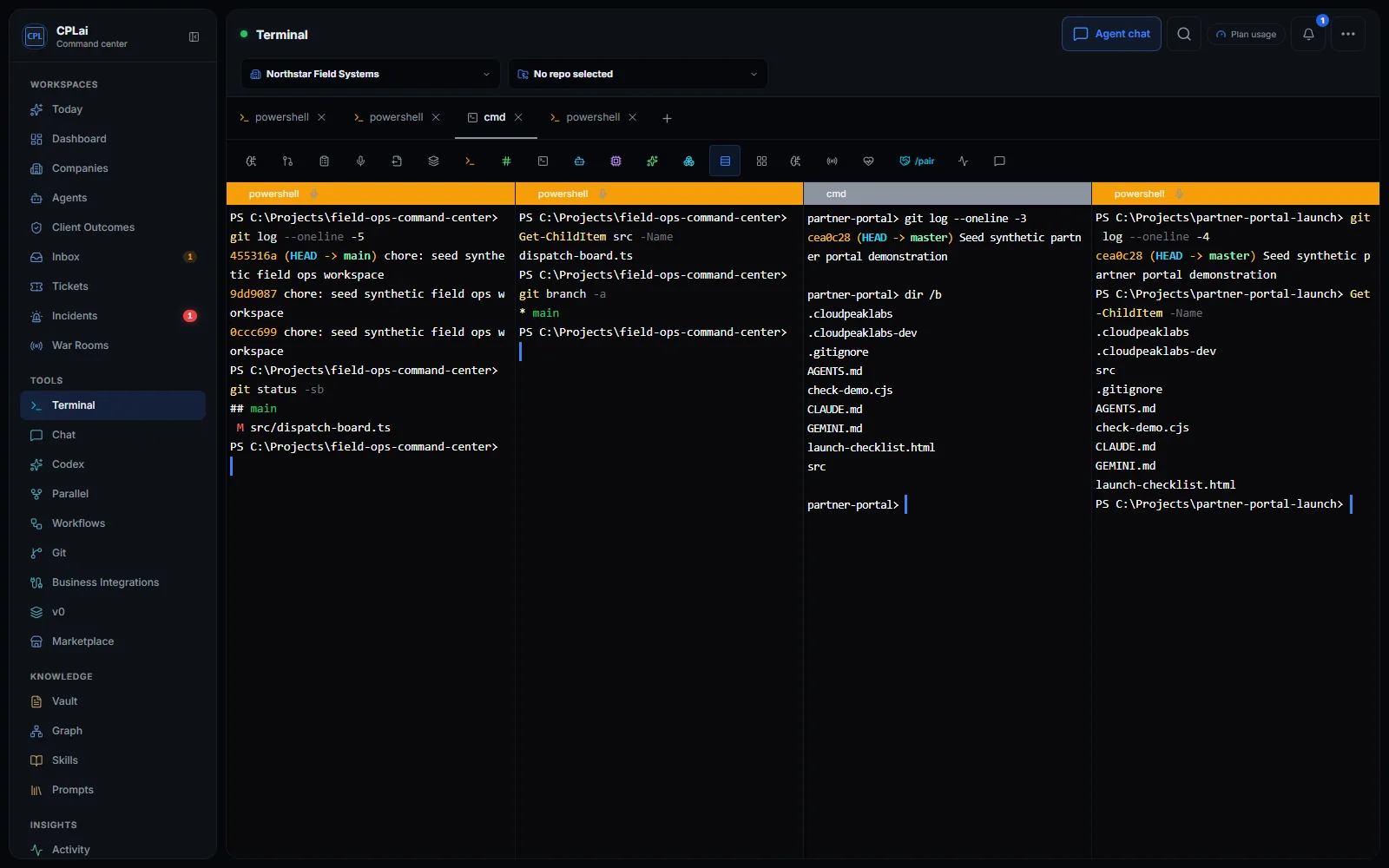
The Terminal page gives you real local shells inside CPLai. Each tab runs a live PTY session, so PowerShell, Claude Code, Codex, Antigravity, and opencode behave like they do in a native terminal, with CPLai adding tab management, split panes, saved layouts, find-in-terminal search, a file editor panel beside your sessions, clickable file paths, output capture, AI help, project integration, and safer resizing around AI CLIs.
Open it: Select Terminal in the sidebar, or press Ctrl+K and search for Terminal. Terminal has no Ctrl+number shortcut.
Related pages: Projects, Chat, Codex, Settings, Keyboard Shortcuts
What do I get over a normal terminal?
A normal terminal runs one session per window and forgets it when you close it. The Terminal page is built for running several AI coding sessions at once and staying on top of all of them.
| You want to | The Terminal gives you |
|---|---|
| Run several AI sessions at once | Claude Code, Codex, Antigravity, opencode, and plain shells in one window, as tabs, split panes, columns, or a grid |
| Know which session needs you | A tab flashes, shows an attention dot, or plays a sound when a session asks for input, and background tabs notify you when they finish |
| Check on everything at once | The supervisor bar sends one command to the tabs you select, or writes an AI summary of what each one is doing |
| Pick up where you left off | Tabs, titles, folders, order, and scrollback come back after a restart, and a Claude Code tab reopens the same conversation |
| Keep each task isolated | A development workspace gives a task its own Git branch and worktree, and each tab header shows its folder and branch |
| Read and change code next to the session working on it | The file editor panel opens beside your terminals and follows the terminal you are in |
| Turn output into tracked work | Create a ticket or Vault note from terminal output, send an error to Chat, and review pull requests from the Mailbox without leaving your shells |
AI CLI tabs use the logins already set up on your machine, so there is nothing to sign in to again.
What shells can I run?
| Shell | Use it for | How it starts |
|---|---|---|
| PowerShell | General local commands, git, scripts, builds | powershell.exe -NoLogo |
| Bash | Cross-platform shell work; Git Bash on Windows | bash or the detected Git Bash executable |
| Command Prompt | Windows batch commands and native cmd.exe behavior; Windows only |
cmd.exe |
| Claude Code | Interactive Anthropic coding sessions | claude |
| Codex | Interactive OpenAI coding sessions | codex |
| Antigravity | Interactive Google Antigravity (agy) CLI sessions | agy |
| opencode | Interactive OpenRouter coding sessions (GLM, open models) | opencode |
AI CLI tabs use the login state already configured on your machine. Desktop Terminal tabs also receive CPLai's local API connection details and durable operator token when available. See Keychain for permission controls.
Tip: If an AI CLI is not installed, the tab shows the install command instead of failing silently.
How do I create a terminal tab?
Use one of these options:
| Action | Result |
|---|---|
Click the + button |
Opens a new tab with your default shell (PowerShell unless you change Default Shell in Settings -> Terminal). On web, it first opens a short form where you can pick another shell, a title, and a folder |
Press Ctrl+Shift+T (desktop) |
Opens a new tab with your default shell, even while a terminal has focus |
| Click the Claude Code button | Opens a Claude Code tab |
| Click the Codex button | Opens a Codex tab |
| Click the Antigravity button | Opens an Antigravity (agy) tab |
| Click the opencode button | Opens an opencode (OpenRouter) tab |
| Click the Local model button | Opens OpenCode on your default local model, with your own model server as the only provider, at no cost. The button appears when local models are turned on and a default local model is picked under Settings |
| Right-click a folder in the File Browser and choose a CLI | Opens that CLI in the selected folder |
New tabs start in the active Repo when a company workspace and project are selected. In All Workspaces, or when no repo is selected, they use your user folder unless they are launched from a project, ticket, plan, file browser action, or another scoped workflow.
How do Workspace and Repo context affect Terminal?
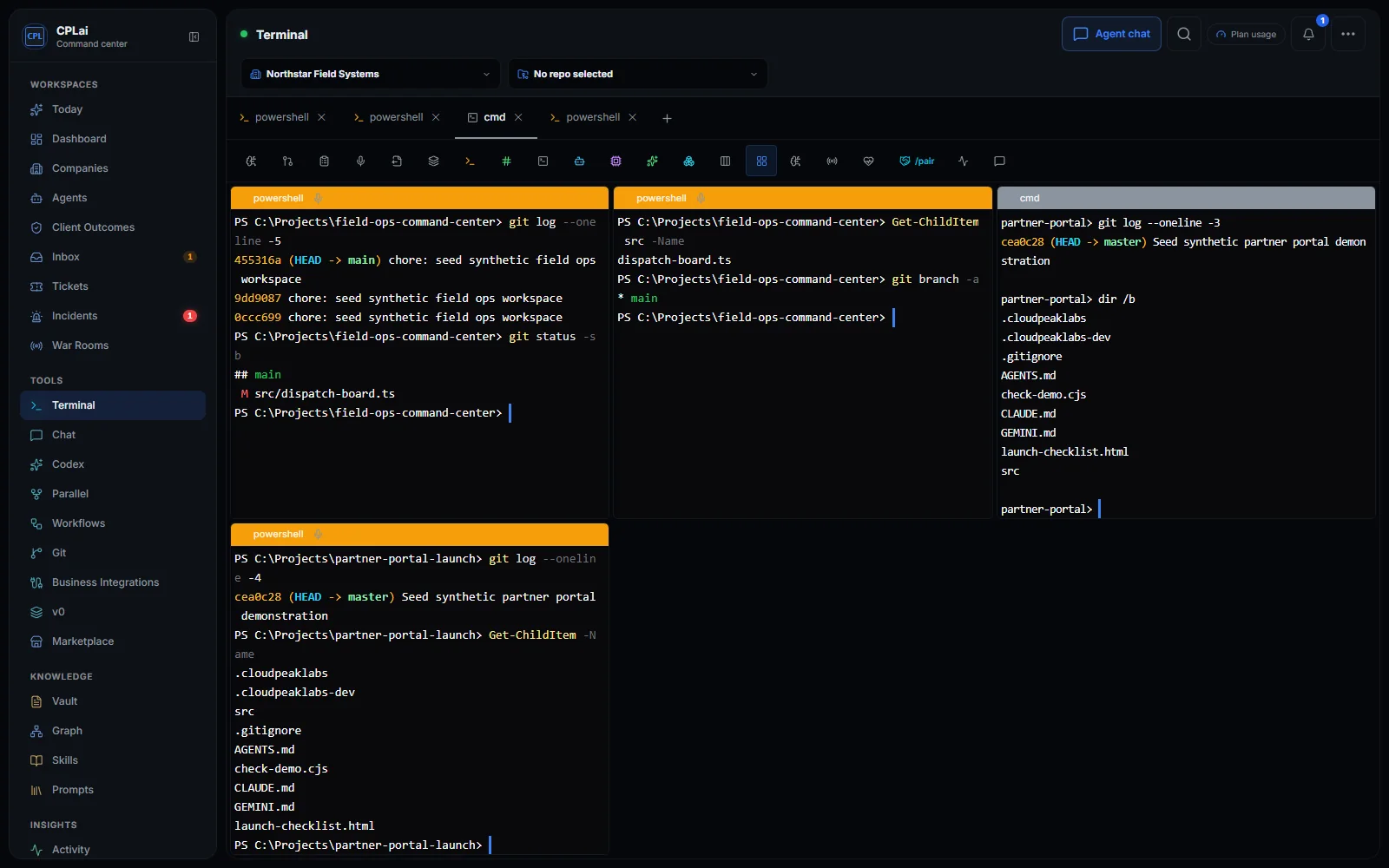
The app-wide Workspace selector filters the Terminal page to tabs launched for that company. The Repo selector sets the default directory and project stamp for new tabs.
- Switching workspaces only changes which tabs are visible. Hidden terminals stay mounted and keep running.
- All Workspaces shows every open terminal, including older tabs that do not have a workspace stamp. It removes the interactive Repo picker because no single repository can scope the combined view; the context bar may still show the focused tab's repository as read-only information.
- When you focus a tab whose live directory belongs to a known project, the Repo selector follows that project.
- A deep link from the Command Palette, a notification, or a ticket can switch the workspace filter so the requested terminal is visible.
- Tabs launched from a ticket, project, or plan keep that explicit project even if a different Repo is active.
If a workspace has no terminal tabs yet, the page shows an empty state and keeps tabs from other workspaces alive in the background.
Which company does a tab work as?
A tab works as the company of the project whose folder it opens in, not the company selected at the top of CPLai. The CLIs in it get that company's CPLai identity, so a Claude or Codex session in one company's project acts for that company. When you open a tab in a folder of a company other than the one selected, the Terminal page switches to that company so the new tab stays in view. A folder that belongs to no project uses the selected company, as before.
A running session keeps the identity it started with. If a session you come back to after reloading the page started as a different company than its folder's, the tab says so and keeps that identity until you restart the tab. Restart it to work as the folder's company.
How do I manage tabs?
| Task | How to do it |
|---|---|
| Switch tabs | Click a tab in the tab bar |
| Rename a tab | Right-click the tab, choose Rename, type the new name, then press Enter |
| Change a tab color | Right-click the tab, choose Change Color, then pick a preset or custom color |
| Rearrange tabs | Drag a tab to a new position, right-click it and choose Move Left, Move Right, Move to Start or Move to End, or press Ctrl+Shift+PageUp / Ctrl+Shift+PageDown to move the active tab one place. On the web, on a touch screen, press and hold a tab for half a second to open the same menu |
| Close a tab | Hover the tab and click X, or use Close in the right-click menu. On the web, on a touch screen, tap a tab to bring it to the front, then tap its close mark: only the tab in front shows one, so a tap that switches tabs cannot close a session |
| Restart a tab | Click the restart button in the toolbar |
Rearranging works the same on desktop and web. A split group moves as one tab, and in a workspace only that workspace's tabs move: tabs from other workspaces keep their places. Desktop keeps the order with your saved terminal session. The web Terminal page remembers it in that browser. Some browsers keep Ctrl+Shift+PageUp / Ctrl+Shift+PageDown for their own tabs; there, drag the tab or use its right-click menu.
You can close every tab. When the last one closes, the page shows a picker so you can start a new shell or AI CLI. Closing a tab also removes its saved output buffer from the current terminal session state.
How do I use column view?
Click the column-view button in the Terminal toolbar. Column view shows all terminal tabs side by side, which is useful when you want to compare an AI CLI, a build process, and a plain shell at the same time.
Column controls:
| Control | How to use it |
|---|---|
| Resize columns | Drag the divider between columns |
| Equalize columns | Double-click a divider, or right-click a column and choose Equal Size |
| Maximize a column | Right-click a column header and choose Maximize Column |
| Minimize a column | Right-click a column header and choose Minimize Column |
| Return to tab view | Click the tab-view button in the toolbar |
Tip: Switching between tab view and column view does not restart the shell process.
How do I know a terminal needs attention?
CPLai watches terminal output for prompts that require input, including confirmation prompts, permission prompts, and common yes/no prompts.
When a tab needs attention, CPLai can show:
| Signal | What it means |
|---|---|
| Flashing tab or column header | A background terminal produced output that may need your response |
| Attention dot | The tab is waiting for input or has activity you have not viewed |
| Waiting for you chip | In columns or a grid, the pane's header shows it while a Claude or Codex session is asking you something: a question, a permission, or a plan to approve. It goes away as soon as the session carries on. A plain shell back at its prompt is not asking, so it gets the flash and sound above but no chip. In a narrow pane the chip is an icon; hover it to see the words |
| Audio alert | A prompt was detected and audio alerts are enabled |
| Heat tint | The tab or column is producing a higher rate of recent output |
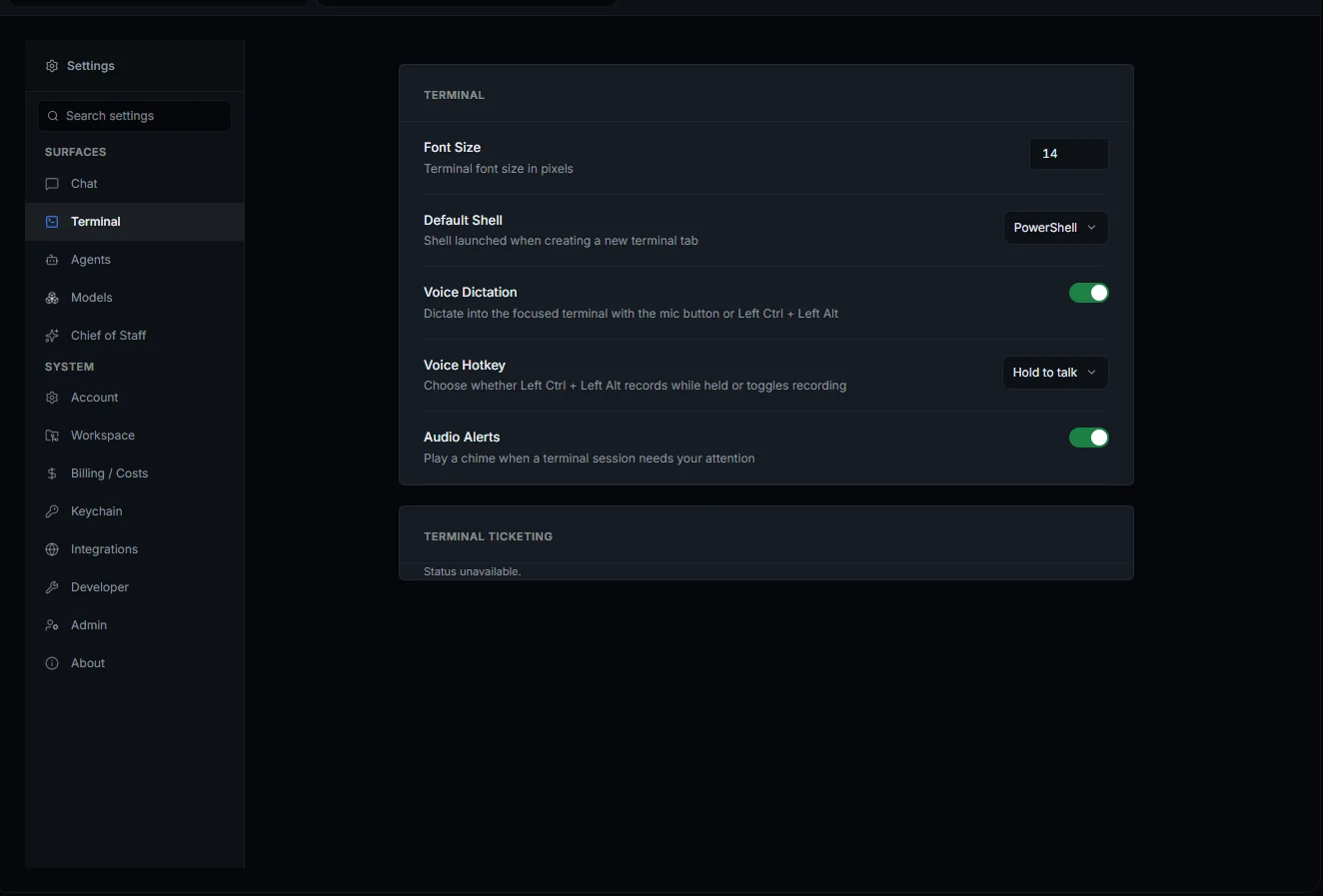
You can turn audio alerts on or off in Settings -> Terminal. The same section lets you set a custom font size (8 to 32, default 14) and choose a default shell for new tabs.
How do messages from other sessions reach a Codex terminal?
A message another session sends to a Codex tab never goes through the tab's input line: nothing is typed into it, and a draft you are writing stays as it is. With Codex terminals take messages at once on (Settings > Agent access & safety > Agent access, group Messaging; on by default), each Codex tab opens with its own private link on this computer, and a message reaches the tab at once: while Codex works it joins the current turn, and while the tab waits it starts one. Codex reads it as a note.
- The link listens only on this computer, and only your Windows account can read its key.
- It closes when the tab closes, and with CPLai if CPLai stops or crashes. A tab that reopens after a restart gets a new link and resumes its own conversation.
- A tab set to resume "the last conversation" instead of its own opens without the link, because Codex would then pick the newest conversation on the computer rather than this tab's.
- If CPLai cannot open the link, the tab opens as before, says so, and takes messages at the end of its next turn.
- While Codex reports that the tab is waiting for your approval or for an answer from you, a message waits until you have answered.
- A tab that has not had a first message from you yet has no conversation to join: a message waits on the tab's badge until you start one.
- A Codex tab signed in with an API key takes messages at the end of a turn instead, because starting or joining a turn there would spend money on the key without you. The same goes for a tab whose sign-in CPLai cannot confirm as your ChatGPT sign-in.
- Off: Codex tabs open as before and take messages at the end of a turn. A change applies to tabs that start after it. Only you can change this switch.
- Codex tabs opened from the web dashboard or an iPad take messages at the end of a turn for now.
Can an opencode terminal message other sessions?
Yes. While OpenCode tabs take messages from other sessions is on (Settings -> Agent access & safety -> Agent access, group Messaging; on by default; only you can change it), every opencode tab you open gets CPLai's own tools, as Claude Code, Codex and Antigravity tabs do. It can send a message to another session, list the sessions it can reach, recall your project's history, and read and update tickets. How messages reach an opencode tab is under OpenCode terminals.
- It uses the tab's own CPLai key and company, so a message names the tab as its sender.
- CPLai adds only its own tools. Your own opencode tools and settings stay as you set them.
- Off: opencode tabs open without CPLai's tools. A change applies to tabs that start after it.
How do I supervise multiple terminals?
In Terminal, choose the radio-shaped toolbar button labelled Open supervisor on desktop or Open supervisor + broadcast on web. Desktop opens a broadcast bar above the terminals; web opens a Supervisor dock beside them. Both offer a checkbox per session, All and None selection buttons, a command input, and a summary button.
Use this when you have several shells or AI CLI sessions running at once and want one command or one status readout across the selected tabs.
How do I broadcast a command?
- Open Supervisor.
- Select the terminal tabs that should receive the command.
- Type the command in the broadcast input.
- Press
Enteror click the send button.
CPLai writes the command to each selected PTY and appends a newline if needed. The terminal processes stay mounted, so broadcasting does not restart or duplicate any tab.
| Selection | Desktop broadcast | Web broadcast |
|---|---|---|
| One or more checked sessions | Sends to those sessions | Sends to those sessions |
| No sessions checked, including after None | Sends nothing | Sends to all sessions listed in the dock |
Tip: Check the recipients before sending. Start with a read-only command such as
git statusorpwd. The input goes to whatever is running in each terminal, including an AI CLI waiting for a prompt.
How do I get an AI summary of active terminals?
- Open Supervisor.
- Select the terminals you want included.
- On desktop, type
/summaryand pressEnter, or choose Generate supervisor summary. On web, choose the refresh button labelled Run /summary in the dock header. The web broadcast input sends text to terminals; use the button to request the AI summary.
CPLai opens the supervisor panel beside the terminals, which narrow to make room for it, and summarizes the recent output from the selected terminals. The summary groups each terminal by status, issues, and next actions, then lists cross-cutting issues and recommended actions.
The summary uses the last 100 lines from each selected terminal, so recent output matters most. With no sessions selected, the summary includes all sessions available to Supervisor on either surface. Use the panel's refresh button to read their latest output again.
How do I choose the Supervisor model?
Open Settings -> Utility models -> Terminal Supervisor -> Supervisor model. Keep Same as the Utility Model (default) to follow your general helper model, or choose a separate model for Supervisor. See Supervisor model settings for the available choices and fallback behavior.
Availability: The separate Supervisor model picker and the two coordination sections below are available from 26.11.22. In 26.11.21 and earlier, Supervisor uses the Utility Model and does not show those sections. Check your installed version in Settings -> About & updates if these controls are missing.
How do I see which sessions need me?
When several sessions work together, two sections appear above the per-terminal cards:
| Section | What it shows |
|---|---|
| Needs you | Each session that is waiting on something only you can do, such as a command to type, an approval, or an answer. The time beside it is how long it has waited. Select a row to bring that terminal to the front. |
| Who waits on whom | One line per session that waits on another session, followed through to what is really holding it up, for example Documentation waits on API work waits on tests. When one session holds up two or more others, the section names it first. |
Both sections come from the AI summary of recent output. They refresh when you refresh it or when Watch mode re-runs it, and stay hidden when the summary reports no matching waits. The waiting age starts when Supervisor first reports that a session needs you and resets after a later summary clears that need. Select a Needs you row to return to its terminal and read the original request before acting.
How do I escalate a supervisor finding?
Each finding in the Supervisor panel has two actions:
| Action | Result |
|---|---|
| File bug | Opens a bug-ticket form pre-filled with the finding and terminal context |
| Send to inbox | Creates a task for the human Inbox so the issue is visible outside Terminal |
Turn on the eye-shaped Watch mode control to re-run the summary every 5 minutes. During that watch session, CPLai automatically sends each failing or stuck terminal to the Inbox once. Turning watch mode off and on starts a new watch session.
How do I debug terminal errors in Chat?
When CPLai detects common error output, a Debug in Chat button appears on the active terminal. Click it to open Chat with the relevant error context already attached.
CPLai currently detects common patterns such as:
| Error type | Example |
|---|---|
| TypeScript errors | error TS2345 |
| JavaScript runtime errors | TypeError, ReferenceError, SyntaxError |
| Test failures | FAIL src/... |
| npm errors | npm ERR! |
| Build failures | Build failed or Compilation failed |
The button uses recent terminal output and the terminal working directory as context.
How do I open Terminal Chat?
Click the chat button in the Terminal toolbar. The chat dock opens on the right side of the window, and the terminals narrow to make room for it instead of being covered. The dock starts in Agent mode; choose Model at the top of the dock to chat with a model. Model mode, and everything below in this section, is in the desktop app only: the web dashboard's chat dock is agent chat only.
Terminal output is not sent automatically. Type @terminal and pick a terminal tab to include its recent output. You can add other context the same way:
| Mention | Adds |
|---|---|
@terminal |
Recent output from a terminal tab |
@web |
Web search context when configured |
@git |
Git status and diff |
@codebase |
A codebase search instruction |
@docs |
A project documentation search instruction |
@filename |
A specific file from your vault or file browser context |
Terminal Chat uses the normal CPLai conversation system, so you can choose a text model, switch to an earlier Chat conversation from the dock's conversation picker, and retry assistant responses.
How do I open a folder in a terminal?
Use the File Browser:
- Open the File Browser.
- Right-click a folder.
- Choose Open in Claude Code, Open in Codex, or Open in Antigravity.
CPLai switches to Terminal, creates the selected CLI tab, and sets the working directory to that folder.
How do I use a project terminal?
Projects have a built-in terminal panel that uses the same terminal pool as the main Terminal page.
In a project workspace, you can:
| Action | Result |
|---|---|
| Create a PowerShell, Claude, Codex, or Antigravity tab | The tab starts in the project directory |
| Switch project terminal tabs | The selected tab becomes the active terminal |
| Collapse the terminal panel | The terminal keeps running while hidden |
| Maximize the terminal panel | The terminal takes over the project workspace area |
| Open the same tab on the Terminal page | The session is shared, not duplicated |
This is useful when you want a plan, project files, and a terminal visible in one workflow.
How do I work a ticket in Terminal?
Open a ticket detail and select Work in terminal. CPLai checks out the ticket, opens a tab in the ticket project's repository, and titles the tab after the ticket.
When you close that bound tab, choose one of these outcomes:
| Choice | Result |
|---|---|
| Comment + release | Posts your optional closing note, releases the checkout, and closes the tab |
| Release ticket | Releases the checkout without a comment and closes the tab |
| Close, keep checkout | Closes the tab but keeps the ticket checkout active |
Ticket-scoped terminals are available on desktop and web.
What Keychain entries does a terminal tab get?
When one of your terminal tabs starts, CPLai gives it its company's Keychain as environment variables, so the CLIs and scripts in it can use those credentials without you copying them in.
- Which company: the company of the project whose folder the tab opens in. A tab in one company's project gets that company's entries and never another company's. Every company works the same way.
- Which entries: every entry linked to that company, whether or not it is marked Shared (see How do I link a Keychain entry to a company?). The GitHub owner token you use for merging is never given to a tab.
- Hidden values: CPLai hides the values in what it shows and keeps, the same way it does for agents (see Secret values are hidden from the AI).
- A folder with no project: the tab gets no Keychain entries. Open the tab in a project's folder to use that company's entries.
- When it changes: a tab gets the entries as they are when it starts. Open a new tab after you add, change or unlink an entry.
What does a terminal tab never take from the Keychain?
An entry that sets one of these variables is left out of the tab whole, with every other variable it sets:
- Variables that decide which programs run or where they are found: the program search path, shell start-up files and functions, the start-up settings of Node, npm, Python, Perl, Ruby, Java and .NET, the dynamic loader's settings, Git's SSH, proxy, sign-in prompt, editor, pager and configuration overrides, the SSH agent, the editor and pager, the settings folders of Codex, Claude Code and desktop libraries, the system folders, and your home, profile and temporary folders.
- Variables CPLai sets itself: every name that starts with
CPL_,NEXUS_orCLOUDPEAKLABS_. The tab's own CPLai identity and address always come from CPLai. - A name that is not a plain name: anything but letters, digits and underscores. A name may start with a digit.
- While the switch in Settings, Agents is on (it is off by default): a variable that changes which servers the tab trusts or connects through: a proxy, an extra certificate file or folder, or a switched-off TLS check.
The tab names each entry it left out, and why, in its CPL_KEYCHAIN_NOTE variable, never with a value. In PowerShell, run $env:CPL_KEYCHAIN_NOTE to read it. A tab whose folder belongs to no project reads why it got no entries there too.
To stop terminal tabs getting the Keychain at all, turn off Give terminal tabs their company's Keychain in Settings, Terminal.
How do terminals work for someone I gave access to?
When you give a person the Terminal feature under Settings -> Admin -> Users -> Access, they can open terminals from the web dashboard, but only inside the project folders you granted them.
- What their shell can reach: it can read and change only their granted project folders and their own home folder. It can still read anything every Windows user on this PC can read, but your profile (your
.env, SSH and cloud keys, browser data, and your own Claude and Codex history) stays closed, and so do your other processes. - Their own sign-ins: Claude Code and Codex in their terminal use their own sign-in, kept in their home folder. The first time they run
claude, orcodex login --device-auth, they get a link; open it while signed in to the account they should use and approve it. Azure (az login) and GitHub sign-ins also stay in their home folder. - Shared tools: they get the CPLai skill library and the CPLai memory tools. Their terminal carries a CPLai key of their own, so
cplcommands, tickets and keychain access act as them and stay within their access. See Keychain commands in a CPLai terminal. - Sessions: they see only terminals they opened. Their sessions do not appear in your terminal tabs, and their key is revoked when the session ends.
Terminals for other people need the always-on CPLai service, which builds the restricted shell.
How do I recover from a session-key expiry notice?
In a member terminal, CPLai displays Session key expired after 24 hours when its CPL API key expires. The shell remains available, but commands that use that key can return an authentication error.
Open a new terminal session to restore CPL API access, then continue your CPLai commands there. Reconnecting to the existing session or restarting the service does not refresh its key. Save or finish any work in the old shell before closing it.
How do terminal sessions persist?
CPLai saves the terminal layout to the local PostgreSQL-backed database.
Saved:
| Saved item | Notes |
|---|---|
| Tab title | Preserved across app restarts |
| Working directory | Used when recreating the tab |
| Shell type | PowerShell, Bash, Command Prompt, Claude Code, Codex, Antigravity, or opencode |
| Tab color | Preserved across restarts |
| Tab order | Preserved across restarts |
| Scrollback | Full colored scrollback (capped ~200KB, secret-redacted) is saved and painted back into the restored tab; tabs that never mounted fall back to a 2,000-character plain tail |
| Claude Code conversation | A Claude tab records the conversation it is running, so a restored tab re-opens that same conversation. If the transcript was deleted, the tab starts a fresh session. Turn this off under Settings > Terminal > Resume Claude Code, Codex, Antigravity and opencode tabs after a restart (on by default); off, the tab starts a fresh session. Before you install an update, check this switch: if it is off, your Claude Code tabs start fresh after that update's restart |
| Codex, Antigravity and opencode conversation | Each of these tabs records the conversation it is running, so a restored tab re-opens it, as Claude tabs do. Codex records it from the first message, Antigravity from its first tool use, opencode from the first message. A conversation that was deleted, or that CPLai cannot confirm, starts a fresh session and the tab says so. Turn this off under Settings > Terminal > Resume Claude Code, Codex, Antigravity and opencode tabs after a restart |
Not saved:
| Not saved | Why |
|---|---|
| Ordinary local process state | A fresh shell starts when the app reopens |
| Unsaved shell work | Save files and commit changes before closing the app |
Tip: Terminal tabs also stay mounted while you move around the app, so switching pages does not stop running terminal sessions.
The desktop shell blocks F5, Ctrl+R, and Ctrl+Shift+R outside terminal panes. This prevents a WebView reload from disconnecting every live PTY and discarding unsent app state. Ctrl+R inside a terminal pane is not blocked, so shell and TUI reverse-history shortcuts still work.
If the window reloads anyway (for example Refresh on an out-of-memory page, or the automatic reload after the page crashes), your local terminal tabs keep running. The reloaded page reconnects each tab to the same running process, so work in progress carries on. Output written during the reload appears under a Reconnected to the running session line.
- A tab whose process ended meanwhile reopens the way it does after an app restart: a Claude Code, Codex, Antigravity or opencode tab resumes its conversation while Resume Claude Code, Codex, Antigravity and opencode tabs after a restart is on.
- A terminal the reloaded page does not reconnect within three minutes is ended, so a reload never leaves hidden copies running.
- Closing a window ends its local terminals.
- Durable terminals are not affected.
How do I create a durable terminal?
Every launcher in the Terminal toolbar (Bash, CMD, Claude Code, Codex, Antigravity, opencode) has a small caret next to its icon. Click the icon for a local tab as before; click the caret and choose New durable <tool> session to start that same tool as a durable session in the active repo. A durable session is hosted by the always-on CPLai service when it is available, so the same live shell or CLI can survive desktop restarts and be attached from desktop or web.
The caret menu also lists durable sessions of that shell type that are running but not currently open as tabs, including ones started from the web dashboard. Select one to attach it without starting a second shell.
A durable session stays alive until you close it, even when no device is connected: you can close the iPad or the desktop app and pick the session up later. To have a session close itself instead, right-click its durable tab (desktop) or open the output actions menu (web) and choose Auto-close after 30 min with no device connected; Keep alive until closed turns that back off. If the CPLai service restarts on its own (for example after a crash), durable sessions keep running and your panes reconnect to them once it is back. Installing a CPLai update or restarting the computer ends every durable session. If the always-on service is unavailable, CPLai warns that the fallback desktop-hosted session will not survive closing the app.
When you reopen the iPad or return to the page after more than 25 seconds away, each durable pane reconnects at once and continues from the last output it showed, with its scrollback intact. If one piece of output fails to draw, the pane skips it and keeps going instead of freezing, and the service log records what failed.
When a pane loses its connection, it says so right away (Reconnecting… on the web, a spinning connecting mark on a desktop durable tab) and keeps trying on its own, even on a network that stops answering: it waits at most 10 seconds to learn whether the session still exists, and a connection that has not opened after 20 seconds is tried again, with more time on each try, up to a minute. Retrying never ends the session; the pane says Session ended only when the session has really ended.
If what you type may not have reached the program in a durable pane, the pane says so in a note over the terminal, never in the terminal itself: some of what you typed did not reach the program, may not have reached it, or the terminal no longer accepts typing. The note sits in the pane it is about, right next to the line you are typing on but never over it, and above the on-screen keys. Typing that was lost does not come back: when typing works again, the note says so and asks you to retype what is missing. It stays until you close it with its X, and comes back only if it happens again.
Closing a durable session anywhere ends it everywhere. If you close it on another device or in the web dashboard, the desktop removes its tab and shows a short notice instead of leaving the last screen open, even when it was your last tab. The desktop keeps the tab only when it is tied to a checked-out ticket, so you can still comment on and release the ticket from its close prompt. The web dashboard does not bring back sessions you closed elsewhere; it re-opens its saved tabs as fresh shells only after an update or a computer restart has ended them.
How do I watch a running agent in Terminal?
Select the bot button in the Terminal toolbar and choose an active agent run. CPLai opens a read-only terminal-style tab that hydrates the run replay and refreshes its redacted output while the run continues.
Run-attach tabs are viewers, not PTYs. Keystrokes are not sent to the agent process.
How does CPLai keep AI CLIs stable?
Claude Code, Codex, and Antigravity are terminal UIs. They are sensitive to rapid resize events, especially when several terminals are visible at once. CPLai now uses a dedicated terminal pool, targeted resize events, Windows ConPTY-specific xterm configuration, resize throttling, and startup grace handling so AI CLI banners and prompts do not stack or corrupt during layout changes.
For users, the important behavior is simple:
| Situation | Expected behavior |
|---|---|
| Add or remove tabs | Existing terminal sessions keep running |
| Switch between tabs and columns | Sessions stay alive |
| Navigate to another page | Sessions keep running in the background |
| Return to Terminal | Buffered output appears without restarting the shell |
| Resize a TUI before typing | CPLai avoids unnecessary resize signals that can redraw the banner |
How do messages from other sessions reach a terminal?
A message another session sends to a Claude or Codex terminal is never typed into it. It waits on the tab's message badge, and the terminal takes it at the end of its current turn, as a note it reads; a working Claude terminal also takes it at its next step. The note names the session that sent it and says how to reply, and that it is not an instruction from you.
- With A turn end takes every waiting message on (Settings -> Agent access & safety -> Agent access, group Messaging; on by default), the terminal gets every message waiting for it at once, oldest first, in one note of up to about 9,500 characters. Messages that do not fit wait for its next turn, and a message longer than that goes on its own.
- Off: one message per turn, so a terminal that gets many messages can fall far behind. Only you can turn it on or off.
- Once two sessions have handed each other the hourly limit of automatic messages, the next one between them waits for you on the badge, with the reason. Terminals take messages at the end of a turn turns turn-end delivery off altogether.
OpenCode terminals
With OpenCode tabs take messages from other sessions on (the same Messaging group; on by default; only you can turn it on or off), other sessions can find and message an OpenCode tab, and the message reaches it without anything being typed into it:
- Each OpenCode tab opens with its own private link on this computer. It listens only on this computer, and a password made for that tab alone protects it.
- A message goes into the conversation you last wrote in, only while that conversation is not working, and a short notice shows in the terminal. CPLai counts it as delivered only once it shows in the conversation.
- It goes in at once only when that conversation runs on a local model, one Local Only allows and that this tab's OpenCode reaches on your own network under a name that is not an Ollama cloud model, so a message never starts a turn that bills an API key. On any other model, or one CPLai cannot tell, it waits on the tab's message badge for you to take by hand, and a short notice in the terminal says so.
- A tab that has no conversation yet keeps messages on its badge until you write in it. So does a tab that started before the switch was on, or that the app took back after a page reload, until it starts again.
- Off: OpenCode tabs open as before, other sessions do not list them, and messages for them wait on the badge.
How do I search terminal output?
Press Ctrl+F while a terminal is focused to open a search overlay anchored at the top-right corner of the terminal pane. Results highlight incrementally as you type, with an amber highlight on matching text. A counter shows the current match index and total (e.g. "3/12"), or "No results" when nothing matches.
| Action | Shortcut |
|---|---|
| Open search | Ctrl+F (or Cmd+F on macOS) |
| Next match | Enter or click the down arrow |
| Previous match | Shift+Enter or click the up arrow |
| Close search | Escape |
Each terminal pane has its own independent search instance, so searching in a split pane or column view does not affect other terminals.
Find-in-terminal works in both the desktop app and the web dashboard.
On a touch screen in the web dashboard (an iPad, for example), tap Find in the terminal's touch control bar, the one with Esc and Tab, to open the same search. Its buttons are sized for a finger.
How do I jump to a terminal from the command palette?
Open the command palette with Ctrl+K.
- Desktop: Every open terminal tab appears with its title, shell type, working directory, and tab-color accent. Search by title, directory path, shell type, or the keyword "terminal."
- Web: Start typing part of a terminal title, working directory, or shell type. CPLai shows up to six matching running sessions with the title, directory, and a session-colored terminal icon.
Selecting a terminal entry immediately activates that tab and switches to the Terminal page. This is the fastest way to jump to a specific terminal when you have many tabs open.
This terminal switcher works in both desktop and web. On web, CPLai opens the requested running session and then removes the temporary session selector from the URL so later tab clicks behave normally.
How do I get notified when a background terminal finishes?
When a background terminal tab's process exits or prompts for input, CPLai can send three layers of notification:
| Layer | Where it appears |
|---|---|
| In-app toast | Bottom of the screen, click to jump to the tab |
| Notification tray entry | In the app's notification area |
| Native OS notification | When the CPLai window is not focused |
Notifications only fire for tabs that are not currently visible (inactive tabs, or when you are on another page). Prompt detection covers common patterns like [Y/n], Continue?, Allow, and (yes/no), with a 30-second cooldown per tab to avoid repeated alerts from TUIs that re-render.
This is on by default. To turn it off or back on, open Settings -> Terminal and toggle Completion Notifications.
How do I edit files beside a terminal?
The Terminal page has a file editor panel that opens next to your terminals, the way the editor sits beside the terminal in VS Code or Cursor. Your sessions keep running while you read and change code, and you never leave the page.
Open it: select the file editor button in the Terminal toolbar, next to the pull request mailbox and chat buttons. Select it again, or the X in the panel, to close it. Hold Ctrl (or Cmd) and click a file path in terminal output to open the panel on that file.
The panel takes its width from the terminals, which shrink to make room instead of being covered. Drag the panel's left edge to resize it, or focus the edge and press the left and right arrow keys. The width is remembered.
Which files does the panel show?
The panel follows a terminal and shows the files in that terminal's folder.
| You want to | Do this |
|---|---|
| See the files of whichever terminal you are working in | Leave the picker on Follow focused terminal. Select another terminal and the file tree changes to its folder. |
| Keep one terminal's files in view while you type in others | Choose that terminal in the picker at the top of the panel. |
| Catch up after a terminal changed folder | Select Use this terminal's current folder. The tree does not jump on every cd; it moves when you ask. |
A terminal working in a Git worktree shows that worktree, not the project's main folder.
What can I do in the panel?
Everything the File Editor does: browse the file tree, open several files as tabs, Quick Open by name (Ctrl+P), search across the folder, save (Ctrl+S), and use AI autocomplete and inline AI edit. Ctrl+P and Ctrl+S belong to the editor only while you are working in the panel; in a terminal they go to the shell as usual.
Files you open stay open when the panel moves to another terminal's folder. Come back to the first terminal and its tabs, including unsaved changes, are as you left them. Closing the panel hides it without closing your files.
What if an AI CLI changes a file I have open?
That is the normal case when a coding agent is running next to the editor, so the panel is built for it:
- A file you have not edited reloads on its own when it changes on disk.
- A file you have edited is never overwritten silently. If the file changed on disk after you opened it, saving shows a choice: View diff to compare, Reload from disk to take the other version and drop your edits, or Overwrite to keep yours.
The same protection applies in a project's Files tab.
When is the panel empty?
| The panel says | Why |
|---|---|
| This terminal has no folder yet | The terminal has not reported a folder. Pick another terminal, or start one in a folder. |
| This terminal's folder no longer exists | The folder was deleted, for example a removed worktree. Use Use this terminal's current folder after moving the terminal somewhere else. |
| Files on a remote machine are not available in this panel yet | The terminal runs on a paired machine. Open the files on that machine. |
| This terminal's folder is not part of a project you can open here | You are signed in as a member, and the terminal's folder is outside the projects you were given. |
What do people I gave access to see?
A member sees the panel only for terminals inside a project you granted them, and it is read-only: they can browse and read files but not save. Only the owner can open folders outside a project and save changes. Agents cannot use the panel's file access at all.
How is the web dashboard different?
- The panel sits beside the terminals whenever there is room for both. On a tablet it gets narrower so the terminals stay readable. When there is not room for both (a phone, or a tablet in portrait with another side panel open), the panel fills the terminal area. Select Back to terminal to return.
- When the panel is narrow, it shows either the file list or the open file. The folder button above the file switches between them. This applies on desktop too when you drag the panel narrow.
- If you go to another page and come back, your open files and unsaved changes are still there. Reloading or closing the browser tab with unsaved changes asks first.
- A clicked file outside the terminal's folder (a handoff note, a generated report, a dependency) opens from its own folder, on desktop and for the owner on web. On web this goes through the terminal you clicked in, so it stops working when that terminal is closed. A member can only open files inside the projects you gave them.
How do I click file paths in terminal output?
File paths that appear in terminal output are automatically recognized and made clickable. Hold Ctrl (or Cmd on macOS) and click a path. On a touch screen (a tablet or phone using the web dashboard) there is no Ctrl key: tap the path. A file opens in the file editor panel beside your terminals, at the line and column when the output includes them. This works the same on desktop and web. A folder path opens the file browser on desktop.
Recognized path formats:
| Format | Example |
|---|---|
| Absolute Windows paths | C:\Work\sample-app\src\App.tsx |
| Dot-relative paths | ./src/lib/utils.ts |
| Bare relative paths with extensions | src/stores/chat.ts |
| Paths with line numbers | src/App.tsx:42 or src/App.tsx:42:5 |
| Absolute paths with spaces | C:\Work\status reports\week 12.md |
| Absolute paths split over two or three rows | a long path that wraps at the edge of a narrow terminal |
Paths are resolved against the terminal's working directory and verified on disk before becoming clickable. Plain clicks (without Ctrl) still work for normal text selection. URL-format links (starting with http:// or https://) are handled separately and open in the browser.
On web, the owner can open a file from any folder on the machine the terminal runs on. A member's file links are limited to the projects you gave them. Either way CPLai checks that the file exists before making it clickable, so missing files stay plain text.
Relative paths with spaces are not recognized: only an absolute path (one that starts with a drive letter) can contain spaces or run over the end of a row.
An HTML file opens as the page it renders, so a generated report can be read straight away. Select Code above the file to see and edit the HTML, and Page to go back. A path clicked with a line number (report.html:12) opens as code at that line. See How do I view an HTML file as a page?
A terminal shown in a project's own terminal strip, instead of on the Terminal page, opens clicked paths in the file browser on desktop.
Tip: Paths with spaces in their names are not recognized as clickable links, matching the behavior of VS Code's integrated terminal.
What does the tab header context line show?
Each terminal tab and column/grid panel header shows a compact context line below the tab title: the live working-directory basename and the current git branch (shown with a branch icon).
For example, a tab titled "Build" in the sample-app directory on the feature/navigation branch shows: sample-app feature/navigation
Hover the context line to see the full working directory path. Integrated PowerShell, Command Prompt, Bash, and WSL shells report live directory changes through OSC shell events, so the context updates after cd. The git branch updates automatically when you checkout a different branch, with a short cache to avoid excessive lookups.
Tip: When shell integration cannot report a live directory, CPLai keeps the last known directory. Council resolves project context from the directory captured when the command was entered, so switching tabs or repos after launch does not redirect that request.
How do I open the pull request mailbox?
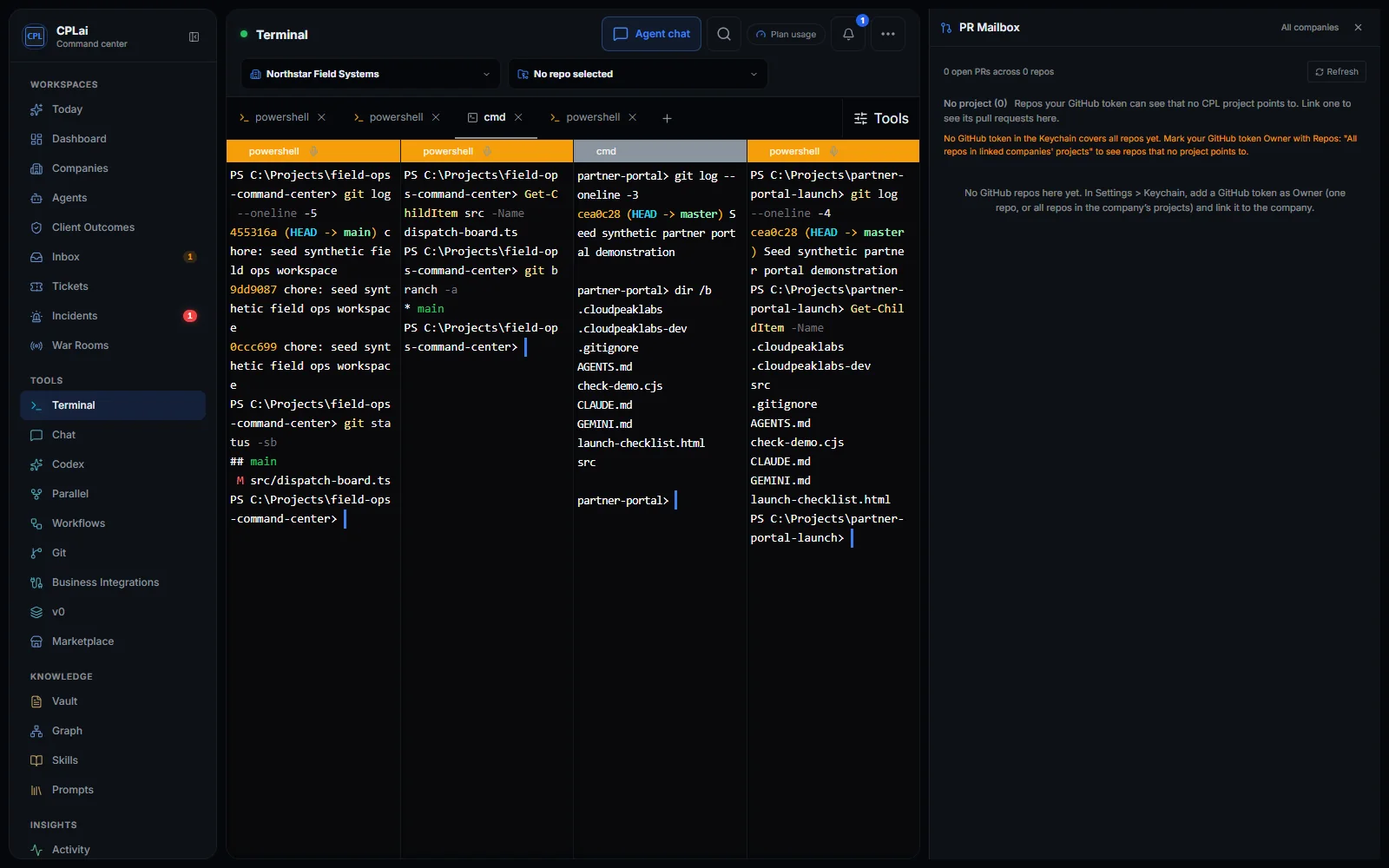
Select Mailbox in the Terminal toolbar to open the all-workspace pull-request queue without leaving your shells. It shows open requests across connected companies and repositories, including ticket links, review state, check rollups, changed files, and the same comment, review, and merge controls available on the Git page. See Pull Requests and the Mailbox.
How do I create a ticket or vault note from terminal output?
On desktop, right-click a terminal tab to access the output capture actions. On web, click the Output actions icon in the Terminal page header.
| Action | What it does |
|---|---|
| Ticket from Output | Creates an engineering dashboard bug ticket pre-filled with terminal output. Ticket creation requires a company and project. Both surfaces let you confirm the project in the modal; the active project is pre-selected as the default. |
| Save Output to Vault | Writes the terminal output as a debrief note in the vault, tagged with the shell type. |
| Export Scrollback | Downloads or saves the full scrollback history as a .txt file. |
For ticket and vault actions, the text source is your current selection if any, otherwise the full scrollback. Desktop can also fall back to its rolling output buffer if live scrollback is unavailable. Content is secret-redacted (API keys, bearer tokens, and similar patterns are scrubbed) and length-capped (12K characters for tickets, 60K characters for vault notes, keeping the most recent tail). File export is raw and unredacted.
Desktop also shows these actions as icon buttons in the hover action bar at the top-right of each terminal pane (see Quick Action Hover Menu). Web applies the header menu to the active terminal session.
How do I save a live terminal transcript to the Vault?
Turn on Vault transcript from the desktop tab menu or the web output-actions menu. CPLai strips terminal control sequences, redacts common secrets, keeps the most recent 120,000 characters, and writes a stable Debriefs note that the Vault can index for later recall.
The transcript flushes when the tab closes and about every 10 minutes while enabled. Turning the option off stops future writes; it does not delete the existing Vault note.
How do I share a terminal with a War Room?
On desktop, right-click the tab and choose Share to War Room. On web, open the Output actions menu in the Terminal page header. Then select an open room for the active company. CPLai posts a secret-redacted 40-line snapshot when sharing starts and checks for changed output every 60 seconds.
Sharing stops when you close the tab or choose Stop sharing from the same menu. See War Rooms for room membership, mentions, and incident timelines.
How do I hand off a local Claude session to the headless service?
On desktop, right-click the tab (or the panel header in column or grid view) and choose Hand off to headless Claude. Right-clicking inside the terminal itself pastes instead, so use the tab. On web, open the Output actions menu in the Terminal page header. Select a resumable Claude session for that directory, enter the instruction, and choose Start headless run.
CPLai continues the session unattended with the always-on service. Redacted output is captured in the Vault under Debriefs, and the Claude session remains available in the resume picker afterward. This action is not shown for remote terminals or read-only run-attach tabs.
How do I use saved layouts?
A layout saves the CPLai windows you have open and the tabs in each one: their names, folders, shells or AI engines, colors, order, view mode and column widths, plus where each window sits on your screens. Open it later and every window and tab comes back the way it was saved. A layout is saved for the company or project you choose, or for all companies.
How do I save a layout?
- Arrange your windows and tabs the way you want them.
- Click Layouts in the Terminal toolbar, then Save layout.
- Name it and choose Save for: the company, the project, or all companies.
- Every open CPLai window is listed with its tabs, the window you are in first. Untick any window or tab to leave it out.
- Click Save layout.
Each tab shows what Resume will do for it when you open the layout later: an AI tab with a saved conversation resumes it, any other AI tab starts a new session, and a shell opens a new shell in its folder.
Only the tabs the Workspace picker shows in this window are saved from it.
How do I open a layout?
Click Layouts, then Open on a layout. CPLai asks each time:
- Resume where I left off - each tab opens in its saved folder, with its saved name and color. A Claude Code, Codex, Antigravity or opencode tab that saved a conversation reopens it; any other tab starts a new session, and the prompt says why (for example, no conversation was saved, or resuming conversations is off in Settings > Terminal).
- Start fresh - every tab starts a new session in its saved folder, with its saved name and color.
Before you choose, the prompt shows where each window will go and anything that cannot come back as saved, such as a conversation that no longer exists or one that is open in another window. Those tabs start fresh.
When the layout opens:
- The window you opened it from becomes its first window. Each further window opens as a new CPLai window.
- Each window returns to its display, position and size. If that display is not connected, or the layout was saved on another computer, the window opens centered on your main display. A window saved maximized opens maximized.
- The layout's tabs come first, in their saved order. Tabs that were already open stay open, after them. Nothing that is running is closed.
- A conversation that is already open in a tab here takes its place in the layout instead of opening a second time.
Displays are named the way your computer names them, or Display 1, Display 2 (Display 1 is your main display).
How do I edit or delete a layout?
Click Layouts, then the edit button on a layout. You can rename it, change Save for, move a window to another display or to where it is now, reorder, rename or remove tabs, move a tab to the other window, or Update from what is open now. Nothing changes until you click Save changes.
Delete a layout with its delete button, or Delete layout in the edit dialog. CPLai asks first; terminals that are open stay open.
Layouts saved before windows were kept open as one window, in the window you open them from.
How do layouts work on the web dashboard?
In the web dashboard a browser cannot place other windows, so a layout with several windows opens them here as tab groups, in order, each marked with its window number; tabs that were already open stay after them, underlined. Resume reopens a tab's conversation only when the layout was saved in the desktop app: tabs started from the web dashboard do not report their conversation, so a layout saved on the web opens its AI tabs fresh.
How do I use split panes?
In tabs view mode, any terminal tab can be split into two side-by-side panes.
How do I split a tab?
Right-click a terminal tab and select Split Right. A new pane opens to the right of the current one, inheriting its shell type and working directory. A draggable divider between the panes lets you adjust the width split.
In the tab strip, split groups collapse to a single tab button (the first member represents the group). Dragging that button or moving it from its right-click menu moves both panes together.
How do I close a split pane?
Close one pane in a split and the group dissolves - the surviving tab becomes a normal solo tab.
Tip: Split panes are available in tabs mode only. In columns or grid view, each terminal already has its own independent panel. The split group state persists across app restarts.
How do I use terminal keyboard shortcuts?
| Shortcut | Action |
|---|---|
Ctrl+1 to Ctrl+8 |
Passed through to the app's page shortcuts (Today, Dashboard, Companies, Agents, Client Outcomes, Inbox, Tickets, Incidents) |
Ctrl+Shift+T |
New tab with your default shell (desktop) |
Ctrl+Shift+PageUp / Ctrl+Shift+PageDown |
Move the active tab one place left or right |
Ctrl+C |
Copy selected text, or send interrupt when nothing is selected |
Cmd+C (Mac, iPad keyboard) |
Same as Ctrl+C: copy selected text, or send interrupt when nothing is selected |
Ctrl+V |
Paste clipboard text into the terminal |
Ctrl+Shift+C |
Copy selected terminal text |
Ctrl+Shift+V |
Paste clipboard text into the terminal |
Ctrl+A |
Select all terminal content |
Ctrl+F |
Open find-in-terminal search overlay |
Ctrl+K |
Open the command palette (includes terminal tab jump) |
Ctrl+Click |
Open a file path from the terminal output in the file editor panel |
Mobile web controls
On a touch-sized web terminal, a fixed control bar provides Esc, Tab, Page Up, Page Down, and Enter without relying on a hardware keyboard. A one-finger vertical drag scrolls terminal history and stays inside the terminal instead of moving or navigating the surrounding page.
Mouse Copy and Paste
Terminal sessions support Windows Terminal-style mouse shortcuts for fast copy and paste without reaching for keyboard modifiers:
- Left-click drag and release - selecting text with the mouse automatically copies it to the clipboard when you release the button.
- Right-click - pastes clipboard text into the terminal. The native right-click context menu is suppressed.
- Shift+drag - in full-screen mouse-mode TUIs (Codex, Antigravity), hold Shift while dragging to force a native text selection instead of sending mouse events to the TUI.
These shortcuts match the behavior of Windows Terminal and VS Code's integrated terminal.
Programs running inside the terminal can also copy to your system clipboard directly, using the OSC 52 escape sequence - this covers Claude Code's drag-select auto-copy, tmux set-clipboard, and Neovim's +/* register copy via OSC 52. CPLai never answers OSC 52 clipboard read queries, so a program in the terminal cannot read what is already on your clipboard.
See Keyboard Shortcuts for the full app-wide list.
Clipboard History
The Clipboard History panel gives you a record of everything you have copied, plus AI-powered transforms to clean up text before pasting it into a terminal session.
How do I open the Clipboard History panel?
Click the clipboard icon in the Terminal page header. The panel opens as a dropdown under the icon.
What does the panel show?
- History list - Up to 40 recent clipboard entries, newest first. Each entry shows a preview, age (e.g. "3m", "1h"), source label (System, Manual, or AI), and character count.
- Active item detail - Click any entry to select it. The right side shows the full text and available actions.
What can I do with a clipboard entry?
| Action | What it does |
|---|---|
| Refresh clipboard | Reads the current desktop clipboard immediately, even when automatic monitoring is paused |
| Copy | Writes the entry back to the system clipboard |
| Paste | Sends the text directly into the active terminal tab (desktop only) |
| Delete | Removes a single entry from the history |
| Clear All | Empties the entire clipboard history |
AI Transforms
Select a clipboard entry, then click one of the AI transform buttons to create a cleaned-up version:
| Transform | What it does |
|---|---|
| Summarize | Condenses the text into a concise summary |
| Clean | Fixes grammar, punctuation, whitespace, and typos |
| Bullets | Converts the text into bullet points |
| Professional | Rewrites the text in a concise professional tone |
Transformed text appears as a new entry in the history with an "AI" source label. The original entry is preserved.
Tip: AI transforms work on text up to 16,000 characters. Longer entries are truncated before being sent to the model.
AI transforms also work on the web dashboard. The web panel runs the same four transforms through a server-side proxy, so no API key ever reaches the browser.
Clipboard Monitoring
Toggle the play/pause button to start or stop automatic clipboard monitoring. When monitoring is active, CPLai polls the system clipboard every 1.5 seconds and automatically captures new text. Duplicate entries (same content copied again) update the timestamp instead of creating a new entry.
History is persisted in localStorage and survives app restarts. The list holds up to 40 items; older entries are dropped when the limit is reached. Individual items are capped at 120,000 characters.
Security Filtering
CPLai automatically blocks sensitive text from being captured. The following patterns are never stored in clipboard history:
| Pattern | Example |
|---|---|
| OpenAI API keys | sk-... |
| Stripe secret keys | sk_live_..., sk_test_... |
| Google AI keys | AIzaSy... |
| GitHub tokens | ghp_..., gho_..., ghs_..., ghu_..., ghr_... |
| AWS access keys | AKIA... |
| CPLai personal access tokens | cpl_pat_... |
| Password/secret assignments | password=..., api_key=... |
| Private keys | -----BEGIN RSA PRIVATE KEY----- |
If you copy text that matches any of these patterns, it is silently skipped.
Tip: The clipboard history panel is available on both desktop and the web dashboard. Automatic background monitoring (the play/pause toggle) still requires the desktop app, since a browser cannot poll the system clipboard in the background. On web, use the "Capture current clipboard" button to pull in the current clipboard contents on demand (this triggers a one-time browser permission prompt the first time you use it). The web panel has no Paste action: copy the entry, then paste it into the terminal.
Repo Monitor
The Repo Monitor panel tracks real-time file system changes inside your project repository and related directories. It uses native file watchers on the backend, so changes appear within seconds of happening on disk.
How do I open the Repo Monitor?
Click the activity/pulse icon in the Terminal page header bar. The panel opens on the right side of the terminal area, and the terminals narrow to make room for it.
Watched Roots
When you have an active project selected, the monitor watches up to three root directories:
| Root | What it watches |
|---|---|
| Repository | The project's git repository directory |
| Vault | The project's vault directory (if configured) |
| Scratch | The project's scratch/workspace directory |
If no project is selected, the panel displays "No project repository selected" and no roots are listed.
Recent Changes
File changes stream into the panel in real time. Each entry shows:
- File path (relative to the watched root)
- Change type: created, modified, or deleted
- Timestamp
The list caps at the most recent 100 changes and auto-scrolls to show the newest entry.
Voice Dictation
Voice dictation lets you speak commands into any terminal or Codex tab instead of typing them. When enabled, a microphone button appears in the terminal toolbar next to each tab's controls.
How do I enable it?
Voice Dictation is on by default. To turn it off or back on, open Settings -> Terminal and toggle Voice Dictation. The mic button appears or disappears immediately in all terminal and Codex tab headers.
How do I dictate?
Using the mic button: Click the microphone icon in the terminal header. The icon pulses red while recording. Speak your command, then click again to stop. The transcribed text is written into the focused terminal at the cursor position. It does not press Enter or auto-execute.
Using the keyboard shortcut: Hold Left Ctrl + Left Alt together to start recording. Release either key to stop and transcribe. This works from any page as long as a terminal tab exists, and it targets whichever terminal tab is currently active.
Hotkey modes
The Voice Hotkey setting in Settings -> Terminal controls how the Left Ctrl + Left Alt shortcut behaves:
| Mode | Behavior |
|---|---|
| Hold to talk (default) | Hold both keys to record, release to stop and transcribe |
| Toggle recording | Press both keys once to start, press again to stop |
Which speech engine does it use?
When an OpenAI API key is configured in Settings, the desktop app uses OpenAI Whisper for high-accuracy transcription. Without a key, it falls back to the browser's Web Speech API (supported in Chrome, Edge, and Safari). The web dashboard always uses the browser speech API.
Tip: Voice dictation writes text but never executes it. You always get a chance to review and edit the transcription before pressing Enter. The shortcut is ignored when focus is in a non-terminal text input field (search boxes, modals, etc.).
Pair Programming
The Terminal page includes a /pair button (handshake icon) in the header that launches an AI pair programming session for your active terminal. It sits beside the chat-dock button on the right of the toolbar.
How do I start a pair session?
- Create or select a terminal tab.
- Click the
/pairbutton on the right of the terminal toolbar (next to the chat dock button). - The agent chat dock opens with a pre-filled prompt that includes your terminal session name and shell type.
- The AI can see your terminal context and help debug, suggest commands, or work through problems alongside you.
Tip: You need at least one active terminal session before clicking
/pair. The button is disabled when no sessions exist.
Cross-Page Drag and Drop
In the web dashboard, you can drag content onto the Terminal navigation item in the sidebar (or the mobile bottom bar) to pre-fill terminal input in a new terminal session. The desktop app does not support dropping onto navigation items.
| What you drag | What happens |
|---|---|
| A sidebar page link | Terminal receives a comment with the page name and route |
| Text from another page | Terminal receives the text (newlines collapsed, max 1000 chars) |
| A URL | Terminal receives the URL as input |
| Files | Terminal receives a comment listing the file names |
This works with the web Chat page too: drag files, text, URLs, or page links onto the Chat nav item to pre-fill a chat message with that context.
Tab presets
A tab preset opens one tab with a saved name, working directory, shell type and color, in one click. (Tab presets were called "terminal workspaces" before; to save several windows and tabs at once, use saved layouts.) They are launch presets; for a real isolated Git branch and worktree, use Development Workspaces.
How do I open the Tab presets panel?
Click the layers icon (Tab presets) in the Terminal toolbar. A panel appears with your saved presets and a creation form.
How do I create a tab preset?
- Open the Tab presets panel.
- Fill in the form:
- Name (required) - a label for this preset
- Working directory (optional) - the folder the terminal opens in
- Shell type - PowerShell, Claude Code, Codex, Antigravity, or opencode
- Color - pick a visual indicator for the tab
- Choose the scope:
- Reusable - available globally across all projects
- Active project - scoped to the currently selected project (disabled when no project is active)
- Click Save preset.
Tip: Click the Active terminal button to auto-fill the form from your currently active tab's name, directory, shell type, and color.
How do I launch a tab preset?
Click the play icon next to any saved preset. CPLai creates a new terminal tab with that preset's settings.
How do I manage tab presets?
| Action | How |
|---|---|
| Launch | Click the play icon next to the preset name |
| Delete | Click the red trash icon |
| Refresh list | Click the refresh button in the panel |
| Schedule a command | Click the clock button beside a preset |
Tab presets are saved to the PostgreSQL database and persist across app restarts.
How do I schedule a tab preset command?
- Open the Tab presets panel.
- Select the clock beside a saved preset.
- Enter one command.
- Choose Every N minutes with a minimum of 5 minutes, or Daily at a local time.
- Send the redacted output to a Vault Debriefs note or to a specific ticket comment.
- Turn on Enabled (runs via the always-on scheduler) and save.
The scheduler runs the command in the preset's working directory, stops it after 10 minutes, and captures a redacted output tail. The editor shows the last run time and exit code when available.
Development Workspaces
The Development workspaces section in the same Tab presets panel creates durable project branches and sibling Git worktrees. A development workspace can be reopened later with its stored environment, collision-free preview port, branch state, and optional parent-child review chain.
Use it when a terminal session represents real implementation work that should remain isolated and reviewable. See Development Workspaces for creation, port leases, environment overlays, review/CI checkpoints, guarded convergence, and rollback behavior.
Grid View
Grid view shows all terminal tabs simultaneously in a responsive layout instead of one tab at a time.
How do I switch to grid view?
Click the grid icon in the Terminal toolbar. CPLai arranges your terminals in a grid:
| Terminal count | Layout |
|---|---|
| 1 | Full width |
| 2-4 | 2x2 grid |
| 5+ | 3-column grid |
Each grid cell has a colored header bar showing the tab name, a status dot (yellow = starting, green = running, gray = exited, red = error), and an attention pulse when the terminal needs input.
How do I switch back?
Click the grid icon again to return to single-tab view, or click the columns icon to switch to the side-by-side column layout.
Quick Action Hover Menu
Hover over any terminal pane, in tab, column, or grid view, to reveal action buttons in the top-right corner.
| Button | What it does |
|---|---|
| Focus | Activates this terminal as the current tab (shown only when it is not already active) |
| Copy working directory | Copies the terminal's current directory to your clipboard |
| Ticket from output | Opens the ticket form pre-filled with the selection or scrollback |
| Save output to vault | Writes the selection or scrollback to a Debriefs note |
| Export scrollback | Saves the full scrollback as a .txt file |
| Close | Closes this terminal. Desktop shows it on every pane, including the last one; web shows it only when more than one session is open |
The menu fades in on hover and supports keyboard focus.
Native Slash Commands
In plain shell terminals, you can type slash commands to navigate CPLai without touching the mouse. /council is also recognized in supported AI CLI and remote terminal sessions because it opens a CPLai deliberation panel rather than sending work to the shell.
Available commands
| Command | Aliases | Opens |
|---|---|---|
/council [request] |
Starts a read-only multi-model Council for the active project, or opens a blank Council panel when the request is omitted | |
/ticket [title] |
Opens a ticket form pre-filled from the current terminal output and optional title | |
/recall <query> |
Searches company knowledge and prints matching results into the terminal | |
/plan |
Prints plan progress for the active project into the terminal | |
/companies |
Companies page | |
/inbox |
Inbox | |
/terminal |
Terminal | |
/chat |
Chat | |
/codex |
Codex | |
/parallel |
/races |
Parallel Racing |
/workflows |
Workflows | |
/agents |
Agents | |
/git |
Git | |
/web-designer |
/v0 |
Designer |
/vault |
Vault | |
/skills |
Skills | |
/prompts |
Prompts | |
/settings |
Settings | |
/help |
/? |
Shows all available commands |
Type a command and press Enter. Navigation commands show a confirmation message in cyan and open the page. /council opens the Terminal Council panel and begins the request when text follows the command. /ticket, /recall, and /plan call CPLai through the signed-in app and return their result to the terminal or the matching modal.
/recall requires an active company. /plan requires an active project. If the current terminal host does not provide the CPLai verb executor, the text is forwarded to the running shell instead of being intercepted.
Tip: AI CLI tabs pass their own commands such as
/doctoror/compactto the running CLI. CPLai intercepts/councilspecifically;/helpinside an AI CLI still reaches that CLI's help system. Claude Code and Codex also receive a native/councilcommand (provisioned automatically), so/councilworks even when recalled from the CLI's own history - the Council panel pops open as the deliberation starts. The toolbar's Council button (brain icon) opens and closes the panel at any time, and the header's REPO context follows whichever terminal session you are working in.