Knowledge Graph
Last reviewed November 15, 2026 (checked against the app).
Visualize your knowledge vault as an interactive graph, and let agents tap into it automatically.
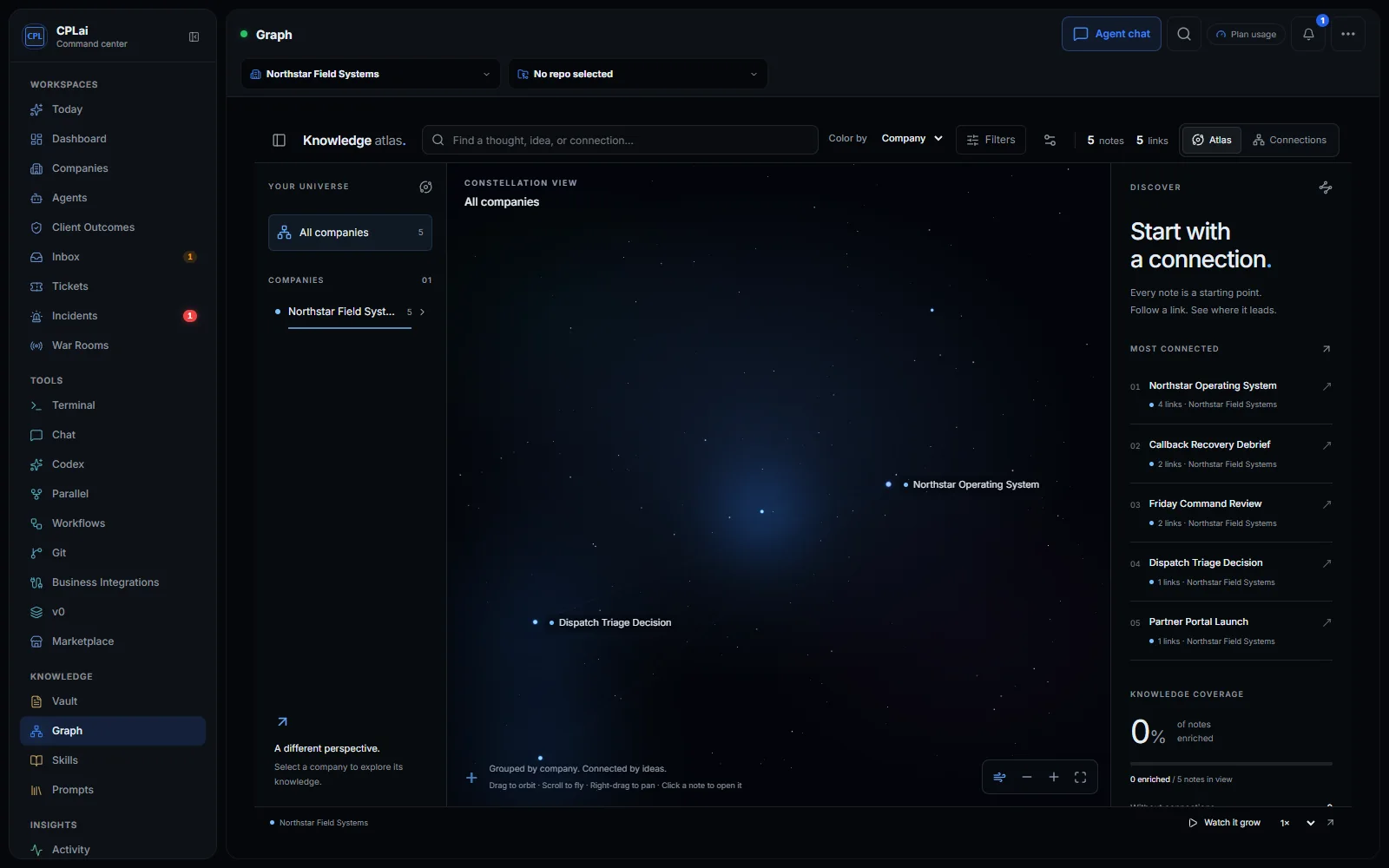
What is the Knowledge Graph?
The Knowledge Graph is a full-screen, GPU-rendered 3D visualization of your CPLai Vault. Each note becomes a glowing star. The [[wikilinks]] that connect notes become links. The Knowledge atlas renders this universe with three.js on desktop and web, and stays smooth at tens of thousands of notes.
The graph serves four purposes:
- Explore - see the shape of your knowledge at a glance. Which companies have the densest clusters? Where are the isolated orphan notes?
- Navigate - search for a note, click it, read its preview, then walk to linked neighbors without leaving the graph.
- Diagnose - switch to Health color mode to spot unenriched notes, orphans with no links, and hubs that tie everything together.
- Power agents - the graph engine feeds relevant knowledge into every agent run and chat turn automatically, so agents recall prior decisions, related context, and what other agents learned.
How do I open the Knowledge Graph?
Open Vault, then its Graph tab. On web it is at /vault?tab=graph, and the old /graph address opens it. Graph is also in the Command Palette. Help for this page on the Graph tab opens this page.
On the web dashboard, the graph loads only for the instance owner or a user who is an owner or admin of at least one company. Other users can open the page, but the map shows a load error.
Prerequisite: Your vault must contain notes. The graph loads all notes from your CPLai Vault database. If no vault notes exist yet, the graph shows a friendly empty-state message.
The Layout
The graph page has three panels:
| Panel | Position | Purpose |
|---|---|---|
| Company navigation | Left | Company and domain scope switcher, with note counts |
| Graph canvas | Center (fills remaining space) | The interactive graph visualization |
| Discovery / note panel | Right | Most-connected notes and enrichment coverage; select a note to read its preview and linked neighbors |
A single compact header row holds the navigation toggle, search, Color by, Filters, Graph settings, the note/link/company totals, and the Atlas / Connections switch, so the map gets nearly the whole page. The footer contains the color legend and time-lapse controls. On phones the header wraps to two rows, and the company navigation and note panel open over the map.
The map itself is always a window into deep space (in both light and dark themes): a starfield, nebula glow around each group, and depth fog so distant notes dim.
Atlas turns each group of the selected color dimension into its own spiral galaxy. The most-connected notes form each galaxy's bright core, and every galaxy is labeled with its name and note count. Position inside a galaxy is an index, not a measure of semantic similarity, so links inside a galaxy stay hidden at overview distance and fade in as you fly closer; links between galaxies show as faint bridges.
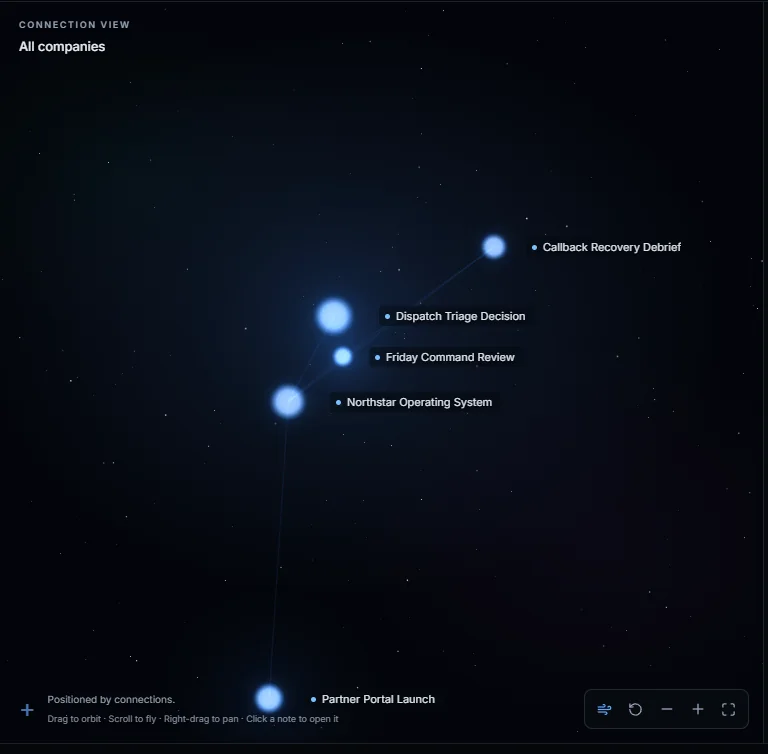
Connections reshapes the same notes into a 3D force-directed neural web positioned by their links, with each company forming its own lobe. The layout runs in a background worker and you can watch it form; the camera frames the result when it settles. Both views preserve individual notes and their real links.
How do I navigate with the tree sidebar?
The left sidebar lists all companies and their domains:
- All companies at the top shows the global graph with every note
- Click a company name to scope the graph to that company
- Expand a company to see its domains (Brand, Content, SEO, Outreach, etc.)
- Click a domain to filter the map to that company's domain
- The active scope is highlighted in blue
Tip: Use Domain color mode to explore the shape of a single company's knowledge. Desktop loads that company's data through native IPC; web filters the authorized graph returned by the API.
How do I search for a note?
The search box above the map searches notes in the current scope and filters:
- Start typing a note title
- The top 8 matching notes appear as suggestions
- Click a result, or use the arrow keys and Enter, to center the camera on that node and select it
- The node panel slides open with the note's details
How do I find handoffs and finished deliverables?
Recall searches more than the notes drawn on the graph. It can return project handoff documents alongside company knowledge and agent memories, with a file path so your session can open the original. These files do not become Vault notes or graph nodes just because recall finds them.
- Open a CPLai terminal in the project's company context.
- Search for the work by topic, for example
cpl recall "onboarding handoff". You can also use the terminal's/recall onboarding handoffcommand. - Look for Project handoff docs in the answer. Open the returned file and check its current state and next steps before continuing the work.
The handoff scan reads only the top-level _INDEX - START HERE.md, _COMMON - Rules and Environment.md, and PROGRAM *.md documents in each project's configured handoff folder. It excludes _archive/, _scripts/ and unrelated files. While the service is running, updates normally reach recall within about ten minutes. Moving a program document into the archive removes it from recall after the next scan. Keep lasting decisions in tickets, plans or memory as well.
Finished deliverables (from 26.11.22): recall has a Deliverables result group. Search by topic or filename, such as cpl recall "onboarding review report". A result points to the original file; it does not mean the whole report has been read. Text documents contribute a short opening excerpt, while PDF and Office documents are found by name, folder and modified date. See artifacts folder coverage and limits.
If a file is missing from recall:
- Check Settings -> Agent memory -> Agent Memory for the folder bases. CPLai appends the project name, so files must be inside that project's resolved folder.
- Check that the project belongs to the company you are searching and that the service can read the folder.
- Check the filename and supported document type, then allow the next scan to run. Archived handoffs, screenshots and source code are not part of this folder search.
- For deliverables, check the installed version: the Deliverables group needs 26.11.22 or later.
Tip: Handoff recall works with keyword search when no embedding provider is configured. Give program documents clear titles and use distinctive words from the work in your query. The graph's own search box still searches Vault notes.
Color Modes
The Color by dropdown lets you color nodes by four dimensions. In Atlas view, it also changes the constellation grouping:
| Mode | What It Shows |
|---|---|
| Company | Each company gets a stable brand color (for example Company A = blue, Company B = green, Company C = orange) |
| Domain | Colors by knowledge domain (Brand, Content, SEO, Outreach, Engineering, Goals, etc.) using a 14-color categorical palette |
| Type | Colors by note type (session, event, fact, digest, hub) |
| Health | Diagnostic view: hubs (lavender), enriched (green), unenriched (orange), orphans (pink) |
The footer legend updates automatically when you switch modes.
How do I filter the graph?
Open Filters above the map to find two checkboxes:
- Connected notes only - removes nodes with zero links.
- Needs enrichment - shows only notes the librarian has not yet enriched.
Filters apply instantly without reloading data. Clear filters restores the current company's full graph. Search, discovery, and the connected-note list all follow the visible graph.
How do I interact with nodes?
- Hover a note to see its title, company, and link count in a small tooltip. Hovering never changes the view.
- Click a note to select it. The camera flies to it, the rest of the universe dims, pulses travel along its links to each connected note, and the note panel opens on the right.
- Click empty space (or press Escape) to deselect and close the note panel.
- Orbit by dragging, pan with a right-drag (two fingers on touch), and fly with the mouse wheel or pinch; the camera flies toward the point under the cursor.
- Fit graph restores the full map after exploring a detail.
- Drift when idle: after a few seconds without input the camera slowly orbits. Any interaction, or selecting a note, stops it. Turn it off with the wind button in the bottom-right controls or in Graph settings. It is always off when your system asks for reduced motion.
The Node Panel
When you click a node, a detail panel slides in from the right showing:
- Title with a colored dot matching its company color
- Metadata - company name, domain, note type, link count, enrichment status
- The note - rendered markdown (headings, lists, tables, code) for the first 20,000 characters, with frontmatter stripped. Web links open in your browser. Use Widen reading view at the top of the panel to give long notes more room.
- Linked neighbors - up to 60 connected notes, sorted by degree (most-connected first). Click any neighbor to fly to that note.
Graph walking through the neighbor list is one of the fastest ways to explore your vault's structure.
Time-Lapse
The Watch it grow button in the footer plays a chronological animation: notes appear in creation-date order, each flaring as it is born, with links drawn once both ends exist. The current month shows at the top of the map.
- Click Watch it grow to start the animation, and Stop to restore every note immediately
- Use the speed dropdown to adjust playback: 0.5x, 1x, 2x, 4x, or 8x
- The animation uses each note's real creation date, resolved from source tables (tickets, content pieces, SEO recommendations, goals, outreach contacts)
Graph Settings
Click Graph settings in the header to open the settings panel. Display settings adjust both views; force settings apply in Connections view. Your settings are remembered in this browser (or this desktop app).
Display
| Setting | Range | Default | Effect |
|---|---|---|---|
| Node size | 0.1 - 3 | 0.7 | Scale of all nodes |
| Drift when idle | on / off | on | Slowly orbit the camera after a few seconds without input |
| Link brightness | 0.05 - 2 | 0.35 | How visible links are |
| Label threshold | 6 - 30 | 14 | Lower values show more note titles at a given distance |
Forces
| Setting | Range | Default | Effect |
|---|---|---|---|
| Repel force | 5 - 100 | 30 | How strongly nodes push apart |
| Center force | 0.05 - 2 | 0.35 | How strongly nodes pull toward center |
A Reset button restores all settings to defaults.
Layout Controls
The bottom-right floating toolbar provides:
| Button | Action |
|---|---|
| Drift when idle | Turns the idle camera orbit on or off |
| Re-layout | Restarts the force simulation in Connections view |
| Zoom out / Zoom in | Flies the camera 1.5x further or closer |
| Fit | Frames the whole graph from the current angle |
Watch it grow and its speed live in the footer.
How does the graph adapt to themes?
The header, side panels, and footer follow your light or dark theme. The map is deliberately always deep space, because glowing stars and links read best against a dark sky. The overlays on the map (labels, tooltip, camera controls) use the matching dark palette in both themes.
How is the graph data built?
The Knowledge Graph visualizes data from two sources:
- Nodes are the vault's notes: every current note becomes a node
- Edges are the links between notes, extracted from
[[wikilinks]]in note bodies
The wikilink extraction engine:
- Parses
[[Title]]and[[Title|alias]]syntax - Resolves targets within the same company (case-insensitive title match)
- De-duplicates links and removes self-loops
- Updates edges automatically when a note is written
What do the node types mean?
| Type | What It Represents |
|---|---|
| session | An agent's session log or memory rollup |
| event | A time-bound occurrence (outreach contact, content publication) |
| fact | A durable piece of knowledge (brand guide, project architecture) |
| digest | A synthesized summary of multiple sources |
| hub | A high-connectivity node (type = hub, or 8+ links) that ties topics together |
Hubs are the backbone of the graph. The librarian creates person-hub notes that connect outreach contacts, and topic-hub notes that connect related facts.
Automatic Knowledge Injection
The graph is not just a visual tool. Behind the scenes, the same retrieval engine powers a knowledge injection pipeline that feeds relevant context into every agent run and chat conversation.
How does it work?
When an agent launches (scheduled or manual), the system:
- Starts with the current task, wake reason, and assigned open-ticket titles, then adds the agent's profile
- Finds relevant knowledge using the selected retrieval mode: meaning, keywords, or both
- Walks
[[wikilinks]]outward to find causally connected context (decisions, debriefs, hubs, person timelines) - Merges related agent memories
- Compiles a bounded markdown digest
- Injects the digest into the agent's prompt, after coordination instructions and before the agent's primary skill
The result is a ## Relevant Company Knowledge (graph) block that appears in the agent's context automatically. Agents do not need to opt in or call anything - the knowledge simply appears if the graph has relevant content.
How do I choose between meaning and keyword search?
Open desktop Settings -> Vault & search -> Search mode. Hybrid is the default and combines both kinds of matches. Semantic prefers meaning-based results and falls back to keywords when semantic retrieval has no results. Lexical uses full-text and exact-token matches, which helps with ticket identifiers, filenames, and commands.
Meaning-based retrieval can use local Ollama embeddings or a configured OpenAI or OpenRouter provider. Keyword retrieval remains available without an embedding provider. See knowledge retrieval settings for model selection, re-indexing, and duplicate-memory controls.
When no embedding model is picked and the default model, bge-m3, is not installed on your Ollama server, search and indexing use keywords only, right away, without first sending a request that would fail. Pull bge-m3 or pick a model your server has to search by meaning again. A project code sync that cannot embed now gives the real reason in its errors, here that the default model is not installed and no other model is picked, instead of always saying that no API key is set.
What gets injected?
The digest includes:
- Seeds - the vault notes that best match the agent's current context
- Neighbors - linked notes discovered by walking the graph (1 hop by default)
- Hubs - high-connectivity nodes that tie related topics together
- Memories - agent memory entries related to the query
Each item includes provenance: which note linked to which, so the agent can trace the reasoning chain.
Fail-open design
Knowledge injection never blocks an agent run. If the retrieval engine is unavailable, the setting is disabled, or there are no relevant notes, the block is simply omitted. This is deliberate - knowledge is additive context, not a prerequisite.
How do I configure it?
In Settings, two controls govern injection:
| Setting | Default | Effect |
|---|---|---|
| Knowledge Injection | On | Master toggle for automatic injection into agent runs and chat |
| Injection Budget | 6,000 chars | Maximum size of the injected digest. Larger budgets provide more context but use more of the agent's prompt window. |
Tip: If your vault is small or newly created, the digest may be empty. As the vault grows and the librarian enriches notes with
[[wikilinks]], the graph becomes more connected and the injected context becomes richer.
The knowledge_search Chat Tool
In addition to automatic injection, you can search the knowledge graph on demand from a chat conversation (desktop or web).
The tool needs a company. It works in a chat whose project belongs to a company, or one started while a company workspace was selected. In a chat with no company, it returns an error instead of results.
How do I use it?
In Agent mode, ask a question that references company history, prior decisions, or what other agents have learned. The AI will call the knowledge_search tool automatically when it needs that context.
You can also prompt it directly: "Search the knowledge graph for our SEO strategy decisions" or "What does the vault say about our onboarding flow?"
How is it different from vault search?
| Feature | Vault Search | Knowledge Search |
|---|---|---|
| Method | Flat text or semantic similarity | Graph-aware: semantic ranking + wikilink traversal |
| Scope | Individual notes | Notes + their linked neighbors + hubs + agent memories |
| Context | Returns note snippets | Returns a structured digest with provenance |
| Depth | Single-level | Configurable hop depth (0-2 hops outward) |
The knowledge_search tool finds causally related context that plain text search misses. When a decision note links to a research note that links to a person hub, the tool follows those connections and returns the full chain.
Availability
The tool is available in:
- Desktop Chat (Agent mode)
- Web Dashboard Chat (via the Tools menu)
- Agent runs (agents can call it to pull additional context mid-run)
Tip: Even if automatic injection is disabled, the
knowledge_searchtool still works. The injection toggle controls only the automatic pre-run block, not on-demand tool calls.
Post-Run Reflections
Every substantive agent run produces a reflection note that gets written back into the vault, making the graph grow from the work your agents do.
How does it work?
When an agent run completes:
- The agent decides whether the run produced durable knowledge and writes a short reflection with its actions, outcomes, lessons, and relevant
[[wikilinks]]. It can explicitly skip routine work that has nothing useful to preserve. - CPLai validates and bounds a usable reflection, then files it in the Debriefs domain.
- If the run does not contain a usable agent-authored reflection, such as after a crash or an older prompt, the configured librarian can create the reflection as a fallback.
- The graph edges update automatically, so the new note is immediately discoverable by future runs.
This means an agent that discovers something important during a run does not need to manually write a vault note. The reflection system captures the durable insight automatically.
What gets reflected vs. what gets skipped?
- Reflected: runs with meaningful findings, shipped features, resolved bugs, strategic decisions, or research results
- Skipped: short operational messages, "no work found" heartbeats, routine status checks, or reflections below the substance threshold
The agent makes the first keep-or-skip decision while it still has the full run context. When the librarian fallback is needed, it can also skip output that contains nothing durable. A recorded skip is terminal, so the nightly pass does not repeatedly reconsider or bill for the same run. Noise control is a first-class concern.
How does this relate to agent memory?
Reflections and agent memory serve different purposes:
| System | What it captures | Where it lives | Who reads it |
|---|---|---|---|
| Reflection | Durable team knowledge from the run | Vault note (visible in graph, searchable by all agents) | Any agent via knowledge injection or search |
| Agent memory | Personal lessons for the individual agent | Agent memory entries (private to that agent) | Only the agent that wrote it |
Both systems fire automatically on run completion. They do not duplicate each other - reflections feed the shared graph, memory feeds the agent's personal recall.
Settings
| Setting | Default | Effect |
|---|---|---|
| Vault Reflection | On | Toggle post-run reflection writing |
| Mirror Enabled | Required | Reflections only write when the vault mirror is active (production instances) |
| Librarian Model | Configured provider | Creates a fallback reflection only when a run has no usable agent-authored reflection; Off leaves that run available for a later retry |