File Editor
Last reviewed November 11, 2026 (also available beside terminals; protection when a file changes on disk; HTML files open as a rendered page).
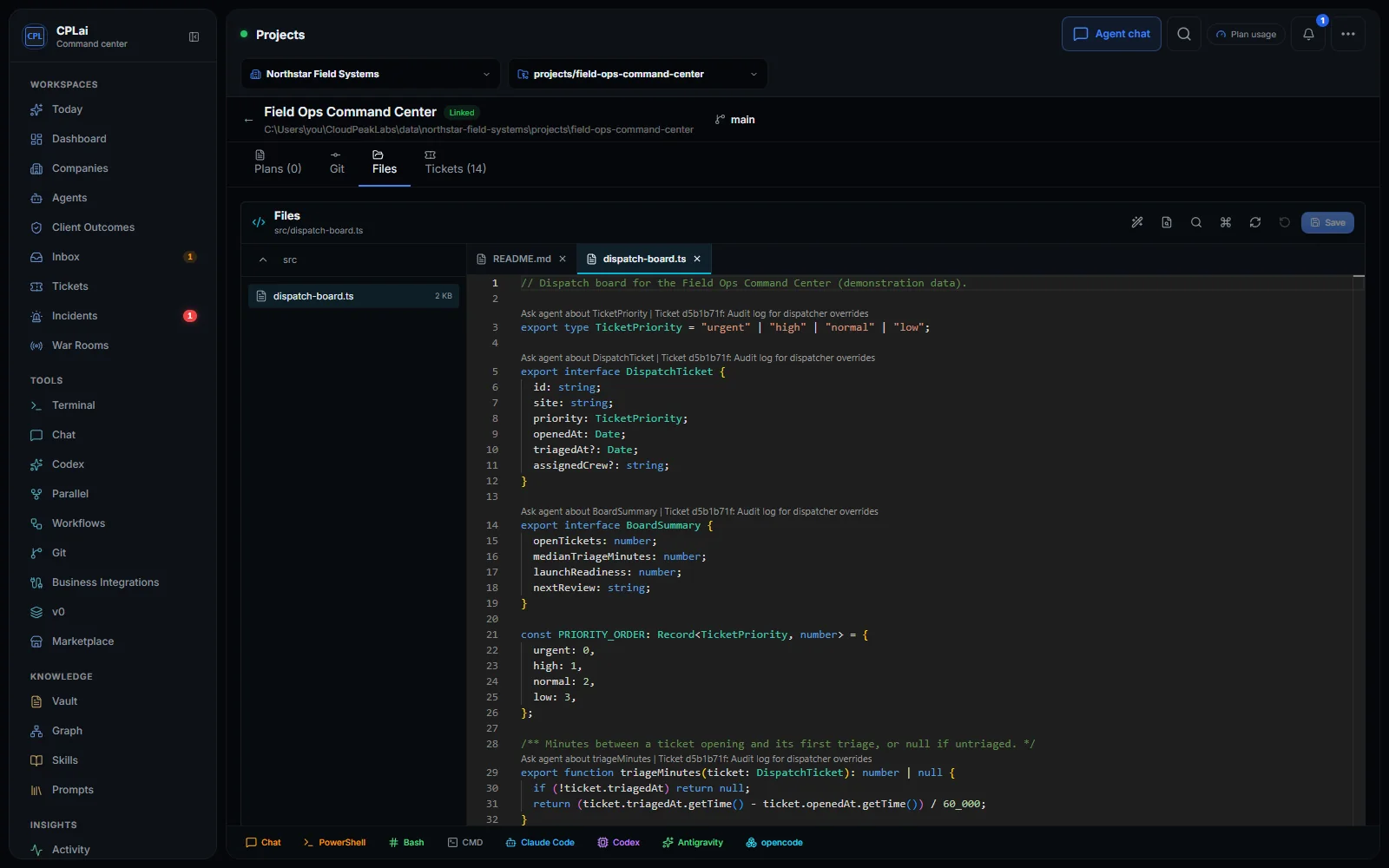
Every project has a built-in code editor, powered by Monaco, the same engine behind VS Code. You read and change code in the same window as your agents and terminals, so the code, the session working on it, and the ticket it belongs to stay side by side.
Open it: Open a project and choose the Files tab in the project dashboard. The same editor also opens beside your terminals: on the Terminal page, select the file editor button in the toolbar. See How do I edit files beside a terminal?
Related pages: Projects, Terminal, Git, Keyboard Shortcuts, Settings
What does the File Editor give me?
| You want to | The File Editor gives you |
|---|---|
| Get to a file quickly | Quick Open by filename, search across every file in the project, and tabs for the files you have open |
| Go from output straight to the code | Click a file path in a terminal, or a changed file on the project's Git tab, and the file opens at the right line |
| Work next to a running session | The editor opens as a panel beside your terminals and follows the terminal you are in |
| Stay safe when an agent edits the same file | Open files reload when they change on disk, and a save never replaces someone else's change without asking |
| Ask an agent about the code in front of you | Code lenses above functions and types open that agent's chat with the file, symbol, and line already filled in |
| Change code without leaving the file | AI autocomplete as you type, and inline AI edit that shows the change as a diff you accept or reject |
How do I open a file from Terminal or Git?
On the Terminal page, hold Ctrl or Cmd and click a recognized file path in the output. The file opens in the editor panel beside the terminals, at that line and column. See How do I click file paths in terminal output?
On the web project's Git tab, select a changed file to open it in the editor. See Git for which change types can open.
File tree and tabs
The left panel shows the project's file tree rooted at the project repository path. Click any file to open it in the editor. Multiple files open as tabs across the top - each tab shows the filename and a dot indicator when the file has unsaved changes.
- Close a tab by clicking the X button, or use the command palette action Close Saved Tabs to close all tabs without unsaved changes.
- Save with
Ctrl+S. CPLai writes the change back to disk. - Undo with
Ctrl+Zper-file. The editor tracks each file's original content and shows a dirty indicator when the buffer differs.
What happens when a file changes while I have it open?
Agents, AI CLIs, and Git can change a file while it is open in the editor.
- A file you have not edited reloads on its own when you come back to it or to the app.
- A file you have edited is never overwritten silently. If it changed on disk after you opened it, saving asks what to do: View diff to compare the two versions, Reload from disk to take the other version and drop your edits, or Overwrite to keep yours.
- If the file was deleted, the editor says so and offers Save anyway or Close tab.
Who can save?
The owner can save anywhere the editor can open. A member you gave a project to can read that project's files in the editor but not save them; the editor shows Read-only and hides the Save button.
Quick Open, command palette, and search
- Quick Open (
Ctrl+P) - type a filename to fuzzy-search and jump to any file in the project, like VS Code's quick open. - Command Palette (
Ctrl+Shift+P) - search available editor actions: Quick Open, Global Search, Close Saved Tabs, and more. - Global Search - search across all project files for a string. Results appear in a panel beside the editor, which narrows to make room, with file paths and line numbers. Click a result to open that file at the matching line.
How do I use agent code lenses?
The File Editor adds clickable context above recognized code symbols on desktop and web. Click Ask [agent] about [symbol] to open that agent's chat with a draft containing the project, file, symbol, line number, and suggested ticket. Review or expand the draft, then send it when ready.
When CPLai finds a suggested active ticket, a Ticket [id]: [title] link appears beside the agent link. Click it to open the ticket in Inbox on desktop or Tickets on web.
CPLai recognizes common TypeScript, JavaScript, and Rust declarations, up to 24 per file. If a file has no recognized declarations, CPLai adds a file-level lens at the top. Done and cancelled tickets are excluded from suggestions.
Tip: Ticket matching is a suggestion based on the file path, symbol, assignment, and recent activity. Confirm the ticket before acting on it.
Code lenses prepare navigation and chat context locally. They do not send a message or call a model until you choose to continue in agent chat.
AI autocomplete
With AI autocomplete turned on (Settings > Developer tools > File Editor > AI Autocomplete), the editor offers inline completions as you type. Press Tab to accept a suggestion. Completions come from OpenAI's gpt-4.1-nano model, not your chat model, and are based on the code just before the cursor.
A subtle status indicator in the toolbar shows when an AI call is active.
Inline AI edit (Ctrl+K)
Select a block of code and press Ctrl+K to open the inline AI edit prompt. Describe the change you want in natural language - for example, "add error handling" or "convert this to async/await" - and CPLai sends the selected code plus your instruction to the AI model.
The result appears as a diff view:
- Accept to replace the selected code with the AI's version.
- Reject to discard the suggestion and keep your original code.
Tip: Inline AI edit works best on focused selections - a single function, a block of logic, or a configuration section. Selecting an entire file will produce less useful results.
Inline AI Edit uses OpenAI's gpt-4.1-mini model. Both AI Autocomplete and Inline AI Edit work the same way in the web dashboard's File Editor. The desktop app calls OpenAI directly with your stored key; the web dashboard sends the request through the CPLai service, so the key never reaches the browser. Requires an OpenAI API key either way.
How do I view an HTML file as a page?
Open a file whose name ends in .html or .htm. The editor shows it as the page it renders. Above the file, Page and Code switch between the rendered page and the HTML text. This works in the project Files tab and in the file editor panel beside the terminals, on desktop and web.
- Page is what you get first. It shows what is in the editor right now, including changes you have not saved.
- Code shows the HTML so you can read or edit it. Save works the same as for any other file.
- A file opened at a line number (from a search result, or a path clicked in a terminal such as
report.html:12) opens as code at that line.
When the editor is narrow (the panel beside a terminal on a tablet, for example), the file list and the open file do not fit side by side. The editor then shows one or the other: the open file by default, and the folder button above it switches to the file list and back. Picking a file from the list goes straight to that file.
Images and other files on disk. A page that shows images saved on the machine (an image comparison, screenshots in a report) displays them. Before showing the page, the editor reads the files it refers to and places them inside the page: images, and a stylesheet or script saved next to the HTML file. The file can be referred to by a path next to the HTML file (images/a.png), a path above it (../images/a.png), or a full path (D:\runs\a.png or file:///D:/runs/a.png). Each file can be up to 16 MB.
If some files could not be loaded, a line above the page names them. The usual reasons are a file that no longer exists, a file over 16 MB, or, for someone who is not the owner on web, a file outside the project. Images set from inside a stylesheet (background-image: url(...)) and files a script loads while it runs are not picked up.
The page runs in an isolated frame. Scripts in it cannot read CPLai, your sign-in, or other files, and it cannot load data from the network. Images and fonts also load from https addresses, and scripts only from the page itself or from cdn.tailwindcss.com and unpkg.com, so a page that depends on other script hosts shows without those parts.
How do I see a page or picture at full size?
While the file in view is an HTML file shown as its page, or a picture, Full size appears in the toolbar after Page and Code. It opens the page or picture over the whole window, with the file's name at the top (point at it for the full path). The panel behind it keeps its file, its tabs and where you were. This works in the project Files tab and in the file editor panel beside the terminals, on desktop and web.
The page runs in the same isolated frame as in the panel, only bigger. Close or Esc closes it. After you click inside the page, Esc goes to the page, so use Close.