Business Integrations
Last reviewed November 15, 2026 (checked against the app).
Business Integrations is the operational home for services that connect CPLai to the systems around your company. Open Business Integrations from the Tools section in the desktop app or web dashboard. The two surfaces provide the same six integration areas.
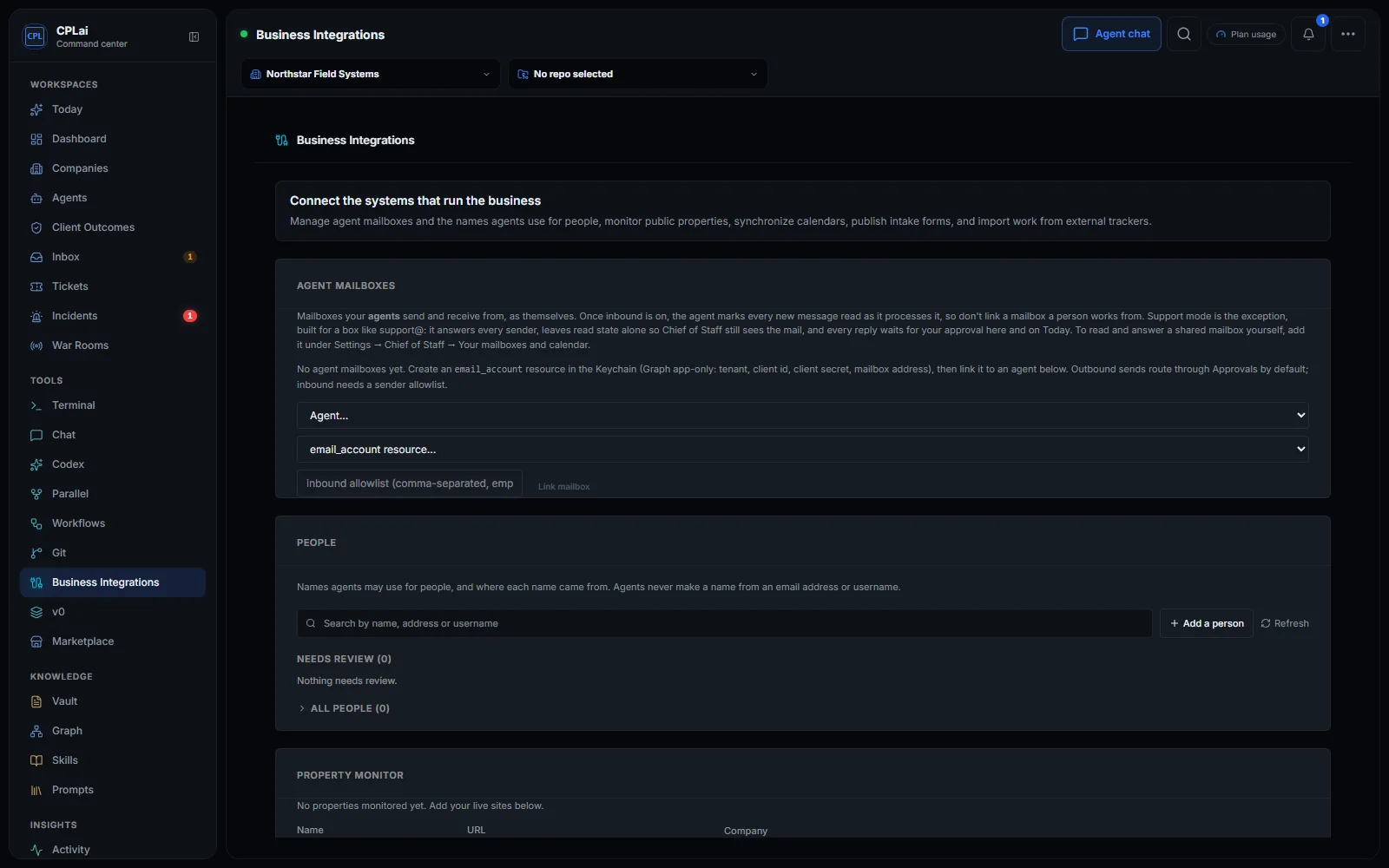
Agent mailboxes
Agent mailboxes (formerly "Agent Email") give an agent its own mailbox to send and receive from, as itself. Choose the workflow that matches who handles the mail:
| Workflow | Where to set it up | What happens |
|---|---|---|
| An agent handles mail from known senders | Business Integrations -> Agent mailboxes, Support off | Incoming unread mail is checked against the allowlist and marked read when handled. Use a dedicated agent mailbox. |
| An agent drafts customer replies for your review | Business Integrations -> Agent mailboxes, Support on | New mail from any sender can reach the agent. Read state stays unchanged, and each drafted reply waits for your decision. |
| You read and answer your own or a shared mailbox | Settings -> Chief of Staff -> Your mailboxes and calendar | Sign in as yourself, then use the assistant to read mail, save reply drafts, or propose a reply for approval. |
See Chief of Staff for personal and shared-mailbox setup.
Agent mailboxes link an agent to an email_account Keychain entry containing Microsoft Graph app-only credentials. Create the Keychain entry first, then choose the agent and mailbox in Business Integrations -> Agent mailboxes.
How do I use a dedicated agent mailbox?
With Support: off:
- Outbound messages are approval-gated by default and appear in the company workspace's Proposed Actions review queue.
- Direct sending can be enabled for a trusted mailbox.
- Outside support mode, inbound polling stays off until the identity has a sender allowlist. Allowed messages are dispatched to the agent; ticket references are attached as comments instead of starting a new run.
- Outside support mode, inbound reads unread mail only, and marks each message read once it is handled. Mail from a sender outside the allowlist is marked read without being dispatched, unless the identity is in feedback-mailbox mode (set through the API), which files it as a feedback ticket instead.
Support mode is for an agent that answers a customer mailbox such as support@. Turn it on with the Support: off button on the mailbox's row (it then reads Support: on). In support mode:
- The agent answers every sender; no allowlist is needed. Bounces, no-reply and mailer-daemon senders, and the mailbox itself are never answered.
- Every reply the agent drafts waits for you, whatever the approval setting (the row shows Approval: always). Drafts appear under Replies waiting for you below the mailbox row and on Today. Approve and send sends the reply in the original thread; Reject drops it. A draft stays open for a week.
- CPLai leaves the mailbox's read state alone, so people can keep working in it.
- Recent mail under the row shows what happened to each recent message.
Inbound polling requires mailbox read permission. A send-only Graph application supports outbound mail but not inbound processing.
How do I use Support mode for a customer mailbox?
- Link the mailbox to an agent that belongs to a company. The mailbox connection needs permission to read mail and send replies.
- Set the mailbox to Enabled, then click Support: off to change it to Support: on. The approval control changes to Approval: always and cannot be switched off in this mode.
- Review drafts under Replies waiting for you below the mailbox. Each card shows the recipient, subject, full reply, and any Note for you (not sent).
- Choose Approve and send to reply in the original thread from that mailbox, or Reject to decline the draft. Drafted replies also appear on Today and in the company's Proposed Actions queue.
Support mode accepts senders without an allowlist and leaves messages' read/unread state alone, so Chief of Staff can still watch the same mailbox. It starts with mail received when you enable the mode; it does not process the older inbox backlog. Automated senders and messages from the mailbox itself are skipped.
Support mode replaces feedback-mailbox routing: the two modes cannot be active together. A ticket reference in customer mail does not add a ticket comment in Support mode.
Tip: Leave Support off for a private agent mailbox with an allowlist. Turn it on when you want an agent to draft replies to new customer mail for you to review.
How do I check what happened to support mail?
The Recent mail log shows each message's progress:
| Status | What it means |
|---|---|
| Drafting or Retrying | CPLai is trying to obtain a reply from the agent. |
| Reply waiting for you | A draft is ready for your decision. |
| Replied, Reply rejected, or Reply expired | The draft was sent, declined, or passed its seven-day review window. |
| No reply needed | The agent decided the message did not need a response. |
| Skipped (automated sender) | CPLai skipped the sender rather than starting an agent reply. |
| Needs you: no draft | Drafting failed after three attempts; CPLai notifies the company's owners/admins and the server owner. |
Busy, timeout, and drafting errors are recorded for you rather than sent as customer replies. If an approved send fails, the draft returns to the review queue with Last attempt explaining the error. Review that error before trying Approve and send again.
People
People holds the names agents may use for the people they write to. Agents never make a name from an email address or username. They look the person up first and use a name only when something backs it:
- a name you confirmed here, including short names such as "Bob";
- the name on mail the person sent you, and the name they sign their mail with, as seen by Chief of Staff mail sync;
- the display name on their CPLai account.
Mail from software (noreply and do-not-reply addresses, mailer-daemon, "No Reply" and similar) is never recorded as a person.
When nothing is on record, agents write the address or username as-is and greet without a name. Mail an agent drafts or sends (Chief of Staff replies and agent mailboxes) is refused when its greeting uses a name not on record for the recipient. The agent is told which name to use, or to greet without one, and tries again. A reply may also use the name the person signed the message being answered with. Ticket comments and other text are not checked.
Using the People card
The card opens on Needs review, so it stays short however many people your mailboxes see:
- The same name on several records, for example one from your roster and one from their mail. Merge folds them into one person and keeps the name you confirmed. Choose Not the same person when they are two different people.
- An automated sender recorded before CPLai learned to skip them. Remove deletes it. Keep leaves it and stops asking.
To find anyone else, type part of a name, address or username in the search box. All people opens the full list, newest first, 50 at a time; Show more loads the next 50.
- Add a person: their full name, email addresses or usernames, and optional short names, then Confirm.
- Open a person to change the confirmed name, add or remove short names and addresses, or remove a wrong name CPLai picked up from mail.
- Delete a person with the bin icon, then Delete to confirm.
Only the owner can see and change People. Agents can only look names up, with cpl person <email or username> or the Look Up Names chat tool.
Property Monitor
Open Business Integrations -> Property Monitor in the desktop app or web dashboard.
Property Monitor is an authenticated owner or admin operator surface. Agent callers cannot list, register, change, remove, or manually probe properties. The headless service also rejects the shared legacy bearer for these controls.
Register each live site or API you run (for example a marketing site, an app, or a public endpoint). For every property the always-on service checks, on its own interval:
- HTTP health: status code and latency. A 2xx or 3xx response counts as up.
- SSL expiry: days until the certificate lapses, including certificates that are already expired.
Only public http:// and https:// targets are accepted. CPLai rejects loopback, private, link-local, and other non-public addresses. Hostnames are rejected when any resolved address is non-public, and the same check runs again before every probe to prevent a later DNS change from turning the monitor into an internal-network request.
When a property fails its consecutive-failure threshold (default 3), CPLai files a bug ticket on the property's company with the recent check evidence attached, and opens a linked incident in Incidents. Its severity depends on what the monitor saw: a critical "Property DOWN" when the property gives no response while the monitor's own internet connection works, a high "HTTP check failed" for an HTTP error such as a 503, and a medium "Reachability unconfirmed" when the monitor's connection failed too, which points to the monitor's side. When checks pass again, the same ticket receives a recovery comment with the time, the incident is marked mitigated, and a ticket nobody has touched yet drops to low urgency with a "Recovered:" title. A certificate within 14 days of expiry files one early-warning ticket per certificate.
Each property row shows its latest status, latency, and SSL days remaining, plus a check now action that runs a check immediately from any instance. The scheduled loop itself runs only in the always-on headless service, so two instances never double-file an incident.
Calendar
Calendar Awareness is available in the desktop app and web dashboard.
- Open Settings -> Keychain.
- Add a Calendar Feed (iCal/ICS) entry.
- Enter a calendar name, lookahead, timezone, and the secret iCal or ICS feed URL.
- Save the entry. Link it to a company only when that company's agents should also receive its mapped calendar variables.
- Open Business Integrations -> Calendar.
- Click Sync feeds now if you do not want to wait for the next scheduled sync.
Calendar Awareness fetches only public http:// or https:// targets. CPLai
rejects loopback, private-network, link-local, cloud-metadata, and other
non-public addresses. It resolves each hostname, locks the connection to the
screened public address, and repeats that process for every redirect hop, so
later DNS changes or a redirect cannot move the request into the local network.
LAN-only ICS servers therefore do not sync; use a publicly reachable provider
URL. Blocked or failed fetches are reported without echoing the full secret feed
URL.
The Calendar card merges every configured feed into a seven-day agenda. Events are grouped by day and show the time, title, location, and source calendar. The always-on headless service refreshes feeds hourly. A manual sync works from the web card at any time.
Calendar Awareness does not expand recurrence rules in the current version. A recurring event appears when the provider's secret feed includes the individual instance.
Treat a secret ICS URL like a credential: anyone who has it can read your calendar. CPLai stores it accordingly and does not echo it back in error messages.
Intake Forms
Open Business Integrations -> Intake Forms to build public, embeddable forms that create CPLai objects directly - a client bug report becomes a ticket, a lead-capture form becomes an outreach contact, a request form becomes an approval on the review queue, or a submission becomes a new project.
- Pick the company, click New form, and give it a name, a public slug, and the object kind it creates.
- For ticket forms, choose the routing: assignee agent (or automatic fallback) and priority.
- Edit the field schema (JSON): each field has a
key,label,type(text,textarea,email,select),required, andoptionsfor selects. - To use Spam protection, ask your CPLai administrator to configure the site key and secret key for Cloudflare Turnstile before turning it on. A protected form can only accept submissions it can verify.
Each form serves a self-contained public page at /api/public/intake/<slug> on the dashboard origin (styled with the company's Brand Kit accent), and the Embed button copies an iframe snippet. Submissions are validated against the field schema, rate-limited per visitor, and every attempt - created, spam, or error - is recorded in the per-form submissions viewer. Disable a form to take its public URL offline instantly.
Migration Assistant
Open Business Integrations -> Migration Assistant to move existing work from GitHub Issues, Linear, or Trello into CPLai tickets.
- Pick the source, the target company and project, and the source settings (GitHub repository as
owner/name, Linear team key, or Trello board id). - Pick the Keychain entry holding the credential when one is needed. Public GitHub repositories import without a token; Linear needs an
api_keysecret; Trello needsapi_keyandtokensecrets. - Click Dry run. The wizard fetches, maps, and shows exactly what would be created - titles, kinds, statuses - without writing anything.
- Click Import to create the tickets.
Imports are idempotent: every imported item is remembered, and re-running the same import creates zero duplicates. Labels map to ticket kind and priority, source states map to ticket statuses, and issue comments come along as ticket comments. The item cap (default 200) is always reported when the source has more.
What stays in Settings?
Platform configuration stays in Settings, on its own pages: provider keys (Providers & keys), Local models, Remote access, Webhooks & notifications, Access and keys, and the runtime pages (Browser, Runtimes & Docker). Operational business connections live on this page so routine work does not require entering Settings.