OpenAI Codex Page
Execute code tasks with OpenAI's Codex CLI - locally or in the cloud.
Last reviewed November 18, 2026 (checked against the app).
New coding work starts on the Tasks page, which runs Codex and every other engine you have. This page covers the old Codex page and its earlier sessions; an old
/codexlink opens Tasks.
Where to find it: Codex in the sidebar's Tools group, or search "Codex" in the command palette (Ctrl+K). Codex has no Ctrl+number shortcut.
What is the Codex Page?
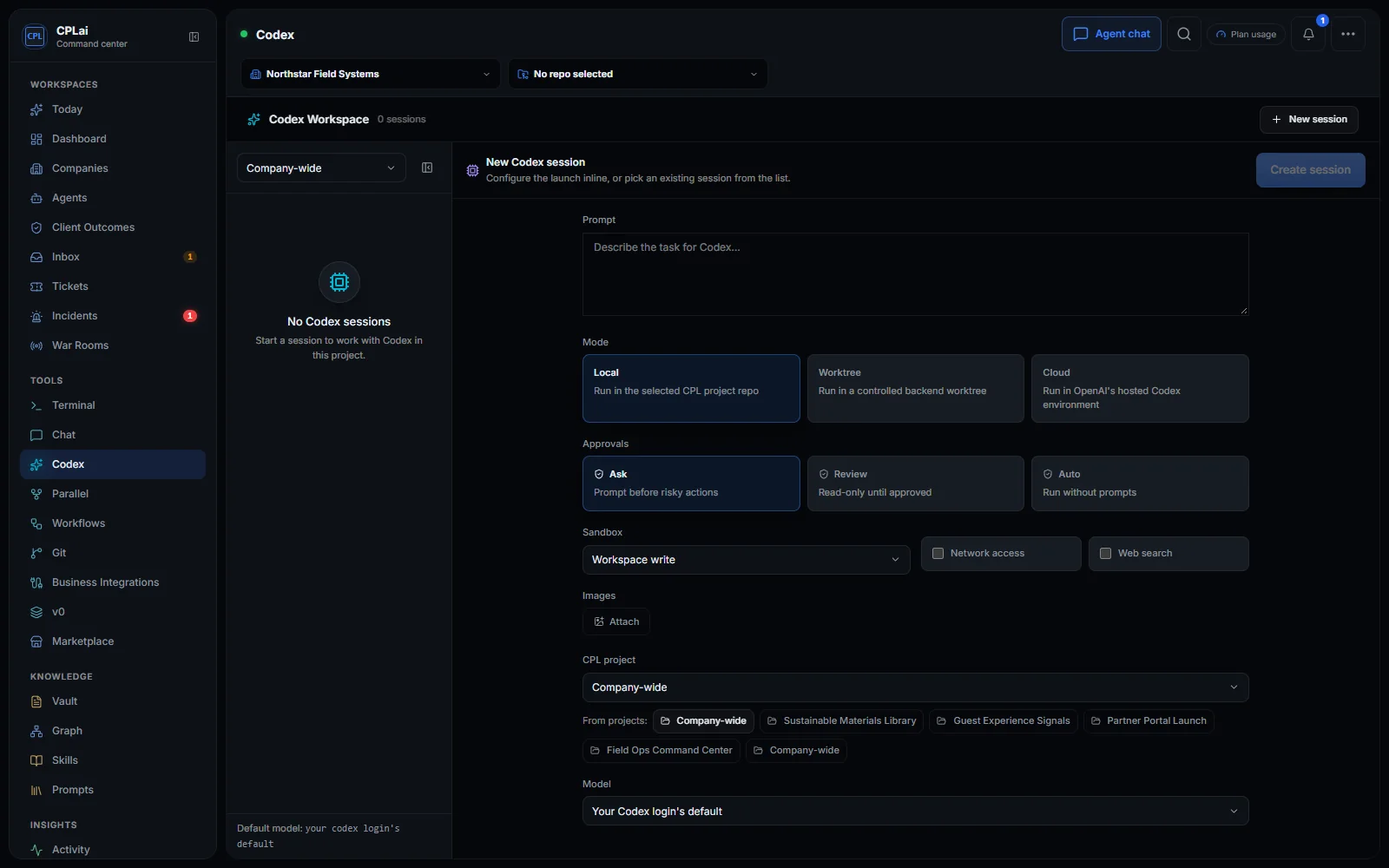
The Codex page gives you a dedicated interface for OpenAI's Codex CLI. Think of it as a task launcher for code execution - you describe what you want done, choose a model and sandbox mode, and Codex handles the rest. It's separate from the Chat page because Codex operates differently: it executes tasks rather than having conversations.
How do I launch a task?
- Open the Codex page (sidebar Tools -> Codex)
- Type your task description in the prompt field
- Select a model from the dropdown
- Choose a sandbox mode and an Approvals policy (see Sandbox Modes)
- Choose where it runs: Local, Worktree, or Cloud (see Local vs Cloud Execution)
- Optionally turn on Web search or Network (with Allowed domains), and attach images
- Click Launch Task on desktop (or press
Ctrl+Enterin the prompt), or Create session on the web dashboard
The task begins immediately. You'll see a live event stream showing what Codex is doing - reasoning, executing commands, reading files, making changes.
The working directory or project follows the app-wide Workspace and Repo selection until you explicitly choose a different value on the Codex page. Your explicit choice then stays in control instead of being overwritten by later context changes.
Available Models
| Model | Best For |
|---|---|
| GPT-5.5 | Recommended for complex coding (the default) |
| GPT-6.1 Sol | ChatGPT plan via Codex - newest Sol (1M context) |
| GPT-6 Astra / Sol / Luna | ChatGPT plan via Codex - frontier, balanced, and fastest GPT-6 |
| GPT-5.6 Sol / Terra / Luna | Account-gated coding previews |
| GPT-5.4 | Strong everyday coding |
| GPT-5.4 Mini | Fast, efficient coding |
| GPT-5.3 Codex Spark | Ultra-fast coding when advertised by your account |
| GPT-5 / o3 / o4-mini | Persisted legacy choices |
CPLai reads the current account's
~/.codex/models_cache.jsonfor runtime availability. Preview models only work for entitled accounts; do not invent model suffixes that the runtime does not advertise.
Sandbox Modes
Codex runs in sandboxed environments to protect your system:
| Mode | What It Allows |
|---|---|
| Read-only | Can read files but not modify anything |
| Workspace write | Can modify files in the working directory only |
| Full access | Can modify any file and run any command |
The labels differ by surface:
| Mode | Desktop Codex page | Web dashboard Codex page |
|---|---|---|
| Read-only | No sandbox pill. Choose Review under Approvals, which runs the task read-only | Read only in the Sandbox menu |
| Workspace write | The Docker pill (it runs Codex's workspace-write sandbox; Docker is not involved) | Workspace write |
| Full access | The Local pill | Full access |
The Approvals choices are Ask (prompt before risky actions), Review (read-only until approved), and Auto (run without prompts). New desktop tasks start from the default sandbox in Settings -> Command-line tools -> Codex Defaults, which offers all three modes.
Tip: Start with workspace-write mode. Only use full-access when you need system-level changes.
Local vs Cloud Execution
Local Execution
- Runs on your machine via
codex exec - Uses your local file system
- Good for tasks that need access to your codebase
Worktree Execution
- Runs
codex execin a separate git worktree created from the working directory - Keeps the task's changes off your checkout
- The working directory must be inside a git repository
Cloud Execution
- Runs on OpenAI's servers via
codex cloud exec - Isolated environment
- Good for tasks that don't need local files
- On desktop, enter an Environment ID (
env_...) before Launch Task is enabled. On the web dashboard the Cloud environment id is optional; leave it blank to use Codex's default cloud environment
How do I authenticate?
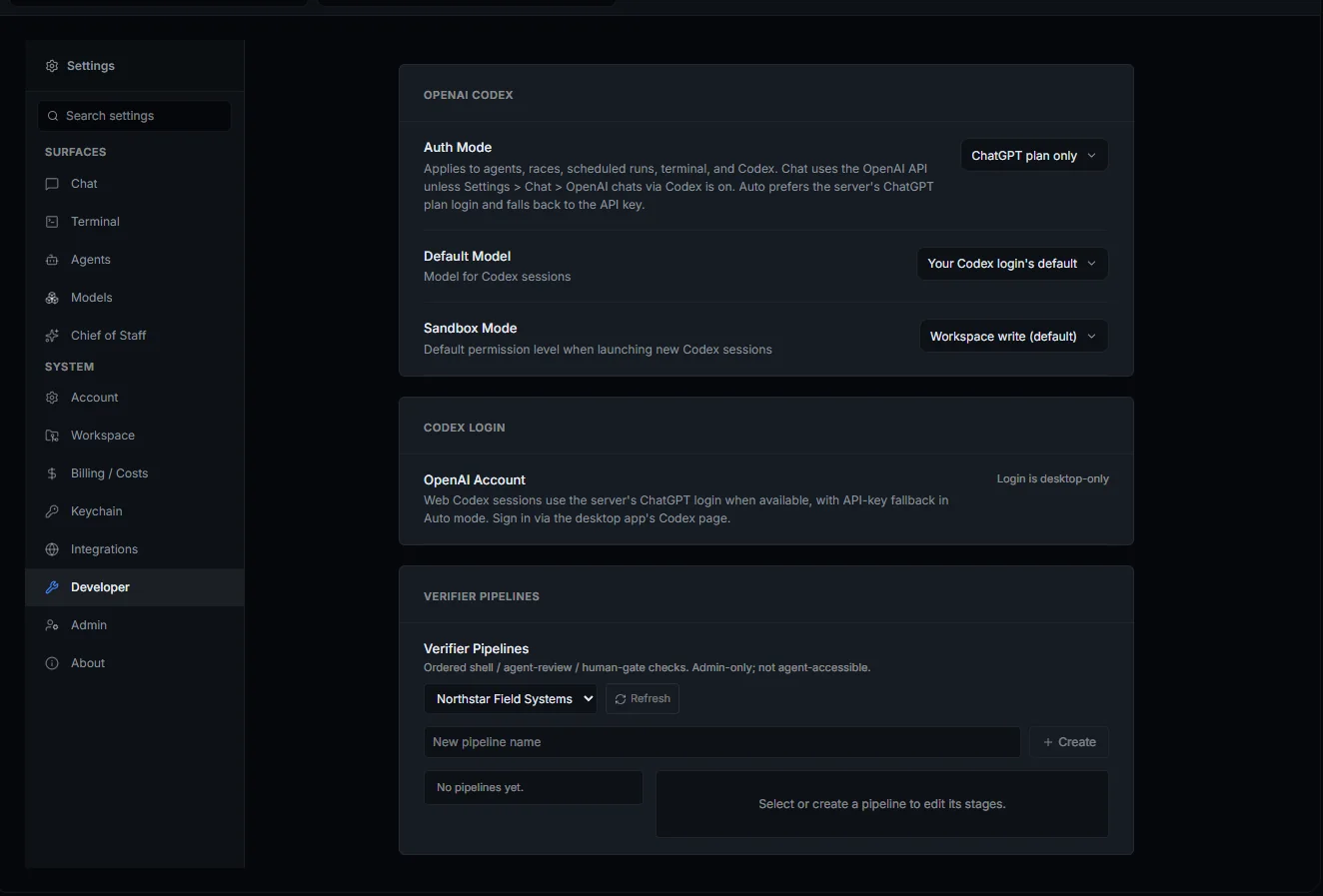
Codex supports two authentication methods:
Codex Auth Mode has two values, ChatGPT plan and API key. On ChatGPT plan a run never falls back to the API key: without a ChatGPT login it stops before it starts and tells you to sign in with codex login or to set Codex Auth Mode to API key. On API key, runs use your OpenAI key. A new install starts on ChatGPT plan; if you enter an OpenAI key during setup before signing in to ChatGPT, it starts on API key. An install that was on the old Auto value, or never had Codex Auth Mode set (which worked as Auto), is decided when CPLai starts after the update, by the desktop app or the always-on service, whichever starts first, with the same rule: ChatGPT plan when a ChatGPT login is found in your .codex folder; API key only when CPLai can tell there is no ChatGPT login there (no auth.json, or one that holds no login, with Codex keeping its login in that file) and an OpenAI key is saved; and ChatGPT plan when there is neither a login nor a key. When CPLai cannot tell (the login file is locked, half-written or unreadable, or Codex keeps its login in the system keyring), it decides nothing and tries again at the next start. Until it is decided, Settings shows Not chosen yet, and runs work as Auto did: your ChatGPT login when one is stored, otherwise your OpenAI key; choosing a value in Settings decides it. A ChatGPT login kept only in a CODEX_HOME folder the desktop app was started with does not count, because runs the always-on service starts cannot use that folder; Codex is then set to API key so those runs keep working, and the notice says so. The desktop app and the web app each tell an administrator which was chosen; the notice stays until you close it and shows again at the next start until you do. A key you add later does not change the choice. This policy applies to agents, races, follow-up agent chat, phase execution, terminal, scheduled runs, and both Codex pages. The main Chat page uses the OpenAI API unless Settings -> Chat -> Chat transport -> OpenAI chats via Codex is on (see Chat).
API Key
- Configure your OpenAI key in Settings > Integrations.
- Or set
CODEX_API_KEYorOPENAI_API_KEYas an environment variable. - Or grant an agent a Keychain entry that maps to those environment variables.
- Charges against your OpenAI API billing.
ChatGPT Login (Recommended)
- Run
codex login --device-authin a terminal - Complete the browser authentication flow
- Uses your ChatGPT plan credits instead of API billing
On desktop, the Codex page shows your login status with a badge in the New Task header. If you're not logged in, expand the login status row below the task options (for example "Not signed in: plan runs stop and say so") and click Login with ChatGPT. The same login control is in Settings -> Command-line tools -> Authentication. The web dashboard Codex page has no login badge or login button.
When ChatGPT plan auth is active, CPLai removes CODEX_API_KEY and OPENAI_API_KEY from the spawned process so an inherited or agent-scoped key cannot silently override the plan. On API key, CPLai passes the Settings OpenAI key to the run.
How do I read the event stream?
As Codex works, you'll see a live stream of events:
| Event Type | What It Means |
|---|---|
| Thread started | Task execution began |
| Agent message | Codex is communicating what it's doing |
| Reasoning | Codex is thinking through the problem |
| Command execution | Running a shell command |
| File changes | Reading or modifying files |
| Web search | Looking up information online |
| Plan update | Adjusting its approach |
| Turn completed | One round of work finished |
| Turn failed | Something went wrong (error details shown) |
How do I preview a local app?
When Codex starts a local web server and prints a localhost URL, the Codex page can open a Preview panel beside the output stream.
- CPLai detects URLs like
http://localhost:5173,http://127.0.0.1:3000, andhttp://0.0.0.0:8080from Codex output. - The Preview button toggles the panel for the active task.
- The URL field accepts full URLs or shorthand like
localhost:5173. - Use the refresh button to reload the iframe or the external-link button to open the URL in your browser.
- If no URL has been detected yet, common local ports are available as quick choices.
How do I stop a running task?
On desktop, click Stop in the output toolbar or in the task detail panel. On the web dashboard, click the Kill session (trash) icon next to the session in the session list. CPLai requests termination of the active Codex process; verify any server the task started has also stopped.
How do I resume a previous task?
Codex tasks have session IDs. On desktop, select a finished task in the Sessions list and click Resume in its task detail. On the web dashboard, select the session and type a follow-up in its input to start the next turn. Either way Codex continues where it left off.
Task History
Past tasks stay listed in the session list. You can:
- See which model and mode was used
- Resume sessions
- On desktop, a task's event stream is kept only while the app is running. After a restart the task, its model, and its Resume button come back, but its events do not, and a task that was running is marked stopped
How do I use Codex in Parallel Racing?
Codex agents are available in the Parallel Racing page using the same shared catalog as Agents, Settings, and the Codex page: the built-in Codex models, plus every other model your Codex login offers, marked Offered by your Codex login. Codex has no fixed CPLai default model; see Codex defaults.
They run in isolated git worktrees with approvals and the sandbox bypassed (codex exec --dangerously-bypass-approvals-and-sandbox), so a lane never stops to ask for permission.
How do I open a Codex terminal?
From the Terminal page, click the Codex icon (purple) in the header to create a new Codex CLI terminal tab. This gives you a full interactive Codex session in a real PTY terminal.
You can also right-click any folder in the File Browser and select "Open in Codex."
A Codex terminal takes messages from your other sessions at once, while it works or while it waits, without anything being typed into it. See How do messages from other sessions reach a Codex terminal?.