Local Models
Last reviewed November 15, 2026 (checked against the app).
CPLai connects to Ollama and vLLM servers for local model inference. The server can run on the CPLai computer or on another configured serving host. Desktop Settings provides model discovery and management; the web dashboard exposes a smaller set of connection controls.
How do I connect Ollama?
- Start Ollama on the machine that will serve your models.
- Open desktop Settings -> Local models -> Ollama.
- Turn on Enable Local Models and set Server URLs to that server's address.
- Select Refresh beside Status. A successful connection shows the number of installed models.
- Choose a Default Model, or select an installed model in Chat.
CPLai identifies these models with an ollama: prefix. The Ollama default is used for a new conversation only when an explicit model choice and the Account default have not already supplied an available model. Existing conversations keep their selection.
On web, the corresponding controls are Enable Ollama, Server URLs, and Default Model. Use desktop for the installed-model list and download controls.
How do I use Ollama on more than one machine?
List every Ollama server in Server URLs, one per line. The model pickers in Chat, agents, and races then show the chat models from all of them, each once. When you send to a model, CPLai uses a server where that model is already loaded; if it is loaded on several, requests take turns between them. If it is loaded nowhere, the first server that has it installed loads it.
The first server in the list also handles embeddings and the Installed Models list, pulls, and deletes in Settings. Models that cannot chat, such as embedding models, are left out of the chat pickers.
Only you can change the Ollama and vLLM server addresses, on the desktop or signed in on the web. Agents and the API cannot change them, because a company in Local Only sends its text to these servers. A settings save that repeats an address unchanged still goes through.
Can a local model take part in a race?
Yes. The race launcher on desktop and web has a Local models (your servers) section that lists the chat models your Ollama and vLLM servers serve. Pick one like any other racer. A local racer always runs with the tool harness so it can change files in its own worktree, and it costs nothing per token. See Parallel Agent Racing.
Can a local model build a page in Designer?
Yes. The model picker on the Designer page lists the chat models your Ollama and vLLM servers serve under On your machines, marked Free · local, with the memory fit check on each model: "fits in memory", or in amber "won't fit now" with the memory it needs. A local model builds the page like every other model except v0: it writes one index.html in the design's folder, and the preview refreshes each time it saves. A polished page takes many edits, so a larger model gives better results; try a model on a short brief before a long one.
How do I find, download, or remove a model?
On desktop, connect Ollama and find Pull a model below Installed Models. Browse the input's suggestions or type a model name, then choose Pull. You can enter any name from the Ollama library, not only the suggestions.
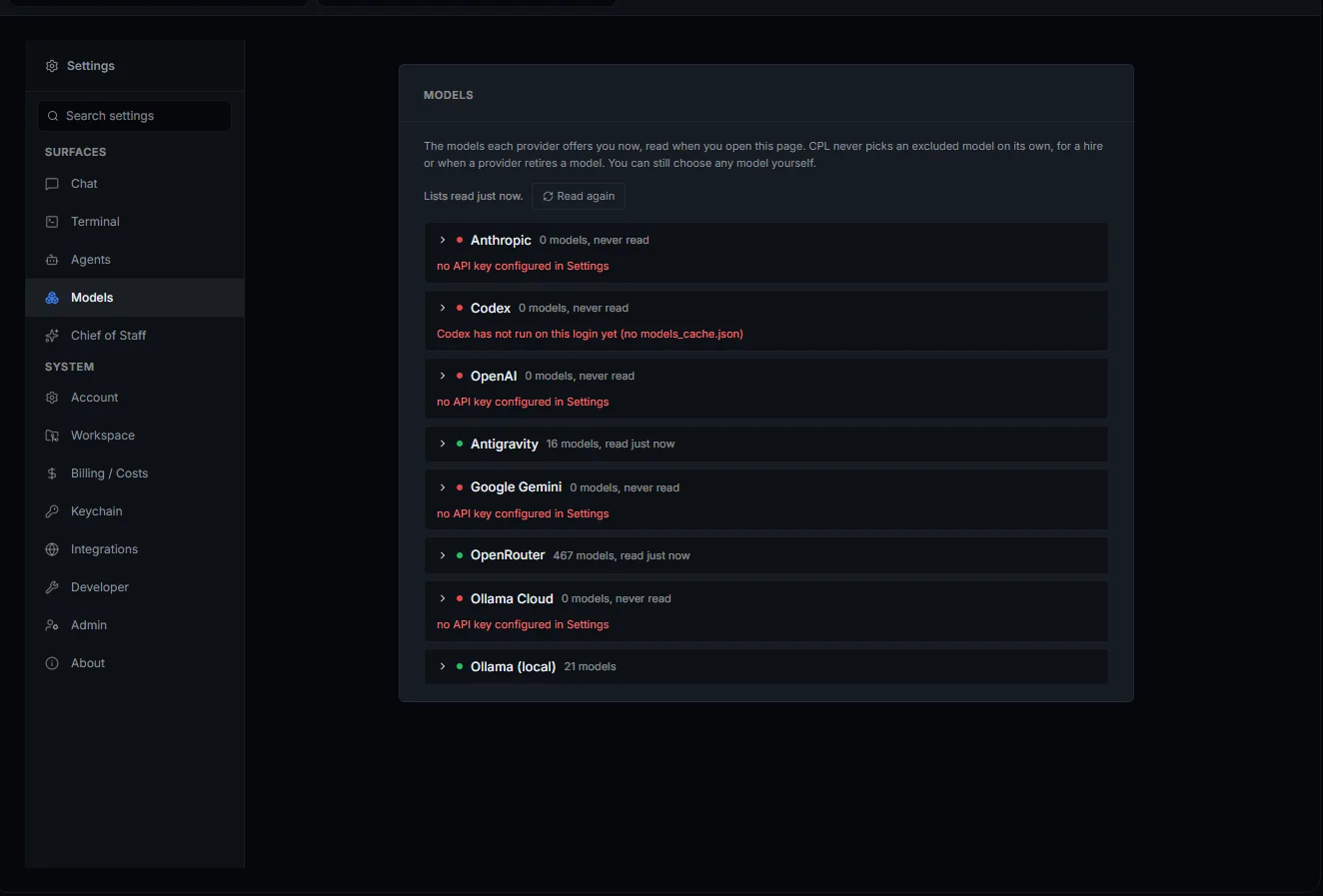
The suggestions and Recommended local models come from Ollama's public library, newest first, with each model's download size. They list only sizes you can download: a model that runs only in Ollama's cloud is left out. CPLai reads the library at most once a day, and again when you choose Read again beside the line under the box (or in Settings -> Models). The line says when it was read; while CPLai reads, it says so, which can take up to a minute and a half. If a read fails, the list stays as it was and the line says why. CPLai does not read the library at all while it is offline, or while any company is in Local Only with its Ask a cloud model switch off; the list stays as it was and the line says so. Until the library has been read once, CPLai shows a saved list from September 2026 and says so.
Recommended local models are the newest library models that can work as agents (they use tools or reason step by step), each at the largest size that leaves at least 40% of your declared Host memory (GB) free. If no size fits, CPLai shows the smallest one with a warning. With no host memory set, it shows each model's smallest size. Choosing a model only fills in the box; nothing downloads until you choose Pull. Library models never appear in the agent, chat or council model pickers, which list only models installed on your servers.
Progress appears while the download runs. When it finishes, the installed-model list refreshes. Downloads are stored on the configured Ollama server's machine, which may be different from the computer showing CPLai.
Use Delete model on an installed-model row to remove its downloaded model from that server. Deleting a model does not select a replacement for conversations that used it.
Tip: A model's download size is not its full memory requirement while running. Context length and other loaded models also matter.
How do I change an Ollama conversation's context size?
In desktop Chat, select an Ollama model and open the model settings panel. Use Context to choose how many tokens the server can keep in the model's context window.
- The default is 32k tokens, capped at the model's reported maximum.
- The menu offers sizes up to that maximum. When model metadata is unavailable, it offers sizes up to 32k.
- When memory metadata is available, options show an estimate such as
~+2 GB. This is the additional memory for the context cache, also called the KV cache. - Reset to default removes the conversation's custom context choice.
CPLai sends the chosen context size with Ollama Chat requests. A larger context uses more memory, even when the downloaded model fits comfortably by itself. This control applies to desktop Ollama Chat; it does not resize a vLLM server or configure the Codex agent harness.
How do I check whether a model will fit?
In desktop Settings -> Local models -> Ollama, set Host memory (GB) to the serving machine's GPU or unified-memory capacity. Leave it empty to disable the fit check. If vLLM shares that host, also set its Memory footprint (GB) to reflect the memory its running server holds.
Before an Ollama Chat send, CPLai estimates the selected model's allocation, its context cache, other resident Ollama models, and a reachable vLLM server on the same hostname. The model recommendations in Settings also use your declared host-memory budget.
If the estimate exceeds the budget, CPLai keeps the first send from starting and displays a warning. Reduce the context, select a smaller installed model, or stop a server that is consuming the shared memory. Sending again within 30 seconds overrides that warning for the model.
This is an estimate. Missing metadata or a failed probe can allow the send to proceed without a fit verdict. A successful send or an absent warning does not establish that the serving host has enough memory for every workload.
How do I connect and control a vLLM server?
Open Settings -> Local models -> vLLM. The vLLM - Local Server card connects to a server that exposes an OpenAI-compatible API.
| Control | What it does |
|---|---|
| Enable vLLM Server | Enables the connection and model discovery |
| Server URLs | Root address of each inference server, one per line |
| Server start command | Optional command run by the desktop toggle when enabling vLLM |
| Server stop command | Optional command run by the desktop toggle when disabling vLLM |
| Memory footprint (GB) | Memory estimate used when vLLM shares the Ollama serving host |
| Status / Refresh | Checks every server's connection |
| Servers | With more than one server, shows whether each one answers and how many models it serves |
| Served Models | Lists models already loaded by the servers, and which server serves each one; they appear in Chat's model picker |
Using more than one vLLM server
List every server once, one per line. CPLai asks each server which models it is serving, lists all of them together under vLLM (Local), and sends each chat to the server that serves the chosen model. One server being down does not hide the models on the others.
This suits setups where the serving machine changes, such as two machines that sometimes run one model together and sometimes run a model each: list both machines and the picker follows whatever is being served. While Chat is open, CPLai asks the servers again every 30 seconds, and right away when you switch back to the CPLai window. A model loaded after CPLai started shows up on its own, and one that was stopped disappears, with no restart. With a single server, CPLai behaves exactly as before.
If no listed server serves the selected model, the chat shows an error naming the configured servers instead of trying one of them.
Tools on a small context window
A vLLM chat sends only the tools that fit the model's context window, which CPLai reads from the server. It leaves room for your conversation and the reply. CPLai's own tools go first, then whole MCP servers that still fit. The rest wait behind a find_tools tool: the model searches them by what it wants to do, and the tools it finds can be used from its next step. find_tools names the servers that have tools waiting. You see each search in the chat like any other tool call. This keeps a short message from failing with a "maximum context length" error when a large MCP server is connected. It works the same in desktop and web chat. Cloud chats use the same find_tools once their tools pass 8,000 tokens (see Chat).
Images in a vLLM chat
Images you attach are sent to the model, so a vision model can read them. A model that can't read images refuses the request. CPLai then sends it again without the image. If that works, the reply starts with a line saying the image was left out and why, and CPLai leaves images out for that model for a while: for the rest of that chat on the desktop, and for an hour in web chat. That way you don't wait on a failed request each time. A refusal because the conversation is too long for the model is shown as an error, with the image kept. To ask about an image, pick a vision-capable model.
Seeing a model's reasoning
Reasoning models send their thinking separately from their answer. Chat shows it in a Reasoning block above the reply. The block is open while the model is still thinking, so you can watch it work, and collapsed on finished replies; select it to open or close it. The reasoning is saved with the reply and shown again when you reopen the conversation, on desktop and on the web dashboard. It is never sent back to the model.
With a start command configured, the desktop toggle runs it and waits for the server to answer while its model loads. With a stop command configured, disabling the toggle runs that command. The card shows start or stop failures. Without these commands, the toggle changes CPLai's connection setting; it does not start or stop the server process.
Commands run in the desktop computer's shell. To manage a server on another machine, the command must reach that machine through your configured remote-management tools.
The web card can save the enable flag, server URLs, and command fields, but its toggle does not execute the commands. Use the desktop controls or your server's own management tools when you need to release memory. Settings saved on the web take effect in the running desktop app right away.
Local models also appear in the web dashboard's Chat model picker, under Ollama (Local) (when Ollama is enabled) and vLLM (Local). Web chat runs the same memory-fit check as desktop before an Ollama model loads: if the model would not fit beside what the serving machine already holds, the send is refused with the reason and nothing is saved. Send it again within 30 seconds to load it anyway (press Up in the message box to bring your text back).
vLLM's card lists models served by an existing server. It has no Ollama-style Pull or Delete model action.
How do I use a local model for the Librarian?
- Enable and connect the provider in desktop Settings.
- Open Settings -> Utility models -> Vault librarian.
- Choose an installed Ollama model, or a model in vLLM (Local) when that server is enabled and reachable.
The Librarian sends synthesis work to the selected model's server. Choose Off - deterministic notes only to keep the deterministic-note workflow without model synthesis.
The Librarian selection is separate from Utility Model. Selecting a local Librarian does not move all of CPLai's internal helpers to that server. Librarian Model is a desktop-only setting; the web dashboard has no Librarian picker.
How do I give a local agent file and shell tools?
Open Settings -> Local models -> Ollama -> Local model harness on desktop or web. On desktop the row appears only after Enable Local Models is on, even if you only use vLLM; the web card always shows it.
| Choice | Agent behavior |
|---|---|
| Codex CLI | Default. Runs a configured local model inside Codex so the agent can edit files, run shell commands and tests, and use the MCP tools its company grants. Codex's own web search runs only on OpenAI's models, so CPLai gives a local model its own web search and page reader instead (see What a local model gets) |
| OpenCode CLI | Runs the same local model inside OpenCode so the agent can edit files, run shell commands and fetch web pages inside its workspace. It talks to the server's ordinary chat-completions API, so it also works with a server that lacks the Responses API |
| Direct | Ollama agents use the direct chat loop without any tools |
For one agent, use desktop Edit agent -> Integrations -> Local model harness. Choose Inherit global setting, Direct, Codex CLI, or OpenCode CLI. The agent's explicit choice takes precedence over the global setting. Changing this setting affects subsequent agent launches, not ordinary Chat transport.
For Codex CLI, Codex must be available on the runner's machine, and the model server must expose the OpenAI Responses API. CPLai checks that endpoint before launching the harness and reports an unreachable or unsupported endpoint. A server that supports ordinary chat completions may still lack the endpoint needed by the harness.
For OpenCode CLI, OpenCode must be available on the runner's machine. The run is set up so the local server is the only model provider it can use; it cannot fall back to a cloud model. A background run may edit files, run commands and fetch web pages inside its workspace folder, and OpenCode's own file tools are refused paths outside that folder. This is OpenCode's own rule, not an operating-system sandbox: a shell command the run starts can still read and write anything the account running CPLai can.
What a local model gets in builds, races and tasks
A Designer build, a race lane and a task run with nobody watching, so they get CPLai's tools and the CLI's own, never the plugins and MCP servers you installed for yourself. A cloud model loads the run's MCP tools directly. A local model's context window is small, so CPLai's tool server holds those tools back until the model looks one up with find_tools. An agent run CPLai starts already went through it; a build, race lane or task on a local model now does too, under Settings -> Local models -> What local models can use -> Local models get the same tools as cloud models. It is on unless you turn it off, and only you can change it.
With it on, a local model in a build or race gets a key made for that one run. The key reaches only the model's own server, through CPLai, and CPLai's tool endpoint, where the model finds MCP tools with find_tools; every other CPLai address refuses it, and it stops working when the run ends. If CPLai restarts while the run is going, the key lapses on its own within two hours of the run's end. An agent's task keeps the agent's own key. Your own tasks still run without any CPLai access. With it off, local models run as before.
With it on, a local model also gets two tools of CPLai's own: in a build or race, and in an agent's run or task when the agent's permission profile lets it reach the web. A profile that denies the network, the shell or file writes keeps Codex off the network, and keeps these two tools away too, so an agent whose network is closed gains no way out through CPLai.
| Tool | What it does | What it uses |
|---|---|---|
web_search |
Searches the web and returns titles, addresses and short extracts | Your ollama.com API key (Settings -> Providers & keys; a free ollama.com account gives one). Your Perplexity key only if you turn on Web search may use your Perplexity key in the same card, because Perplexity charges for each search. Without a key it says so |
web_fetch |
Reads one page by its address and returns its text | CPLai's own page reader, always, with no key. A page address never goes to a third party |
CPLai's own page reader reads only public internet pages. It refuses this computer, your local network, cloud metadata addresses and CPLai's own ports, checks that again on every redirect (five at most), stops after 2 MB and gives up after 20 seconds. A model gets the results marked as text from the web, to check, never as instructions. One run makes at most 30 searches and reads at most 60 pages. While the Warden ledger is on, each search and page read is recorded there with its address, never the query or the page. A search query or a page address leaves this computer, so a company in Local Only gets neither tool unless its Ask a cloud model switch is on, and while any company is in Local Only without it, builds and races (which belong to no company) get neither either.
Which one to pick: stay on Codex CLI unless your server has no Responses API or you want to compare. Both run the same model on your own server at no cost; they differ in the tools and prompts each CLI brings.
The harness recognizes configured ollama: and vllm: model identifiers. vLLM discovery currently adds models to desktop Chat and the Librarian, not to the standard agent model catalog. Do not expect a vLLM entry in every agent selector just because it appears under Served Models. Cloud-model selections ignore the local harness setting.
Reading a Direct run: Ollama and vLLM agents using Direct show this notice in the run output on desktop and web:
Direct text-only response; runtime tools unavailable. Action claims are unverified.
Direct can answer from the supplied context, but it cannot use shell, file, browser, HTTP, MCP, skill-loading, or memory tools during the run. A completed response means text generation finished; it does not prove that a command ran, a file changed, or a ticket was updated. The model is instructed to answer NO TOOL FOR STEP N for numbered steps that require unavailable tools.
CPLai may process supported output tags after the response. The notice does not verify those later actions; check their results separately. For file edits, commands, or tests, select Codex CLI and meet the harness requirements above. This notice applies to Direct agent runs, not ordinary Chat.
What works on a local model, and what degrades?
Tested 2026-10-23 with Codex CLI 0.163.0 against two Ollama servers on a local network. The tested path is the Codex CLI harness, not Direct. No cloud model was run side by side, so this page lists what was observed on local models and does not give a measured cloud comparison.
| Capability | Result on a local model |
|---|---|
| Shell commands, file edits, running tests | Works. gpt-oss:20b and gemma4:26b-a4b completed a four-step task and the files were checked on disk. Runs took 1 to 3.5 minutes, and a model may write a command for the wrong shell first and retry |
| Memory tools (search, recall, remember) | Works. A write through the built-in memory server was confirmed in the agent's memory store and then removed |
| Skills | Works when the skill text is in the prompt, which is how CPLai launches agents. A skill installed only on disk for the CLI to discover was found by one run and missed by another, so attach skills to the agent instead of relying on discovery |
Dedicated patch tool (apply_patch) |
Not available. Codex does not know local model names, so patch calls are rejected and the model edits files through the shell instead |
| Long, multi-step tasks | Mixed. qwen3:32b stopped after its first failed command with no final answer, and its Codex process did not exit on its own |
| Accuracy of the final report | Verify it. gemma4:26b-a4b reported the digest of the requested text, but the file held the digest of that text plus a line ending |
Pick the model by testing it on your own task, because a model that handles one prompt can stall on another. Local models make no cloud AI calls, but a run can still reach the internet through its tools (the test's curl step reached example.com). Local Only turns off cloud AI, not network access. Browser writes are controlled by the separate Trust Center setting.
Troubleshooting
Direct Ollama agent runs apply the CPLai machine's GPU memory guard when the selected server is on that machine: localhost, a loopback address, or a resolved address matching a local network interface. For a remote server, CPLai logs that remote VRAM capacity is unverified and leaves model admission to that server; the CPLai machine's GPU cannot establish whether the remote model fits. The local exact-model, one-run unsafe override is not consumed by a remote request. This does not change Chat's separate memory-fit check.
The always-on background service measures the GPU with nvidia-smi from Windows' own folders only: C:\Windows\System32, where current NVIDIA drivers install it, or C:\Program Files\NVIDIA Corporation\NVSMI, where older drivers did. If your copy is somewhere else, the service cannot measure the GPU. A run of a local model over 20B parameters is then blocked with a message saying the GPU memory could not be verified. To fix it, update the NVIDIA driver so that it installs nvidia-smi in System32, or use the one-run unsafe override that the message names.
| Problem | What to check |
|---|---|
| Ollama shows no installed models | Confirm the server URL and use Refresh; models must be installed on that server |
| A download is absent on this computer | Check the configured serving host, where the download is stored |
| Context shows fewer choices than expected | Choices depend on the selected model's reported maximum and metadata |
| A model fits on disk but triggers a memory warning | Review the context cache, resident models, and vLLM memory allocation |
| Disabling vLLM did not free memory | Check whether a stop command is configured, whether it failed, and whether you used desktop or web |
| A vLLM model is missing from the Librarian | Enable the provider, confirm that the server answers, and reopen desktop Settings |
| Codex harness fails before a run starts | Check the server address, Responses API support, and Codex availability; Direct remains available for Ollama agents that only need text responses |