App-Wide Features
Last reviewed November 15, 2026 (checked against the app).
The features that work throughout CPLai, regardless of which page you're on.
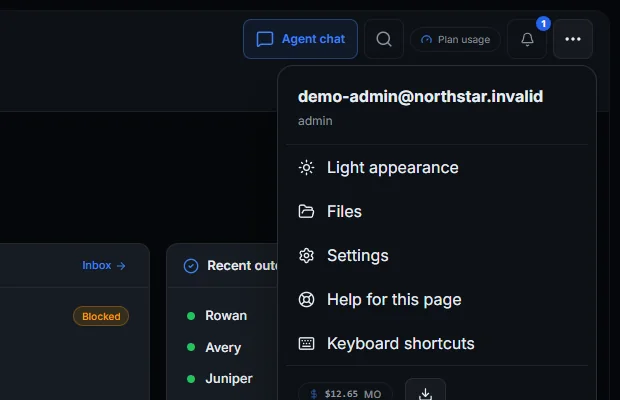
How do I switch workspace and repository context?
Use the Workspace and Repo breadcrumb selectors in the page header. They keep project-aware pages pointed at the same company and codebase as you move around CPLai.
- Open Workspace and choose a company, or choose All Workspaces to see cross-company activity.
- Open Repo and choose one of that company's projects.
- Use Create New Workspace or Create New Repo from the same menus when the company or project does not exist yet.
When you return to a company workspace, CPLai recalls the last repository you explicitly selected there. Switching to All Workspaces removes the Repo picker, may show the focused session's repo as read-only context, and stops filtering Terminal tabs to one company.
The active context supplies defaults without locking you in:
| Surface | What follows the active context |
|---|---|
| Terminal | New tabs are stamped to the selected workspace and start in the selected repository. Switching workspaces hides unrelated tabs without stopping them. |
| Chat | A new conversation inherits the selected company and project. You can change or clear the conversation's project later. |
| Codex | The Directory or project selection follows the active repo until you choose a different value on the Codex page. |
| Parallel Racing | The race directory and project follow the active repo until you browse to another directory. |
| Project actions | Terminals and phase launches keep the project that launched them, even if another workspace becomes active later. |
Tip: The Repo context follows the terminal tab you are actively using when that tab's live working directory belongs to a known project. This keeps Council and other project-aware terminal actions attached to the correct repository.
Start Work
Select Start Work at the top of the desktop sidebar, press Ctrl+Shift+N, or choose Start Work in the Command Palette to describe an outcome before choosing a tool. The web dashboard has no Start Work button; use the shortcut or the Command Palette there. CPLai suggests one of six destinations: Get an answer, Open Terminal, Compare approaches, Chat with an agent, Build a verified change, or Plan bigger work. Review the suggestion and choose a different route when needed. You can also begin with /chat, /terminal, /race, /assign, /build, or /project to choose a route explicitly.
Build a verified change opens Workflows with your outcome ready for the Build flow. Plan bigger work opens a prefilled New Project dialog. See Quickstart for all six routes.
CPLai explains its recommendation and may ask one clarifying question. If routing is unavailable, it offers help in Chat; you can still choose a route yourself.
How do I assign work to an agent?
- Choose a Workspace, describe the task, and select Chat with an agent or use
/assign. - Search the directory by agent name, role, skill, team, or project. It groups recommended agents, the current project, company-wide agents, and other projects.
- Choose an agent. When a team choice is offered, CPLai selects an available member from the current project.
- Review the Workspace, Project, Team, Agent, and Delivery preview.
- Select Assign work to create a To-Do task for that agent, or Chat instead to open a conversation with the brief.
Assignment is an explicit action. By default, it creates a ticket for the agent to pick up. Start immediately opens the agent chat with the new ticket context; review the conversation there. It is not a separate scheduled-run launch.
How do I keep an unfinished request?
Non-empty Start Work text is saved on the current device. Closing with the close button or Escape offers Keep editing, Discard draft, and Keep draft and close. Clicking the backdrop leaves the modal open.
Command Palette (Ctrl+K)
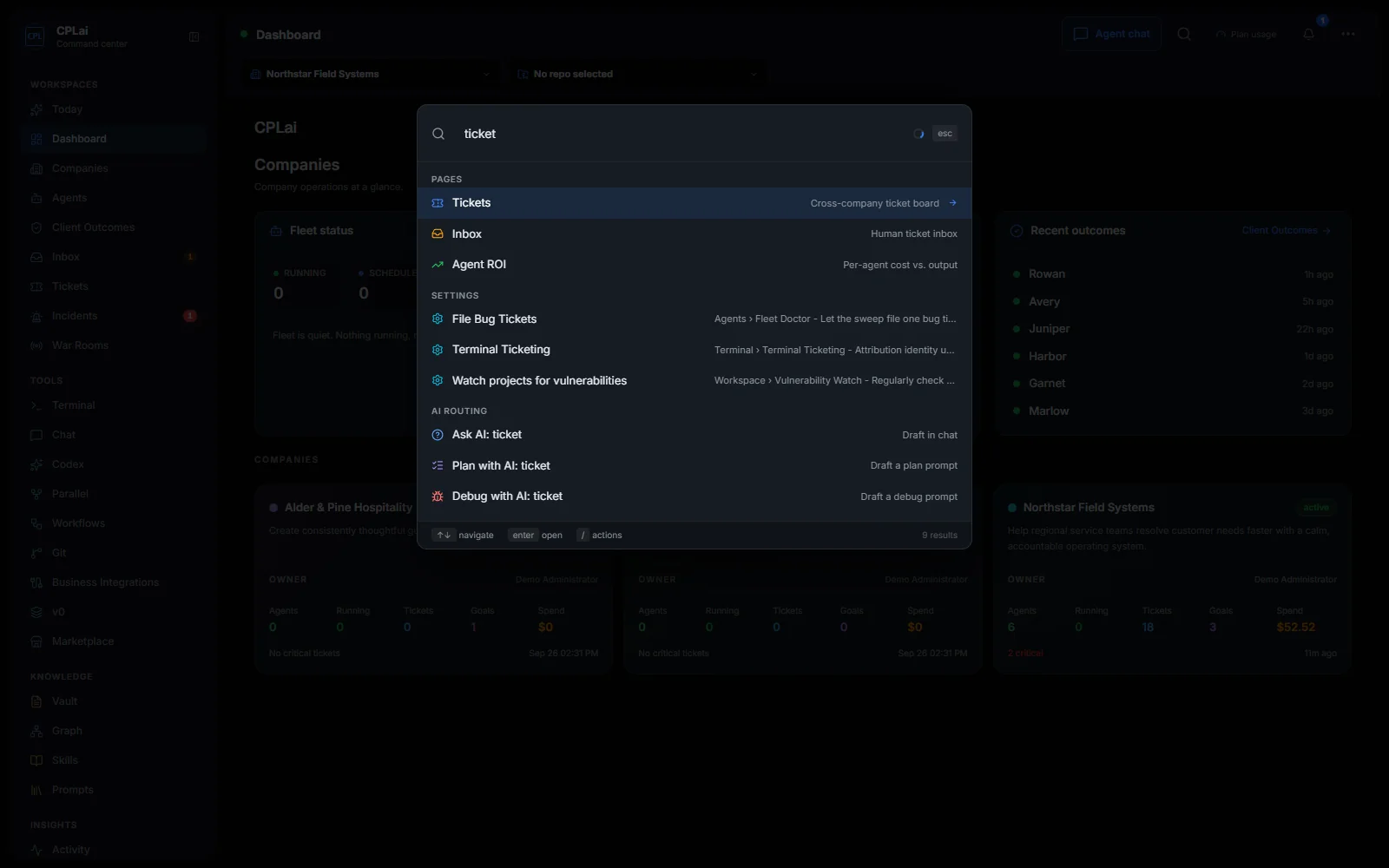
Open the Command Palette with Ctrl+K, Search CPLai... in the desktop title bar, or Search on web. Search pages, settings, agents, and terminal sessions. Desktop also searches local files and non-completed tickets.
What can I do from the Command Palette?
- Navigate - Jump to any page instantly. Pages are listed under Navigate on desktop and Pages on web, with color-coded icons. Type a section name such as Tools or Insights to narrow the list.
- Switch models (desktop) - Change the active conversation's model
- Switch modes (desktop) - Change conversation mode (Agent/Ask/Plan/Debug/Composer)
- Search chats - Find conversations by title. Desktop lists your five most recent conversations; web searches all of them.
- New chat - Start a fresh conversation
- Generate image (desktop) - Start a new chat on the image model
- Browse tools (web) - Search built-in chat tools
- Browse capabilities (web) - Search active platform capabilities and open the Companies workspace
Type to fuzzy-search through all available actions. Arrow keys to navigate, Enter to select.
Command Categories
The palette organizes results into categories so you can scan quickly:
| Category | What it includes |
|---|---|
| Navigation | All CPLai pages with palette color hints, labeled Navigate on desktop and Pages on web |
| Chat | New conversation and conversation search; desktop also clears or deletes the current conversation |
| Model | Desktop only: switch the active conversation to any configured model |
| Mode | Desktop only: Agent, Ask, Plan, Debug, and Composer modes |
| Tool | Web only: built-in chat tools |
| Capability | Web only: active platform capabilities; selecting one opens Companies |
| Action | Start Work on both surfaces; Quick Capture and Generate Image on desktop; /launch, /new, /chat, /git, /inbox, and /vault slash actions on web |
Note: This is the global Command Palette (in the title bar). The Chat page has its own separate Command Palette accessible from the overflow menu, with chat-specific actions.
Multiple Windows
Any page in the left menu can open in its own window, so you can keep Terminals on one monitor and dashboards, Chat or Tickets on another.
How do I open a page in a new window?
- Right-click the page in the left menu and choose Open in new window.
- Or click New window in the title bar to open the page you are on.
The new window is a full CPLai window with its own left menu and company filter. It opens on the same monitor as the window you opened it from, at a default size of 1440 by 900 adjusted for your display scaling and available screen space. Drag it to any monitor.
What does each window keep?
- Its own page and company. Changing company in one window does not change the others.
- Its own terminal tabs. A terminal window works exactly like the main one. Durable sessions still appear in the main window as before.
- Shared settings. Settings, theme and terminal layouts are the same in every window; a change in one shows in the others.
What happens when I close a window or restart?
- Closing an extra window closes only that window. If one of its terminals is running something, CPLai asks first.
- Closing the main window quits CPLai.
- When CPLai starts again, extra windows reopen on their saved page with their terminal tabs. CPLai restores each window's saved size and position on its monitor, moving or shrinking it as needed to fit the available screen space. If that monitor is disconnected or the saved position is off-screen, the window opens centered on the main window's monitor.
Which window opens a link?
More info on the Xeneon Edge, notification clicks and links in chat open in the window that already shows that page. If none does, they open in the window you used last.
In the web dashboard, right-click any page in the sidebar and use your browser's Open link in new window.
How do pages with a list fit a narrow window?
On a page that shows a list beside the item you opened, the item never gets narrower than about 350 pixels at the default text size. When the window is too narrow for both, the list folds away and the item takes the whole width:
- Browse at the start of the item's toolbar opens the list in the item's place: Browse agents, Browse tickets, Browse conversations, Browse incidents, Browse war rooms, Browse projects (Git), Browse categories (Prompts) or Browse notes (Vault).
- Back, or a tap on any item in the list, the open one included, returns to the item.
- The list keeps its search, filters and scroll position, and it comes back beside the item when the window is wide enough again.
This applies to the desktop app's Agents, Inbox, Chat, Incidents, War Rooms, Git, Prompts and Vault pages, and to the web dashboard's Inbox (in a window wider than 1100 pixels) and War Rooms. The web dashboard's Agents and Chat pages keep their own narrow layouts.
Quick Capture (Ctrl+Space)
Quick Capture is a desktop-only floating overlay for saving thoughts without leaving the current page. Press Ctrl+Space or choose Quick Capture from the Command Palette.
- Quick Capture mode appends an entry to today's diary using Brain Dump, Quick Idea, Music, Check Later, or Task templates.
- New Note mode creates a standalone Markdown note using the Idea, Note, Project, Meeting, or Task List category.
Both modes write to the configured vault. The web dashboard identifies this as a desktop-only local vault feature.
Clipboard History
Clipboard History stores captured system-clipboard entries, with AI-powered transforms (Summarize, Clean, Bullets, Professional) and automatic security filtering that blocks API keys and secrets from being stored. Desktop can monitor the clipboard automatically while CPLai is running. Web captures the current clipboard on demand. The panel is available from the Terminal page toolbar.
For full details, see Terminal - Clipboard History.
Cross-Page Drag and Drop (Web)
In the web dashboard, sidebar navigation items are draggable and droppable. You can drag content between pages to transfer context without manual copy-paste.
What can I drag?
| Source | What happens when you start dragging |
|---|---|
| A sidebar nav link | Creates a page reference payload with the page name, route, and section |
| Text selected on a page | Standard text drag |
| A URL from the address bar or another tab | URL payload |
| Files from your OS file manager | File summary payload (text files have content previewed, up to 12KB each) |
Where can I drop?
| Drop target | What happens |
|---|---|
| Chat nav link | Opens Chat with a pre-filled message containing the dropped context |
| Terminal nav link | Opens Terminal with the dropped content as a pre-filled command or comment |
| Any other nav link | Navigates to that page with a toast confirming the drop |
How it works
- Drag a sidebar link (or drag text/URL/files from elsewhere).
- Hover over a destination nav item - it highlights as a drop target.
- Release to drop. CPLai navigates to the target page and pre-fills the appropriate input.
For Chat drops, the pre-fill includes structured context (page route, file contents with syntax blocks, or URL with label). For Terminal drops, content is sanitized to a single-line command (newlines collapsed, max 1000 characters).
Tip: Drag a file directly onto the Chat nav item to start a conversation about that file without navigating to it first.
File Browser
The File Browser is a slide-out panel for navigating your file system.
Features
| Feature | Description |
|---|---|
| Tree navigation | Browse folders and files with expand/collapse |
| Context menu | Right-click for actions |
| Inline rename | Rename files without a dialog |
| Image preview | Preview image files inline |
| Bookmarks | Bookmark frequently-accessed folders |
| Search | Filter files by name |
| Cut/Paste | Move files between folders |
| Drag to move | Move desktop files or folders by dropping them onto a folder or the current tree background |
| Recycle bin | Safe delete (files go to recycle bin, not permanent delete) |
Bookmarks, Cut/Paste, Drag to move, and Recycle bin are desktop-only. The web File Browser opens from Files in the top-bar tools menu.
How do I move a file or folder by dragging it?
On desktop, drag a file or folder onto a destination folder row to move it there. Drop it on the blank area of the file tree to move it into the directory currently shown. The destination highlights while it can accept the move, and a collapsed destination folder opens after a successful drop.
CPLai blocks moving a folder into itself or one of its descendants. Dropping an item into its existing parent is a no-op. Folder drags are ignored by Chat attachment targets, so reorganizing the tree cannot attach an entire directory accidentally.
Drag-to-move is desktop-only. The web context menu is shorter (see below) and stays inside the viewport near screen edges.
How do I open or deliver a file?
Right-click a file to choose a destination or open it outside CPLai.
| Action | What happens | Availability |
|---|---|---|
| Open | Opens the file in its Windows default app | Desktop |
| Open in VS Code | Opens the file with the code command |
Desktop |
| Send to Chat | Opens the Chats picker with New chat and up to 25 recent conversations | Desktop and web |
| Send to Agent | Opens the Agents picker with enabled agents grouped by company | Desktop and web |
For either delivery action, CPLai detects the likely company from the project folder, company root, or matching folder name. Agents from that company appear first. After you choose a chat or agent, the file is attached to that destination's composer but is not sent automatically, so you can add instructions before sending.
Tip: Use Send to Chat when the work belongs in a normal model conversation. Use Send to Agent when a persistent worker should receive the file in its chat dock.
On desktop, folder context menus provide Open in Claude Code, Open in Codex, Open in Antigravity, Open in Parallel, Bookmark, and Create Project, plus Explorer, recycle-bin, and Vercel actions. On web, folder menus offer Open in Terminal, Open in Antigravity, Send to Chat (puts the folder path in a Chat draft), New File, and New Folder. The destination-aware attachment picker applies to files only.
Git Operations
Git gives each project repository status, staging, diffs, commits, branches and history, on desktop and web.
Notification Center
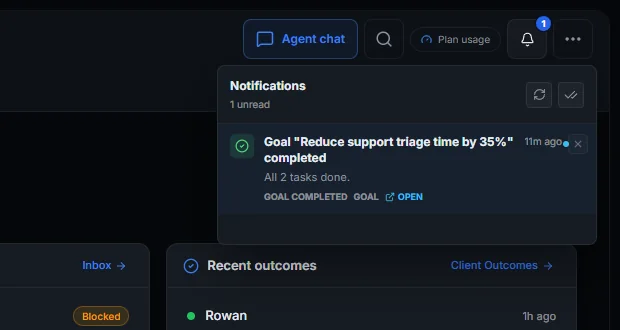
The bell icon in the title bar opens the Notification Center.
Notification Sources
| Source | What It Reports |
|---|---|
| Race | Race completion, winner picked, cleanup |
| Agent | Agent run complete, agent errors |
| Terminal | Permission prompts detected |
| Chat | Tool execution results |
| MCP | Server connection/disconnection |
| Tool | File write results |
| System | App-level events |
| Git | Git operation results |
Features
- Typed notifications: info, success, warning, error
- Read/unread state
- Per-source muting (silence notifications from specific sources)
- Click-to-navigate actions (e.g., clicking a race notification takes you to that race)
Diagnostics and Support
CPLai runs lightweight diagnostics in the desktop app so freeze and memory issues can be investigated with real data.
What does CPLai monitor?
| Signal | What it helps diagnose |
|---|---|
| Renderer heap usage | Whether the desktop WebView is approaching memory limits |
| Agent, run, chat, and terminal collection sizes | Whether long sessions are accumulating too much state |
| Terminal output size | Whether terminal logs are growing too large |
| Window and document listener counts | Whether UI event listeners are leaking |
| Event loop stalls | Whether the app's main UI thread is blocked |
| Agent spawn timing | Whether a desktop PTY initialized, emitted its first output, exited, or hit the 45-second zero-output guard |
Diagnostics are local to your machine. CPLai writes a rolling heap-monitor.jsonl file under the app config diagnostics folder every few minutes, and it logs summary lines to the developer console while the app is running. Desktop agent startups also append redacted PTY evidence to cloudpeaklabs-diagnostics/spawn-diag.jsonl under the app config folder.
During freeze investigations, CPLai also tracks large allocation sites in the desktop agent runner. These console lines report site names and byte counts only, not prompt or message content.
How do I send diagnostics when reporting a freeze?
If the desktop app is still responsive:
- Open the developer console.
- Run
__cplDumpHeapStats(). - Run
__cplDumpAllocStats()if it is available. - Include the returned summaries with your support note.
If the issue is an agent stuck at Waiting for agent output, include spawn-diag.jsonl. CPLai stops a frontend PTY launch that emits nothing for 45 seconds, and the file records whether initialization completed before the deadline.
If the app has already crashed or shown an Out of Memory page, use the saved heap-monitor.jsonl diagnostics file from the app config diagnostics folder.
Tip: Diagnostics do not replace a bug report. Include what page you were on, what you clicked, how many agents or terminals were running, and whether the issue happened after a long session.
Ask Peak and Manual Retrieval
Peak is CPLai's built-in product expert. Open the in-app Manual and select Ask Peak, or open Peak's dedicated assistant page or chat, to ask how the product works. Peak's Assistant workspace is hidden from normal company lists and selectors.
Peak has a read-only search_manual tool that searches the rendered HTML manual bundled with the installed app. The index is rebuilt when the shipped manual changes and chunks pages by heading so results can cite a specific section. Semantic ranking is used when embeddings are available; a keyword fallback keeps manual answers working on keyless installs.
Peak before and after you connect a model
Peak works on a fresh install. A line above Peak's message box says which model Peak is using, for example Peak is using Claude Code, or Manual answers: no model connected.
- No model connected. Peak answers from the manual: it lists the pages that match your question, each with a link that opens that page in the Manual, and offers two first steps: Connect a model (Settings > Integrations, where you add an API key or a local model; you sign in to Claude Code, Codex or Antigravity in a terminal) and Add your first project (the Projects page). Full chat starts once a model is connected.
- A model connected. Peak chats on it and every answer is grounded on the manual pages that match your question, with citation links. When more than one model is connected, Peak uses the first in this order: Claude Code, Codex, Antigravity, an API key (Anthropic, OpenAI, Gemini, OpenRouter), then a local model (Ollama). When Peak uses an API key, the line says so: each message is billed to that key.
- The model fails. If Peak's model cannot answer (it is signed out, its session cannot start, or the turn fails), Peak shows the error and then answers from the manual, so a question never goes unanswered. The next message tries the model again.
Peak currently chats on Claude Code; the other models are listed and used as Peak gains support for them. Until then, if only those models are connected, the line names them, for example Manual answers: Peak does not chat on Antigravity yet, and Peak answers from the manual as above. Manual answers are saved in Peak's chat history like any other reply.
When Peak uses a manual passage, its answer includes a /docs/<page>.html#<section> citation. Selecting that citation opens the cited section inside the desktop or web Manual instead of navigating away from CPLai. If no manual passage covers the question, Peak is instructed to say so rather than guess.
Peak is a reserved system agent and acts with the permissions of the signed-in user. It receives a short-lived delegated credential rather than a shared high-privilege instance credential, cannot mint its own delegation, and cannot approve its own guarded actions. Product documentation search is available to authenticated users because the shipped manual is identical for every company.
For recurring run failures, Peak works with Fleet Doctor to distinguish configuration work from CPLai platform defects. See Settings - Fleet Doctor and platform reporting.
Activity Timeline
Activity is one timeline of what happened across agents, tickets, chats, dispatches, files, and races, with a time window, search, filters, and a link to each source.
Race Metrics
Race Metrics is the Metrics tab of the Parallel page: win rates, cost and duration by model, leaderboards by task mode, prompt lineage, run timelines, and CSV export.
Workflow Access
Workflows are available from both the desktop and web sidebars.
| Surface | Best for |
|---|---|
| Desktop app | Creating, editing, running, cancelling, and reviewing workflow run history |
| Web app | Creating, editing, deleting, running, searching, opening direct links, reading YAML source, and checking parsed step routing |
Use the desktop app when you need local directory selection or desktop terminal context. Use the web app when the workflow should run against a linked project from the web dashboard.
Web App Navigation Shell
The web dashboard (/dashboard/) has a unified shell that mirrors the desktop app's spatial layout.
Sidebar
The sidebar uses direct navigation grouped into Workspaces, Tools, Knowledge, and Insights. Terminal, Workflows, and Skills keep their own destinations. Collapse the sidebar to an icon rail when you want more working space; the available pages stay the same. The active page is highlighted. See Web Dashboard and Remote Access for the full workflow.
Top Bar
The top bar shows a breadcrumb path (CloudPeakLabs / Page Name), a company switcher, search, connection status, and your user menu.
Company switcher - Click the company pill in the top bar to switch the active company context. Pages that are company-aware (Agents, Tickets, Goals, etc.) filter to the selected company. Choose "All companies" to see unfiltered views.
Search (Ctrl+K) - Opens the Command Palette from anywhere in the shell.
Connection status - A green/red dot shows whether the WebSocket is connected. If it turns red, the live-update feeds (notifications, agent logs, race updates) are paused until the connection recovers automatically.
Chat Dock
The Chat Dock is a collapsible right-side panel for chatting with an agent from any page without leaving your current view. Open it with Agent chat in the top bar, then pick an agent. The dock shows that agent's last 12 messages and a composer for sending new ones. On a phone, Agent chat opens as its own page instead.
Mobile Navigation
On narrow viewports (phones and small tablets), the sidebar collapses and a bottom navigation bar appears with Agent chat, Agents, Terminal, and Inbox tabs. Every other page is in the More sheet.
Company Dashboards
Each company has its own dashboard with Overview, Agents, Projects, Tickets, Goals, a tab per capability team, Org Chart, Knowledge, and Brand Voice. See Companies.
Cost Tracking
CPLai records every model call and its cost. The spend and Plan usage chips sit in the title bar, and the Usage page has the full breakdown. See Usage and Costs.
Keyboard Navigation
CPLai is designed for keyboard-first usage. The first eight pages in the sidebar each have a shortcut, on desktop and web. Reach any other page through the Command Palette.
Page Navigation
| Shortcut | Page |
|---|---|
Ctrl+1 |
Today |
Ctrl+2 |
Dashboard |
Ctrl+3 |
Companies |
Ctrl+4 |
Agents |
Ctrl+5 |
Client Outcomes |
Ctrl+6 |
Inbox |
Ctrl+7 |
Tickets |
Ctrl+8 |
Incidents |
Global Actions
| Shortcut | Action |
|---|---|
Ctrl+K |
Command Palette |
Ctrl+N |
New Chat |
Ctrl+Space |
Quick Capture |
Ctrl+\ |
Toggle Project Sidebar (when on Projects page) |
Firecrawl Web Intelligence
When configured with a Firecrawl API key, CPLai's AI gains the ability to read the web:
scrape_web Tool
- AI autonomously fetches any web page
- Returns clean markdown content + metadata
- 24-hour cache prevents redundant API calls
- Results auto-indexed into semantic search (source_type='web')
crawl_site Tool
- Crawls multiple pages from a website (up to 50)
- Async with 3-second polling (2-minute timeout)
- Returns structured multi-page content
Web Clippings
- Scraped pages auto-saved as markdown to your vault
- Location:
{vaultPath}/Web Clippings/{domain}/{title}.md - Includes YAML frontmatter (URL, date, description, tags)
RAG Integration
- Scraped content is embedded and indexed automatically
- The Brain toggle in Chat returns web results alongside vault/chat/code
- "Scrape once, reference forever"
Glass Design System
CPLai uses a design language called Glass, available in two themes:
| Theme | Style | Best for |
|---|---|---|
| Midnight (default) | Dark glass with deep backgrounds and subtle depth layers | Extended use, low-light environments |
| Daybreak | Clean light surfaces with soft shadows | Bright environments, daytime use |
Both themes share:
- Color with meaning - green for success/create, red for danger/delete, amber for warnings, etc.
- Agent colors - Claude (sky blue), Codex (purple), Antigravity (green)
- 17-component library including buttons, cards, inputs, modals, toggles, and more
- Consistent terminals - terminal sessions, modals, toasts, and the sidebar rail all adapt to the active theme
Switch themes in Settings -> Appearance -> Theme. The change applies instantly across the entire app, including the web dashboard.
Local Persistence
CPLai keeps product data local. Current company, project, agent, chat, plan, workflow, usage, and orchestration data use the app's PostgreSQL-backed local database.
- Conversations and messages
- Learned user preferences
- Settings and API keys
- Terminal sessions
- Agent data, runs, and chat history
- Race results and agent files
- Skills, prompts, and toolbox configs
- v0 projects, chats, and deployments
- Codex tasks and events
- Embeddings for semantic search
- API usage tracking
- MCP server configs
- Notification history
Your data never leaves your machine except for API calls you configure, such as AI providers, GitHub, v0, Vercel, or Firecrawl. There is no cloud sync or telemetry requirement.
Extended Thinking (Claude)
When using Claude models, extended thinking gives the AI time to reason through complex problems:
- Fable, Opus, and Sonnet 5 or later (Adaptive) - Claude automatically decides when to think deeply
- Sonnet 4.x and Haiku (Manual Budget) - You set a token budget for thinking
Thinking blocks are preserved in conversation context so the AI maintains its chain of reasoning across messages.
Prompt Caching (Claude)
Reduces API costs by caching repeated context:
- Adds Anthropic's automatic
cache_control: ephemeralsetting to each Claude API chat request - Anthropic's API caches the repeated conversation context across requests
- Can reduce input token costs by up to 90%
- On by default. Turn it off in Settings > Plan & costs > Company cost rollup > Prompt caching
Status and Remote Access
Trust Center's Status tab shows the server's health and the addresses for reaching CPLai from this machine, your network, or a remote device. See System Status and Web Dashboard and Remote Access.
Audit Log and Replay Timeline
Admins find the Audit Log, with its replay timeline of agent tool calls, at Settings -> Admin -> Audit Log. See Administration.
Claude plan routing
If you have a Claude subscription (Max or Pro), two separate settings control routing through the Claude Code CLI:
- Agents: Settings > Agents > Claude Code > Use Claude Code CLI runs Claude agents, agent chat, and internal one-shot tasks on your subscription instead of per-token API billing. On by default.
- Chat: Settings > Chat > Chat transport > Anthropic chats via Claude Code sends Anthropic chats through Claude Code instead of the API. Off by default, so chats use your API key. Check Anthropic's current billing policy to confirm whether this usage is covered by your subscription.
- When the agent setting is on, Claude agent runs in the desktop run view show "Covered by plan" in green instead of a dollar amount.