Git
Last reviewed November 15, 2026.
The Git page provides project-scoped status, staging, commits, branches, history, diffs, pull-request review, and worktree maintenance. It operates on repositories already linked to CPLai projects.
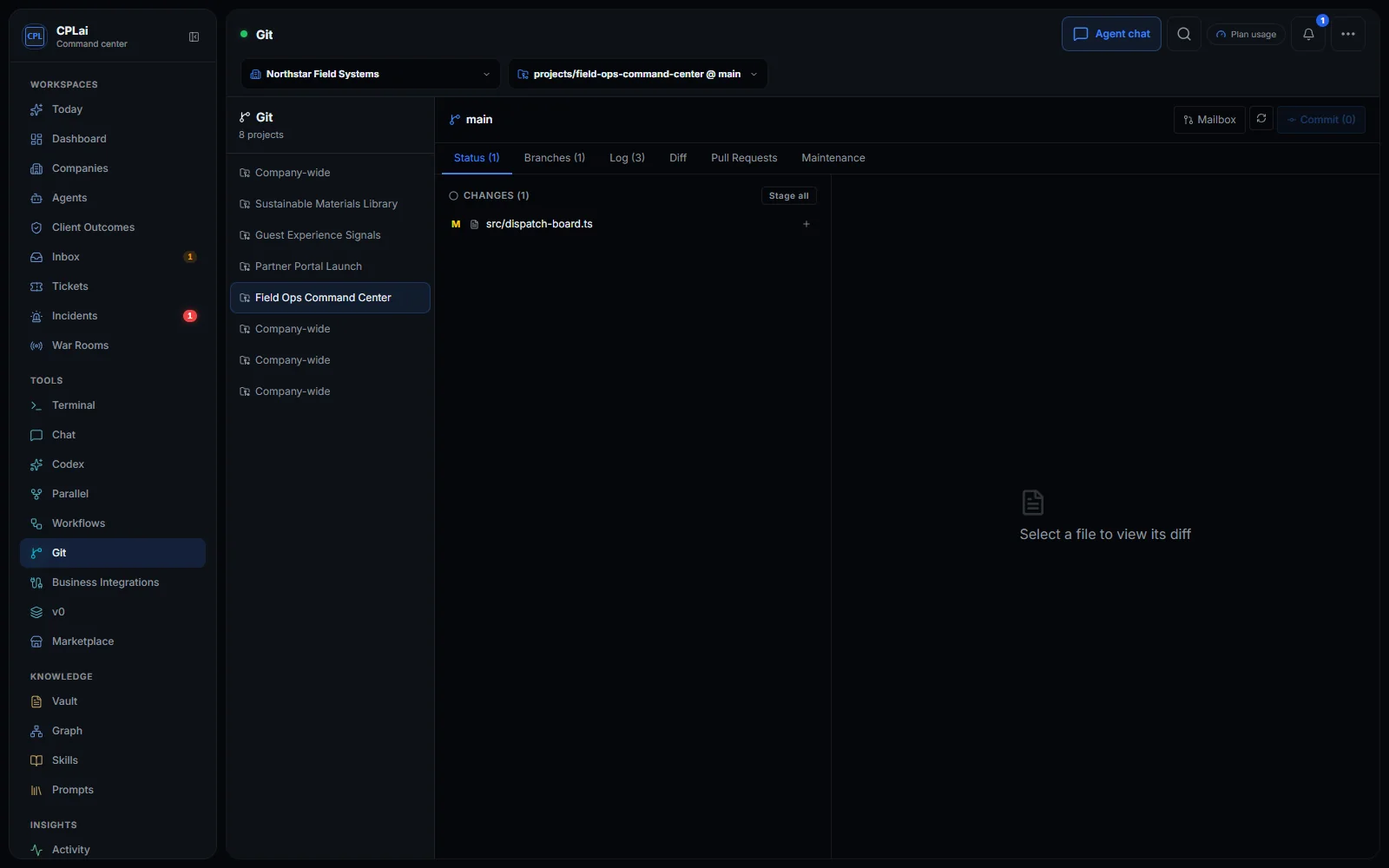
Open a repository
Choose Git in the sidebar, then select a project from the project list. Projects without a valid repository path cannot provide Git data. The header shows the current branch and its ahead/behind counts when an upstream exists.
Status
The Status tab separates staged and unstaged files. Select a file to inspect its patch and summary.
- Stage adds the selected path to the index.
- Unstage removes the selected path from the index while keeping the working copy change.
- the commit button is enabled when at least one path is staged.
Review the staged set before committing. CPLai does not infer which unrelated changes belong together.
How do I open a changed file in the web editor?
Open a project in the web app, choose its Git tab, and select a changed file. CPLai switches to the Files tab and opens that file in the Monaco editor.
Modified, added, untracked, renamed, and copied files can open in the editor. Renamed and copied rows open the destination path. Deleted files remain visible in the change list but cannot open because their working-tree content no longer exists.
This workflow belongs to the web project workspace. On desktop, selecting a file on the standalone Git page opens its patch preview instead.
Commit
Choose Commit, enter a non-empty message, and confirm. The commit is created in the selected local repository. This action does not push to a remote or open a pull request.
Branches
The Branches tab shows local and remote branches, the current branch, and upstream information. You can check out an existing branch or create and check out a new local branch. Symbolic remote HEAD entries are omitted.
Branch switching can fail when local changes would be overwritten. Commit, stash, or otherwise resolve those changes outside CPLai before retrying.
Log and Diff
- Log shows the most recent commits with hash, author, time, subject, and refs.
- Diff shows the complete working-tree change against
HEAD, including staged and unstaged work.
The Status file preview distinguishes staged and unstaged patches. The full Diff tab is the best final review before commit.
Pull Requests and the Mailbox
The Pull Requests tab lists open requests for the selected repository. Use it to review the linked CPLai ticket, author and branch, updated age, changed files, review state, and the current check rollup. A check older than seven days is marked stale so an old green result is not mistaken for current evidence.
The Mailbox lists every open pull request in each linked repository, whatever branch it targets, including pull requests from one of your long-lived branches into another, such as develop into main. Merge names the target branch before you confirm. The company Merge Queue card shows only requests into the repository's merge branch.
The Mailbox follows the workspace picked in the drop-down at the top left. With a workspace selected, it lists only the repositories of that company's projects and names the workspace in its header; the count, the Land PRs buttons and the repository groups all follow it, and CPLai asks GitHub about those repositories only. Choose All Workspaces to list every company's repositories.
Select a repository's name to fold its pull requests away. A folded repository shows how many open requests it has and their checks at a glance: failing, pending, green, and no CI when a request has no checks or GitHub could not report them. Collapse all and Expand all fold or open every repository at once. CPLai remembers which repositories you folded, on this device, when local storage is available. Warnings and fetch errors stay visible on a folded repository.
Repositories with no open pull requests are hidden by default in the Mailbox. Select Show N repos with no open pull requests to reveal them, then use the same control to hide them again. CPLai remembers your choice locally when local storage is available. Repositories with a fetch error or Keychain warning stay visible even when they have no pull requests.
If all repositories are empty and have no errors or warnings, the Mailbox shows No open pull requests in N repos with the same show/hide control. This filter applies on desktop and web; the Git page's Pull Requests tab continues to show empty repositories.
The Git page and the Mailbox refresh their pull-request lists every 60 seconds while the surface is visible. CPLai pauses polling while the Mailbox is closed, the Git page is inactive, or the app tab is hidden. Background refreshes keep the last good list on a temporary failure instead of replacing it with an error.
Available actions depend on your GitHub permissions and the repository's rules:
- open the pull request or a changed file;
- add a comment;
- approve or request changes (you cannot approve your own request);
- merge after reviewing the confirmation and any required checks.
Collapsed rows include compact Approve and two-step Merge controls, so a review pass does not require opening every row. Expand a row to review the complete actions, conversation, and changed files. The action bar appears above the conversation so you can approve, request changes, merge, or route work back to an agent without scrolling through a long thread first.
The conversation starts collapsed. Its header still shows the entry count and Refresh action. Select the header to expand the full review thread, then select it again to collapse the thread or leave it closed while you inspect changed files. If GitHub refuses an action, CPLai shows the returned reason, such as branch protection or a changed head, beneath that row.
When a pull request has a linked CPLai ticket, expand it and choose Update ticket to:
- Write a note for the assigned agent.
- Set the ticket to Back to To-Do or In Progress.
- Post the note with the PR number, branch, and URL so the agent has the exact review context on its next heartbeat.
Use Update ticket when every fleet pull request is authored through the same GitHub identity and GitHub will not accept a request-changes review on the apparent author's own request.
If CPLai cannot resolve a linked ticket from the pull request's branch or title, the same action reads File ticket. Enter a note, choose To-Do or In Progress, select the repository's project, and optionally select an assignee. CPLai creates a task in the pull request's company with your note, the pull request URL, source and target branches, author, and current CI rollup. CPLai preselects a project only when the repository match is unambiguous; otherwise choose one before filing. The assignee picker starts with the first available non-paused company agent when one is available. Use this path for Dependabot, fleet, or other requests that do not follow the ticket-prefixed branch convention.
When a pull request has an open War Room, the Mailbox shows a War Room icon after its title and Open War Room in its review, on desktop and web. Either one opens the room on the War Rooms page and switches the workspace picker to the room's company. Only a pull request with an open room shows them, and none show while both Open a War Room for a pull request in trouble and Open a War Room from any pull request in the Git mailbox are off.
To open a room yourself, open the pull request's review and select New War Room. It shows only on a pull request with no room, and only while Open a War Room from any pull request in the Git mailbox is on. The room says you opened it and that no trouble was detected, seats the team (the Head of Engineering, the agent the linked ticket is assigned to, the Deployment Engineer), then opens on the War Rooms page. When Let War Room agents start real work is on, the room's team starts a run right away. The button asks you first only when that run is billed per use (an agent on an API key, OpenRouter or v0), or when CPLai cannot tell how the agent signs in, and it names the agent and the reason. An OpenCode model on a provider other than OpenRouter (GitHub Copilot or OpenAI, for example) is one CPLai cannot tell: OpenCode may sign in to it with a subscription or with an API key, so the question names the provider and says the run may be billed per use. A run on a subscription sign-in (the Claude plan, ChatGPT, Antigravity, Ollama Cloud) or on a local model starts without a question. When the switch is off, the room opens and says why no run started. A pull request with no linked ticket gets a room too, and the room says so. Selecting it again on a pull request that already has a room just opens that room. See Incidents - Rooms for pull requests in trouble.
Select Mailbox in the Git or Terminal toolbar to open the queue for the selected workspace, or for every company under All Workspaces. The Mailbox is useful when you review several repositories: it shows open requests across a company's repos, or across every connected company, instead of limiting the list to the active project. CPLai does not bypass branch protection or required reviews.
Branch protection
Each repository row shows its branch rules as read from GitHub. Updates restricted means an active rule limits updates to its bypass actors; any upstream-sync exception appears in the details. PR required means there is a pull-request rule but no active update restriction. An approval alone does not establish who is allowed to land code. Classic protection and Protected (legacy) do not confirm restricted update authority. Protection off identifies paused rules, and Not protected identifies branches without detected protection. Hover to read the requirements, or click to open the panel:
- Branches. The repository's default branch and every branch a rule names, each with its state.
- Rules. Each rule shows the branches it covers, what it requires, and who may skip it. A hidden bypass list is unknown, not empty. An update restriction does not establish that only one named owner can merge.
- Turn off. Pauses the whole rule on GitHub after you confirm. The confirmation names every branch the rule covers. The rule keeps all its settings, and Turn on brings it back.
- Protect. Adds a rule for the named branch that restricts updates, blocks deletion and force push, and requires a pull request with one approval. Only repository admins receive bypass, and only by merging a pull request. The template disables the upstream-sync exception. CPLai refuses when a rule already covers the branch.
- Agent bot. Shows whether the agent bot account can push to the repository. Give Write access invites the bot and accepts the invitation.
| Good to know | Detail |
|---|---|
| Token permission | Turning rules off or on, protecting a branch and giving bot access use your owner token, which needs Administration: Read and write on GitHub. Without it the panel still shows the rules, hides Turn off, and names the GitHub setting to change. |
| Exceptions are kept | CPLai changes only a rule's on/off switch. Exceptions such as a deploy key that may always push stay as they are. CPLai reads the rule back and tells you if anything else changed. |
| Organization rules | Rules set by a GitHub organization are shown but can only be changed on GitHub. |
| Audit | Every change is recorded in the audit log. |
| Refresh | The panel reads GitHub when the Mailbox opens and again when you choose Refresh or Check again. |
Existing rules are not upgraded automatically. To restrict updates on an existing rule, the owner reviews the named rule and branches using its GitHub link, adds Restrict updates, and preserves its bypass actors, branch conditions and other rules. Turn off and Turn on change only enforcement; they do not perform that upgrade. Never grant writers, agent identities or review apps bypass just to satisfy a merge.
Repos without a project
Under All Workspaces, the end of the Mailbox has No project: it lists the repositories your all-repos owner token can see that no CPLai project points to, with their open pull requests. Choose Link to project for one of them:
- Existing project. CPLai saves the repository as that project's GitHub Repo.
- New project. Pick a company and a name. The Folder list starts on a new folder in the company's projects folder, named after the project, for example
C:\Users\you\CloudPeakLabs\example-company\projects\example-app. It shows that path before anything is created, and CPLai creates the folder when you choose Create and link. The list also offers any copy of the repository CPLai found next to your other project folders, and Another folder for a folder you type. CPLai never clones the repository.
The repository then appears as a normal Mailbox row. This list needs an owner token set to All repos in linked companies' projects. See Keychain.
Maintenance
The Maintenance tab is the operational console for Worktree Janitor on desktop and web. Choose a company, then use Refresh to scan managed agent worktrees, scratch artifacts, and sibling worktrees.
- Sweep automatically removes only clean, merged worktrees: those inside managed agent roots, and sibling worktrees beside a project folder. The agent rule files CPLai writes into each worktree (
AGENTS.md,CLAUDE.md,GEMINI.md) do not count as changes while only CPLai's own block in them differs. Any other change, including an edit to your own text in those files, keeps the worktree out of the sweep. - Reclaim caches removes regenerable caches from eligible merged worktrees while preserving their source and registration.
- Individual worktree and scratch deletion always requires confirmation.
- A clean sibling worktree that is not merged but has been idle past the Idle TTL is queued for you to confirm. A sibling with local changes is only reported.
- The checkout of a development workspace is never removed or queued while the workspace is active. Archive the workspace first if you want cleanup to treat its folder like any other worktree.
The summary shows the scanned, auto-removed, queued, scratch, and reclaimed totals. Large fleets can take several seconds because CPLai runs Git safety checks and sizes candidates on disk.
Configure Enabled, Idle TTL, Disk Pressure, and Sweep Interval in Settings -> Folders & cleanup -> Worktree cleanup. Git Maintenance reads that saved policy but does not mix policy editing into the operational queue.
Desktop and web behavior
The desktop page invokes local Git in the linked repository. The web page calls the authenticated project Git API on the CPLai host. Both expose the same six tabs and core status, commit, branch, log/diff, pull-request, and maintenance behavior.
Neither page is a replacement for the repository's branch protection or pull-request workflow. Follow the project's own contribution rules before pushing changes.
Troubleshooting
| Problem | What to check |
|---|---|
| No projects appear | Create or import a project first |
| Project appears but Git is empty | Confirm the project has a repository directory |
| Status fails to load | Confirm Git is installed and the repository path exists |
| "Project repo_dir is not a Git repository" | The project folder exists but has never been initialized as a Git repository. Run git init in that folder, or point the project at a folder that already has a .git directory |
| Commit button is disabled | Stage at least one file first |
| Checkout fails | Commit or stash conflicting local changes, then try again |
| Web Git says access is denied | Confirm your account has member access to the project's company |