Incidents
Last reviewed October 28, 2026 (checked against the app).
Incident Command is the war room for outages: one place to track what is on fire, who is working it, what has been tried, and what customers are being told. Open it from the sidebar under Workspaces -> Incidents in the desktop app or the web dashboard (/incidents on web). Incident write actions require an administrator.
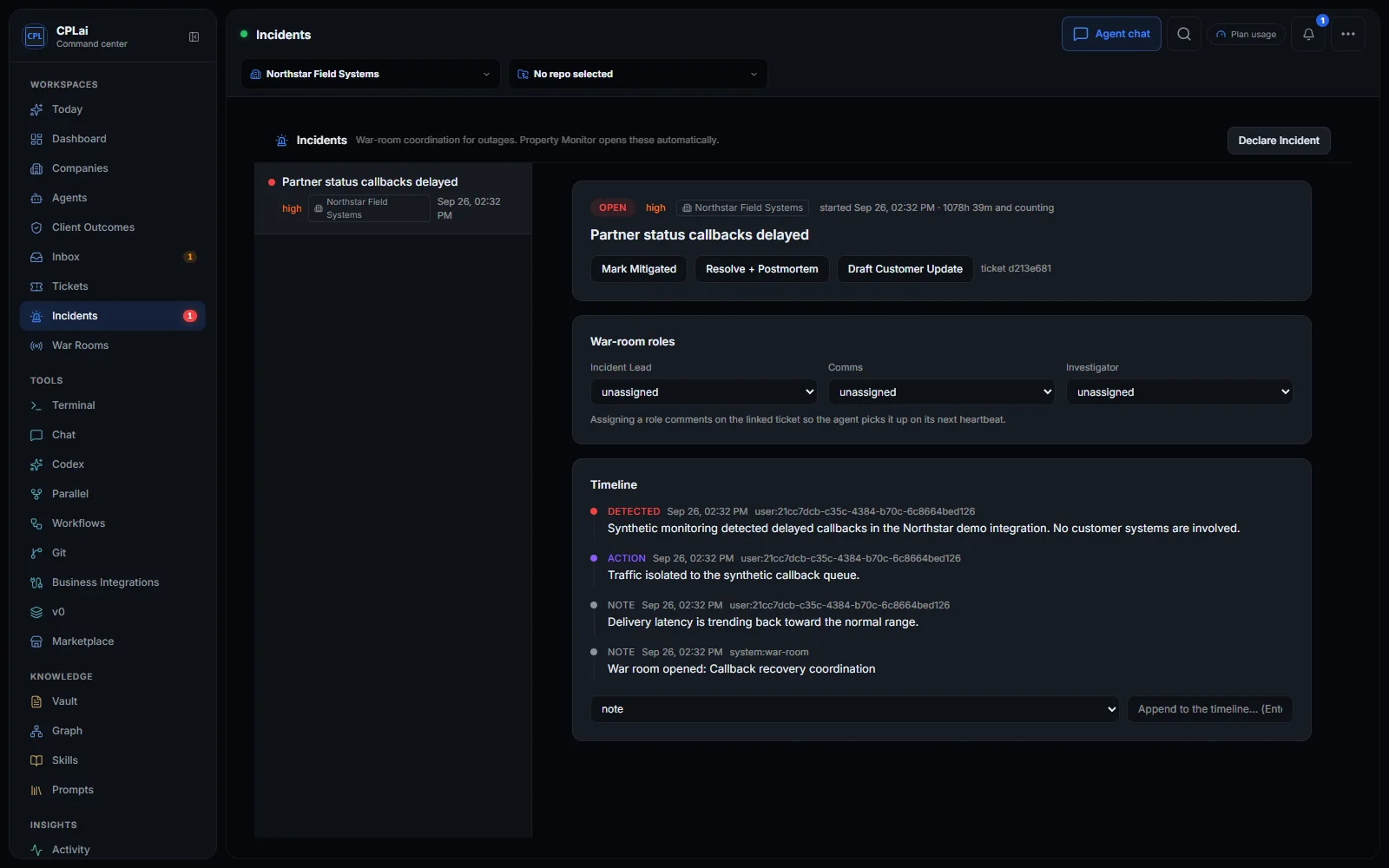
Where do incidents come from?
There are two sources:
- Property Monitor (automatic). When Property Monitor sees a property fail its consecutive-check threshold, it files a bug ticket on the property's company and opens an incident linked to that ticket in the same moment, with the ticket's severity: critical when the property gives no response while the monitor's own internet connection works, high for an HTTP error such as a 503, and medium when the monitor's connection failed too (the problem is on the monitor's side). The incident's first timeline event carries the failing-check evidence. When the property starts responding again, the monitor marks the incident mitigated automatically, appends a recovery event, and lowers the ticket to low urgency if nobody has touched it yet.
- Declare Incident (manual). The button in the Incidents page header opens a small form: company, title, severity (
critical,high,medium,low), and an optional first detail line. Use it for anything the monitor cannot see, such as a data problem or a third-party outage. The form has no ticket field, so a declared incident has no linked ticket.
What does the war room show?
Selecting an incident opens its war room:
- Status header with the severity, running duration, linked ticket, and action buttons.
- War-room roles: three assignable slots - Incident Lead, Comms, and Investigator - each a dropdown of the company's agents. Assigning a role posts a comment on the linked ticket, which is how the agent learns about the assignment on its next heartbeat. A paused agent simply never picks it up, so pausing still works as expected. A declared incident has no linked ticket, so its role assignments are recorded only as
roletimeline events and the agent is not notified; tell the agent through its own ticket or chat. - Timeline: an append-only feed of events. Event kinds are
detected,status,note,action,comms,recovery, androle. Nothing on the timeline can be edited or deleted; corrections are new events. Use the composer at the bottom to appendnoteoractionevents while the incident is live.
How do statuses work?
An incident is open, mitigated, or resolved.
- Mark Mitigated when the bleeding has stopped but the underlying cause is not fixed.
- Reopen a mitigated incident if it regresses.
- Resolve + Postmortem ends the incident. Resolution asks for a resolution note, closes the timeline, and is terminal - a resolved incident cannot be reopened. Declare a new incident if the problem returns later.
What is the comms draft?
Draft Customer Update asks the configured Utility Model to write a short, calm, customer-facing status update from the internal timeline. The draft is saved to the timeline as a comms event and shown in the header for copying. It is never sent anywhere automatically. If no utility model is configured, the button returns an explanatory error instead of a draft.
What happens on resolve?
Resolving generates a postmortem automatically:
- A deterministic markdown report is always produced: severity, started / mitigated / resolved times with durations, roles, the resolution note, and the full timeline. It does not depend on any AI provider.
- When a utility model is configured, a short Summary and Lessons section is added on top.
- The postmortem is captured into the company vault under the Engineering domain, and the vault path is recorded on the incident and commented on the linked ticket. If vault capture is unavailable, the full postmortem text is posted as a ticket comment instead. A declared incident has no linked ticket, so if vault capture fails for one of those, the generated postmortem is not saved anywhere.
How do I delete incidents?
Only resolved incidents can be deleted, so an outage in progress can't be wiped by accident; resolve it first. Open a resolved incident and press Delete, or press Delete resolved (N) in the page header to clear every resolved incident in the list at once. Both ask you to confirm. Deleting removes the incident and its timeline for good. The linked ticket and the postmortem file in the vault stay, and a war room that pointed at the incident stays without the link. Only a person can delete an incident; agents cannot.
Availability
Incident Command is available in both the desktop app and the web dashboard (sidebar Workspaces -> Incidents). The war-room view, roles, timeline, comms drafting, and postmortem actions work identically on both surfaces.
War Rooms
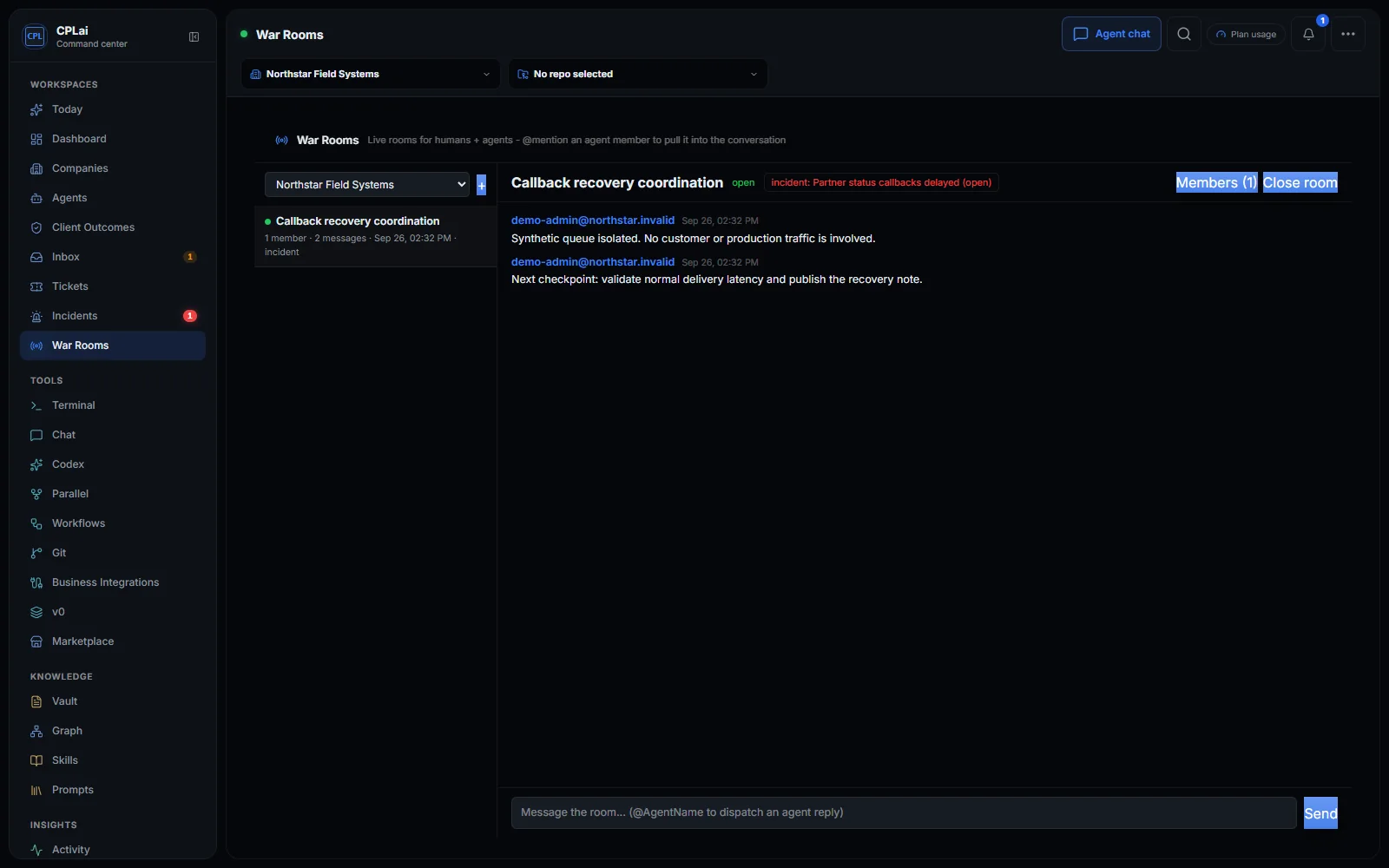
Incidents get a sibling surface at /war-rooms (sidebar War Rooms): live rooms where multiple humans and agents collaborate in one message stream.
- Open a room from the War Rooms page (any company member). A room can optionally link one of the company's unresolved incidents; opening and closing the room cross-posts a
noteevent onto that incident's timeline, and the room header links back to the incident. - Members are users and agents. Opening a room (or just viewing it) joins you automatically; agents are invited from the member rail. User members show a live presence dot driven by a heartbeat; an agent's dot pulses while it is mid-turn ("thinking").
- Messages stream live to every viewer in the company over the WebSocket connection - no refresh needed. A 15-second poll reconciles anything a flaky connection missed.
- @mention an agent member (for example
@Scout can you check the logs?) to bring it into the conversation. The agent replies as a real chat turn - its answer streams in token-by-token ("typing…") and is posted as an agent message. Each room is the agent's own persistent thread, so follow-up mentions continue the conversation with memory rather than starting cold. - Multiple agents mentioned in one message reply in sequence, so each sees the earlier replies. An agent whose reply @mentions a peer pulls that peer in - bounded by a loop guard (each agent speaks at most once per chain) so it can never ping-pong.
- Ambient participation is opt-in per agent (the ◉/○ ambient toggle in the member rail, off by default). An ambient agent may chime in on room activity without being @mentioned - but only when it judges it has something genuinely useful to add, and rate-limited so it is never spammy.
- Close the room (administrator) when the collaboration is done. Closed rooms keep their history but no longer accept messages. The room's document is copied onto the linked incident's timeline when the room closes.
The room's document
Document in the room header opens the room's one shared document beside the conversation (in a narrow window it lies over the conversation, like the member list). People and the agents the room has woken write in it together: what happened, what was tried, the fix. Each save names the version it started from. If someone saved in between, CPLai keeps your text and offers Load theirs instead of overwriting their work. A newer version saved elsewhere appears on its own when you have no unsaved changes. A closed room's document is read-only.
A team that does the work
A room can wake its agents to do real work, not just chat:
- Seat team seats the company's Head of Engineering (or its CTO, or its CEO) to assess and a Deployment Engineer (the project's own, when the room belongs to a project) to verify. In a room for a pull request, the dev who did the work is seated to fix. Each member's part shows beside their name in the member list. Only agents from the room's own company are seated.
- wake beside an agent member wakes it for real work: a run on the agent's own engine about the room's problem, carrying the room's recent messages and its document. An agent that is paused is woken anyway; its pause still stops its scheduled work. A turned-off agent, an agent at its spending limit, Local Only, and the hourly limits (four runs per agent and sixteen per room) still refuse, and the room says why.
- When a run finishes, its summary is posted in the room and the next part of the team is woken: the fixer after the assessment, the verifier after a fix, and the assessor again when a fix fails or a verification does not pass.
- A woken agent can read and post in the room, and edit its document, only while the room has woken it (and for 30 minutes after its run ends).
Rooms for pull requests in trouble
While both of the switches below are on, when the PR doctor finds a pull request whose CI is still red, or that conflicts with its base, it opens a War Room for that pull request, or reuses the one already open. It seats the team, posts what failed, and wakes the Head of Engineering to assess (or the dev, when the company has no one to assess). The room header shows the pull request's number. If no one in the room can start, the room says so and the PR doctor handles the fix as it does without a room. There is one room per pull request in trouble, never one for every pull request. The room closes when PR doctor sees that the pull request merged or closed, and keeps its history. While PR doctor is turned off (see Build Health - When a pull request's own CI fails), the room stays open until someone selects Close room in it.
To find the room from the pull request, use the War Room icon after its title in the PR mailbox, or Open War Room in its review (see Git - Pull Requests and the Mailbox). The pull request's ticket shows Open War Room in its detail too (see Tickets - How do I open a ticket's War Room?).
You can also open a room for any pull request yourself, with no trouble needed: New War Room in its review in the Git mailbox. The room is the same kind of room and says who opened it and that no trouble was detected. Like a trouble room, it closes when PR doctor sees that the pull request merged or closed, and stays open while PR doctor is turned off until someone selects Close room. Only a person's click opens one; no agent and no sweep does. See Git - Pull Requests and the Mailbox.
The owner's switches
Three switches in Settings -> Automation -> War Rooms decide what rooms do. Only you can turn them on or off:
- Open a War Room for a pull request in trouble is on until you turn it off.
- Open a War Room from any pull request in the Git mailbox is on until you turn it off. It decides whether New War Room shows. A pull request's links to its room show while either this switch or the one above is on.
- Let War Room agents start real work is off until you turn it on. While it is off, rooms still chat and say why no run started, no room opens for a pull request, and the PR doctor launches the fixer itself as it always has.
War Rooms are available in both the desktop app and the web dashboard (sidebar Workspaces -> War Rooms).