Keychain
Last reviewed November 17, 2026 (checked against the app).
Manage credentials, API keys, accounts, OAuth tokens, and repository access for agents and company dashboards.
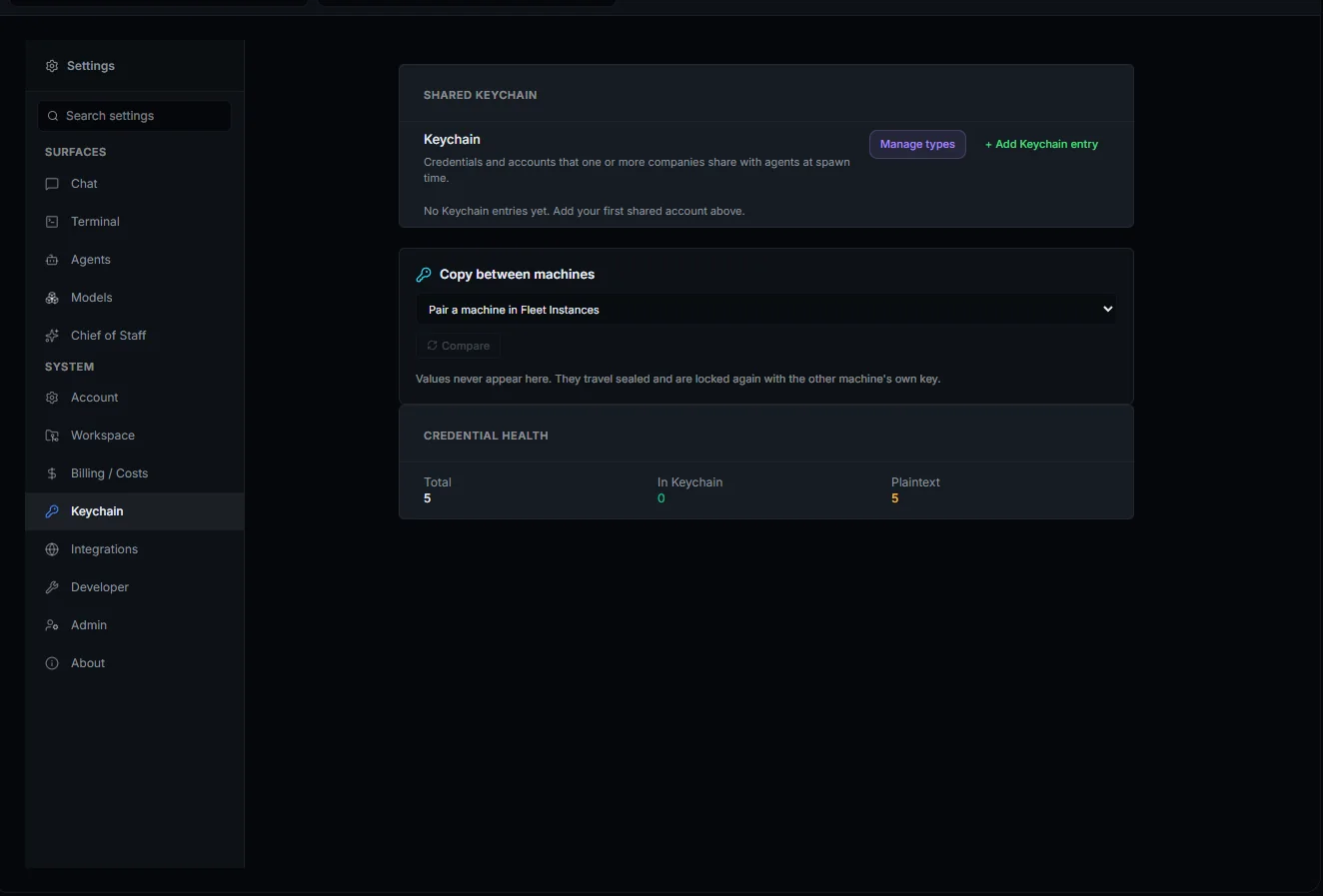
The Keychain page has three cards side by side: Shared Keychain (your entries, grouped by kind, with Manage types and Add an item), Credential health (where stored credentials live, and Encryption at rest), and Copy to a paired machine. The page header shows how many items you have, how many are linked to a company, and any mapping conflicts.
What is Keychain?
Keychain is CPLai's shared credential system. A Keychain entry represents one user-owned account or secret bundle, such as a LinkedIn login, Stripe account, Google service account, API key, or GitHub Personal Access Token.
Keychain entries solve two problems:
| Problem | Keychain behavior |
|---|---|
| Agents ask you for passwords or API keys during a run | The needed values are injected as environment variables when the agent starts |
| Multiple agents need the same account | Link the entry to a company once, and the company's agents inherit it |
| One agent needs a narrower grant | Give the entry to that agent only (it need not be linked to the company) |
| A dashboard needs a service token | Link the entry to the company so the dashboard can read only the metadata and secret reference it needs |
Secrets are stored in CPLai's local PostgreSQL database, encrypted at rest with AES-256-GCM. CPLai generates the encryption key on first boot. Set your own master password from desktop Settings -> Keychain -> Credential health -> Master password or desktop Settings -> Admin -> Security. This changes the key used for new encryption and retains protected previous keys for existing secrets and backups; it does not re-encrypt every old record or revoke old ciphertext. Encrypt existing, in Settings -> Keychain -> Credential health and in Settings -> Admin -> Security on desktop and web, upgrades legacy plaintext Keychain values, provider settings, and MCP credentials.
Owner-credential operations require an authenticated operator principal; agent-tagged requests and shared legacy bearer callers are rejected. Master-password changes require the desktop owner process. Web Settings -> Keychain shows the same credential health rows and Encrypt existing; its Master password row says to change it from the desktop app. Web Settings -> Admin -> Security provides health, legacy encryption, and OS Keychain migration, and its master-password button also directs you to desktop. Run-output secret scanning does not have a user-facing control in the current build.
On Windows, CPLai protects the key with machine-scoped DPAPI at %ProgramData%\CloudPeakLabs\master_key.dpapi, with previous keys protected alongside it. Access is restricted to the configured owner, Administrators, SYSTEM, and the configured headless service. The desktop app and service can therefore read the same entries. An unreadable existing machine key stops secret writes; CPLai does not silently switch to another key. Encryption failures preserve existing stored values and report an error.
Note for backups: DPAPI-protected keys are bound to the original Windows machine. Copying the database and DPAPI files to another computer does not make the secrets readable there. Setting a new master password does not make existing backups portable: older values may still require previous machine keys. Verify credential recovery separately before relying on a cross-machine restore.
Save responses and ordinary lists show secret presence or metadata without returning the value. Authorized reveal/edit actions and agent environment injection can read secret values when needed. Regardless of encryption, protect the database itself. A new install creates its database with its own random password, reachable only from the same machine; keep disk encryption enabled on that machine too.
Tip: If an agent asks you to paste a password, add the credential to Keychain instead. Company agents are trained to check their injected environment variables before asking you.
How do I find a Keychain entry?
The Keychain list groups entries by category so related credentials stay together:
| Category | What it contains |
|---|---|
| AI / API providers | Anthropic, OpenAI, Perplexity, and other API keys |
| Social | LinkedIn, Reddit, X, Bluesky accounts |
| Analytics | GA4 properties, Search Console sites, Google service accounts |
| Payment | Stripe and billing credentials |
| Custom | Any entry type you defined yourself |
| Other | Entries whose type has no category assigned |
Each category header shows the entry count and can be collapsed to reduce clutter. Within each category, entries are sorted alphabetically.
Use the search box at the top to filter by name, type, provider, or environment variable name. The search narrows across all categories at once.
Each row shows the entry name, type, a snippet of its metadata, and a Linked: N badge indicating how many companies share the entry. Click any row to open it for editing.
Tip: If you manage many entries, collapse the categories you rarely touch and use search to jump straight to the one you need.
How do I add a Keychain entry?
- Open Settings.
- Select Keychain in the settings sidebar.
- Click Add an item on the Shared Keychain card.
- Choose Known service to pick from a searchable gallery (AI / API providers, social, analytics, payment, and more) with the fields pre-filled, or Custom credential to name your own values. If the gallery has no match, choose Can't find it? Add a custom credential.
- Enter a clear Name, such as
Engineering GitHub PATorCPL Search Console. - Fill in each value row: its label, its value, whether it is Secret or Visible, and the environment variable name agents read it as. Rows that come from a known service preset can be locked.
- Optionally select companies under Linked companies.
- Click Save.
Company linking happens inside the entry editor. When creating a new entry, the companies you select are linked when you save. When editing an existing entry, each company toggle in Linked companies takes effect immediately, without Save. Agents pick up the change on their next spawn.
How do I choose the right entry type?
| Entry type | Use it for | Typical environment variables |
|---|---|---|
api_key |
Standalone provider tokens | API_KEY or a custom mapped name |
github_pat |
GitHub Actions and commit visibility for Build Health | Repository metadata plus token-backed GitHub access |
google_service_account |
Shared Google service account JSON | GOOGLE_SERVICE_ACCOUNT_JSON |
ga4_property |
GA4 property tied to a Google service account | GA4_PROPERTY_ID, GA4_MEASUREMENT_ID |
search_console |
Google Search Console site access | GSC_SITE_URL, inherited service account JSON |
calendar_feed |
Calendar Awareness and calendar-aware agent context | CPL_CALENDAR_ICS_URL, name, lookahead, and timezone variables |
linkedin_profile, reddit_account, x_account, bluesky_account |
Social or outreach agents | Platform-specific handle, email, password, or app password variables |
stripe_account |
Stripe billing or finance agents, and the Revenue Ledger Stripe import | STRIPE_ACCOUNT_ID, STRIPE_SECRET_KEY, STRIPE_PUBLISHABLE_KEY |
email_account |
An agent mailbox for the Agent mailboxes channel (Microsoft Graph app-only: mailbox address, tenant ID, client ID, and a sealed client secret) | CPL_EMAIL_ADDRESS |
custom |
Anything that does not fit a built-in type | Whatever you define in the type catalog |
Admins can click Manage types to edit built-in type definitions, restore defaults, or define new types. Entry types control the fields, secret fields, icon, color, aliases, and environment variable mapping.
For a Calendar Feed entry, store the secret iCal or ICS URL in the secret field. Use metadata for its display name, lookahead, and timezone. The Business Integrations Calendar syncs every configured calendar_feed entry into its upcoming agenda. A company link is optional for the Calendar itself; add one when that company's agents should also receive the mapped calendar variables.
How do I link a Keychain entry to a company?
- Open Settings -> Keychain.
- Find the entry and click it to open the editor.
- In the Linked companies section, toggle the company on. For an existing entry the link is saved immediately.
When creating a new entry, you can link it to companies in the same editor; the links are saved with the entry.
When an entry is linked to a company and marked Shared, every agent in that company receives the mapped environment variables the next time it spawns. The agent does not need to fetch the credential at runtime. An entry that is not shared reaches only the agents it is given to directly (see below), plus the company's console: the identity your own terminal sessions in that company run as, which always gets every entry linked to its company. Nobody else can act as the console; member access never covers it.
Linking, unlinking, turning Shared on or off, and giving or removing an entry for an agent each add a row to the company's audit log in the Trust Center, with who made the change.
Company-linked entries also power company dashboards. Build Health reads GitHub repository metadata from company-linked github_pat entries, and Revenue Ledger imports revenue from company-linked stripe_account entries.
How do I give one agent access to a Keychain entry?
Give the entry to the agent directly when one agent needs it and the rest of the company should not have it, for example one agent's own login to a dashboard. The entry does not need to be linked to the company.
- Open Agents.
- Select the agent.
- Click Edit and open the Integrations tab (on the web dashboard, the agent's Keychain tab).
- Under Keychain Entries, choose the entry in the list and click Add.
The list groups entries Linked to the agent's company first, then your Other Keychain entries. Entries the agent already has are not offered. The entry then shows under Given to this agent with the environment variables it supplies; Remove takes it away. Entries linked to the company and shared with every agent there show under From the company name; change those in Settings > Keychain.
The agent receives the mapped environment variables on its next run, and removing the entry takes them away from future runs. Only the entry's owner can give an entry that is not linked to the agent's company; agents can never give themselves Keychain entries, and the owner merge token is never offered.
How does Keychain resolve duplicate environment variable names?
If more than one accessible entry supplies the same environment variable, Keychain chooses one value with a stable precedence rule:
- An entry subscribed directly to the agent wins over an entry inherited from the company.
- Within the same access level, the oldest entry wins. Adding a new entry cannot silently replace a value that an existing entry already supplies.
- If entries also have the same creation time, their resource IDs provide the final stable tie-break.
The rule is applied each time the agent starts. CPLai records the IDs of entries involved in a collision for troubleshooting, but never logs their secret values.
Mappings are equivalent rather than conflicting when they resolve to the same underlying parent secret or to equal metadata. Keychain ignores those aliases. When different effective sources do compete for one variable, Settings -> Keychain shows a compact conflict summary; select Review to see the company default, the shadowed entries, and the direct-agent override rule.
Keychain also blocks ANTHROPIC_API_KEY, ANTHROPIC_AUTH_TOKEN, and ANTHROPIC_BASE_URL from agent environment injection. The check is case-insensitive, so changing capitalization cannot bypass it or replace CPLai's provider authentication.
Tip: Give entries unique environment variable names whenever they represent different accounts or repositories. Use a direct agent subscription when one agent intentionally needs a different value from the company default.
How do agents use Keychain credentials?
Agents receive Keychain values as environment variables at spawn time. Their prompt includes the available variable names, not the secret values.
Examples:
| Agent need | What the agent checks |
|---|---|
| Stripe work | $Env:STRIPE_SECRET_KEY |
| Search Console work | $Env:GOOGLE_SERVICE_ACCOUNT_JSON and $Env:GSC_SITE_URL |
| Bluesky outreach | $Env:BLUESKY_HANDLE and $Env:BLUESKY_APP_PASSWORD |
| Generic API work | The mapped provider variable, such as $Env:API_KEY |
Agents should not ask the operator to paste credentials into chat. If a credential is missing, the agent should report the missing Keychain entry or missing environment variable name.
What does an agent never take from the Keychain?
An entry is left out of an agent whole, with every other variable it sets, when it sets:
- A variable CPLai sets or reads for the agent itself: where its CPLai service is, its CPLai key and the key it falls back to when it has none, its agent, company and run, its workspace, its browser credential, and the names of the values CPLai hides. This always applies, so an entry can never send an agent's CPLai key somewhere else. A key the agent's CPLai tools fall back to is only ever sent to an address on this computer, never to another one.
- While the switch in Settings, Agents is on (it is off by default): a variable that decides which programs run or where they are found, a proxy, certificate or TLS-check variable, or a name with anything but letters, digits and underscores.
The agent goes on without the entry. Its run output names each entry left out and why, never with a value, and so does its CPL_KEYCHAIN_NOTE variable. Your entries' own names reach agents as before, including ones that start with CPL_ or a digit.
Secret values are hidden from the AI
An agent uses a credential by its variable name, so the program it runs gets the real value without the AI ever reading it. What used to leak was output: an echo, a typo, or a verbose error that printed the value back. CPLai now checks every tool result before the AI reads it, including command output, files the agent opens, web pages and MCP results. Any Keychain value given to that agent shows as [cpl:masked:NAME] instead, along with well-known token shapes such as GitHub tokens, sk- keys, AWS access keys, JWTs and private key blocks. A value the AI only ever saw as a masked label was not exposed to the model, so it does not need rotating.
Coverage today:
| Where the agent runs | Hidden |
|---|---|
| Claude agents (scheduled runs, ticket runs, agent chat) | Yes |
| OpenCode agents | Yes |
| Your own Claude and OpenCode Terminal tabs | Yes |
| Codex agents (scheduled runs, ticket runs, agent chat) | Yes, for command output |
| Your own Codex Terminal tabs | Yes, for command output, when Codex runs commands without asking you first |
| Antigravity agents and Terminal tabs | Yes, for command output |
| Claude agents running inside Docker | Yes |
For OpenCode, the value is hidden in what is sent to the AI; OpenCode's own session history on your machine still holds the original output, the same as its tool panel shows you.
For Codex, CPLai runs each shell command through its filter, so the command behaves the same and the AI reads its output with the values masked. CPLai approves its own filter in Codex's settings, so Codex does not ask you to review it. Codex only lets a filter change a command by approving it as well, so a Codex session that asks you before running commands is left alone: you keep your prompt, and its output is not masked. Results from Codex's other tools, such as MCP servers, are not filtered yet.
For Antigravity, CPLai adds a small plugin to Antigravity's settings folder (.gemini\config\plugins\cpl-hide-secrets in your user folder). It applies to every Antigravity session on this computer, including ones started outside CPLai. You still approve commands exactly as before; the filter runs after your approval.
For Docker agent runs, the container image CPLai builds already has a Claude Code version that masks. If you point CPLai at your own image with CPL_AGENT_IMAGE, it needs Claude Code 2.1.280 or newer; an older one still runs, but without masking.
To turn it off for one agent while diagnosing a problem, set CPL_HIDE_SECRETS to off in that agent's environment variables.
Typing a secret into a browser login
Some tools need the value typed in, such as the password field of a website login driven through a browser MCP server. The agent writes {{NAME}} (the Keychain variable name in double braces) where the value goes. CPLai puts the real value in as the tool runs, and anything the tool shows back is masked as usual, so the AI never reads the value.
- Works for MCP tools on Claude and OpenCode agents, including Docker runs and your own Terminal tabs.
- Only the agent's own Keychain variables are filled. Any other
{{...}}text reaches the tool unchanged. - Never filled for file writes or shell commands. In commands, use
$NAMEas before. - Not on Codex or Antigravity: neither can mask what an MCP tool shows back, so a filled value could reach the AI there.
- Claude's and OpenCode's local session files on your machine keep the filled value. It is not sent to the AI, including when a session is resumed.
How do I manage Keychain entries from an interactive Terminal session?
A local tab started from CPLai's desktop Terminal page receives the durable Default operator token for CPL API access when that token is available. Its lifetime is independent of the terminal tab.
To let a session create, edit, rotate, or link Keychain entries, the token must have Write keychain (keychain:write) enabled under Settings -> Access and keys -> Keys you created -> Permissions. Describe the specific change you want the session to make.
This permission also supports deleting entries and reading stored credential values for entries the token's user can see (see below). Read keychain (keychain:read) alone permits metadata access, not secret values. Review the token's permissions before giving it to an external script or integration.
If a request returns 403, check the token's current permissions and the entry's ownership. Reopening a tab does not restore a permission removed from the operator token.
Keep credential values out of command output, temporary files, tickets, memory, and logs.
How do I read a Keychain credential from a hand-started terminal session?
A shell started outside CPLai does not automatically receive the desktop Terminal launch environment. For credential access through the CPL API, use a personal access token from Settings -> Access and keys -> Keys you created with Write keychain enabled:
GET /api/resources/{id}/env
The response contains the entry's resolved environment variable map, for example { "resource_id": "...", "env": { "GARAGE61_ACCESS_TOKEN": "..." } }. Use GET /api/resources first to find the entry id.
Two rules to know:
- The request requires a user-owned token with
keychain:write. The legacy shared bearer is rejected. - The entry must be one the token's user can see: the instance owner sees every entry, and anyone else sees their own entries plus, if you gave them Keychain: read, the entries linked to their granted companies. Anything else returns 404.
The ANTHROPIC_API_KEY / ANTHROPIC_AUTH_TOKEN / ANTHROPIC_BASE_URL block applies to this endpoint exactly as it does to spawn-time injection.
Keychain commands in a CPLai terminal
CPLai's PowerShell terminals, and cmd terminals opened from the web dashboard, include the cpl helper, which uses the terminal's own CPLai key:
| Command | What it does |
|---|---|
cpl keychain |
Lists the entries you can see |
cpl keychain get "<entry>" |
Prints an entry's values |
cpl keychain env "<entry>" | iex |
Loads an entry's values into the current PowerShell session |
cpl keychain exec "<entry>" "<command line>" |
Runs one command with the entry's values set, without leaving them in your session. Quote the whole command line, for example cpl keychain exec "Example Azure" "terraform plan -out plan.tfplan" |
cpl keychain save "<name>" KEY=VALUE ... |
Saves a new entry to the terminal's company, or to -Company <name> in a terminal that has none. Add -Shared to give it to the company's agents. Wrap values in single quotes |
cpl azure login ["<entry>"] |
Signs the Azure CLI in as the service principal in the entry (AZURE_TENANT_ID, AZURE_CLIENT_ID, AZURE_CLIENT_SECRET, optional AZURE_SUBSCRIPTION_ID). With one Azure entry, the name is optional |
cpl azure login needs the Azure CLI installed on the CPLai machine (winget install -e --id Microsoft.AzureCLI from an administrator prompt). Each person's Azure sign-in is kept in their own profile, so signing in from your terminal does not sign anyone else in.
How does someone I gave access to use the company keychain?
Under Settings -> Admin -> Users -> Access, the Keychain: read feature lets a person read the entries linked to that company, and Keychain: save also lets them add new ones there.
- Entries they save belong to them. They can change or delete their own entries but only read yours. You see and manage every entry, including theirs.
- Their new entries are not handed to the company's agents unless they (or you) turn that on.
- Every time they read an entry that is not theirs, CPLai writes an audit log entry (Settings -> Admin -> Audit Log, action
keychain.revealed). - They cannot link entries to other companies.
Azure client secrets expire. When you rotate one, update the entry with the new value (or save a new entry and remove the old one) so cpl azure login keeps working.
How do I set up GitHub for Build Health?
- Create a GitHub Personal Access Token with
actions:readandcontents:readscopes. For private repositories,repocan cover both. - In Settings -> Keychain, add a GitHub Personal Access Token entry.
- Fill in:
| Field | What to enter |
|---|---|
repo_owner |
GitHub owner or organization |
repo_name |
Repository name |
default_branch |
Main branch to display, such as main or release |
- Save the token in the secret field.
- Link the entry to the company.
- Open the company's Engineering dashboard and check Build health.
For a company with several repos, use one token for all of them instead of one entry per repo. See the next section.
How do I use one GitHub token for all my repos?
One GitHub token can cover every repo your companies' projects push to. Then you don't need a Keychain entry per repo, and a new repo needs no new entry.
- On GitHub, create one token that reaches all your repos. Use either a fine-grained token with All repositories, which includes repos you create later, or a classic token with the
reposcope.- For a fine-grained token, give read and write access to Contents, Pull requests and Administration. Administration is only needed to change branch protection from the PR mailbox. Give read access to Actions, Checks, Commit statuses and Metadata.
- In Settings -> Keychain, add a GitHub Personal Access Token entry, for example "My GitHub (all repos)", and save the token in its secret field.
- Set GitHub role to Owner merge token.
- Set Repos to All repos in linked companies' projects.
- In Repo owners, enter your GitHub login, plus any organizations whose repos you also want, separated by commas.
- Link the entry to each company.
For each linked company, CPLai reads each active project's GitHub Repo setting, or the git remote of its folder when the setting is empty. It keeps each GitHub repo that one of the listed accounts owns. Those repos then appear in the PR mailbox, the Merge Queue and Build Health. They also work with branch protection and automatic ticket updates. A new repo shows up as soon as its project is in CPLai. A repo no project points to is listed under No project at the end of the PR mailbox when All Workspaces is selected, where Link to project connects it.
| Good to know | Detail |
|---|---|
| Per-repo entries still work | If a company also has an entry naming one repo, that entry is used for that repo, including its default_branch. Delete it when you no longer need it. |
| Someone else's repo is left out | A project cloned from another account's repo is skipped unless you list that account in Repo owners. |
| Never given to agents | Only an Owner entry can cover all repos, and Owner tokens never reach an agent. An agent asking CPLai to read or review a pull request in an Owner-token repo is refused. Agents use the agent bot account. |
| New company | Link the entry to it once. |
What are the GitHub roles?
A Keychain entry can mark what a GitHub token is for, under GitHub role:
| Role | Used for |
|---|---|
| Owner merge token | Your own token. Only the PR mailbox and the dashboards use it, for example when you click Merge. It is never given to an agent, whatever is linked or subscribed. Only a GitHub Personal Access Token entry can have this role. |
| Agent bot | A separate GitHub account that agents push and open pull requests with. Every agent in a linked company uses it instead of your logins on this machine. Set the bot's GitHub login and choose which secret holds its token. |
Add the bot account to a repo before agents can push there. In the PR mailbox, open the repo's branch protection panel and choose Give Write access.
How do I troubleshoot a missing credential?
| Symptom | What to check |
|---|---|
| Agent says an env var is missing | Confirm the entry is linked to the company or subscribed to the agent, then relaunch the agent |
| Entry exists but no agent sees it | Check the environment variable map on the entry type |
| Build Health says no repository is linked | Add a github_pat entry and link it to the company |
| A repo is missing from the PR mailbox with an all-repos token | Look under No project at the end of the mailbox and choose Link to project. Otherwise check that the repo's project has its GitHub Repo set or a folder whose git remote points at github.com, and that the repo's owner is in Repo owners |
| A child entry cannot find its parent secret | Confirm the parent Google service account entry exists and is selected |
| An old doc or agent prompt says Resources | Treat Resources as the former name for Keychain |