Agents
Last reviewed November 15, 2026 (checked against the app).
Agents are persistent AI workers in CPLai. Each agent has a name, role, instructions, memory, schedule, and communication channels. Completed work can add durable memory, helping the agent become more specialized in your projects, preferences, and workflows over time.
Agents run through the configured Claude Code, OpenAI Codex, Antigravity, Ollama, or opencode execution path. Subscription-backed CLI runs and metered API/OpenRouter runs are accounted differently; review the current provider terms and CPLai Usage dashboard instead of assuming a run is free.
Core agent workflows now have focused guides:
| Guide | Use it for |
|---|---|
| Agent Hiring | Template hires, bulk team hires, CEO hiring, and duplicate-role behavior |
| Tickets | Ticket status, checkout, comments, blocked handoffs, and goals |
| Scheduling Agents | Schedule Manager, daily/weekly/interval/multi/window schedules, and jitter |
| Keychain | Company credential grants, per-agent subscriptions, and injected env vars |
| Project Setup | Company roots, project-scoped agents, and scratch workspaces |
| Activity Timeline | Cross-agent run, ticket, message, memory, and race activity |
What is Peak?
Peak is CPLai's built-in product expert and repair coordinator. Its Assistant workspace is hidden from normal company lists and selectors. Open Peak from its dedicated assistant page, the Manual, or supported Help surfaces; it cannot be deleted like a normal hired agent.
Use Ask Peak from the Manual or open Peak's chat to ask how CPLai works. Peak works on a fresh install: with no model connected it answers from the manual and shows the first steps (see Peak before and after you connect a model). Peak searches the shipped product manual, cites the section it used, and says when the manual does not cover something. For Fleet Doctor issues, Peak can guide configuration repair or prepare a consent-gated platform-defect report for CloudPeakLabs.
Peak acts with the signed-in user's permissions through a short-lived delegated credential. It never receives a shared high-privilege instance credential, cannot expand its own authority, and cannot approve its own requests. See Ask Peak and Manual Retrieval and Fleet Doctor platform reporting.
The Agent Dashboard
The Agents page combines a directory sidebar with the main fleet workspace. With no agent selected, the workspace shows Mission Control, including Fleet Instances, the Fleet Ledger, worker nodes, and live run tiles. Select an agent to replace the wall with that agent's operational workspace and chat.
Sidebar
The desktop sidebar groups agents under collapsible companies, teams, and sub-groups. Select a company heading to focus Mission Control on that company. Select it again to return to the whole fleet. The Unassigned bucket focuses the live wall on agents without a company.
The web sidebar adds search plus Company, Project, and Team grouping. Choose a focus group to narrow the directory and live wall. Select All groups to clear that focus.
On either surface, select an agent row to open its workspace. Close or back out of the agent workspace to return to Mission Control.
How do I use Mission Control?
Mission Control gives you an operational view of the fleet without opening agents one at a time. It shows:
- runs waiting for a free slot, in line order, with Cancel (only while the fleet is at its run limit)
- visible and total running-agent counts
- federated instance registration, credential pairing, and health checks
- worker-node capacity and stale-node status
- Fleet Ledger cost attribution
- live run tiles with agent, model, node, elapsed time, current tool, narration, wake reason, and event count
- Elapsed, Cost, and Name sorting
- a manual refresh control
The wall shows at most 24 live tiles and reports how many additional runs are hidden. Select a tile to open that agent.
On the web dashboard the live tiles come first. Fleet Instances, Traveling, the Fleet Ledger, Worker enrollment, and the worker nodes sit below them in the collapsed Fleet management & infrastructure section; expand it to use them.
How do I pair another CPLai instance?
The Fleet Instances panel sits at the top of Mission Control on desktop. On web, it is the first panel inside Fleet management & infrastructure.
- For a LAN URL such as
http://office-pc:9437, first open the remote installation's desktop app and set Settings -> Webhooks & notifications -> Inbound Webhooks -> Bind Address to0.0.0.0, then restart its background service. On Windows, the service then opens that port in the firewall to LAN addresses only. An HTTPS tunnel URL needs no change. - Open Agents and return to Mission Control if an agent workspace is selected. On web, expand Fleet management & infrastructure below the live tiles.
- In Fleet Instances, enter a recognizable instance name and the remote installation's LAN or HTTPS tunnel base URL, then select Add instance.
- On the remote installation, create a personal API key under Settings -> Access and keys (New key). Copy it when shown; the token is displayed only once.
- Back on the controlling installation, paste that token into the new instance row and select Save key.
- Select Check to verify reachability and review the latency or returned error. If the check times out, the error lists what to check on the remote.
The credential is write-only in the UI and is stored in the controlling host's OS keychain. The panel can report whether an instance is paired, but it cannot reveal the saved token. Successful add, pair, and remove actions immediately refresh the federated roster used by Mission Control.
Removing an instance also deletes its stored credential. This does not uninstall or modify the remote CPLai installation.
Agents see your paired instances too. Every agent run and chat includes a short Machines list: this computer's name and each paired instance with its live link state, such as connected, not reachable or disabled. When a ticket, memory or skill names a CPLai computer that is not on the list, the agent treats it as retired and asks which computer to use instead of booking work on it. Removing an instance here is all it takes to retire a computer for every agent.
How do I enroll a worker computer?
Open Agents -> Mission Control -> Worker enrollment on desktop. On web, the same panel is inside Fleet management & infrastructure. Select This service, choose an existing Worker registration or select Register a new worker and enter a Worker name, then select Configure coordinator.
Configuration is saved before it becomes active. When sessions are idle, select Restart idle service, then confirm Live: Coordinator active.
To add a follower, first pair its installation in Fleet Instances by its local network address, and turn on Database sharing for This service (see below). Select that installation under Service to configure, choose or create its worker registration, and select Connect to this coordinator. The coordinator hands its database to the worker directly, the worker restarts when it is idle, and the panel confirms Live: Follower active. Pairing alone does not make an installation a worker.
A joined worker shows Works for its coordinator. Leave coordinator restarts it onto its own database, which joining never changed. If the coordinator is unreachable when a worker starts, the worker runs on its own database with new work paused and switches back automatically once the coordinator answers. A worker on a different CPLai version than its coordinator starts no work until you update it.
Configured shows the saved identity; Live shows the role currently running. If verification was interrupted, use Verify saved restart or Refresh worker status. Resolve any reported cleanup before enrolling. Dashboard restart requires an updated CPLai Windows service.
In the web dashboard, This service means the installation serving the dashboard, not the computer running the browser.
How do I let workers use this computer's database?
In Worker enrollment, select This service, pick the local network address under Share on address, and select Allow workers to connect. This restarts the database once, when agents, terminals, and chats are idle.
Workers connect encrypted, each with its own database login that can read and change data but not the database's structure, and only from its own address. Disconnect removes one worker; Stop sharing removes them all and closes the database to the network. Sharing is available for the database CPLai installed; a database you set up yourself shows why it cannot be shared. Use an address that does not change, such as a reserved one on your router.
How do I inspect worker health?
In Mission Control, focus a company and expand a worker's scheduler / queue / capacity summary. On web, a project or team focus also shows details when its visible agents all belong to one company.
Review heartbeat age, active runs, available capacity, disk and VRAM usage, alerts, recent run errors, and any reported log tail. Not reported means the worker has not supplied that resource measurement.
Queue depth counts the selected company's queued runs that have not been assigned to a worker. Recent run errors follow that company and worker. Capacity, resource measurements, and service logs describe the worker itself.
How do I route work or request a worker upgrade?
Expand a worker's health details and use Route an agent here to save it as that agent's preferred worker. This enables offline failover for future queued runs. An existing schedule-specific worker assignment takes precedence; running sessions stay where they are.
To request an upgrade, enter stable in Stable version and select Drain for upgrade. The managed Windows service stops taking new work and waits for its current activity to finish before applying an available worker package. Draining for upgrade confirms the request was accepted, not that installation finished. Refresh worker status afterward. A failed upgrade can leave the worker draining; review the reported error before retrying.
This updates the worker runtime. Desktop app updates use the separate App updates card.
How do I read the Fleet Ledger?
On desktop, the Fleet Ledger sits above the worker nodes and live tiles. On web, it is inside Fleet management & infrastructure, below the live tiles.
- Choose a fleet focus in the sidebar.
- Select 30d, 90d, or 6 months for the usage window.
- Review fleet totals, then compare the agent and model tables.
- Use Show all when more than six rows exist.
- Select Refresh for the latest usage records, or collapse the panel when you only need the live wall.
The summary cards show:
| Card | Meaning |
|---|---|
| Fleet spend | Sum of the spend values displayed in the agent table for the selected window |
| Tokens | Input plus output tokens, with output tokens shown separately in the hint |
| Runs in window | Attributed agent runs, plus the number currently live on the wall |
| Agents attributed | Agents with usage in the window, plus the number of models represented |
| Subscription savings (MTD) | Current-month API-equivalent value minus actual metered spend and the configured subscription floor |
Each agent row uses actual spend when that agent has non-zero metered cost. Otherwise it uses API-equivalent value for subscription-covered work. The Fleet spend total adds those displayed agent values, so the header and table agree even when the fleet mixes metered and subscription-backed agents. When the entire filtered fleet is subscription-covered, the card is labeled Fleet spend (API-equivalent) and identifies the metered amount as zero.
The By agent table shows spend, tokens, runs, share of fleet spend, and a live badge when that agent has an active tile. The By model table uses the same actual-or-API-equivalent display rule, but it is labeled all surfaces because it also includes direct Chat and other non-agent usage. Its total can therefore exceed the agent table total.
Company focus affects the ledger only when CPLai has a real company ID:
- On desktop, selecting a company scopes the ledger to that company. The whole-fleet view and Unassigned bucket leave it unscoped.
- On web, a company, project, or team focus scopes the ledger when every visible agent belongs to one company. Mixed-company groups remain unscoped.
Live badges identify which agent rows have work running now. They do not assign a dollar value to an individual live run. The current Usage dashboard does not expose a trustworthy run-level cost rollup, so Fleet Ledger intentionally omits per-run cost instead of presenting a fabricated zero.
Tip: On a narrow screen, the summary cards collapse to two columns. Swipe horizontally inside the By agent or By model table. The table owns that horizontal scroll, so the Agents page itself stays within the viewport.
Per-Agent Detail Panel
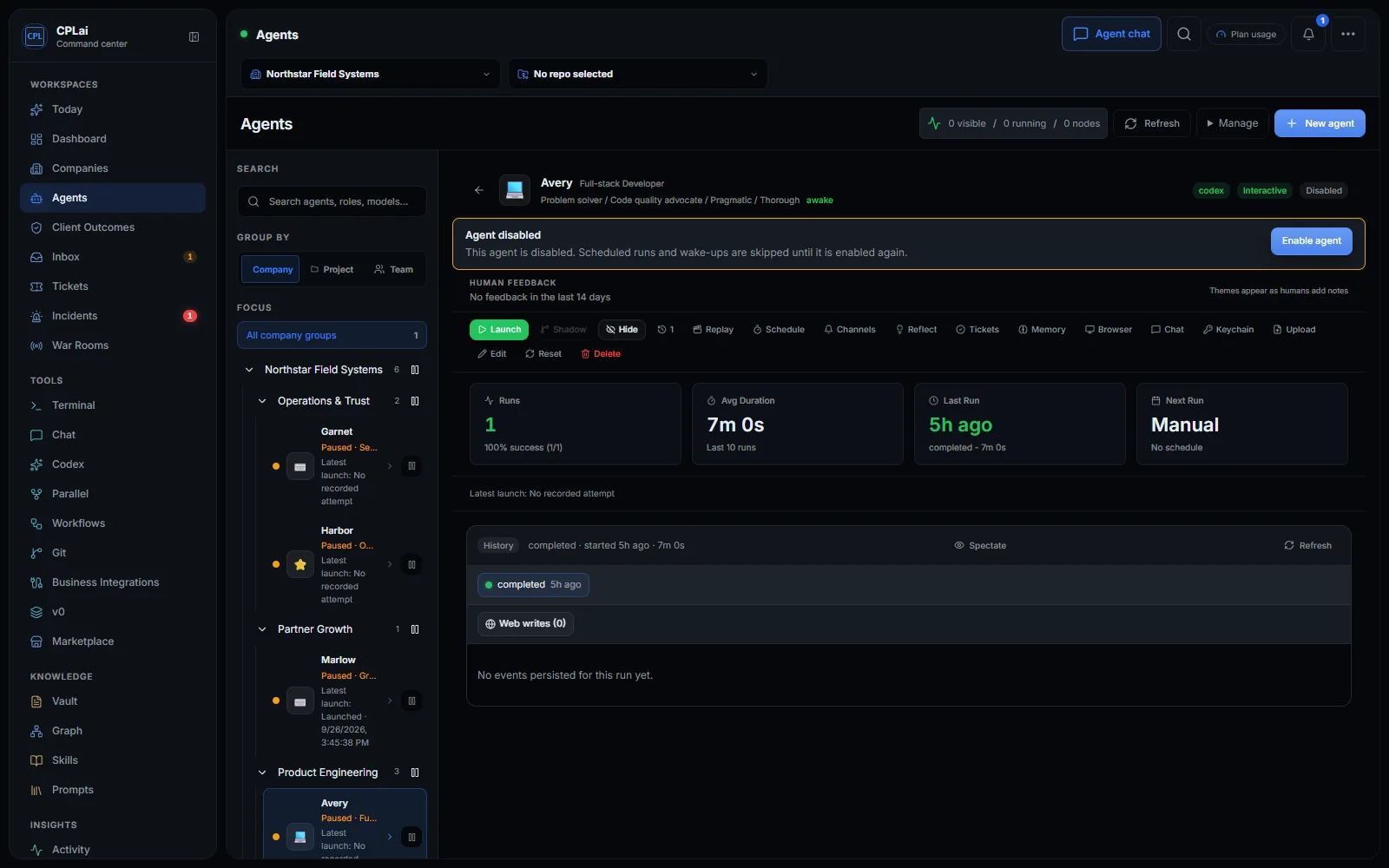
When you select an agent, the detail panel shows:
- Profile header with emoji, name, job title, and status
- Metrics row: total runs, success rate, average duration, last run time, next scheduled run
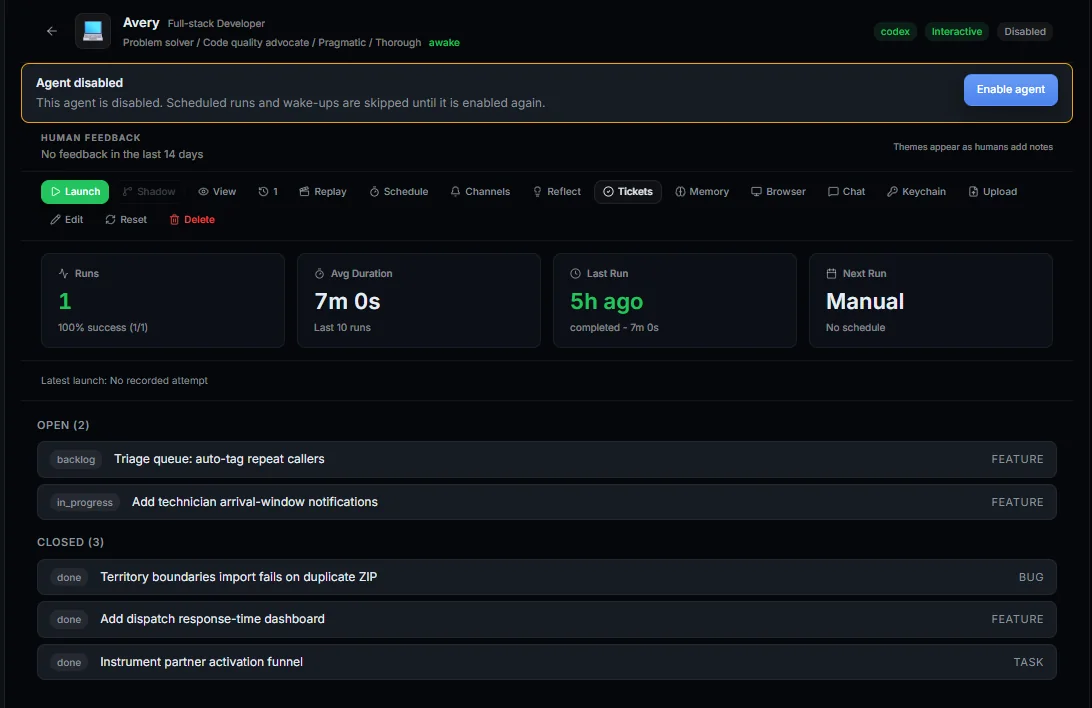
- Action bar: Launch (Stop while a run is active), Shadow, View, the run-history count, Replay, Schedule, Channels, Reflect, Memory, Browser, Keychain, Upload, the Auto / Interactive toggle, Awaken or Re-awaken, Edit, and Delete. On desktop, Reflect needs an awakened agent with a workspace, and Memory and Browser need an awakened agent. The web action bar has no Awaken or Auto / Interactive control, adds Tickets, Chat, and an administrator Reset button, and its Shadow button is disabled because Shadow launches are desktop only.
- Upload for sending a file into the agent workspace (web adds drag-and-drop, camera capture, and Send to chat)
- Run History timeline (see below)
- Schedule configuration (see below)
- Channels - notification channel assignments
- Reflections - agent self-reflection entries
- Memory - tiered memory viewer (see below)
How do I create an agent?
You have three options: template hiring, Awakening, and Quick Create.
For company teams, use Agent Hiring first. Template hiring creates the agent with its role skill, default schedule, onboarding ticket, and starter tickets. Awakening and Quick Create are still useful for custom one-off agents.
Agent names are unique across the whole CPLai instance, not just inside one company. This keeps direct messages, handoffs, schedule updates, tickets, and search results unambiguous. If a custom name is already taken, choose another name or let CPLai auto-pick from the name pool.
Awakening (Recommended)
Awakening is the soul of the agent system. Instead of filling out a form, you have a real conversation with your agent as it comes to life.
- In the desktop app, click Awaken (Sparkles icon) in the Agents sidebar header, or Awaken in a project's Agents section. On the web dashboard, awakening runs right after a template hire: check Open awakening interview after hire in the template's Hire dialog (see Agent Hiring)
- Pick a skill (or skip it), and the interview opens in a chat panel. It runs on the model picked at the top of the dialog, from any provider, including a local Ollama or vLLM model
- The agent greets you and asks about your needs
- Together, you co-create the agent's identity:
- Name - the agent suggests options based on its purpose
- Emoji - a visual identity that shows up everywhere
- Job title - 2-3 words (e.g., "SEO Engineer", "DevOps Lead")
- Personality traits - the agent suggests styles and you pick
- If the agent has a linked skill, it asks what credentials or API keys are needed
- When the conversation completes, the agent outputs a structured JSON block confirming its identity
- CPLai saves the identity (name, emoji, title, traits, soul, memory, user context) on the agent's record in CPLai's database. No files are written.
- A celebration animation plays and your agent is ready to work
The entire process takes about 5-7 conversation turns.
Tip: Pick a skill before awakening. The agent will factor the skill into its identity, suggesting a relevant name and personality. An agent built on the "Technical SEO Audit" skill will naturally gravitate toward names like "Crawley" or "Indexa" and a detail-oriented personality.
Quick Create (Alternative)
If you want to skip the conversation and get straight to work:
- On the web dashboard, open Agents and select New agent in the page header (administrators only). The desktop app has no form-based create; use Awakening or a template hire there.
- Fill in the fields in the Profile and Runtime sections:
- Company, Name, and optional description
- Prompt - the task instructions the agent executes on every run
- Model - which AI model to use
- CLI type - Claude, Codex, Antigravity, Ollama, or opencode
- Working directory - where the agent operates on your filesystem
- Click Create Agent
The form has no skill or project field. To link a skill afterward, use Domain Skill on the desktop editor's Organization tab.
Quick-created agents can run immediately, but they do not have the co-created identity produced by Awakening unless you awaken them later. Agent identity is stored in PostgreSQL, not personality files.
Tip: Name checks are case-insensitive.
Scoutandscoutare treated as the same agent name.
Import an existing agent (BYOA)
If you already built an agent somewhere else, Import converts it into a CPLai agent instead of retyping it. On web, administrators find Import in the Agents page Manage menu. On desktop, it is the import icon in the Agents sidebar header.
- Drop or paste the source: a Custom GPT export, an OpenAI Assistant JSON object, a
.cursorrules/.mdcrules file, or plain system-prompt markdown. - Analyze parses it into an editable draft - name, role, prompt, and a model mapping - plus warnings for anything that cannot carry over (for example tool or file attachments defined in the source).
- Pick the company (and optionally a project), adjust the draft, and add any knowledge files; their content seeds the new agent's memory, and anything over the seed budget is reported rather than silently dropped.
- Create agent runs the normal hire flow, so imported agents get the same guardrails, platform contracts, and license checks as hand-created ones.
Model mapping: Claude models carry over as-is, OpenAI models switch the agent to the Codex CLI with the same model string, and unknown models fall back to the platform default with a warning.
Can an agent have an email address?
Yes. Link a mailbox to an agent in Business Integrations -> Agent mailboxes and the agent gains email as a channel: approval-gated outbound sending, and (with a sender allowlist) inbound mail dispatched to the agent as a run whose reply is emailed back. See Business Integrations.
Agent Maintenance
CPLai has maintenance controls for damaged, partial, or stale agent records.
Go to Settings > Agents to access:
- Flagged agent detection for missing workspace paths or incomplete identity data
- Memory usage chips showing each agent's note count and stored characters, with an amber warning above the prompt inject limit
- Repair for rebuilding workspace metadata and re-running identity bootstrap
- Repair all flagged for batch cleanup after schema or spawn issues
- Delete for removing bad hires and cleaning up their local workspace/browser state
This panel is especially useful after debugging spawn or migration issues. Repair is preferred over delete if the agent already has meaningful history you want to preserve. See Settings - memory usage for the fleet count, automatic maintenance threshold, and flag-only ticket behavior.
How do I reset an agent's identity?
Use Reset Identity when an agent has the right role and history but the wrong self-concept, stale memory, or drifted instructions.
- Open Agents.
- Select the agent.
- Click Edit.
- Open the Advanced tab and find the Identity section.
- Click Reset Identity.
- Confirm the reset.
On web, administrators can click Reset in the agent's action bar, or use Reset Identity in the editor's Memory section.
CPLai clears the agent's stored identity, soul, memory, working context, learnings, and saved chat session, then marks the agent as needing awakening again. Run history, schedules, channels, team links, and Keychain links stay in place.
The next launch sends the agent back through awakening instead of running with stale identity state.
Tip: Use reset when you want to keep the worker but rebuild its mind. Use delete only when the agent itself should be removed.
How do I upload a file to an agent?
The desktop app and the web dashboard can both send files directly into an agent's workspace.
On web (operators and administrators):
- Open the web dashboard.
- Go to Agents, select an agent, and select Upload in its action bar.
- Drag a file onto Upload to workspace, or click File.
- On a phone or tablet, click Camera to capture an image.
- Leave Send to chat enabled if you want CPLai to send the uploaded file path and your optional message into the agent chat.
On desktop, select Upload in the agent's action bar and click Choose file. The desktop pane has no drag-and-drop, camera, or Send to chat; mention the file in chat or a run prompt yourself.
Uploaded files are saved under the agent workspace's uploads/ folder with a timestamped safe filename. Uploads are limited to 25 MB. Executable and shell script uploads require admin access.
For member users, CPLai blocks restricted extensions such as .exe, .ps1, .bat, .sh, .cmd, .vbs, .msi, and .com. It also checks every dot-delimited filename segment, so a double-extension name such as script.ps1.txt is still treated as restricted.
If the agent has no workspace path, upload controls stay disabled until the workspace is configured.
Agent Identity System
Every agent has a rich identity, kept on the agent's record in CPLai's database. Each part serves a distinct purpose and evolves independently. No .md files are read or written for identity: the database is the single source of truth.
Parts of an identity
| Part | Purpose | Updated By |
|---|---|---|
| Identity | Name, emoji, job title, personality traits, communication style | Set during awakening |
| User context | What the agent knows about you (name, role, preferences) | Agent updates during conversations |
| Memory | Persistent long-term memory, narrative summaries | Auto-updated after each run by debrief |
| Soul | Operating principles, behavioral rules, personality evolution | Evolves when the user corrects the agent |
| Learnings | Structured lessons extracted from every interaction | Auto-updated by debrief system |
| Working context | Curated 4K summary injected into every prompt | Rebuilt during debrief to stay within budget |
| Prompt | The task directive the agent executes on every run | Edited in the Agent Builder, edit modal, or through a promoted prompt proposal |
CPLai also keeps a daily activity log for each agent (one entry per day) and the structured memory entries extracted from its work.
How Identity Gets Used
Before every run and chat message, CPLai reads working_context (or falls back to identity / soul / memory / user_context when working context is empty) and injects it as a prompt prefix. The agent sees its identity and operating principles every time it executes. This is additive - identity context never replaces the agent's task prompt, it enriches it.
Working context is capped at 4,000 characters. The debrief system rebuilds it every run by summarizing the long-form columns so the prompt budget stays predictable.
Tip: If an agent develops a bad habit, don't write to a
.mdfile - the system ignores those. Edit the agent in the Agent Builder, or ask for a prompt proposal. The live prompt changes only after the proposal is evaluated and promoted.
Current Wake Context
After identity but before the task prompt, CPLai prepends a "Current Wake Context" block on every spawn (scheduled, manual, handoff, HTTP API, webhook). The block always includes:
- Now - the current local date, day-of-week, time, and time zone
- Triggered by - what caused this run (scheduler / manual launch / handoff / webhook)
Scheduler-triggered runs additionally get:
- Scheduled for - the wall-clock target the schedule named, plus drift ("you fired 12 minutes late, including 5 minutes of randomized jitter")
- Last completed run - timestamp + the previous run's output summary, capped to 600 characters
The block exists so agents can ground their sense of time without having to ask: a CEO agent that fires late knows it's late, an outreach agent knows whether it's 9 AM or 9 PM, and a periodic agent knows what the previous occurrence already covered so it doesn't repeat itself.
Chat sessions get a related but lighter treatment: if more than 1 hour has passed since the last chat message in a thread, the next message is prefixed with a one-line time marker so the agent knows the conversation has resumed after a gap.
How do I run an agent?
Click Launch in the agent's detail panel. While a run is active, the same spot shows Stop. The sidebar rows have no launch button; the play icon on a row resumes a paused agent.
Autonomous Mode
Whether an agent starts in autonomous mode comes from Agent Autonomy Default in Settings -> Agents -> Agentic Capabilities, which is off on a new install, and from the agent's own Autonomous setting. See Settings for the order in which those apply.
In autonomous mode, the agent runs with --dangerously-skip-permissions (Claude, Antigravity), --auto (opencode), or --dangerously-bypass-approvals-and-sandbox (Codex). It executes its task from start to finish without asking for permission to use tools. Scheduled runs and background work need it, because nobody is there to answer a prompt.
What you see during an autonomous run:
- Live event stream showing thinking blocks, tool calls with detail (the Bash command, file path, search pattern, or query), and file changes in real time
- Tool usage badges counting how many tools the agent used
- Status indicator (running, completed, failed)
- Stop button to kill the process immediately
Interactive Mode
Toggle the Shield icon on an agent's detail panel to switch it to interactive mode. In this mode:
- Claude's native TUI renders in an embedded xterm.js terminal
- When Claude wants to use a tool (read a file, run a command, etc.), it asks for permission
- You type
yorndirectly in the terminal - Desktop notifications alert you when permission is needed, even if CPLai isn't in focus
Interactive mode is only supported for Claude CLI. Codex, Antigravity, and opencode agents fall back to autonomous mode.
Tip: Use interactive mode when an agent is working on something sensitive (production deploys, financial data, customer-facing changes). Use autonomous mode for routine tasks where you trust the agent to do its thing.
Where does a manual run run?
When the always-on service is running, a Launch click on an autonomous agent runs on the service, the same way as that agent's scheduled runs. So does a launch sent to the desktop's API (POST /api/agents/{id}/launch), for example from a Console terminal. The run gets the same setup as a scheduled one: the same prompt assembly, the service's usage and cost recording, and, for a Codex agent, a Codex home of its own. The run keeps going if you close the desktop.
The desktop runs a launch itself when:
- the service is not running;
- the agent is in interactive mode, or has a permission profile;
- it is a Shadow run, or a launch tied to a ticket or a goal;
- it is a handoff, alert, webhook or chat-started run.
If the service refuses a launch, for example because the disk is low, CPLai shows why and starts nothing.
What does a permission profile do on a scheduled run?
The always-on service applies an agent's permission profile to every run it starts: scheduled runs, API and event launches, workflow steps, race lanes and agent chat. It never refuses a run because of its profile.
- Allow lets the agent use the tool without asking.
- Deny takes the tool away from the agent program. Claude Code loses the matching built-in tools, Codex runs in its read-only or no-network sandbox, and opencode starts isolated with only the allowed tools.
- Ask pauses a Claude Code run at Claude's own permission prompt. CPLai sends the company's owners and admins a notice for each prompt, and the run waits. Open the run and choose Allow or Deny. Allow runs the step. Deny cancels that step and tells the agent to carry on without it, so the run goes on. Codex, opencode and Antigravity cannot stop for an answer in the middle of a run, and neither can a chat turn, so for them Ask works as Deny. A run waiting for an answer keeps its place until you answer or its time limit (about an hour) ends it.
- When a profile denies MCP tools (Read Only does), the agent still keeps CPLai's own coordination server. Through it the agent can list its tickets, comment, set a ticket's status and save memories. This needs Memory MCP turned on for agents in Settings.
- An opencode run with a profile starts isolated: it reads none of the machine's or the project's own opencode settings, so nothing there can reopen a denied tool. That also means it loads no MCP servers, plugins or custom tools of your own, and has no coordination server. CPLai's own plugin that hides Keychain secrets still runs.
Every run with a profile starts with one line in its output. It names the profile, says what each control does on that run, and lists anything the agent program cannot enforce on that machine. For example, an allowed shell can still write files, so a profile that allows the shell but denies writing says writing files is not enforced. Antigravity gets its own deny rules for the shell, writing files, the web and MCP tools. It has no rule for reading files, so a denied read shows as not enforced.
A profile that cannot be applied as written runs stricter, not looser. A missing or unknown rule is treated as Deny, and if the assigned profile was deleted, every control is denied. The run's first line says which.
The desktop app applies the profile the same way. Every desktop launch of an agent with a profile goes through the same runner as the service, so it gets the same rules and the same first line. The one exception is Claude's interactive terminal, the one you watch: it gets the same tool switches, and Ask keeps Claude's own permission prompt there, for you to answer in the terminal. If the desktop cannot read the profile, that terminal starts with no MCP servers and asks before every step.
Stopping a Run
Click the Stop button to terminate a running agent. A run on the service, scheduled or manual, is stopped there. CPLai attempts to kill the execution process tree, including child processes such as MCP servers, browsers, and dev servers. After a forced stop, confirm that any external service or browser the agent started is no longer running before assuming cleanup is complete.
How do I pause one agent?
Pausing one agent skips its scheduled runs and leaves the rest of its team, group and company running. A manual launch, a handoff, an alert or a chat still runs it, as with every other pause.
- Desktop: hover over the agent's row in the Agents sidebar and select the pause button at its right. While the agent is paused, its dot is amber and the button resumes it.
- Web: use the pause button at the right of the agent's row in the Agents directory. Only administrators see it.
- Xeneon Edge: use Pause on the chosen agent in Agent Control.
The agent's own pause is a separate switch. Pausing or resuming its team, group or company never sets or clears it, and resuming the agent never resumes them. So an agent paused on its own stays paused when its team resumes, and an agent whose team is paused stays paused when you resume the agent.
The agent's page shows what pauses it: Paused: this agent, or Paused by team Engineering & Development (or the group or company), with the Resume button for that scope.
Each pause and resume is recorded in the audit log as agent.paused or agent.resumed, with who made the change.
What if an agent starts but produces no output?
Desktop agent runs that use the frontend PTY path have a 45-second startup guard. If the CLI process emits no output during that window, CPLai stops the process and marks the run failed instead of leaving Waiting for agent output on screen indefinitely.
The error identifies the zero-output startup failure and tells you the run can be retried. Open the failed run, review the error, then use Re-run after confirming the CLI is installed and signed in.
CPLai also protects the fleet from repeated immediate terminal failures. Five consecutive terminal runs that end unsuccessfully within two seconds and record no events disable that agent, save a failure-breaker reason, and block its most recent in-progress ticket. A later successful run clears a stale breaker stamp. An administrator can also re-enable the agent after correcting the CLI, credential, or startup problem; re-enabling clears the stamp so the next run starts a new failure count.
CPLai also appends local startup evidence to <app config>/cloudpeaklabs-diagnostics/spawn-diag.jsonl. The JSONL records the agent type, model, working directory, PTY initialization, first-byte timing, exit details, and zero-output deadline events. Environment values in the recorded PowerShell command preview are redacted.
Tip: Include
spawn-diag.jsonlwhen reporting a silent startup failure. It can contain local paths and command structure, so review it before sharing.
Browser Watch (Live Agent Browser View)
When an agent drives a browser (via Patchright or camofox), you can watch what it sees in real time.
Click the Browser button (monitor icon) on any hatched agent's detail panel to open the Browser Watch pane. The pane polls the backend for live screenshots of the agent's active browser session, refreshing roughly every 1.5 seconds.
What you see in the Browser Watch pane:
- Live screenshot stream of the agent's current browser tab, updating automatically while the session is active
- Session metadata including the browser stack (Patchright or camofox), page title, and current URL
- Session selector if the agent has multiple active browser sessions open simultaneously
- Pause/resume toggle to stop polling when you don't need the live feed
The pane is available on both the desktop app and the web dashboard. Desktop uses the embedded API server; the web dashboard polls through the same REST endpoints. Screenshots are never persisted to disk - each frame is fetched fresh and the previous one is discarded.
Tip: Browser Watch is especially useful for social media agents (LinkedIn, X, Bluesky) where you want to verify the agent is navigating correctly and interacting with the right content.
On the web dashboard's Agents page, agents with an active browser session display a pulsing cyan monitor chip on their roster row. The chip appears automatically when the agent registers a live Patchright or camofox session and disappears when the session ends.
How do I choose an agent's browser engine?
- Open Agents and select the agent.
- Click Edit.
- Open the Integrations tab.
- Choose a Browser engine.
| Engine | Use it for |
|---|---|
| None | Agents that should not receive a browser automation stack |
| Playwright (standard) | Browser automation with the standard Playwright driver |
| Patchright (Chrome) | The default: Chrome automation with the Patchright driver |
| Camofox (Firefox) | Containerized Firefox automation for agents that need the Camofox stack |
CPLai adds the matching browser operating skill to the agent's future runs. The desktop and web agent editors expose the same engine control, but the Browser Runtime itself must be installed from the desktop app.
When you select Camofox, a Camofox session field appears. Choose the provisioned account/session that this agent should drive for posting, scraping, or monitoring. Its live tab appears in Browser Watch while the session is active. If you leave the field empty, CPLai gives the agent its own private Camofox session (cpl-agent- followed by the first eight characters of the agent id) so its browser still shows in Browser Watch. Browser Watch works for every Camofox agent, whichever CLI runs it, and whether Camofox runs on this machine or on a remote Docker host. CPLai watches the agent's tab itself; the agent does not start anything.
If Camofox says set up in Settings or has no sessions, open desktop Settings -> Browser -> Browser Runtime, finish the Camofox and Docker flow, then reopen the agent editor. See Settings for the full install and reboot-resume workflow.
Public Spectate Links
A Spectate link lets someone without a CPLai login watch one agent run: the /spectate/:token page shows it as a read-only chat, live or after it ends.
The viewer sees only what the agent says as it works, as chat messages with its name. While it uses its tools the page shows a plain "Working..." line: which tool it used, the command, the script, what the tool returned and the run's raw output are never sent to the viewer. In the agent's own words, CPLai hides code (fenced and indented blocks, and inline code), links in any letter case (every web address, including GitHub links and a user name inside a link), email addresses, IP addresses (IPv4, and IPv6 in its full and :: forms), logins such as user@machine, localhost and machine:port addresses, environment variable names ($NAME, %NAME% and CAPITALS_WITH_UNDERSCORES), and the file names and paths it recognizes, and scrubs secrets. It recognizes absolute paths, file names with a file extension, and relative paths that end in a file name or have three or more parts; a short relative folder such as src/lib and a machine name on its own are not recognized. A local model's streamed reply is joined before it is masked, so a path split across two pieces is still hidden. Only Claude Code, Codex, OpenCode and local-model (Ollama, vLLM) agents show their words; an agent on any other engine (Antigravity, Aider, Goose, v0, or one CPLai does not know) shows its status only, because its record is raw terminal text or not known. Two limits: a path with spaces in it is hidden whole when it is in double quotes, but a bare one is hidden only up to its first space, so folder words after it can show, because CPLai cannot tell where such a path ends; and a local model's reply with no line end for 16,000 bytes is shown at that point, so a path across that cut is hidden in two pieces. Thinking and CPLai's internal bookkeeping never appear. Someone who opens the link mid-run first sees everything so far, then each new message as it happens; once the run ends the page says so. Revoking the link stops an open viewer within a couple of seconds.
To create one on web, open the agent, select View to open its live run view, pick the run, click Spectate, then New link. On desktop the same control sits in the expanded run's details. CPLai copies the link and shows it under the button. Copy it then: the link is shown only once and expires after 24 hours. On the web dashboard the link uses the address you are browsing from; on desktop it uses the Remote Access public URL when one is set.
The same Spectate control lists and revokes the run's issued links. Administrators can also audit company-wide links in Settings. Only a company administrator (or the instance owner) can create or revoke links. Automated agent sessions cannot mint links through the headless service, while an already valid public token can be consumed through the public endpoint.
Treat every Spectate URL as a bearer secret. Share it only with the intended viewer and revoke it when the review is over. The page shows only the agent's own words, but what it says about your work can still be sensitive business context.
Agent Memory and Learning
This is where agents transform from simple scripts into genuine collaborators. Every interaction teaches the agent something.
How Memory Works
After every completed run (autonomous, interactive, or chat), CPLai builds a run summary that extracts:
- Tools used during the run
- Files changed by the agent
- Outcome - the last meaningful output message
- Status - whether errors occurred
This summary is appended to the agent's memory with a timestamp, and the day's entry in its daily activity log is updated.
How Learning Works
After every interaction, CPLai fires a debrief - a short, autonomous call where the agent reviews what just happened and writes structured entries to its learnings and to its memory entries. By default it runs on the agent's own CLI and model; Settings -> Utility models -> Debriefs -> Debrief model can send every debrief to one model instead, such as a local model (see Which model runs agent debriefs?). Each entry follows this format:
### [DATE] [CONTEXT]
- **Action:** What the agent did
- **Outcome:** What happened
- **Lesson:** What to remember for next time
- **Confidence:** high/medium/low
Learnings are injected into every future prompt, so the agent builds on its own experience. An agent that once failed to find a config file will remember the correct path next time.
Personality Evolution
The debrief system can also update the agent's soul column. If you correct an agent or express frustration, the debrief detects the emotional signal and writes a permanent rule to the agent's operating principles. Over time, the agent's personality evolves based on how you need it to be:
- A new agent is cautious and asks questions
- A seasoned agent is decisive and proactive
- An agent that's been corrected about formatting will never make that mistake again
Task Prompt Evolution
During debrief, the agent can also suggest improvements to its own task prompt. If it discovers a new step that would improve its work, it can output a prompt-update suggestion. CPLai stages that suggestion as a prompt proposal instead of immediately replacing the live prompt.
How do prompt proposals work?
Prompt proposals protect agents from self-editing into worse behavior.
- An agent, chat, or debrief suggests a full replacement prompt.
- CPLai stores the suggestion as a pending prompt proposal.
- An admin or review workflow evaluates it against the agent's eval set.
- If the candidate clears the configured margin, the proposal can be promoted.
- Promotion updates the live
promptcolumn used on future runs.
Until promotion, the agent keeps using its current prompt.
Tip: Review the agent's learning history periodically. It is a useful record of what is working and what needs correction in your workflows.
Memory Panel
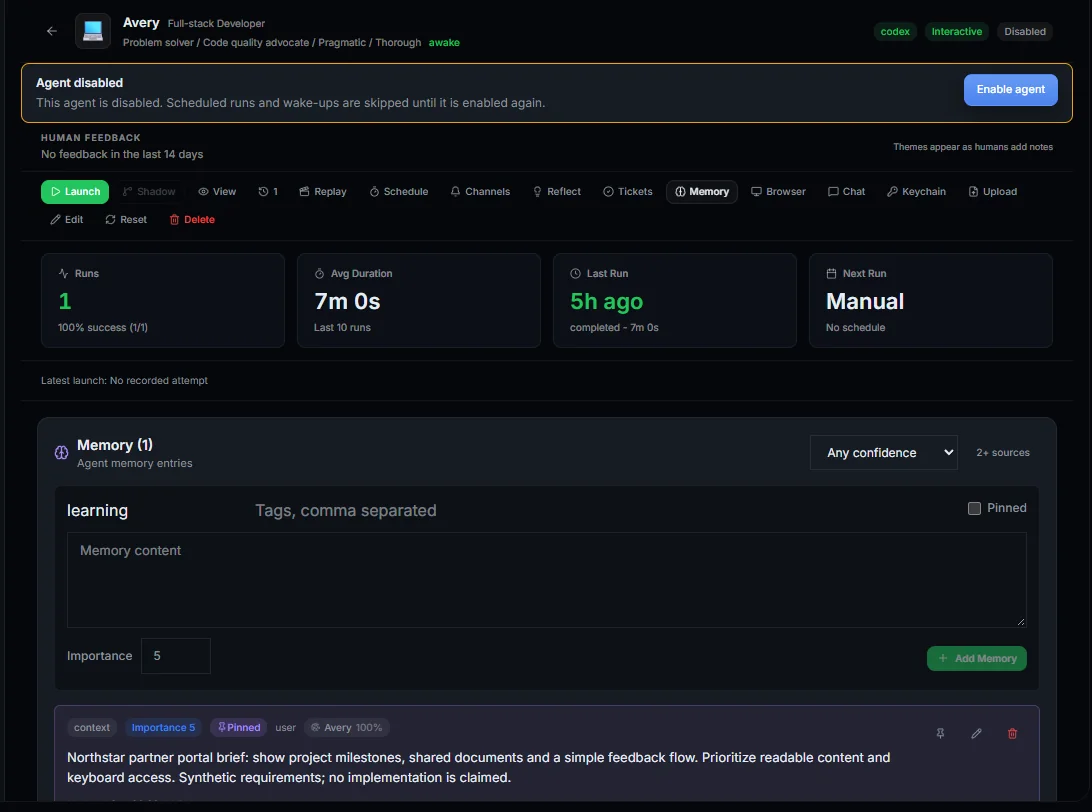
The Memory panel gives you visibility into an agent's long-term memory entries. On desktop, click Memory in the agent's action bar (shown once the agent is awakened). On web, open the agent and select the Memory tab.
What the Memory panel shows
The panel has three layers. Working context and memory stats appear on desktop only; the web Memory tab lists the entries.
-
Working context (desktop) - the 4K summary that gets injected into every prompt. Click Regenerate to rebuild it from the agent's current identity, soul, memory, and learnings.
-
Memory entries - individual structured memories, one record per memory. Each entry has:
- Topic - categorized as learning, credential, decision, relationship, domain, mistake, preference, or config (color-coded)
- Content - the actual memory text
- Importance - numeric score reflecting how critical the memory is
- Pinned status - pinned memories are always included in prompt context
- Referenced count (web) - how many times the memory has been used
- Source - which run or interaction created the entry
- Provenance - a fingerprint badge with the author, confidence percentage, and number of source memories used to derive the entry
-
Memory stats (desktop) - total entries, pinned count, and distribution by topic.
How do I verify where a memory came from?
Read the fingerprint badge beneath or beside the memory:
- The author is shown by agent name when CPLai can resolve it. Otherwise, CPLai shows a shortened agent ID.
- The percentage is the memory's confidence score. Entries without a recorded score show unknown.
- A derived count indicates how many source memories contributed to the entry.
Hover the badge for the full provenance summary. The desktop tooltip also includes when the memory was observed.
Searching and filtering
On desktop, use the search bar to find memories by content and use the topic controls to narrow the list. On desktop and web, the confidence menu can show memories at 50%+, 75%+, or 90%+ confidence. Turn on 2+ sources to keep only entries derived from at least two source memories.
If no entries satisfy the active filters, CPLai shows a filtered empty state instead of implying that the agent has no memory.
Editing memories
On desktop, hover an entry to raise or lower its importance, Pin or Unpin it to control which memories are always in context, or Delete it when it is stale or wrong. The desktop panel cannot change an entry's text; use Add to save a corrected entry instead.
On web, administrators can Edit an entry's content, pin or unpin it, and delete it.
Tip: If an agent keeps making the same mistake, check its Memory panel. A bad or stale memory entry may be reinforcing the wrong behavior. Delete it and the agent will stop repeating the error.
How do I keep an agent's memory useful?
CPLai instructs agents to save durable facts instead of per-run diaries, search before adding a note, and replace an existing fact when the same lesson changes. High importance is reserved for durable operating rules and proven recipes. This keeps repeated session summaries from crowding useful context out of the prompt snapshot.
When a reviewed consolidation creates a replacement note, CPLai marks its source notes as superseded. Those older rows remain stored for history, but normal memory lists, searches, and prompt snapshots show only the live replacement. This prevents an obsolete belief from appearing beside the corrected instruction.
Automatic memory maintenance is flag-only. It can surface an oversized agent and file a deduplicated review ticket, but it never changes or deletes memory by itself. See Settings - agent memory maintenance.
How do I chat with an agent?
Every agent has a persistent conversation that survives across sessions.
Opening a Chat
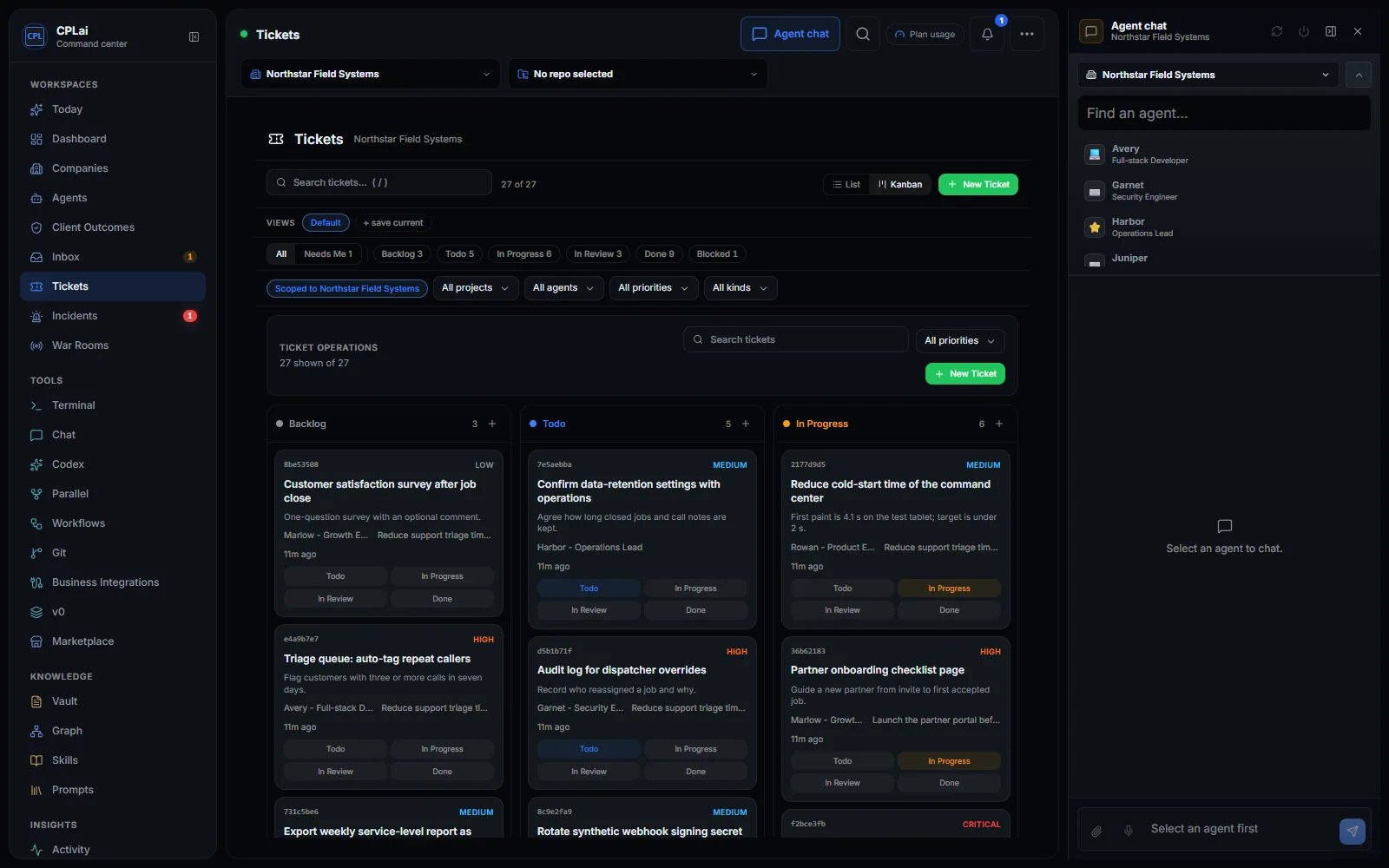
Select an agent in the Agents page list and its conversation, with the full history, opens in the chat dock on the right side of the window. On a company's Agents tab, hover the agent and click its chat icon. The page narrows to make room for the dock instead of being covered.
How Chat Works
- You type a message and press Enter
- For Claude agents, CPLai keeps a Claude CLI session open for the conversation and resumes it on later messages, including after a restart. The first message of a fresh session carries the assembled context: database-backed identity, skill content, recent run summaries, reflections, learnings, team messages, and the conversation history. Later messages go straight into the open session, which already holds the earlier turns.
- Codex and opencode agents start a short-lived CLI process for each message, with the assembled context and conversation history included every time. Antigravity and Ollama agents work the same way in the desktop app; their chat is not available from the web dashboard yet.
- The response is saved to the CPLai service database and displayed in the chat panel
- A post-chat debrief fires in the background to extract learnings
The conversation is also stored in the database, so it survives crashes and restarts. If a resumed Claude session stalls or cannot continue, CPLai opens a fresh session and rebuilds the context from that stored history.
Messages between Claude sessions. A Claude agent chat takes messages from your other Claude Code sessions, such as your terminal tabs, and agents can message other sessions with Claude Code's SendMessage tool. Agents stay inside their own company. CPLai names each Claude agent chat and run it starts cpl-<company>-<agent>-<n>, where <company> is the first eight characters of the company id, and refuses an agent's message to another company's session before it leaves. An agent that runs without CPLai API access is named and checked the same way. A Claude chat with no agent, such as a conversation on the Chat page, is named chat-<conversation>, the first eight characters of its conversation id, and keeps that name on every turn, so a session can still reply to it later. An agent's chat lists and reaches your terminal tabs by their titles, whether the chat runs in the desktop app or in the always-on service (a chat you opened on the web or an iPad). Your own sessions are not limited: your terminal tabs reach every company's agents, and any agent may message them. Some sessions are not checked. Agent runs inside a Docker environment get neither the name nor the check. A Claude session CPLai did not start, such as a claude you type in a plain shell, counts as one of yours. So does a claude that an agent starts from its own shell, because it runs without CPLai's settings. The company rule stops agents from messaging another company by mistake. It is not a wall against an agent that sets out to get around it: an agent with a shell runs under your Windows account.
Reading waiting messages. A session that has the CPL Memory server (see How do I connect my CLI to CPL memory?) can read the messages other sessions sent it with the server's read_messages tool, oldest first. Each one comes marked as a message from its sender, never as an instruction from you, with the address to reply to. Reading them marks them read, so they are not handed to the session again. You can still send to a terminal tab that last reported up to 10 minutes ago. The message waits until the tab is back, for up to 24 hours, and the sender is told the tab was not seen in the last minute.
Auto-Summarization
When a conversation exceeds 50 messages, CPLai automatically compresses the middle of the history into a digest. The first 5 and last 15 messages are preserved verbatim, while everything in between is condensed to topic-level summaries. This prevents context windows from overflowing while preserving the thread of conversation.
Image Attachments
You can attach images to chat messages. For Claude agents, the images go into the open session with your message. For other CLIs, CPLai saves them as temporary files in the agent's working directory and tells the CLI to analyze them. Temp files are cleaned up after the response.
Voice Input (Web)
On the web dashboard, agent chat includes a microphone button next to the send button. Click it to start voice dictation using the browser's Web Speech API. Your speech is transcribed to text in the input field, where you can review and edit before sending. Click the microphone again (or wait for silence) to stop recording. Voice input requires a browser that supports the SpeechRecognition API (Chrome, Edge, Safari).
Chat Persistence
The CPLai service stores agent chat in its database: one conversation per agent, and each message with its role, content, source, tool calls, and metadata.
The web dashboard has the same persistent, streaming agent chat. When you open an agent's chat from the web interface, the conversation context carries across messages just like the desktop chat - the agent remembers what you discussed and streams its reply in real time. Chat history is saved server-side, so you can close the browser and resume later.
The web agent chat uses the same per-agent session lock as the desktop. If a scheduled run is active, the chat waits for it to finish before processing your message. A built-in turn timeout prevents wedged sessions from blocking indefinitely.
Cost
Subscription-authenticated CLI runs are recorded with zero incremental API spend when CPLai identifies them as subscription-covered. That does not make the underlying subscription free. API-key and OpenRouter paths are metered according to their providers. Use Usage, Costs, ROI, and AI Insights to compare actual and API-equivalent cost.
Spend Caps and Budget Pauses
CPLai can enforce monthly, daily, and per-run spend caps for agents. The desktop edit modal's Organization tab has Budget guardrails ($) with Month, Day, and Run fields, and the web editor has a Budget section. When a cap is configured, CPLai checks spend before starting work.
Budget checks apply to manual launches, scheduled launches, reflections, persistent agent chat, workflow steps that target a saved agent, API launches, and desktop IPC launches. Subscription-covered CLI runs can record zero incremental actual API spend while still contributing API-equivalent usage.
When a cap is reached, CPLai blocks the launch, disables the agent, stores a pause reason, and shows a budget error before the run starts when possible. If the launch was tied to a ticket, CPLai also attempts to post a halt comment so the ticket history explains why the agent stopped.
To resume an agent, raise or clear the budget cap, review the pause reason, then re-enable the agent.
How do I run a local agent with tools?
Local-model agents run inside Codex by default, so they can edit files, run shell commands and tests, and use the MCP tools their company grants. Codex's own web search runs only on OpenAI's models, so CPLai gives a local-model agent its own web_search and web_fetch tools instead, when the agent's permission profile lets it reach the web (see Local Models). To make them answer without tools instead, choose Direct under Settings -> Local models -> Ollama -> Local model harness.
In the desktop agent editor, Integrations -> Local model harness can inherit that global choice or override it with Direct, Codex CLI or OpenCode CLI. The setting applies to subsequent agent launches; cloud models ignore it. The Codex path requires the CLI on the runner and a model server that supports the OpenAI Responses API; the OpenCode path requires OpenCode on the runner and works with a server that only offers chat completions.
See Local Models for setup, desktop/web differences, and why discovering vLLM models does not add them to every agent selector. The routing table below describes the core adapters; the optional local harness uses the Codex adapter for the run.
Agent CLI Types and Model Routing
Every selectable agent runs through one of five core execution adapters. The adapter declares its transport, output protocol, prompt shape, authentication hook, model flag, and resume capability so agent, terminal, and session surfaces stay consistent.
| Adapter | Agent-selectable | Terminal tab | Resume support | Primary transport |
|---|---|---|---|---|
| Claude Code | Yes | Yes | Last or session ID | Subscription-safe PTY with stream JSON |
| Codex | Yes | Yes | Last or session ID | Inline CLI with Codex JSON |
| Antigravity | Yes | Yes | Last or conversation ID | PTY with file prompt and OAuth hook |
| Ollama | Yes | No | No | Local HTTP with Ollama JSON |
| opencode | Yes | Yes | Last only | Inline CLI with OpenCode JSON |
| v0 | No - the Designer page and v0 race lanes | No | No | v0 API |
Aider and Goose are non-default validation adapters. They exercise file-argument and text-argument launch shapes but do not appear in normal agent or terminal selectors. This validates that adding a future CLI can use the declarative registry instead of duplicating every engine switch.
Claude Code
Claude agents run through Claude Code. A valid Claude subscription login can cover supported CLI runs without incremental API-token billing. Direct API features still require the applicable provider key.
Claude is the only CLI type that supports interactive mode (full TUI in an embedded terminal). Claude agents run Claude Code in a terminal session on your machine, signed in the way you signed it in.
The Claude model picker puts Claude Opus 5.5 in the top default slot. Claude Fable 5.1 sits second as the frontier, opt-in choice above Opus capability, because its API-equivalent rate is $10 input / $50 output per 1M tokens, two and a half times the Opus 5.5 rate. Claude Fable 5 stays listed as the prior Fable, and Claude Opus 5 as the prior flagship.
OpenAI Codex
Codex agents run through the OpenAI Codex CLI. Codex Auth Mode decides the account: on ChatGPT plan, runs use your ChatGPT/Codex login and never fall back to an API key; on API key, they use the configured OpenAI key. Use codex login --device-auth when device authentication is required by the installed CLI.
Antigravity (agy)
Antigravity agents run through the agy CLI. CPLai detects the supported Google login state and can use an API-key fallback where configured. Check Settings > Integrations for the current runtime/auth status instead of relying on an old CLI subcommand.
opencode (OpenRouter)
opencode is a CLI backend that routes through OpenRouter, giving you access to open-weight, hosted, and frontier models. The model dropdown groups models into three tiers:
Open and community models:
- GLM 5.2, Grok 4.3, Kimi K2.7 Code, DeepSeek V4 Pro, Qwen3 Coder, MiniMax M3
Frontier via OpenRouter (metered, no native login needed):
- Claude Opus 4.8, Claude Fable 5.1, Claude Fable 5, Claude Sonnet 5.5, Claude Sonnet 5, Claude Sonnet 4.6, Claude Haiku 4.5, GPT-6.1 Sol, GPT-5.5, Gemini 2.5 Pro
All OpenRouter models (live): A dynamic group populated from OpenRouter's full catalog. Shows all tools-capable text models sorted newest-first, with pricing labels. Refreshes automatically with a 1-hour cache.
Ollama Cloud models (via ollama-cloud/<model>) are also available for cloud-hosted Ollama inference.
Authentication requires an OpenRouter API key configured in Settings > Integrations. Ollama Cloud models additionally need an Ollama API key.
CPLai automatically configures the opencode global config for model registration - if a model slug is not in the bundled models.dev catalog, CPLai ensures it gets registered so newer models resolve correctly.
Tip: The live catalog means you can run agents on brand-new models the day they appear on OpenRouter, without waiting for a CPLai update.
Execution Backend (Docker Isolation)
By default, agents run natively on your machine. For agents that need isolation, you can switch the execution backend from Native to Docker per-agent.
- Open Agents.
- Select the agent.
- Click Edit.
- The editor enables Docker only for Claude Code agents. On desktop, choose Advanced and select Docker under Execution backend. On web, the same setting is in the Runtime section.
Docker must be installed and running on the selected host. Open Settings -> Agent containers to check the Runs in Docker row for your agent's engine. Claude Code is supported by default. If an existing agent is set to Docker with an unsupported engine, CPLai stops the run before a container starts. Choose Native in the editor if you want to run that engine on the host.
CPLai builds a separate image for each engine. Use Prepare to build the image on the selected Docker host before the first run. A Ready image can be used for agent runs once Runs in Docker says Yes. See Agent containers.
With the Direct harness, CPLai sends the request directly to the local Ollama or vLLM model. This run executes no commands and needs no container. With a Codex or OpenCode harness, check the Runs in Docker row for that harness.
For scheduled runs and handoffs, Max concurrent auto-runs in Settings controls how many can run at once. You can still start an agent chat or launch a run manually when those slots are full.
Tip: Docker isolation is opt-in per agent. Most agents run fine natively. Use Docker for agents that modify files in shared project directories or that you want sandboxed from the host filesystem.
How do I schedule an agent?
Schedules let agents work on autopilot. An SEO agent can run daily audits at 9 AM. A monitoring agent can check your servers every 2 hours. A content agent can draft posts every Monday at 10 AM.
For the current Schedule Manager workflow, see Scheduling Agents.
Setting Up a Schedule
- Open Agents.
- Click the clock icon to open the full-page Scheduler.
- Use Fleet to select an agent, Team & capability to manage inherited defaults, or Proposals to review team-lead recommendations.
- Choose a cadence and configure it.
- Toggle the schedule Enabled, review the next-run preview, and click Save schedule.
Schedule Types
| Type | Description | Example |
|---|---|---|
| Daily | Run once per day at a specific time | Every day at 09:00 |
| Weekly | Run on a weekday, optionally every 2, 3, or 4 weeks | Every other Monday at 10:00 |
| Interval | Run every 15 minutes to 24 hours using a preset | Every 6 hours |
| Multi | Run multiple times per day at specific times | At 09:00 and 15:00 |
| Window | Repeat within a time range at regular intervals | Every 2 hours between 08:00 and 22:00 |
| Cron | Use a five-field cron expression for an advanced cadence | */15 9-17 * * 1-5 |
Schedule Options
- Active days: Restrict the schedule to specific weekdays (e.g., Monday through Friday only)
- Jitter: Add a random delay of up to 60 minutes to each scheduled run. This prevents bot-like patterns when agents interact with external services.
- Scope: An agent schedule overrides a team schedule, which overrides a capability schedule.
How the Scheduler Works
CPLai checks effective agent schedules every 30 seconds. When an agent's next run time is due, CPLai applies the normal pause, capacity, connectivity, disk, budget, cooldown, and collision guardrails before launching it. Key behaviors:
- If the agent is already running, the scheduler skips it (no double-runs)
- A 90-second cooldown prevents double-fires across check intervals
- If CPLai was closed and missed a schedule, it does NOT retroactively fire - it skips to the next occurrence
- If jitter is configured, the actual launch happens after a random delay within the jitter window
Non-Autonomous Agents on Schedule
Agents set to interactive mode can't use the TUI during scheduled runs (there's no one sitting at the keyboard). CPLai automatically forces them into autonomous mode for scheduled runs, with special instructions to use <notify-user> tags if they need user input.
Scheduled Output
Output from scheduled runs is saved to the agent's persistent conversation, so you can review what happened when you open the app later.
Tip: Combine schedules with notification channels. An agent that runs at 3 AM can post its results to your Discord channel, so you see a summary when you wake up.
How do I set up agent teams?
Teams let agents coordinate with each other. A "Content Team" might include a writer agent, an SEO agent, and an image generation agent. They can pass work to each other, share insights, and alert the team when something important happens.
How do I create or manage a team?
On desktop, open Team Builder with the Teams icon in the Agents sidebar header. It supports creating a team with a name, an optional description, and a color, adding agents, and designating one agent as the Coordinator with the crown icon.
The web app now includes a Team Builder for managing membership on existing teams:
- Open Agents.
- Open the Manage menu (administrators only) and click Teams to open Team Builder.
- Select a team from the left column.
- Use Add agents to search available same-company agents.
- Click the add icon to add an agent, or the remove icon beside a current member to remove one.
The web Team Builder filters agents by company, so you cannot add an agent from the wrong company to a team.
The company workspace exposes Add Team on desktop and web. The fleet Team Builder then manages membership and groups within the company's saved teams.
Agents can belong to multiple teams. Membership is many-to-many.
How do I organize agents within a team using groups?
Team groups let you subdivide a team into named subsets. For example, an Engineering team might have groups for "Backend", "Frontend", and "DevOps". Groups appear as collapsible sections in the sidebar under their parent team.
To create a group:
- Open the Team Builder (desktop: the Teams icon in the Agents sidebar header; web: Manage -> Teams).
- Find the team you want to organize. On web, select it in the left column.
- On desktop, click the + (New group) button in the team's header. On web, click + Group.
- Click the new group's name to rename it. On desktop, click its color dot to cycle through colors; on web, pick a color swatch.
To move an agent into a group on desktop, click the agent in the right-hand list, then click the group. On web, choose the group (or Root) in the member's group selector. There is no drag-and-drop. Agents not assigned to any group appear at the team root level.
How do I pause a team or group?
Pausing a team or group prevents its agents from being scheduled. These shared controls complement the individual agent pause:
- Team pause - pauses every agent on the team. Click the pause button next to the team name in the sidebar.
- Group pause - pauses only agents in that group. Click the pause button next to the group header in the sidebar.
A paused team or group shows an amber pause icon and a tooltip with who paused it and when. Click the play button to resume. Pausing a team also pauses all its groups (cascade). Resuming the team clears the group pauses created by that cascade. A group that was explicitly paused before or after the team pause stays paused until you resume that group directly.
Tip: Group pause is useful when you want to temporarily stop a subset of agents (e.g. pause outreach agents overnight) without affecting the rest of the team.
Every pause and resume is kept as history, at every level: the whole scheduler, a company, a team, a group, a single membership, and one agent. That includes pauses made from the desktop sidebar. Fleet Doctor uses it so time an agent spent paused never counts as the agent going quiet, and agents can read it to tell your pause apart from a problem: GET /api/agents/{id}/pause-history?since=<unix ms> lists every pause that stopped that agent in the window, with who paused it, when it ended, and paused_ms, the total paused time with overlaps counted once. An agent can read this only for agents in its own company.
How do I browse a company's agents by team?
In the web dashboard:
- Open Companies.
- Select a company.
- Open the Agents tab.
The tab groups the company's agents by team, shows each team's color when one is configured, and includes an All teams focus picker so you can narrow the roster to one team at a time. Agents that are not assigned to a team appear in an unassigned group.
When a team spans multiple projects, agents are further sub-grouped under per-project headers so you can see which agents belong to which codebase. Teams that contain agents from only one project display without sub-headers. Project-less or company-wide agents render without a project label.
Click an agent card to open that agent's detail page.
How Agents Communicate
Agents communicate by including special XML tags in their output. CPLai parses supported tags after desktop and headless runs and chat turns, saving messages to the database and delivering them to recipients.
| Tag | Purpose | Example |
|---|---|---|
<tell agent="Name"> |
Direct message to a specific agent | <tell agent="Crawley">Found 3 broken links on /pricing</tell> |
<tell team="Content"> |
Broadcast to all members of a team | <tell team="Content">New blog post draft ready for review</tell> |
<alert team="Content"> |
High-priority alert to a team | <alert team="Content">Site is down, hold all publishing</alert> |
<handoff agent="Name"> |
Hand off work to another agent | <handoff agent="Indexa">Sitemap is ready, please submit to Search Console</handoff> |
<team-insight> |
Share knowledge with all your teams | <team-insight>Users prefer shorter titles on mobile</team-insight> |
<update-schedule agent="Name"> |
Modify another agent's schedule | <update-schedule agent="Crawley">{"type":"daily","time":"06:00","enabled":true}</update-schedule> |
Message Delivery
When an agent runs, CPLai checks the database for unread messages addressed to it. These messages are injected into the agent's prompt under a "Messages For You" section, complete with sender name, timestamp, and priority level. After delivery, messages are marked as read.
Desktop-launched, scheduled, and other headless-dispatched runs use the same inbox and output processing. Their output can save direct or team messages, hand off or escalate work, alert a team, preserve related escalation tickets and shared-ticket comments, update a schedule, and stage an agent-prompt proposal. CPLai saves messages first, then tries to launch urgent handoffs and alerts immediately. If capacity or a guardrail prevents that launch, the saved message remains in the recipient's inbox for the next eligible run instead of being dropped.
Two actions still require the desktop runner: creating an agent and writing a shared team insight. Headless runs do not process those requests; create agents and write shared team insights from the desktop runner. Other supported messages and actions in the same output continue normally.
The Coordinator Role
One agent per team can be designated as the Coordinator. Coordinators receive a cross-team digest showing:
- All team members and their last run status
- Output summaries from recent runs
- Unread messages across ALL teams (not just messages addressed to them)
This makes coordinators ideal for dispatching work, monitoring progress, and handling escalations.
Team Insights
When an agent outputs a <team-insight> tag, the insight is saved to shared team knowledge for all teams the agent belongs to. Every team member sees accumulated insights in future prompt context. This creates a shared memory that builds over time.
Tip: Create a "Coordinator" agent whose only job is to review cross-team activity and dispatch work. Give it a schedule that runs after your other agents complete their tasks.
In web Chat, assistant messages that include tell, handoff, alert, or team insight output are displayed as readable coordination cards instead of raw tag text. See Chat.
How do I set up Channels?
The unified Channels surface combines two communication directions:
- Notification Webhooks send agent results to Discord, Slack, Microsoft Teams, or a generic webhook.
- Messaging Bindings show inbound identities, such as a Telegram chat, that can talk to the agent.
On desktop, select an agent and choose Channels in the detail toolbar. On web, open the agent and choose the Channels tab. The badge counts both webhook channels and messaging bindings on both surfaces.
Adding an Outbound Channel
- Open the agent's Channels surface.
- Select Add Channel on desktop or Add Webhook on web.
- Choose a platform type:
- Discord Webhook - posts rich embeds with color-coded status
- Slack Webhook - posts Block Kit formatted messages
- Microsoft Teams Webhook - posts Adaptive Cards
- Generic Webhook - posts plain JSON for custom integrations
- Paste the webhook URL.
- Give it a label, such as "SEO Alerts Channel".
- Select which events to send:
completed- agent finished successfullyfailed- agent encountered an errorreflection- agent completed a reflection sessionall- all of the above
- Click the Test button to verify connectivity.
Each platform gets its own formatting. Discord embeds have color-coded status bars (green for success, red for failure, blue for reflections). Slack messages use Block Kit with emoji indicators. Teams messages use Adaptive Cards with fact sets.
Proactive Messaging
Agents with channels configured can proactively message you during runs and chat. When an agent wraps text in <notify-user> tags, CPLai immediately posts it to all enabled channels. This is useful for:
- Reminders and alerts from scheduled runs
- Questions when the agent needs input
- Status updates during long-running tasks
- Urgent findings that can't wait
Inbound Webhooks
CPLai can also receive webhooks from external services to trigger or message agents.
Setting up the inbound server:
- Go to Settings -> Webhooks & notifications -> Inbound Webhooks
- Toggle Enable Server
- Set the listener port, or keep the default shown in Settings
- Click Generate next to Bearer Token to create a bearer token for authentication
- The server starts automatically when CPLai launches (if enabled)
If the listener is already running and you change its port or token from the web dashboard, the open desktop app reloads the listener automatically within a few seconds. If the desktop app is closed or the listener is off, the saved values apply the next time it starts.
Available endpoints:
| Method | Path | Purpose |
|---|---|---|
POST |
/agents/{id}/trigger |
Launch an agent with an optional prompt override |
POST |
/agents/{id}/message |
Send a text message to an agent's active chat |
Authentication: All requests require a Authorization: Bearer {token} header.
Example - trigger an agent from a CI pipeline:
curl -X POST "<webhook-url>/agents/abc123/trigger" \
  -H "Authorization: Bearer your-token-here" \
  -H "Content-Type: application/json" \
  -d '{"prompt": "Deploy just completed. Run post-deploy checks."}'
Tip: Use inbound webhooks to chain agents into external workflows. A GitHub Action can trigger your test agent after every push. A Zapier automation can trigger your content agent when a new form submission arrives.
Telegram Messaging
CPLai supports bidirectional Telegram messaging for agents. Each agent with a configured Telegram bot can receive messages from Telegram users and send replies, attachments, and notifications back.
Setting up a Telegram bot for an agent:
- Create a Telegram bot via BotFather and copy the bot token.
- In the desktop app, open the agent's Edit dialog, select the Integrations tab, and click Telegram under Communications.
- Paste the token and save. CPLai stores it on the agent itself as its
TELEGRAM_BOT_TOKENcredential, not as a Keychain entry. - CPLai checks for new bots every minute. A bot is polled once at least one person is allowed to use it (below).
Who may use a bot:
One part of CPLai polls each bot: the background service while it runs, otherwise the desktop app (after it has been open for about 10 minutes, so a service starting alongside it takes over). A bot answers only the people allowed to use it:
- An allowlist: the agent's
telegram_allowed_userscredential (Telegram user IDs, comma-separated), or, when the agent has none, theTELEGRAM_ALLOWED_USERSenvironment variable. - An approved pairing: anyone else can send
/pair, which replies with a code an administrator approves withPUT /api/messaging/gateway/pair/{code}/approve.
Messages from any other chat are dropped, and a bot that nobody is allowed to use is not polled at all.
Upgrading from an earlier version: the desktop app used to make the first person who messaged a bot its authorized user. That rule is gone. Add yourself to the agent's
telegram_allowed_userscredential, or send/pairto the bot and approve the code.
Telegram commands:
| Command | What it does |
|---|---|
/new |
Start a fresh conversation (clears any agent override) |
/stop |
Kill the current agent's most recent running run |
/status |
Show pending, queued, and running counts for the agent |
/agent <name> |
Switch this chat to a different agent in the same company |
/pair |
Ask for a pairing code an administrator can approve |
/help |
Print the command list |
Voice memos: A voice memo from an allowed person is transcribed with the assistant's speech-to-text engine (a local Whisper server when one is set, otherwise OpenAI with your key) and reaches the agent like a typed message. Memos over 20 MB are refused with a reply in the chat.
Notifications: An agent's notifications (<notify-user> and scheduled outputs routed to Telegram) go to its telegram_chat_id credential or, when that is not set, to the one person allowed to use the bot. With several people allowed and no telegram_chat_id, notifications are not sent.
Outbound attachments: When an agent's reply names a file in its workspace (an image, document, or export), CPLai delivers it as a Telegram attachment in the chat, one per reply.
Conversation lifecycle: Each Telegram chat maintains a conversation with the paired agent. Conversations automatically reset after a configurable idle period or on a daily schedule, keeping context fresh. The /new command triggers an immediate reset.
Tip: The
/agentoverride is held in memory only and does not survive a service restart. After a restart, the chat reverts to its default paired agent.
How do I approve an agent action from Telegram?
An agent can send a time-limited approval card to its owner's Telegram chat when it needs permission for a guarded action.
- In the agent editor, add a
telegram_chat_idcredential for the owner chat. - Add the owner's Telegram user ID to the agent's
telegram_allowed_userscredential. - Keep the agent's Telegram bot and the headless service running.
- When a pending approval arrives, review the action summary, blast radius, and expiration time on the card.
- Tap Approve or Deny. CPLai updates the card in place and removes the buttons after a decision.
Only an allowlisted user can decide, and the approval is fenced to the agent whose bot posted the card. A timeout automatically denies the request. Approval creates a single-use exception that must be consumed before it expires, so an old card cannot authorize a later action. Agents cannot approve their own requests through the shared API token.
Tip: If no card appears, confirm that
telegram_chat_idis numeric and that the same Telegram user is present intelegram_allowed_users.
How do I set up a company's brand voice?
Brand Voice defines the tone, positioning, and language rules for a company's agents. Edits reach agents on their next run with no restart, through the two paths described under How agents receive brand voice.
Opening the Brand Voice Editor
- Open Companies.
- Select a company.
- Click the Brand Voice tab.
What you can configure
| Field | Purpose |
|---|---|
| Positioning | One-paragraph brand positioning statement |
| Values | Core brand values, one per line |
| Content Pillars | Topic areas the brand focuses on, one per line |
| Voice Rules | Tone and style rules agents should follow, one per line |
| Banned Words | Words or phrases agents must never use, one per line |
| Preferred Language | Key-value pairs for language preferences (e.g., "tone" = "friendly but professional") |
| URL Rules | Key-value pairs for URL formatting rules (e.g., "domain" = "example.com") |
How agents receive brand voice
Agents receive brand voice in two ways:
- Prompt placeholders. At spawn time, CPLai fills in any
{{company.brand_voice.*}}placeholder in the agent's prompt, such as{{company.brand_voice.positioning}}or{{company.brand_voice.banned_words}}. A prompt without placeholders does not get this text. - Brand Kit. Content, outreach, and SEO agents are told to fetch the company's Brand Kit, which returns the live brand voice, and to check public-facing text against it before publishing.
Tip: If multiple agents sound inconsistent, set brand voice once at the company level and reference it with placeholders, instead of copying the rules into each agent's prompt.
How do I trigger a reflection?
Reflections are quiet moments where an agent steps back from task execution and thinks about the bigger picture.
What Happens During Reflection
- In the desktop app, click Reflect in the agent's action bar to open the Reflections panel, then click Trigger Reflection. Reflect appears once the agent is awakened and has a workspace.
- CPLai builds a reflection prompt containing:
- The agent's recent run history (last 5 runs with summaries)
- The agent's current memory
- The agent spawns and generates 2-3 actionable observations:
- Patterns noticed across runs
- Improvements that could make work more effective
- Suggestions for you based on what it's learned
- Questions worth investigating in future runs
- Observations are written to
reflections/{date}.mdin the agent's workspace - If channels are configured, the reflection is posted as a
reflectionevent
Viewing Reflections
The Reflections Panel in the desktop agent detail view, and the Reflect tab on web, show all reflection entries sorted newest first, with the date and full content of each reflection. The web tab is read-only; trigger reflections from the desktop app.
Tip: Schedule a weekly reflection for your most active agents. It helps surface patterns that individual runs miss. An agent that runs daily SEO audits might notice in reflection that a particular page cluster has been declining for two weeks.
How do I edit an agent?
Edit Modal
Click the Edit button (pencil icon) on any agent to open the edit modal.
The desktop edit modal uses a tabbed layout with four tabs. The header shows the agent's emoji and name, and an accent dot on the Organization tab flags when it has configuration.
| Tab | What You Can Edit |
|---|---|
| General | Name, description, primary model, Apply model, CLI type, working directory, read-aloud voice, and prompt (with the Agent Builder and its Undo) |
| Organization | Company, Reports To, role, domain skill, skill proposal capability, budget guardrails (Month, Day, Run), and this agent's Memory budget (blank follows Settings) |
| Integrations | Browser engine, local model harness, Camofox session, Keychain entries, MCP server access, and the Telegram bot token under Communications |
| Advanced | Provider fallback chain, execution backend, CPL API access, Trust Center access for an auditing agent (off by default, see Trust Center), and Reset Identity |
Teams and the coordinator role are managed in Team Builder, and notification webhooks in the agent's Channels pane.
In the web app, the modal has five sections (Profile, Runtime, Budget, Memory, Schedule) adapted for the browser layout. Only administrators can open it.
The Apply model selector is separate from the primary Model selector. It stores an optional per-agent model for mechanical edit-apply work, and None (tier off) clears it. It has no effect yet: every agent runs in a CLI (Claude Code, Codex, Antigravity or opencode) that makes its own edits, so there is no step where CPLai hands an edit to a second model. The Chat page has its own working Apply model; see Chat - Apply Model.
How do I give one agent an MCP server?
First save and enable the server under Settings -> MCP servers.
On desktop:
- Open the agent's edit modal.
- Select Integrations.
- Find MCP Servers.
- Select the server to grant it to that agent.
On web, open the agent detail page, select Keychain, and use the MCP Servers card.
An all-agent or company grant appears selected and read-only on the agent screen. Change inherited access from Settings. You can add or remove an individual grant from the agent screen. Access changes apply on the next run.
See Settings for the complete all-agent, company, and individual access model.
Tip: The web editor's Memory section (Identity, Soul / Operating Principles, Memory Stub, User Context, Learnings, and Working Context) is for repairs and intentional steering; the desktop editor does not show these fields. In normal use, CPLai updates identity, memory, learnings, and working context through awakening and debriefs. Edit these fields directly only when you are repairing an agent or intentionally redirecting its long-term behavior.
Agent Builder (AI-Assisted Editing)
In the desktop editor's General tab, click Agent Builder (wand icon) next to Prompt. Instead of editing fields manually:
- Describe the changes you want in natural language (e.g., "Add a step to check competitor pricing before generating recommendations")
- AI updates the prompt for you
- Review the changes and accept or undo
This is especially useful for evolving complex prompts without losing existing steps.
Prompt Undo
After the Agent Builder rewrites the prompt, an Undo button restores the prompt it replaced. Undo works only while the editor stays open: CPLai does not keep a prompt history the editor can restore, so a saved edit or a promoted prompt proposal cannot be undone from there.
Agent Credentials
Agents often need API keys, passwords, tokens, account logins, or service account JSON to do their work. CPLai handles shared credentials through Keychain.
How do I add credentials?
- Open Settings > Keychain.
- Add a Keychain entry for the account, API key, token, or service account.
- Link the entry to the agent's company when the whole company should inherit it.
- For a narrow grant, open the agent's edit panel and subscribe only that agent to the entry.
- Relaunch the agent so the environment variables are injected.
How Credentials Are Used
At runtime, CPLai injects Keychain values as environment variables into the agent process. The agent's prompt includes a list of available variable names so it knows what is available:
## Credentials (environment variables)
- `$Env:GOOGLE_API_KEY` - Google Search Console API Key
- `$Env:AHREFS_TOKEN` - Ahrefs API Token

Use these directly - do NOT search for credentials.
This prevents agents from wasting time looking for API keys or asking you for them during runs. If a needed variable is missing, add or link the Keychain entry, then run the agent again.
Agent Context
Automatic Context
Before every run, CPLai:
- Reads the agent's PostgreSQL-backed identity, memory, soul, learnings, and working context and injects them as a prompt prefix
- Reads the linked skill content and includes the full methodology
- Injects team messages, membership info, and coordinator digests
- Injects credential environment variable names
- Retrieves relevant Knowledge Graph context - semantic-ranked vault notes, linked neighbors, hubs, and agent memories compiled into a bounded digest
- Writes a
.cloudpeaklabs/context.mdfile in the working directory with CPLai-specific context (skill directories, API key locations, vault path) - Reads project docs (README, package.json, CLAUDE.md) - the CLI does this automatically
Linked Skills
When an agent has a linked skill, the full skill content is injected into every run prompt under a "Skill Methodology" heading. This gives the agent its domain expertise - the SEO audit checklist, the code review standards, the content writing guidelines.
Agent Run History
Every agent's detail panel includes a vertical timeline showing its run history.
How do I check the latest launch attempt?
On desktop or web, open Agents and look for Latest launch in the agent directory or card. Select the agent to see the same evidence in its detail panel, including where the launch came from in plain words (for example "Started by its schedule" or "Started by hand from this app") and any recorded reason.
| Latest launch label | Meaning |
|---|---|
| Launched | CPLai accepted the launch. Check the run's status and output to see whether it finished successfully. |
| Blocked | CPLai refused the launch. Read the reason shown beneath the label before retrying. |
| Error | The launch attempt recorded an error. Read the reason and check the agent's configuration. |
| No recorded attempt | CPLai returned no launch-attempt record for this agent. |
| Evidence unavailable | Launch evidence was not supplied, for example because the desktop could not reach the API or the service version does not provide it. This does not establish whether a launch succeeded or failed. |
A recorded attempt includes its local date and time. The label describes the most recent attempt, so a later accepted retry replaces an earlier blocked or error label. Every kind of launch counts: scheduled runs, runs started by an external event, launches from the API or another agent, and runs you start yourself, whether the desktop app or the always-on service starts them.
Latest launch, completed-run history, and the current pause state answer different questions. A recent launch can coexist with an older completed run, and a pause remains visible independently of the last launch outcome. Check schedule guardrails before interpreting a quiet or paused agent as a failed worker.
What You See
- Status-colored dots: green for completed, red for failed, gray for cancelled
- Timestamp and duration for each run
- Tool usage count badges (how many tool calls the agent made)
- CLI build the run launched, such as
codex-cli 0.161.0(see below) - 1-line run summary from the first meaningful line of the stored digest, shortened to fit the collapsed row
- Run summary with the full stored digest when you expand a desktop run or select it on web
- Expandable event view showing the full stream of thinking, tool calls, and messages
After a run completes, fails, times out, or is cancelled, CPLai stores a short digest of the actions taken, concrete outcomes and artifacts, problems, and open follow-ups. When the agent ends with its own substantive reflection, CPLai uses that reflection because the agent wrote it with the full task context and another model does not need to rewrite it. If the reflection is missing, skipped, truncated, or unavailable after a crash, the utility summarizer turns the readable transcript into a fallback digest. Longer fallback summaries use 3 to 6 bullets; very short transcripts can be shown directly.
Digest processing happens after the run reaches a terminal state, so a newly finished run may temporarily use readable output or event text in its collapsed row. The raw event stream remains available beneath the summary for detailed evidence.
How do I check which CLI build a run used?
Claude Code, Codex, and Antigravity runs record the CLI build they launched. The desktop Run History row shows it as a small chip, and the web agent's live run view (opened with View) adds it to the selected run's status line. The chip shows the version the CLI reported, or the executable's file name when no version was recorded. Older runs and Docker runs recorded nothing, so they show no chip.
Expand the run on desktop, or select it on web, to see the full executable path. Codex runs also show two extra lines:
| Line | Meaning |
|---|---|
| Codex daemon: off (verified) | CPLai confirmed this Codex build honors CPLai's setting that keeps its managed background daemon off. |
| Codex daemon: not in this Codex version | This Codex build predates the managed daemon, so there is nothing to turn off. |
| Codex daemon: off (could not verify) | CPLai's check could not get an answer. The run continued with the daemon setting applied. |
| Codex daemon: on, run refused | This Codex build still reported its daemon on with CPLai's setting applied, so CPLai refused to start the run. The run error names the version and path. Update or reinstall that Codex, then run the agent again. |
| Codex home: this run only | The run used a private Codex home that CPLai removes after the run stops. |
| Codex home: shared | The run used the agent's normal Codex sign-in folder. |
Codex's managed daemon keeps the environment of the session that started it, including any credentials, and serves later Codex sessions on the same machine. CPLai therefore turns it off for every Codex process it launches: agent runs, agent chat, councils, and race lanes. Codex sessions you open yourself, on the Codex page or in a terminal tab, keep your own Codex configuration.
Codex runs started by the always-on Windows service get the private per-run home. It shares the agent's Codex sign-in and session history, so plan-usage readings and saved sessions keep working.
How do I see what an agent's browser sent to other sites?
On desktop, select View in the agent detail header to open the active or most recent run. Web writes appears above the run output, next to the run's spectate links. To check an older run, expand it in Run History, then close the history list; the run view stays on that run. On web, select View to open the agent's live run view and pick the run; Web writes has its own row below the toolbar.
Web writes (N) counts the external writes the built-in agent browser attempted during that run. When the company's browser policy blocked some of them, the control reads Web writes (N, M blocked). Select it to open the list.
| Reason | Recorded when the agent... |
|---|---|
| Submit click | Clicks a submit button |
| Enter to submit | Presses Enter in a form field, including typed text that ends with a new line |
| File upload | Uploads a file |
| Form navigation | Submits a form that navigates with a method other than GET |
| Write request | Clicks or types while the page sends a same-site POST, PUT, or other non-GET request |
| Outside page | Tries to open an outside page while the browser could not read the company's browser setting, so it refused every outside site (always blocked) |
Each row shows the method, domain, decision, and time, the URL, the browser tool and page that made the write, and the path of a screenshot saved after the action in the agent's workspace (screenshots/egress/). URLs are stored without query strings, fragments, or credentials. Each action records at most five rows.
Page reads, plain navigation, screenshots, and local addresses such as localhost are not recorded. Background beacons, browser reports, and third-party trackers are ignored. If the list cannot load, the control shows Web writes (!) and an error instead of a misleading zero.
Anyone with member access to the run's company can view its web writes. The list is recorded independently of Warden's Ledger Recording setting.
Each row's decision is allowed or blocked. A blocked action was refused by the company's browser policy before it was sent, and the agent was told not to work around it. The policy is set in Trust Center. By default nothing is blocked and every row reads allowed.
Note: Web writes covers the built-in agent browser (the
playwright-undetectedbrowser skill). Other browser tools, such as Camofox sessions or a Playwright MCP server, and agent fetch tools are not recorded or blocked yet.
Quick Actions
Each expanded run in the desktop timeline has quick action buttons:
- Re-run - launch the agent again with the same configuration
- Replay - open the time-travel replay scrubber for that run (see below)
The timeline has no chat button because the agent's chat is already open in the chat dock while the agent is selected. The web run list has no quick actions; select a run there to open it in Replay.
Time-Travel Replay
The Replay scrubber lets you review a run's recorded output and events in order, fast-forward, or scrub to a point in its history. Supported native CLI events include assistant messages, tool calls, tool results, and lifecycle updates as well as terminal output. Click the Replay button on a run in the timeline, or use the Replay toggle in the detail panel header to open the replay view.
Controls:
- Play / Pause - start or stop real-time playback
- Speed selector - toggle between 1x, 4x, and 16x playback speed
- Scrubber bar - drag to any point in the run; the terminal rebuilds instantly from the nearest keyframe
- Reset - jump back to the beginning
The replay view renders in a full xterm terminal pane, matching the Glass theme of the rest of the desktop. Seeking is sub-second even on long runs thanks to keyframe indexing - the engine snaps to the nearest checkpoint and replays the delta rather than re-rendering from the start.
How do I export or continue from a replay point?
- Export journal downloads the run journal as JSON for later inspection.
- Fork from here starts a new run using the recorded events up to the current replay position. You can enter a prompt override before starting it.
Playback Play / Pause and Reset only change what you are viewing. Forking launches another run; it does not resume the original process or undo changes that process already made.
Tip: Replay is available on desktop and web. The detail depends on the events captured for that run.
Retention
The desktop keeps a bounded working set of the 50 newest runs per agent plus every run that is still active. The agent detail timeline displays the newest 20 runs. Its Run History count and Runs metric use the exact all-time total, and the timeline notes how many older runs are not shown.
Success rate is calculated from completed and failed runs in the recent working set. Average duration uses the latest 10 completed runs in that set. Older persisted runs are not deleted solely because they are outside the working set or display slice; use broader activity/history APIs or retention-aware reporting when you need older evidence.
For a broader feed across agents, tickets, chats, dispatches, files, and races, use the Activity Timeline on desktop or web.
Emotional Awareness
Agents are instructed to read emotional signals in your messages during chat conversations.
What Agents Detect
| Signal | Indicators | Agent Response |
|---|---|---|
| Frustration | "again", "I already told you", repeated requests, short messages | Acknowledge directly, apologize if at fault, save a rule to the soul column via debrief |
| Urgency | "ASAP", "right now", "this is blocking me" | Drop everything else, be concise, skip pleasantries |
| Excitement | "this is amazing!", exclamation marks, enthusiasm | Match energy, build on momentum |
| Confusion | Questions, "I don't understand", "what does this mean" | Slow down, explain simply, offer examples |
| Disappointment | "this isn't what I wanted", "not quite" | Ask clarifying questions, don't defend, just improve |
When repeated corrections reveal a pattern (you keep having to remind the agent of something), the debrief system saves it to the soul column in PostgreSQL as a permanent operating principle. The correction never needs to happen again.
Current service and workflow boundaries
The always-on cpl_server headless service is shipped and can dispatch scheduled and remote agent work without the desktop WebView being open when it is installed and healthy. Use System Status and Settings service controls to verify the actual instance rather than assuming background execution is active.
Workflows on desktop and web include the visual step builder alongside the YAML source. See Workflows for current execution and cancellation differences.
Quick Reference
Agent File Locations
| Item | Location |
|---|---|
| Agent working directory | The project repository for project-scoped agents, or the company root for company-wide agents |
| Agent scratch workspace | <company root>/<scratch dirname>/agents/{agentId}/ |
| Scratch subfolders | screenshots/, notes/, and state/ under the scratch workspace |
| Team insights | Shared team knowledge stored by CPLai and injected into future prompts |
| CPLai context file | Written under the active project context when a run needs project context |
The scratch directory is .cloudpeaklabs in production and .cloudpeaklabs-dev in dev mode. Agents receive the resolved path as CPL_AGENT_WORKSPACE.
CLI Flags by Agent Type
| Agent Type | Autonomous Mode Flag | Interactive Mode | Output Format |
|---|---|---|---|
| Claude | --dangerously-skip-permissions |
Full TUI | --output-format stream-json |
| Codex | --dangerously-bypass-approvals-and-sandbox |
Not supported | --json |
| Antigravity | --dangerously-skip-permissions |
Not supported | Plain text + exit |
| opencode | --auto |
Not supported | --format json (NDJSON) |
| Ollama | None | Not supported | Ollama HTTP JSON stream |
Communication Tags
| Tag | Direction | Purpose |
|---|---|---|
<tell agent="X"> |
Agent to agent | Direct message |
<tell team="X"> |
Agent to team | Team broadcast |
<alert team="X"> |
Agent to team | Urgent notification |
<handoff agent="X"> |
Agent to agent | Task handoff |
<team-insight> |
Agent to all teams | Shared knowledge |
<update-schedule agent="X"> |
Agent to scheduler | Schedule modification |
<update-agent-prompt> |
Agent to CPLai | Stage a prompt proposal for eval-gated review |
<notify-user> |
Agent to channels | Proactive user messaging |