Assistant Connection (MCP)
Last reviewed November 9, 2026.
Assistant Connection lets an outside assistant work with CPLai as you. Claude Code, Claude Desktop, Codex, or any client that speaks the Model Context Protocol (MCP) can search and read tickets, read agents, runs, run outcomes and approvals, comment on tickets, and subscribe to signed event webhooks. It cannot create tickets or launch agents.
Each connection belongs to you, is tied to one company, and can be revoked at any time. Everything it does is recorded in that company's Trust Center.
The feature is experimental and off by default.
- How do I turn it on?
- How do I connect Claude Code?
- How do I connect Claude Desktop?
- How do I connect Codex?
- How do I approve a code from an assistant?
- What can a connected assistant do?
- How do I revoke a connection?
- Where do I see what an assistant did?
- Troubleshooting
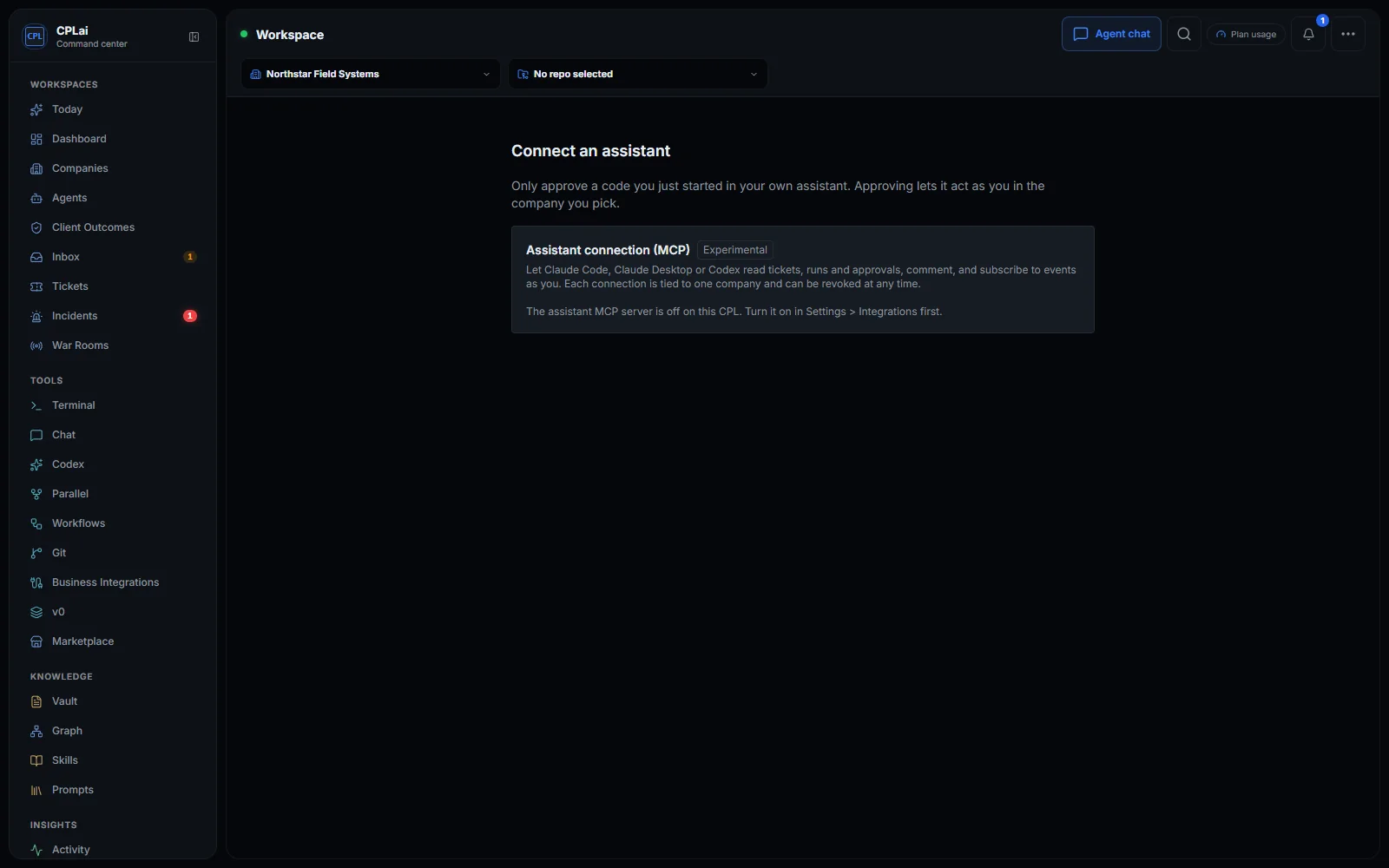
How do I turn it on?
- Open Settings > Integrations in the desktop app or the web dashboard.
- Find Assistant Connection under Business.
- Choose Turn on. Changing it needs admin access to settings.
Turning it off stops every connection from working until you turn it back on. Connections are not deleted.
Connections need HTTPS. An assistant on the same computer as CPLai can use http://localhost. An assistant on another computer must use your public tunnel URL (see Web Access). Plain HTTP from another computer on your network is refused.
How do I connect Claude Code?
-
In Assistant Connection, pick the company under Or connect directly, give the connection a name such as "Claude Code on my laptop", and choose Connect.
-
Copy the Claude Code command. It looks like this:
claude mcp add --transport http cpl https://cpl.example.com/api/v1/mcp --header "Authorization: Bearer cpl_pat_..." -
Run it in a terminal, then start Claude Code. The CPLai tools appear under the
cplserver.
The token is shown once. If you lose it, revoke the connection and make a new one.
How do I connect Claude Desktop?
Claude Desktop reaches remote MCP servers through the mcp-remote helper (Node.js required).
-
Connect directly as above and copy the Claude Desktop snippet.
-
Open Claude Desktop's settings, choose Developer > Edit Config, and merge the snippet into
claude_desktop_config.json:{ "mcpServers": { "cpl": { "command": "npx", "args": ["-y", "mcp-remote", "https://cpl.example.com/api/v1/mcp", "--header", "Authorization:${CPL_AUTH_HEADER}"], "env": { "CPL_AUTH_HEADER": "Bearer cpl_pat_..." } } } } -
Restart Claude Desktop.
How do I connect Codex?
-
Connect directly as above and copy the Codex snippet.
-
Add it to
~/.codex/config.toml:[mcp_servers.cpl] url = "https://cpl.example.com/api/v1/mcp" bearer_token_env_var = "CPL_MCP_TOKEN" -
Set
CPL_MCP_TOKENto the token in the shell that starts Codex, then start Codex.
How do I approve a code from an assistant?
A client without a browser of its own can ask for access with a device code instead of a pasted token:
- The client calls
POST /api/v1/mcp/device/codeon your CPLai and shows you a code such asBCDF-GHJKand a link. - Open the link (it goes to
/dashboard/connect-assistant), or type the code under Approve a code from your assistant in Settings > Integrations > Assistant Connection. - Check that the client name is the one you just started, pick the company it may act in, and choose Approve. Choose Deny if you did not start it.
- The client polls
POST /api/v1/mcp/device/tokenevery 5 seconds and receives its token once you approve.
Codes expire after 10 minutes. Only approve a code you started yourself.
CPLai allows four outstanding device codes per source. If starting another
connection returns 429 Too Many Requests, finish an existing connection
and let the client collect its result, or wait up to 10 minutes for a code to
expire. You can still approve, deny, and poll existing codes. Clients sharing
a public IP share the allowance; forwarding headers distinguish clients only
when CPLai's proxy_trust_cidr setting trusts the connecting proxy. Otherwise
proxied requests share the proxy's allowance.
What can a connected assistant do?
| Tool | What it does |
|---|---|
tickets_search |
Lists the company's tickets, newest first, by title text, status, or project |
tickets_get |
Reads one ticket with its comments |
tickets_comment |
Comments on a ticket; the comment shows your email as the author |
agents_list |
Lists the company's agents |
runs_get |
Reads one agent run |
artifacts_read |
Reads a run's client-safe outcome and its evidence |
approvals_list |
Lists the company's approval requests |
events_subscribe |
Sends signed webhooks (ticket.created, run.completed, incident.opened, incident.resolved) to a URL; needs company admin |
Each tool has the same permissions as you have in CPLai for that company. A connection only ever sees the company it was tied to.
Webhook deliveries carry X-CPL-Signature: sha256=<hex>, an HMAC-SHA256 of the body using the secret events_subscribe returns once. Manage the subscription afterwards in Settings > Integrations > Webhooks.
The connection token works only on the MCP server. It cannot sign in to the dashboard or call any other API.
How do I revoke a connection?
Choose Revoke next to it under Your connections. The assistant's next request fails.
Where do I see what an assistant did?
Open Trust Center for the company and look for audit records named mcp.connection.minted, mcp.connection.revoked, mcp.tool.comment, mcp.tool.subscribe, and mcp.tool.read. Every comment and subscription is recorded, including refused attempts such as a comment on another company's ticket. Reads are recorded once per connection per day.
Each record names the tool, the ticket and the connection, for example comment_on_ticket on ticket 1a2b3c via Laptop. A refused attempt shows refused instead of recorded. Show details adds the connection id and, for a subscription, the webhook's host name only: the full webhook address is never shown, because it can work as a password.
Troubleshooting
| Message | What to do |
|---|---|
| "The assistant MCP server is off." | Turn it on in Settings > Integrations > Assistant Connection. |
| "The assistant MCP server requires HTTPS." | Use your tunnel URL, or run the assistant on the same computer as CPLai. |
| "Missing assistant connection token." | The assistant sent no connection token. Add it as shown in the connect steps above, or connect again. |
| "Assistant connection tokens only work on /api/v1/mcp." | The token was used somewhere else. Point the assistant at /api/v1/mcp. |
| "Unknown or revoked API key." | The connection was revoked. Make a new one. |
| 403 from a tool | You do not have that permission in the company, for example events_subscribe without admin access. |