Companies
Last reviewed November 15, 2026 (checked against the app).
A company is the main operating boundary in CPLai. It groups agents, teams, capabilities, projects, tickets, goals, knowledge, brand voice, credentials, users, and spend.
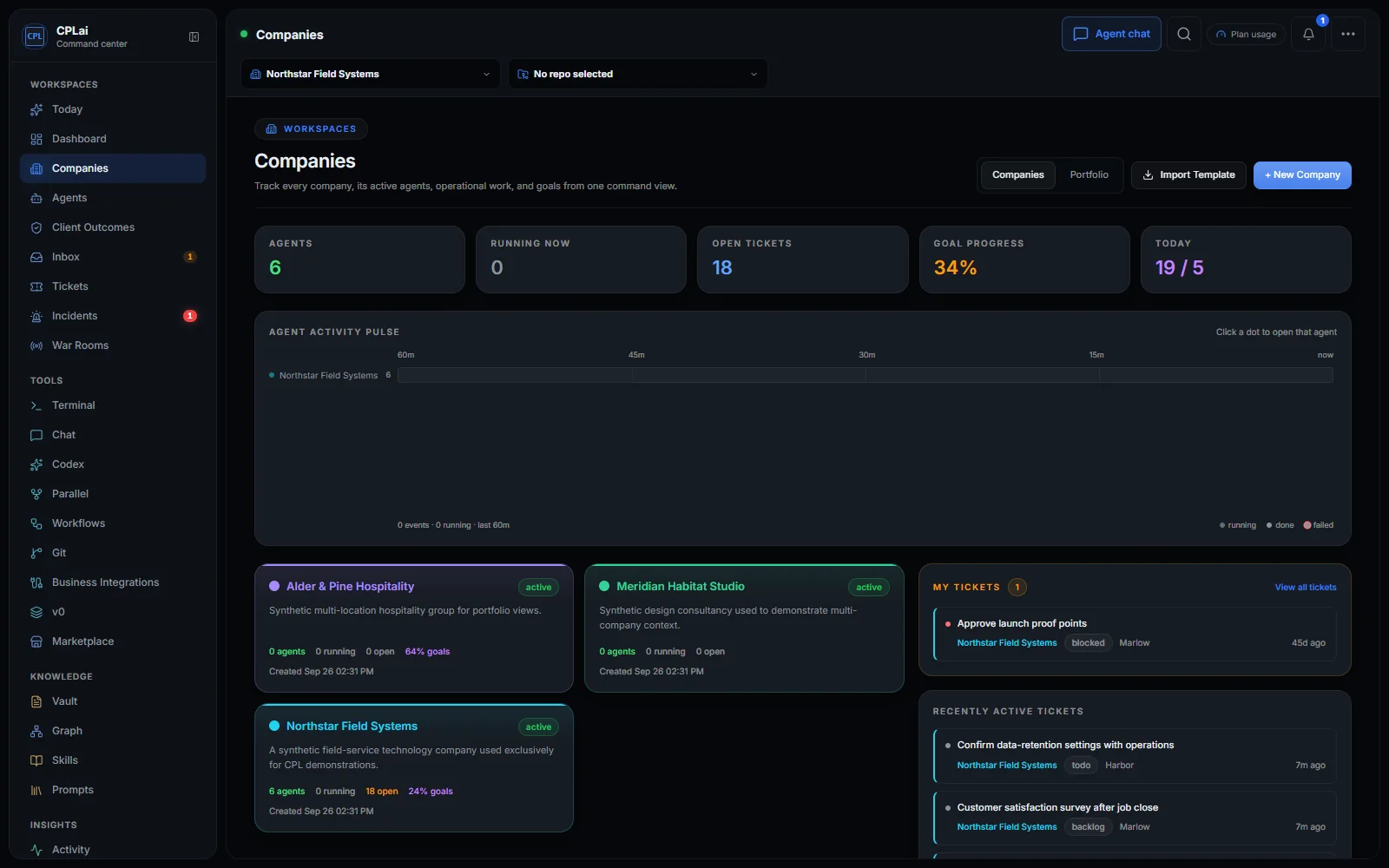
How do I open Companies?
- Desktop: choose Companies in the sidebar.
- Web: choose Dashboard for the cross-company overview or Companies for the portfolio view.
- Web company detail: select a company card or use the company switcher in the top bar.
How do I use the portfolio dashboard?
The dashboard summarizes accessible companies. Fleet status, Pending approvals, and Recent outcomes appear above the company cards on desktop and web. Use the panel links to open Agents, Inbox, or Client Outcomes. Approval-request rows open the request in the chat dock with Approve and Deny; ticket rows open Inbox. Selecting a company opens its company workspace.
Desktop Recent outcomes lists completed-run summaries. The web panel highlights agents whose latest run completed. Open the linked workspace for the full history.
The web Companies page adds portfolio-level controls and an agent-activity pulse. Use the Company, Project, and Team groupings on Agents when you need a fleet-first view instead of a company-first view.
The desktop Companies page opens the same company data through a gallery and detail workspace. The active company also scopes many other pages, including Chat, Workflows, Inbox, Skills, and operational dashboards.
How do I create a company?
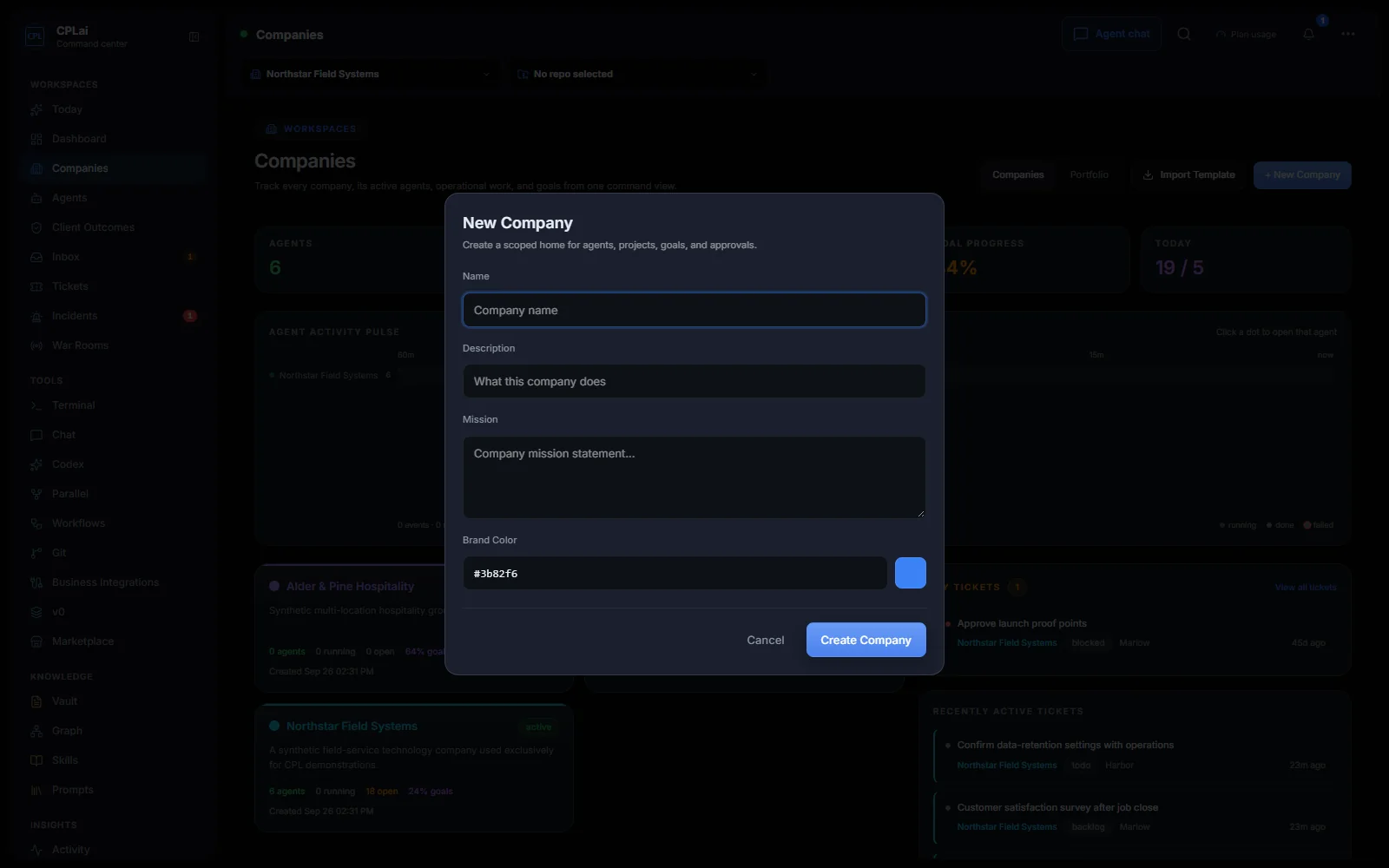
- Open Companies.
- Select New Company or the equivalent create action.
- Enter the company name and optional details.
- Choose a brand color and configure the company root when prompted.
- Open the new company and add capabilities, projects, teams, agents, or users.
Company creation does not automatically guarantee that every runtime is ready. Use Guided Onboarding for the complete first-company flow, including providers, authentication, starter teams, a project, hiring, and CEO launch.
Company workspace tabs
Overview
Overview summarizes company status, agent and team counts, open work, goals, recent activity, and capability-specific information.
When Fleet Doctor has detected open or watching run failures, Overview also shows Fleet Health with the latest issue groups, run counts, recent activity, and reopened status. The panel stays hidden until the company has an issue. Select the filed-ticket marker on an issue to open its bug ticket detail on desktop or web.
Enable the sweep and optional ticket filing from Settings - Fleet Doctor.
How do I control Smart Dispatch automation?
- Open Companies and select the company.
- Stay on the Overview tab.
- Find the Controlled automation card.
- If you are a company owner or administrator, use the switch to choose the company posture. Other members can see the state, but the switch is read-only.
| State | Meaning |
|---|---|
| Recommend-only | The default. Smart Dispatch ranks eligible agents, but you choose the assignee. |
| Opted in | The company permits controlled automation when the server-side policy and live safety checks allow it. Thresholds remain server-controlled and are not exposed by the switch. |
Tip: Full automatic assignment is not currently active in this flow. Turning the switch on records the company's opt-in, but it does not guarantee that a recommendation will assign or launch an agent. Scope, policy, schedule, budget, and health checks still apply.
See Tickets - Smart Dispatch recommendations for the ranking and eligibility flow.
Agents and Teams
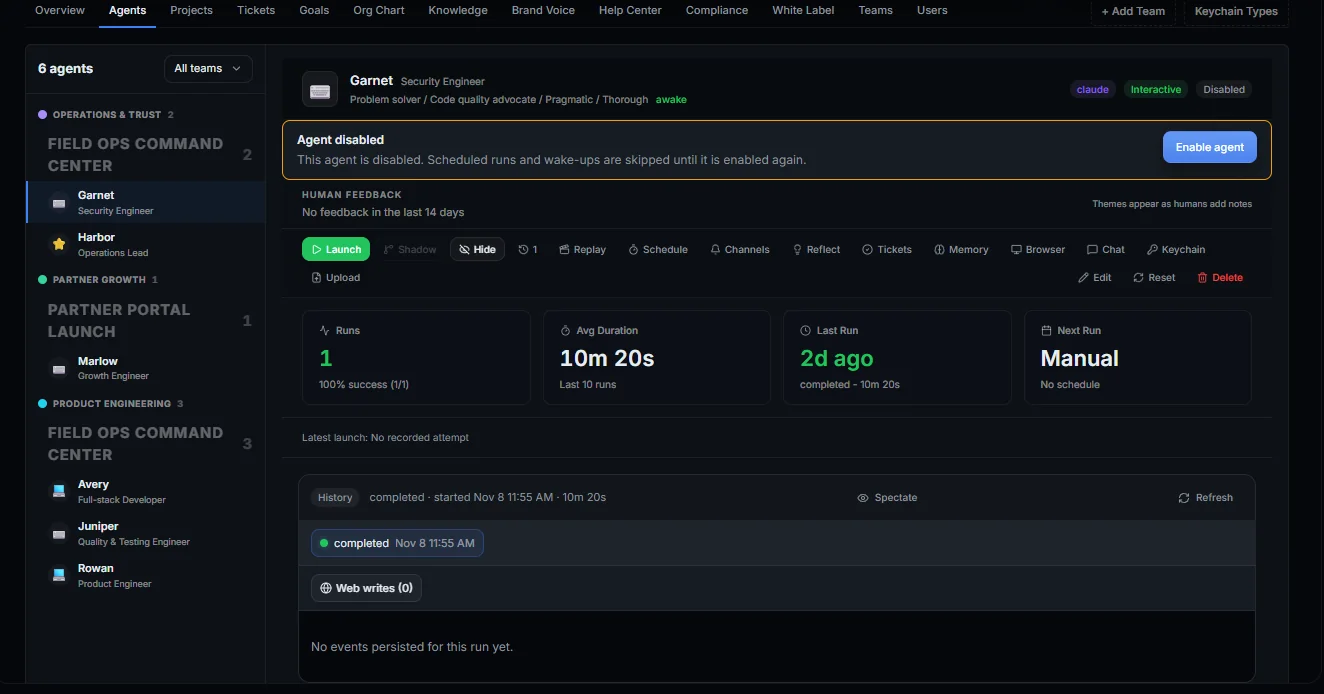
Use this tab to browse the company roster, select an agent, manage teams and groups, pause or resume work, open schedules, and launch agent actions. Web agent detail opens inside the company workspace for company-scoped agents.
See Agents, Agent Hiring, and Scheduling.
Projects
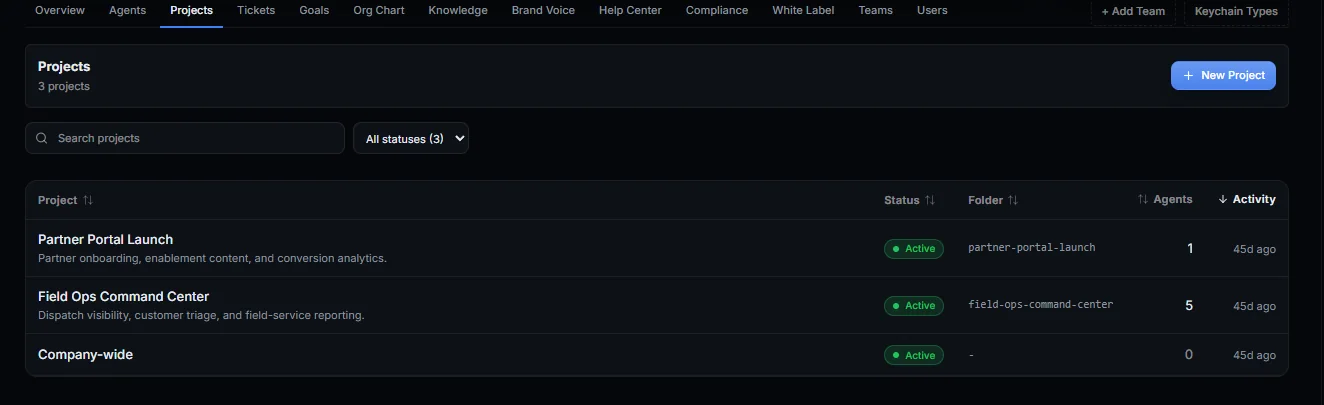
Projects lists the company's linked and created project workspaces. Select a project to open its dashboard or project route. See Projects and Plans and Project Setup.
The tab lists the company's projects as rows, newest activity first. Each row shows the project name and description, its status, the repository folder, how many agents work on it, and when it last changed. Hover the folder name to see the full path. If the list is longer than the window, it scrolls.
- Search projects matches the name, description, and folder.
- The status filter shows active, paused, or archived projects, with a count for each.
- Click a column header to sort by it. Click it again to reverse the order.
- In the desktop app, right-click a row to delete the project.
If the company has no linked projects, the tab shows an empty state instead of mixing in projects from other companies.
Tickets
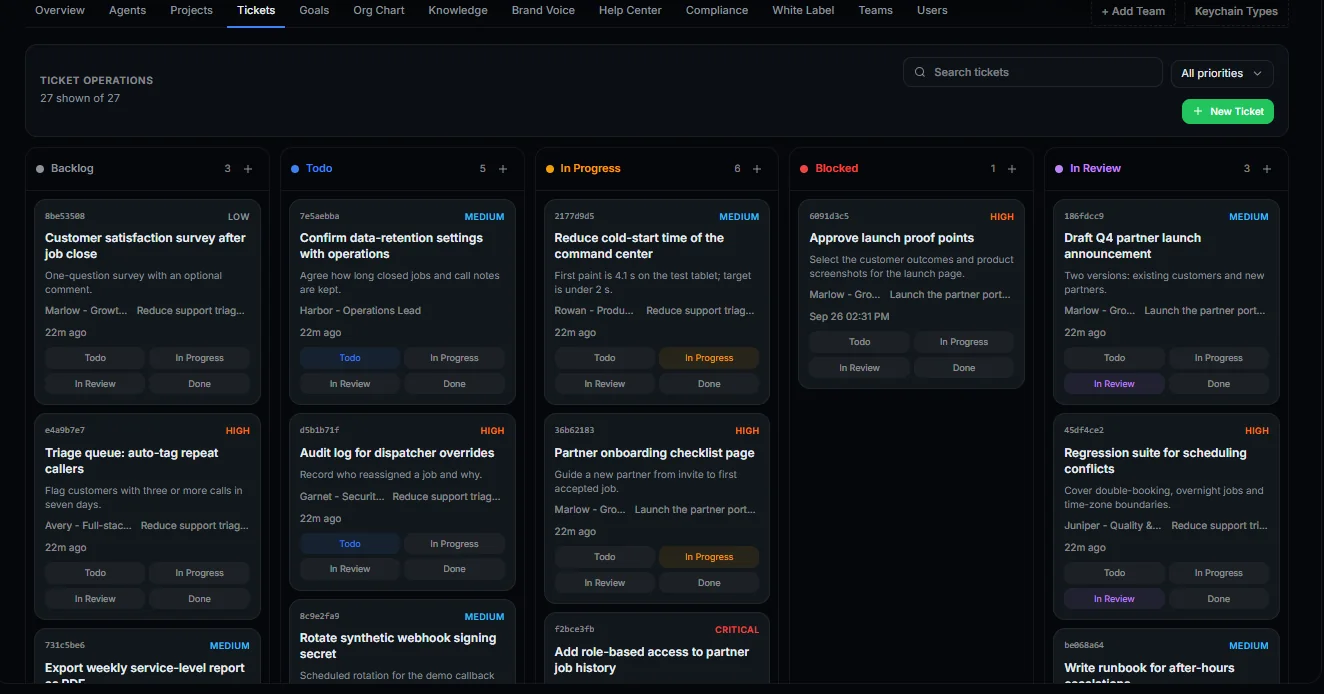
Tickets is the company-scoped work board. It supports status columns, priorities, assignments, comments, blockers, ticket details, and agent coordination. See Tickets.
Goals
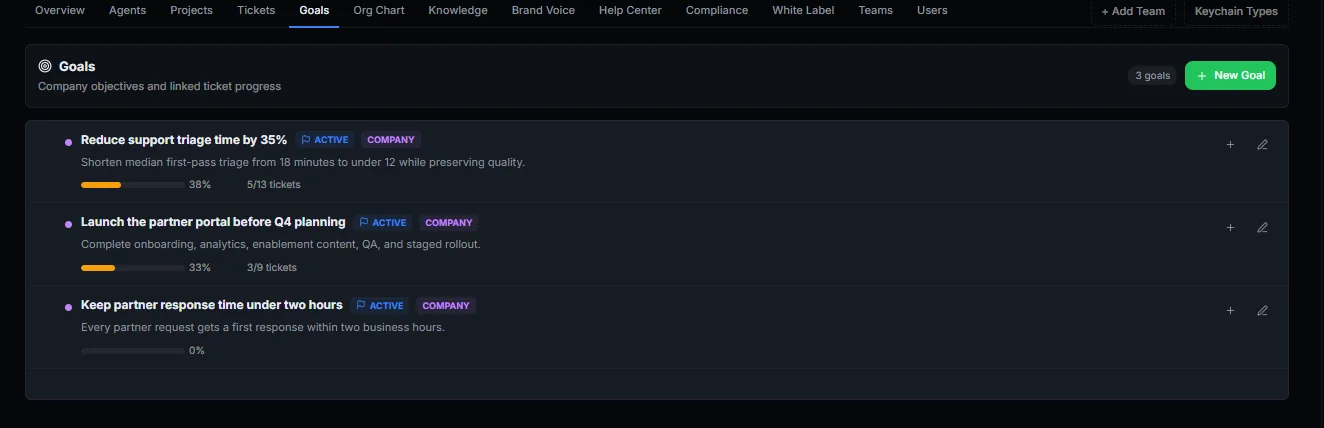
Goals tracks company objectives and their progress. A goal can be connected to project work and tickets, giving the company dashboard a higher-level view than an individual ticket.
Org Chart
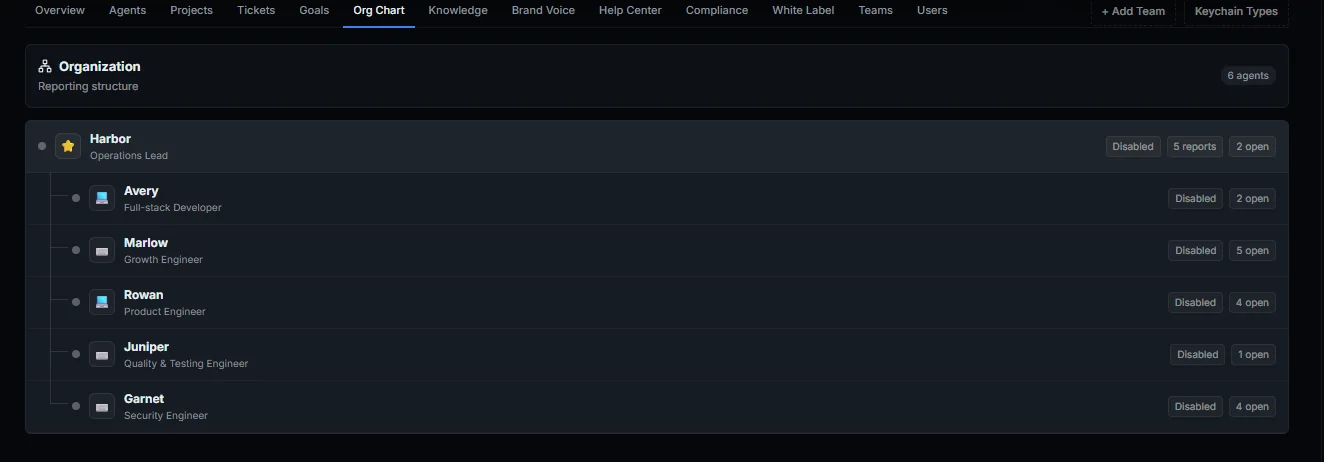
Org Chart visualizes reporting relationships between agents. Organizational fields are edited from the agent editor and team controls.
Knowledge
Knowledge searches company-scoped agent memory and graph-backed context. Use it to recover decisions, learnings, and relevant notes without searching each agent individually. See Knowledge Graph.
Brand Voice
Brand Voice stores positioning, writing rules, banned wording, content pillars, audience, and related guidance. Agents receive this context when they work for the company.
The web Brand Voice tab also carries the Brand Kit, which extends the voice with two things:
- Visual identity: named brand colors with a picker and usage notes, heading and body fonts, typography notes, logo asset paths, and a short on-brand example. Image, video, and design agents are instructed to treat these as binding for anything they produce.
- Lint tester: paste draft copy and run the same automatic check agents must pass before publishing. It flags every banned word and every avoided phrase from the preferred-language map, with the preferred substitute suggested. A clean result means the text is on brand as far as the rules can tell.
Voice fields stay the single source of truth for tone; the kit adds the visual half and the enforcement gate. Content, outreach, and SEO agents fetch the combined kit at run time, so edits here reach the fleet without touching any skill.
Help Center (web)
Help Center publishes selected knowledge as a branded public help site at /api/public/help/<slug> on the dashboard origin. Configure the site slug, title, and description, then flip Public when it is ready to serve.
- Articles are markdown, grouped into sections, and start as drafts; publish each one explicitly. Raw HTML in article bodies is escaped when the public page renders, so pasted content cannot inject scripts.
- Import from vault (administrators only) snapshots a vault markdown page into an article, deriving the title from its first heading. Re-importing the same path updates the article in place.
- Content agents keep articles current through the API - the platform injects the contract automatically for content-role agents. Only humans create the center itself.
- The public site carries the company's Brand Kit accent color and a search box over published articles.
Compliance (web)
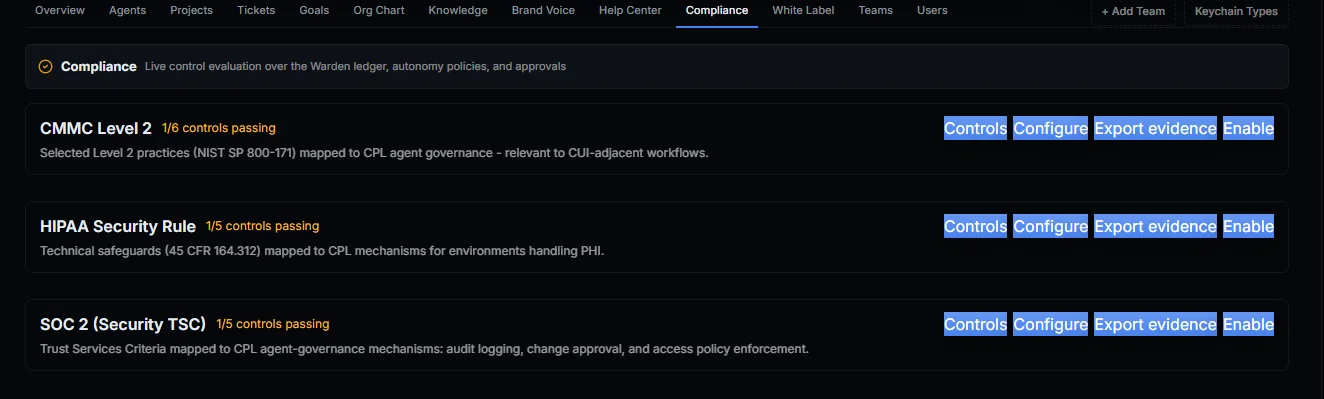
Compliance offers three starting templates named after common frameworks: SOC 2, HIPAA, and CMMC Level 2. Each one checks which of CPLai's own controls are switched on for this company: the Warden audit ledger and its hash-chain integrity, pre-execution enforcement, enforced autonomy policies, approval routing, and evidence retention. It checks CPLai's settings only. It does not assess your organization, and it is not a certification, an audit, or a compliance determination for any framework. Nothing here adds new enforcement; a failing control carries a remediation hint naming the exact toggle or policy to fix.
- Enable a pack (administrators) and configure its retention window and approval-required domains.
- The control checklist is live: flipping the relevant setting or policy changes the pass/fail immediately.
- Export evidence downloads a JSON bundle (checklist, recent ledger entries with chain verification, approval decisions, policy snapshots) and logs its SHA-256 digest to the export history, so an auditor can prove which bundle existed when. Retention prunes only these export-log rows; the audit ledger itself is append-only and never pruned.
White Label (web)
White Label controls how the web dashboard looks for this company's client logins - useful when you run CPLai on behalf of a client. It is presentation only; who can see what is still governed by company roles, unchanged.
- Branding (administrators): set a product name, upload a logo (under 200KB), pick an accent and sidebar color, and optionally hide CloudPeakLabs branding for client logins. Unset fields fall back to the company's Brand Kit color and the company name.
- Branded login: give the company a login slug and enable the public login page. The branded sign-in then serves at
/login?c=<slug>with the product name, logo, and accent. A login slug is unique across companies. - Usage rollup: a client-safe summary of this company's API cost and token usage.
When a non-administrator's memberships resolve to a single company, the web dashboard automatically enters client mode for them: the sidebar narrows to client-safe surfaces and the branding is applied. Full multi-tenant billing passthrough is a later phase.
Capability tabs
Enabled capabilities add their own dashboard tabs. The current catalog can include Leadership, Content Creation, Growth, Backlinks, SEO, Outreach, and Engineering. A capability tab combines its team roster with domain-specific workflow and reporting controls.
See Engineering Dashboard and Content Dashboard for the two largest specialized dashboards.
How do I review proposed outreach actions?
Open a company workspace and select its Outreach capability tab. When a suggest-tier or bounded-autonomy outreach agent proposes a browser write instead of publishing it, the Proposed Actions section appears on both desktop and web.
Each review card shows the platform, action type, agent, target, proposed content, filing time, and expiration time. Select Approve to allow that exact action or Reject to deny it. Expired proposals are automatically rejected and cannot be revived by a late approval.
The queue lists every pending proposal for the company regardless of platform, so approval-gated Agent mailboxes sends (platform email) appear here alongside browser-write proposals.
The graduation scoreboard summarizes each agent's full proposal history:
| Verdict | Meaning |
|---|---|
| insufficient | Fewer than 20 proposals have received a human decision |
| promote | At least 20 decisions with 95% or higher agreement |
| watch | Agreement is 60% to 94% |
| review | Agreement is below 60%; review the agent's prompt or skill before granting more autonomy |
Expiration does not count as disagreement because it measures reviewer response time, not proposal quality. Graduation verdicts are recommendations only. Change the agent's autonomy tier from its policy controls after reviewing the evidence.
Tip: The section stays hidden until the company has at least one proposal or a proposal-history row.
How do I add or remove a capability?
- Open the company workspace.
- Select Add Team or open the capability catalog.
- Choose the capability to enable.
- Review its templates and team structure.
- Hire individual templates or use the bulk-hire action when appropriate.
Removing a capability should be treated separately from deleting its agents or historical work. Read the confirmation dialog carefully before making structural changes.
How do teams and groups work?

A team is a company-level roster. Groups organize members inside a team and can be paused independently. A company may use the same team across several projects, so project-scoped hiring and membership filters matter.
Desktop contains the complete team-management flow. Web can manage membership, groups, ordering, colors, and pause state for existing teams. If a web surface does not offer team creation for the company, create the team from the desktop flow and then manage it on web.
How do I use Keychain Types?
Open Keychain Types next to the company tabs, in the desktop app or the web dashboard. Saving changes requires company administrator access. This controls which credential-entry types are available or overridden for that company. Actual credentials and grants are managed in Keychain.
How do company users work?

Web administrators can open Users from a company workspace to manage membership and company roles. Instance-wide user, permission, security, and audit controls live under Admin. See Settings.
How does company scope affect other pages?
The web top-bar company switcher sets the active company. Switching company can change:
- the available agents and teams
- Inbox and ticket counts
- project choices
- company-scoped workflows
- Chat project filters and context
- skills, resources, and capability dashboards
- Usage, ROI, and Insights filters
Always confirm the company shown in the global context bar before creating or mutating company-scoped work.
How do I pause a company?
Pausing a company stops its scheduled runs. Manual launches, handoffs, alerts, and chat-started runs still execute; pause only holds autonomous scheduled work.
- Desktop: use Pause or Resume in the company page header (Companies -> company), or the pause button on the company row in the Agents sidebar.
- Web: use Pause or Resume on the company page header, or the pause button on the company row in the Agents directory.
Pausing also marks every team and group in the company as paused. Resuming clears the company, team, group, and member pauses together. It does not clear an agent's own pause: an agent you paused on its own stays paused. A paused company shows a Paused badge on its company page, in the Agents directory, and on the desktop sidebar row. Its agents show Paused before their role in the roster.
Each pause and resume is recorded in the audit log as company.paused or company.resumed, with who made the change and the status before and after. Resuming one team or group inside a paused company also sets the company back to active (its other teams stay paused), and that is recorded as company.resumed too, with via naming the team or group resume.
How do I delete a company?
Company deletion is destructive and admin-controlled. Before confirming, review the dialog for affected agents, projects, teams, tickets, goals, credentials, and historical records. If the intention is only to stop automated work, pause the company instead.
Company deletion is a permanent, atomic operation. When you confirm deletion, CPLai removes the company and all of its data in a single transaction:
- All agents and their run history, logs, memory, and conversations
- All tickets and ticket comments
- All projects linked to the company
- All goals, teams, and dispatch history
Usage and spend records stay, so spend totals still add up. Deleting from the desktop app, the web dashboard, or the API does the same thing.
The deletion rolls back completely if any step fails - you either lose everything or nothing. There is no partial-delete state.
Tip: Company deletion requires admin-level access on that specific company. Global admin access alone is not sufficient - you must be listed as an admin for the company you are deleting. This is enforced on the backend.