Settings: Files & storage
Last reviewed November 15, 2026 (checked against the app).
These settings are on the Folders & cleanup and Projects pages of Settings, plus Vulnerability Watch under Security, on desktop and web. All settings lists every page.
How do I set workspace paths?
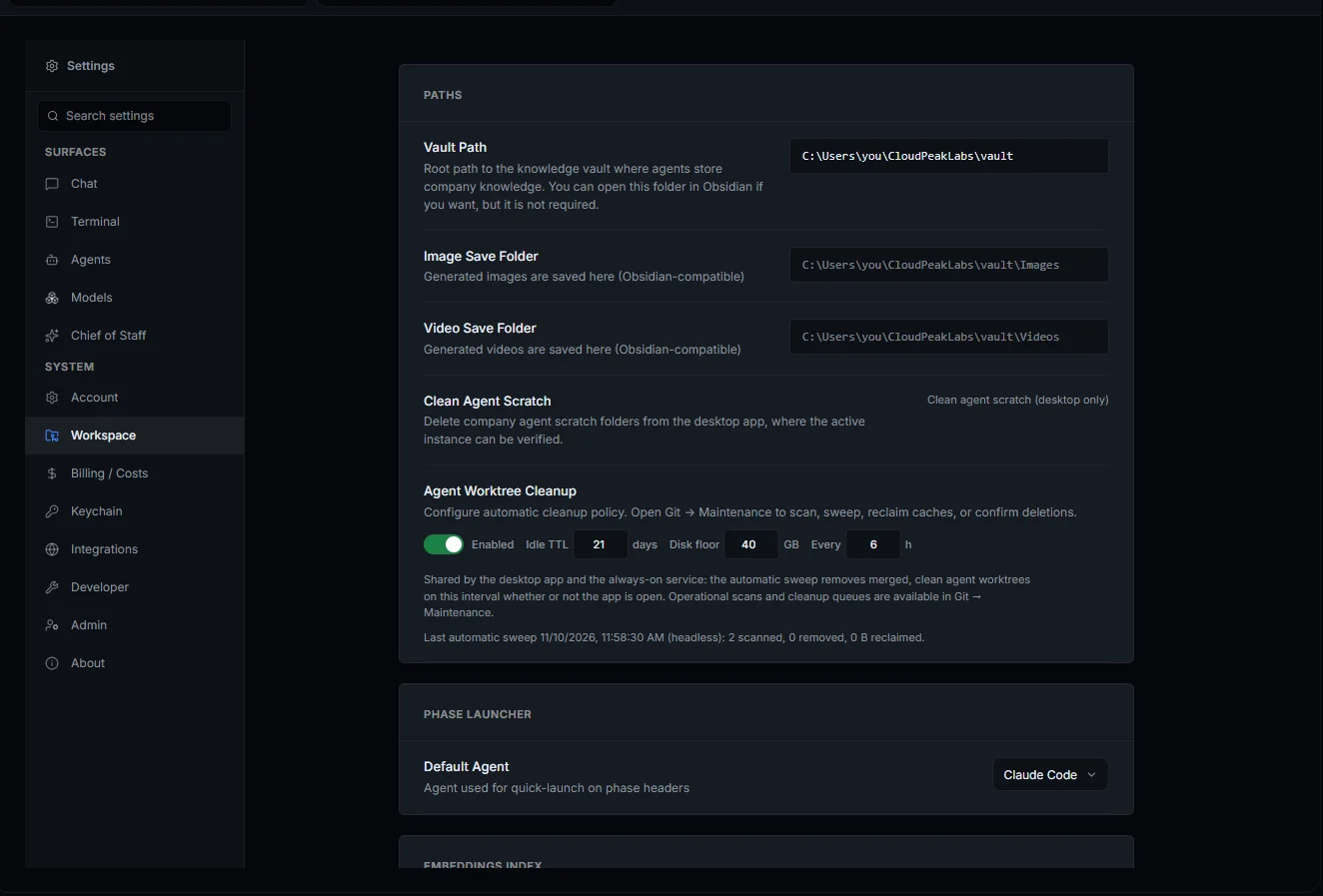
Folders are in two places. Settings -> Folders & cleanup -> Folders holds the data folder and the generated media folders (on web, the two media folders). Settings -> Vault & search -> Vault and librarian holds the vault folder and the librarian; the data folder and the three librarian rows are desktop-only.
| Path | What it controls |
|---|---|
| Data folder | Parent folder for company folders, project folders, and agent scratch workspaces |
| Vault folder | Knowledge vault used by the Vault page, semantic search, RAG, notes, and generated media (Obsidian-compatible) |
| Librarian model | Now in Settings -> Utility models -> Vault librarian. Model the vault librarian uses to synthesize knowledge notes and create a fallback when a completed run has no usable agent-authored reflection. Any configured provider, a local Ollama model, or Off for deterministic notes only. Cloud choices bill per token through your stored API key (never the Claude Max / CLI plan). |
| Notes per night | Max notes the nightly librarian enriches per run. 0 = unlimited. Caps per-night spend so a large backlog spreads across nights. |
| Token budget per night | Approximate token budget per nightly librarian run. 0 = unlimited. The run stops enriching once the estimate is reached and carries the rest to the next night. |
| Generated images folder | Default folder for generated images |
| Generated videos folder | Default folder for generated videos |
How do I move existing company folders?
- Open Settings -> Folders & cleanup -> Folders in the desktop app.
- Click Change and migrate... next to Data folder.
- Choose how each company folder should be handled.
- Apply the migration.
Changing the text field alone affects new companies. Use the migration wizard when existing company folders need to move.
How do I clean agent scratch files?
- Open Settings -> Folders & cleanup in the desktop app and scroll to the Danger zone card.
- Click Clean agent scratch.
- Confirm the cleanup.
This removes agent scratch folders such as screenshots, notes, and temporary state files from every company folder. It does not delete agents, companies, projects, tickets, or run history.
How do I configure project rules and indexing?
Open Settings -> Projects. Vulnerability Watch has its own page under Security.
| Card | Use it for |
|---|---|
| Phase launcher | Choose the default CLI for phase quick-launch actions |
| Vulnerability Watch (Security) | Turn scheduled vulnerability checks on or off, set how often they run, and choose whether package names go to OSV.dev and Packagist. These apply to every company, so only the server owner can change them. See Vulnerability Watch |
| Project folders | Turn the 6-hourly fetch of each project's main branch on or off (on by default). It never changes files or branches. Only the server owner can change it. See Is my project folder up to date? |
| Project rules | Manage rules injected into project and agent prompts |
| File checkpoints | Review and restore checkpoints created before AI file edits |
The Worktree cleanup policy used by Git Maintenance is a card on Folders & cleanup, described below. Codebase Indexing (re-index vault markdown for semantic search) is on Vault & search.
Project rules editor
Both the desktop app and the web dashboard support full project rules management through the same API, and both store rules in the vault's .cloudpeaklabs/rules/ folder. You can create, edit, and delete rules that are injected into project and agent prompts. A vault folder must be set (in Vault & search) before rules can be added.
Each rule has three fields:
| Field | Purpose |
|---|---|
| Name | Human-readable identifier for the rule |
| Type | Always (injected every time), Glob (injected when matching files are in scope), or Manual (available but not auto-injected) |
| Content | The rule text injected into the prompt |
When the type is Glob, a glob pattern field appears. The rule is injected only when the agent or project session involves files matching the pattern.
Agent Worktree Cleanup
Settings stores the Worktree Janitor policy. The desktop app and web dashboard share the same company-scoped scan, sweep, and delete workflow in Git -> Maintenance.
- Open Settings -> Folders & cleanup -> Worktree cleanup to configure the cleanup policy.
- Open Git -> Maintenance and choose a company.
- Click Refresh to find idle worktrees and scratch candidates.
- Review the managed worktree queue, scratch queue, and any sibling worktree dry-run report.
- Delete queued idle worktrees or scratch entries individually. Sweep automatically removes only clean, merged worktrees inside managed agent roots.
Note: the scan runs git checks and sizes queue candidates on disk; a large fleet (250+ worktrees) takes on the order of ten seconds. The summary line updates when it finishes.
| Setting | Default | What it controls |
|---|---|---|
| Clean up automatically | On | Whether the automatic sweep runs on its interval |
| Remove worktrees idle for (days) | 21 | Worktrees idle longer than this are candidates for cleanup |
| Clean sooner below (GB free) | 40 | Free-space floor passed to desktop agent launches; headless scheduled launches use 40 GB |
| Check every (hours) | 6 | How often the automatic sweep runs |
The policy is stored once on the server, so the desktop app and the web dashboard always show and edit the same values. The automatic sweep itself runs inside CPLai's API server, in both the desktop app and the always-on headless service, so it keeps running when the desktop app is closed. The two processes share one database claim per interval: whichever checks first runs the sweep and the other skips it, so a worktree is never removed twice or by two processes at once. Each sweep walks every company that has a repository-backed project and removes only merged, clean agent worktrees using the same checks as the Sweep button. Idle worktrees and scratch candidates are counted but never deleted automatically. The Last automatic cleanup row shows when the last automatic sweep finished, which machine ran it, how many worktrees it checked and removed, and the space it freed; a badge in the card header says Not run yet, Ran cleanly, or how many errors it hit, and Show the errors lists them. The same summary appears at the top of Git -> Maintenance. Every sweep also writes one summary line to the process log (cpl-headless-service.log for the service).
In addition to the configured sweep, CPLai runs a separate hourly pressure check. When a managed repository volume falls below the fixed 80 GB warning line, it removes only regenerable src-tauri/target and node_modules caches from clean, merged, inactive managed worktrees. CPLai re-checks for active runs immediately before processing each worktree, preserves the worktree and source files, and stops reclaiming once free space recovers. The next build in a reclaimed worktree may need to reinstall dependencies or recompile Rust crates.
The pressure check is a fixed safety guard and is independent of the Clean up automatically, Clean sooner below, and Check every controls shown above. The Clean sooner below value governs the desktop launch floor; headless scheduled launches use the 40 GB default.
When the agent volume drops below the effective launch floor, scheduled spawns are deferred instead of recorded as failed runs. CPLai sends one critical owner notification for the low-disk episode and a recovery notice after free space returns above the floor. Deferred schedules resume on their normal ticks. A manual launch still returns an immediate low-disk error so the operator knows why it did not start.
Tip: The Worktree Janitor only removes worktrees with no uncommitted changes. It checks for dirty state before deleting.
How do I review sibling worktrees safely?
The Sibling Worktrees - dry run section in Git -> Maintenance reports registered worktrees outside CPLai's managed agent and shadow roots that may be safe to reclaim. A sibling appears only when it is clean and either its branch is merged or it has been idle longer than the configured TTL.
Each row shows the path, the reason it qualified, and its estimated disk size. The section header shows the total candidate count and reclaimable space.
This section is report-only. It has no delete action, Sweep does not remove these worktrees, and the API rejects them from the managed deletion path. The beta worktree, Codex-managed worktrees, protected project roots and branches, dirty worktrees, and worktrees used by an active run are excluded.
Tip: Use the dry-run list to understand where disk space is going. Review and remove a sibling worktree with its owning tool or normal Git worktree workflow only after confirming its branch and local state.