Keyboard Shortcuts
Last reviewed October 28, 2026 (checked against the app).
Open the shortcut reference
On desktop, click the keyboard icon in the title bar to open the app-wide shortcut reference. On web, open the Workspace tools menu (the ... button at the right of the top bar) and choose Keyboard shortcuts. Desktop Chat also exposes the same reference from Overflow -> Keyboard Shortcuts and from Show Keyboard Shortcuts in the Chat command palette.
The reference is read-only. Editable keyboard macros remain in Settings -> Automation, and the configurable terminal voice hotkey remains with Terminal settings.
Desktop global shortcuts
| Shortcut | Action |
|---|---|
Ctrl+1 |
Today |
Ctrl+2 |
Dashboard |
Ctrl+3 |
Companies |
Ctrl+4 |
Agents |
Ctrl+5 |
Client Outcomes |
Ctrl+6 |
Inbox |
Ctrl+7 |
Tickets |
Ctrl+8 |
Incidents |
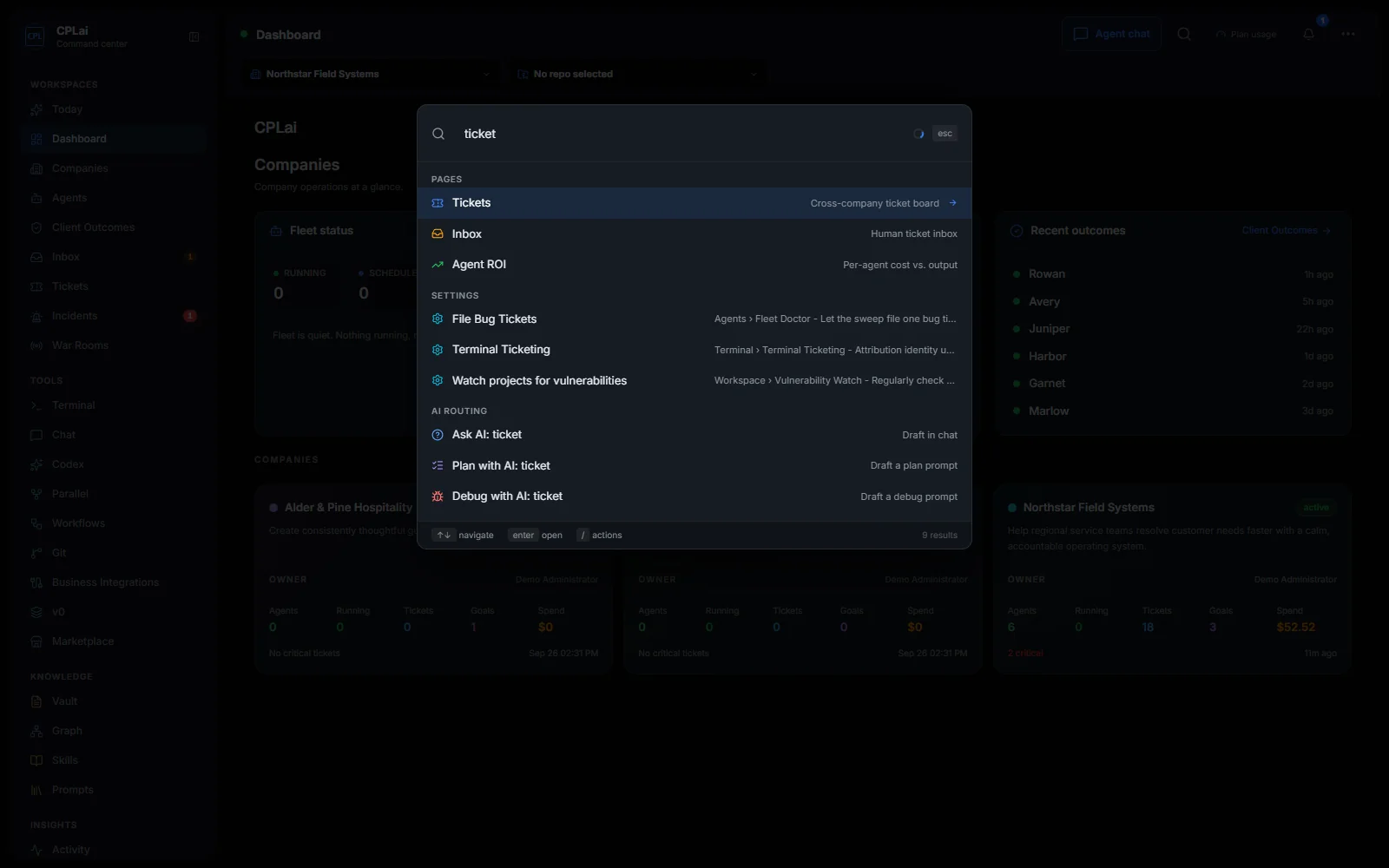
Ctrl+K |
Command Palette |
Ctrl+Shift+N |
Open Start Work |
Ctrl+N |
Create a new Chat conversation and open Chat |
Ctrl+Space |
Open Quick Capture |
| Custom macro shortcut | Run the matching enabled keyboard macro |
F5, Ctrl+R, or Ctrl+Shift+R |
Reload is blocked outside terminal panes to protect live desktop sessions |
Page-switch shortcuts do not fire while focus is inside an input, text area, or editable element. They do work while a terminal pane has focus. Ctrl+K remains global so the palette can be opened while typing.
Important: The number shortcuts follow the first eight sidebar entries. Pages such as Terminal, Chat, Projects, and Settings have no number shortcut; open them from the sidebar, the title bar (Settings), or the Command Palette.
The desktop shell deliberately ignores browser reload shortcuts outside terminal panes because a WebView reload would disconnect live PTYs and discard unsent drafts. Inside a terminal pane, Ctrl+R still reaches the running shell or TUI, including PowerShell reverse-history search. The web dashboard keeps the browser's normal refresh behavior.
Web global shortcuts
| Shortcut | Action |
|---|---|
Ctrl+K or Cmd+K |
Command Palette |
Ctrl+Shift+N or Cmd+Shift+N |
Open Start Work |
Ctrl+N |
Open Chat's New conversation dialog (stays on the open conversation if you are already in Chat) |
Ctrl+1 through Ctrl+8 |
Switch to Today, Dashboard, Companies, Agents, Client Outcomes, Inbox, Tickets, and Incidents |
| Custom macro shortcut | Run the matching enabled keyboard macro |
Page-switch shortcuts do not fire while focus is inside an input, text area, or editable element.
Browsers reserve some shortcuts for themselves in a regular tab, notably Ctrl+N and Ctrl+Shift+N (new window and private window), so those two may not reach CPLai there. They do work in the desktop app.
Quick Capture
On desktop, Ctrl+Space opens the Quick Capture overlay from any page. The same action is available from the Command Palette. Quick Capture writes to the local vault and is therefore desktop-only; the web shortcut reference leaves it out.
Desktop Chat
| Shortcut | Action |
|---|---|
Enter |
Send from the composer or accept a picker item |
Shift+Enter |
Insert a new line |
ArrowUp in an empty composer |
Previous composer-history entry |
ArrowDown while browsing history |
Next composer-history entry |
Ctrl+Z |
Undo composer edit |
Ctrl+Shift+Z |
Redo composer edit |
/ |
Open the slash picker while typing |
@ |
Open the context mention picker while typing |
Ctrl+F |
Toggle in-conversation search |
Ctrl+Tab |
Next non-archived conversation |
Ctrl+Shift+Tab |
Previous non-archived conversation |
Ctrl+Shift+F |
Toggle Focus Mode |
Escape |
Exit Focus Mode or close the active picker/search/menu |
Ctrl+Shift+C |
Copy the latest assistant response |
Ctrl+B |
Toggle the Chat conversation sidebar |
Ctrl+M |
Toggle the Chat model panel |
Alt+A |
Archive the active conversation |
Alt+P |
Pin the active conversation |
j / k |
Move the focused message down or up when not typing |
m |
Bookmark the focused message |
Ctrl+ArrowUp / Ctrl+ArrowDown |
Jump to the previous or next user message |
Alt+1 through Alt+5 |
Select one of the five desktop quick-model slots |
Web Chat
| Shortcut | Action |
|---|---|
Enter |
Send or accept a picker item |
Shift+Enter |
Insert a new line |
ArrowUp / ArrowDown |
Navigate picker items or composer history, depending on context |
Tab |
Accept the active picker item |
Escape |
Close the active picker or menu |
Desktop-only conversation navigation shortcuts should not be assumed to work in web Chat.
Inbox
The desktop Inbox and web Inbox above 860px expose the same triage keys. Use the ? help overlay on either surface.
| Shortcut | Action |
|---|---|
j or ArrowDown |
Next ticket |
k or ArrowUp |
Previous ticket |
Enter or i |
Focus the reply box |
Escape |
Leave the reply box |
Ctrl+Enter |
Send; when blocked, also unblock and advance |
u |
Unblock without a comment and advance |
d |
Mark done and advance |
b |
Block again, or update the ask on an already-blocked ticket |
r |
Open reassignment |
p |
Cycle priority |
? |
Toggle the shortcut overlay |
x |
Return to Companies |
Web Inbox supports the full table above when its viewport is wider than 860px. Shortcuts pause while focus is in an input, text area, select, editable control, or action dialog. Escape leaves the reply field, and Ctrl+Enter sends from it.
At 860px or below, the web Inbox disables bare-key commands to prevent accidental actions while using a touch layout. Reply, Chat, Unblock, Update ask/Block again, Reassign, Priority, Done, and Send remain available as visible controls.
After a blocked reply, web shows a five-second Undo action. Undo restores ticket routing only; it does not delete the posted comment.
Terminal
| Shortcut | Action |
|---|---|
Ctrl+F |
Open find-in-terminal |
Ctrl+C |
Copy when text is selected; otherwise send interrupt to the PTY |
Cmd+C (Mac, iPad keyboard) |
Copy when text is selected; otherwise send interrupt to the PTY, like Ctrl+C |
Ctrl+V |
Paste into the PTY |
Ctrl+A |
Select all terminal content |
Ctrl+Shift+C |
Copy the current selection |
Ctrl+Shift+V |
Paste into the PTY |
Ctrl+K |
Let the global Command Palette open |
Ctrl+Click or Cmd+Click |
Open a recognized terminal file path in the file editor panel beside the terminals, at the line when one is given |
Ctrl+1 through Ctrl+8 |
Let the app's page switcher handle the shortcut |
| Configured voice hotkey | Start or toggle terminal dictation when enabled |
Mouse-mode terminal applications can consume pointer input. Hold Shift while selecting text when the running TUI owns normal drag events.
Project file editor
| Shortcut | Action |
|---|---|
Ctrl+P or Cmd+P |
Quick Open |
Ctrl+Shift+P or Cmd+Shift+P |
File-editor command palette |
Ctrl+K or Cmd+K with a selection |
Inline AI edit |
Ctrl+S or Cmd+S |
Save the current file |
Escape |
Close Quick Open, command palette, or project search |
The web file editor supports all of these shortcuts. On web, Ctrl+S saves only while focus is inside the editor; elsewhere on the page the browser handles it.
Parallel and workflows
| Shortcut | Surface | Action |
|---|---|---|
Ctrl+Enter |
Web race launcher | Launch when the form is valid |
Escape |
Parallel preview | Close the focused preview or modal |
Ctrl+Enter |
Plan or workflow AI dialogs | Submit where the dialog advertises it |
Keyboard macros on web
Web Settings can define custom macros. The desktop app runs the same macros (they are stored in a shared setting and edited in desktop Settings -> Automation too). A macro may navigate, open a terminal, launch an agent run, show a toast, or wait between steps.
- Open Settings > Developer tools.
- Find Keyboard macros.
- Enter a name, optional description, shortcut, and command sequence.
- Save and enable the macro.
Macro shortcuts must include Ctrl, Alt, or Meta plus another key. They do not run while focus is in a text input, select, or editable field.
A terminal step takes a shell and an optional working directory: terminal <shell> [folder]. Anything after the shell is treated as the folder, not a tab title.
Example:
navigate /chat
wait 300
terminal claude D:\Work\sample-app
toast Ready to go