Settings: Appearance
Last reviewed November 15, 2026 (checked against the app).
These settings are in Settings -> Appearance on desktop and web. All settings lists every section.
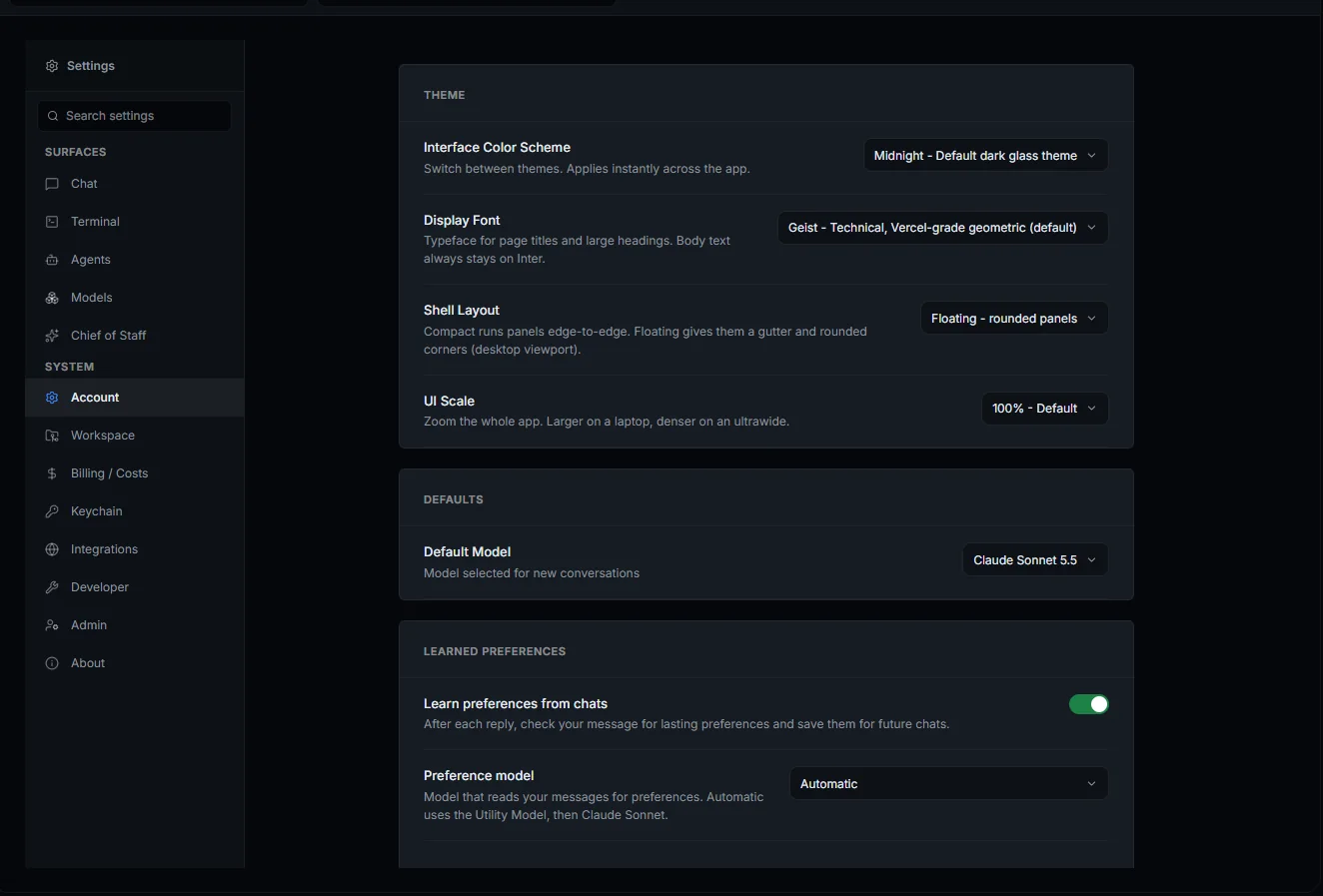
How do I switch themes?
- Open Settings -> Appearance.
- Find Theme.
- Choose a theme:
| Theme | Style | Description |
|---|---|---|
| Graphite | Dark | The default. Neutral dark panels with an iris accent |
| Daylight | Light | Bright panels on a cool grey background with a cobalt accent |
| Dusk | Dark | Deep violet with an apricot accent |
| Midnight | Dark | The original look: navy panels with a strong blue accent |
You can also click the palette button at the top right of the window. Each click moves to the next theme in this list and wraps back to the first. Its tooltip names the theme you are on and the one the next click gives you.
In every theme the menu sections keep their own colors (Workspaces blue, Tools cyan, Knowledge amber, Insights green), and statuses, counts and money figures are drawn in color.
The theme applies instantly across the entire app, including terminals, modals, toasts, and the sidebar. The web dashboard shares the same theme options.
The Theme card also holds three more appearance controls:
| Setting | What it does |
|---|---|
| Display Font | Typeface for page titles and large headings. Body text always stays on Inter. |
| Shell Layout | Compact runs panels edge to edge; Floating gives them a gutter and rounded corners. |
| UI Scale | Zooms the whole app: larger on a laptop, denser on an ultrawide. |
Tip: Terminal sessions automatically adapt to the active theme, so syntax highlighting and background colors stay readable in every theme.
How do I choose my default chat model?
- Open Settings -> Appearance.
- Find Defaults.
- Choose the model used for new conversations.
This affects new conversations only. Existing conversations keep their selected model unless you switch it in the Chat page.
For desktop new conversations, CPLai resolves the model in this order:
- A model explicitly supplied by the action that creates the conversation
- The Account Default Model, when it is available
- The Integrations Ollama Default Model, with the
ollama:prefix added when needed - Claude Sonnet 5.5 when nothing valid is configured
An Account default that already starts with ollama: is honored even before local model discovery finishes. If Ollama is offline, CPLai reports that connection problem when you send instead of silently changing the conversation to a cloud model.
Claude Fable 5 appears in the model list, but CPLai does not choose it as a built-in default or Smart Auto winner. Its API-equivalent rate is $10 input / $50 output per 1M tokens. Select it here only when you intentionally want Fable for new conversations.
How do I configure voice output (read aloud)?
Open Settings -> Appearance -> Voice Output (TTS).
| Setting | What it controls |
|---|---|
| Provider | The synthesis engine. Microsoft Edge TTS (free, keyless) is the default. |
| Voice | The default Edge TTS voice for read-aloud. Default is Aria (US, female). Individual agents can override this with their own voice in the agent edit modal (General -> Voice). |
| Speed | Playback speed from 0.5x (slow) to 2.0x (fast). Default is 1.0x. |
Turn read-aloud on/off with the speaker toggle in the chat composer bar (next to attach/mic) - it is one global switch that applies to every chat and agent. There is no per-message speaker button. The desktop app uses a Rust-side Edge TTS engine for synthesis (it auto-detects the installed Edge version, so it keeps working across Edge updates); the web dashboard falls back to the browser's built-in Web Speech API.