Project Setup
Create, link, and organize project workspaces so agents, plans, terminals, races, and tickets stay scoped to the right codebase.
Last reviewed October 28, 2026 (checked against the app).
What is a project?
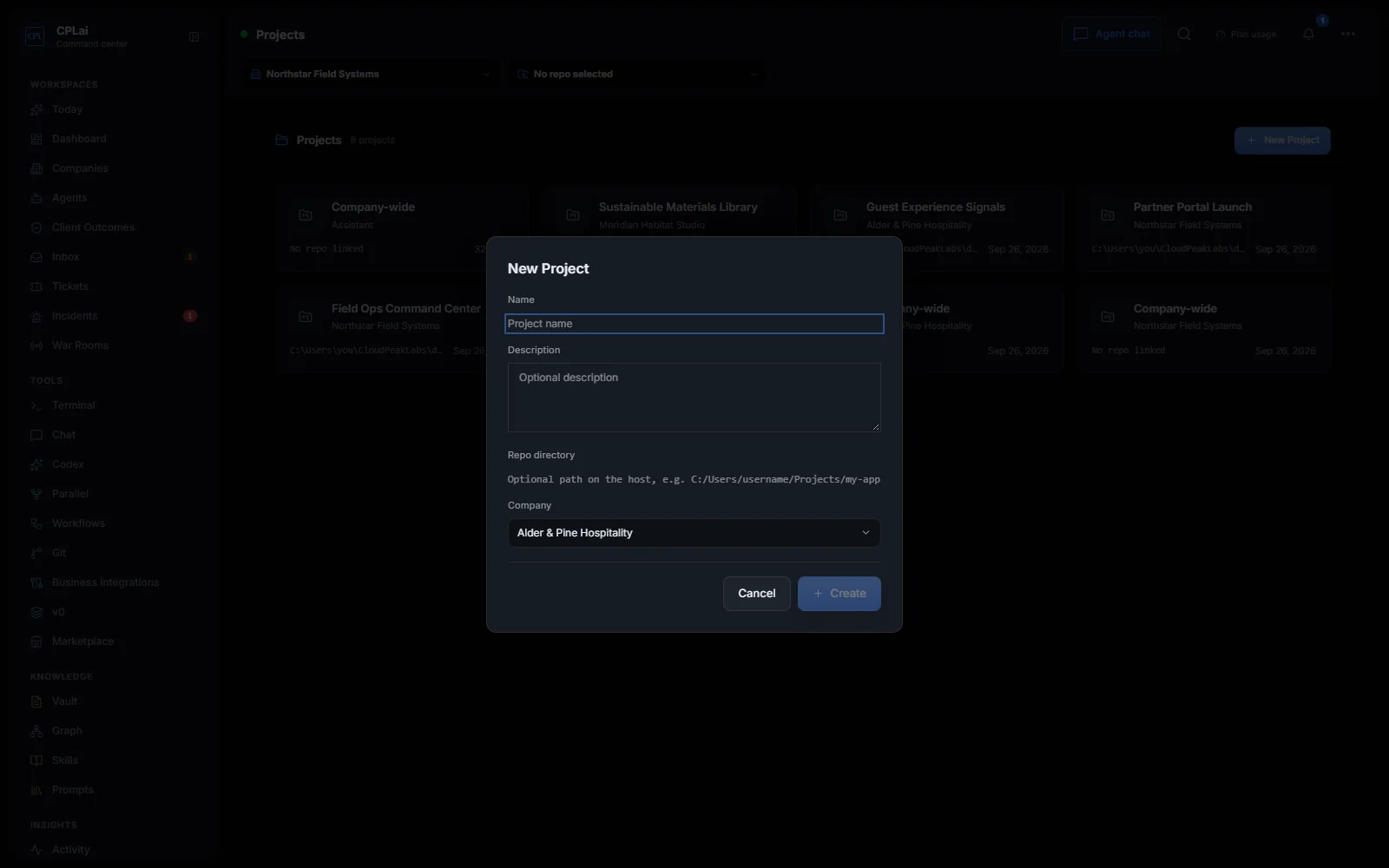
A project is a CPLai workspace around a repository or folder. It brings together plans, terminals, chats, races, v0 generations, agents, tickets, and company context.
Projects can be owned by CPLai or linked in place:
| Project mode | What it means | Use it when |
|---|---|---|
| New Repo | CPLai creates the project folder and initializes git | You are starting a new codebase |
| Existing Repo | CPLai links to a folder that already exists | You already have a repository on disk |
How do I create a project?
- Open the new project dialog from one of these places (Projects is not in the sidebar):
- Companies > open a company > Projects tab > New Project. The project is linked to that company.
- After you pick a workspace, open the Repo breadcrumb at the top of the page and choose Create New Repo. The dialog opens in New Repo mode with that company selected.
- Open the Projects page from the Command Palette (
Ctrl+K) and click New Project.
- Enter a project name.
- Choose Existing Repo or New Repo.
- Select or enter the repository folder.
- Choose a company when the project belongs to a company.
- Add an optional description.
- Click Create Project.
When a company is selected and you choose New Repo, CPLai suggests a folder under that company's data root.
How do company roots work?
Each company has a canonical folder under the CPL Data Root. The company folder holds company-owned project folders and CPLai-managed scratch space.
You can change the default parent folder in the desktop app under Settings > Files & storage > Folders > Data folder.
| Setting | What it does |
|---|---|
| Data Root | Sets the parent folder for new company folders |
| Change & migrate... | Moves existing company folders to a new parent when you choose to migrate |
| Clean agent scratch | Deletes agent scratch folders (screenshots, notes, temporary state) from every company folder |
Editing the text field only changes the default for new companies. Use Change & migrate... when you want existing companies moved too.
How do linked projects differ from created projects?
| Behavior | New Repo | Existing Repo |
|---|---|---|
| Folder ownership | CPLai creates and owns the folder | CPLai links to your existing folder |
| Git setup | CPLai runs git init if needed |
Existing git state is preserved |
| Suggested path | Under the selected company's data root | Whatever folder you choose |
| Moving company roots | CPLai-owned folders can move with the company root | Linked folders stay where they are |
Tip: Use Existing Repo for real product repositories that already live in a folder you chose. Use New Repo for fresh CPLai-created work.
How do project-scoped agents work?
Project-scoped agents have two important paths:
| Path | Purpose |
|---|---|
| Working directory | The repository or project folder where the agent runs commands and edits files |
| Workspace directory | CPLai-managed scratch space for screenshots, notes, state, and transient files |
The workspace directory is separate from the working directory. Moving an agent between projects changes where it works, but its scratch path remains under the company's managed scratch tree.
Agents receive the workspace path as CPL_AGENT_WORKSPACE at run time. Scratch files should go under:
| Subfolder | Use it for |
|---|---|
screenshots |
Browser screenshots and image captures |
notes |
Drafts, research logs, and session notes |
state |
Cursor files, pagination state, and reusable run state |
Source code belongs in the project repository. Finished reports, decks, generated HTML and exports for review go in the project's configured Artifacts folder. Living session handoffs go in its Session handoff folder. Configure both under Settings -> Agent memory -> Agent Memory; CPLai appends the project name to each base folder. See Agent Memory Files for the folder layout and recall availability.
How do projects connect to the rest of CPLai?
| Area | Project behavior |
|---|---|
| Plans | Plans live inside the project and can launch phases |
| Terminal | Project terminals open in the project's repository folder |
| Chat | Project Advisor uses project files and plan context |
| Parallel Racing | Races can be launched from a plan phase and linked back to the project |
| Agents | Agents can be scoped to a project and shown in that project's dashboard |
| Tickets | Work can be assigned to agents that belong to the project or company |
| v0 | v0 generations can be linked to a project |
How do I avoid losing agents in the sidebar?
Agents are grouped by company and team, not by project. To see the agents scoped to one project, open the project and look at its Agents section, which groups them by team.
| Where | How agents are grouped |
|---|---|
| Desktop Agents page sidebar | Company, then team, then team group. Agents on no team sit directly under their company. Agents with no company appear under Unassigned at the bottom. |
| Web Agents page | Switch between Company, Project, and Team views. The Company view lists agents with no company under Unassigned. The Project view lists agents with no project under Company-wide. The Team view lists agents on no team under No team. |
| A company's Agents & Teams tab (Agents on web) | The agents and teams that belong to that company. |
If an agent appears under Unassigned, set its company before launching important work.