Recipe: Set Up a Project Plan
Last reviewed October 28, 2026 (checked against the app).
Goal: turn a repository plus a feature idea into a phased plan you can execute step by step - yourself, with an agent, or with a race per phase.
Prerequisites: the Quickstart and a git repository (existing or new - the create dialog can initialize one).
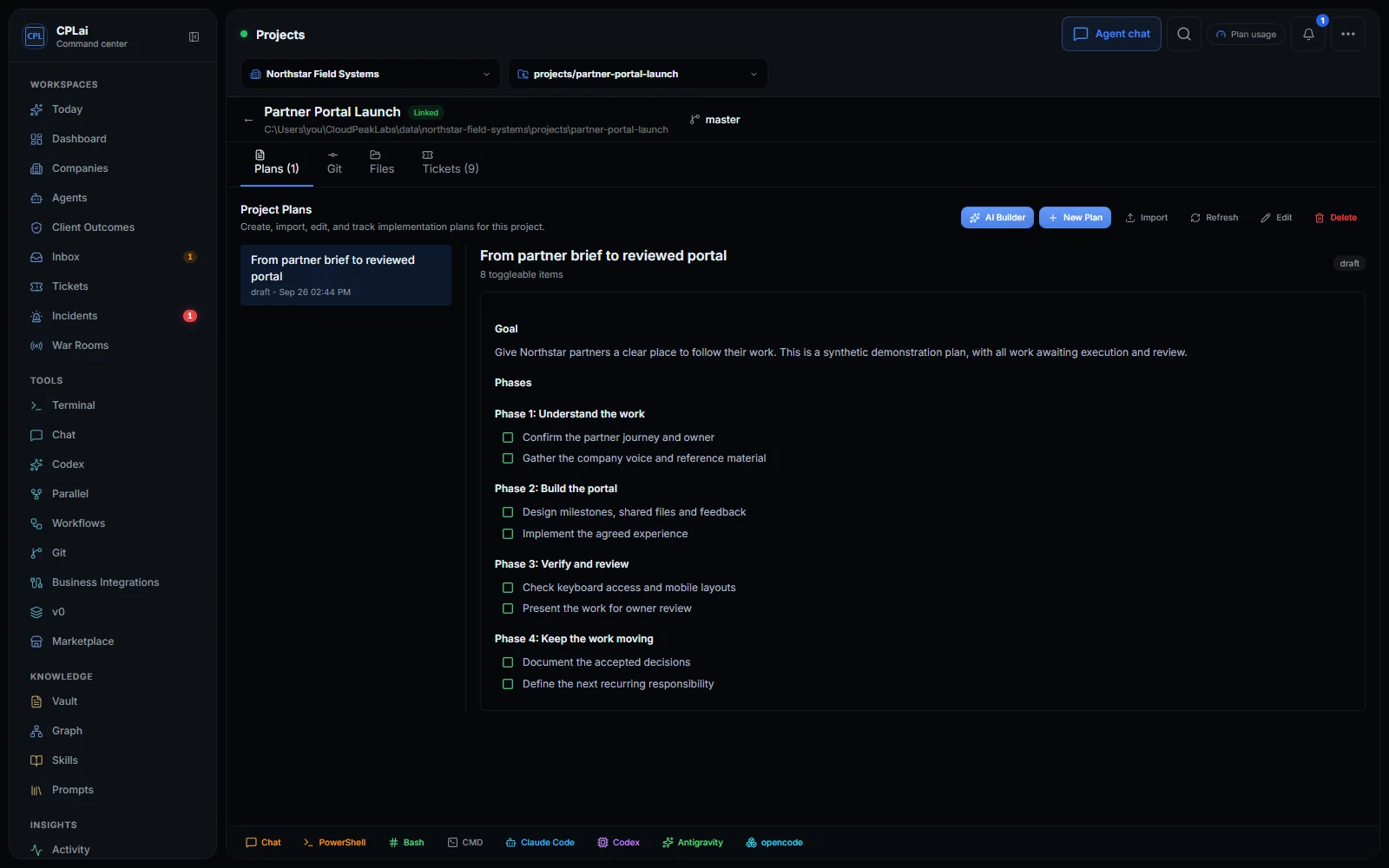
Steps
- Open Companies, select the company, open its Projects tab, and click New Project. Pick an existing repository or create a new one, then create. Projects is not in the sidebar; you can also open the Projects page from the Command Palette (
Ctrl+K), where New Project lets you link a company. - Inside the project workspace, create a plan. Describe the feature; the plan builder produces phases with concrete tasks. You can also import an existing plan document.
- Review the phases and edit anything that's wrong. A good plan reads like a sequence of PR-sized chunks.
- Execute phase by phase. Each phase can be launched into a terminal session with an AI CLI, sent to a Parallel race (the phase becomes the race prompt), or handed to an agent.
- Check off tasks as they complete. The project tracks phase progress, and tickets can be linked so the board stays honest.
You're done when
The first phase's work exists as a real change in your repo and its tasks are checked off in the plan.
Worth knowing early
- The project workspace bundles the repo's files, Git status, plans, tickets, and terminals in one place - you rarely need to leave it during feature work.
- For riskier or parallel work, Development Workspaces give each work stream an isolated branch-backed worktree with review and CI gates before anything converges.
Go deeper
Projects and Plans for the full workspace; Project Setup for repo layout and memory files.