Getting Started with CPLai
Last reviewed October 28, 2026 (checked against the app).
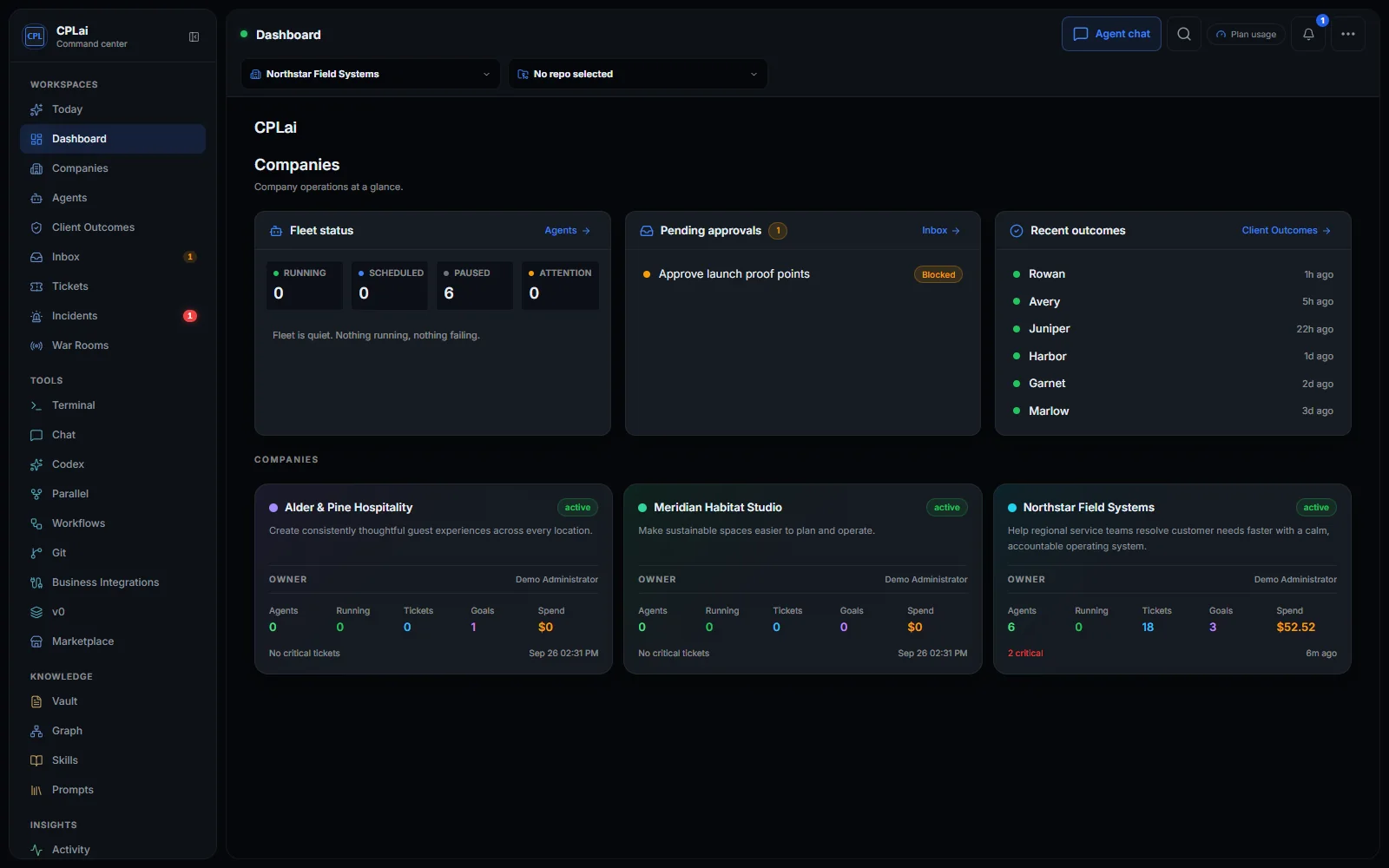
CPLai has two connected interfaces:
- the Windows desktop app, which owns local terminals, native files, worktrees, and desktop-only tools;
- the web dashboard, which provides company operations, projects, agents, tickets, Chat, reporting, and remote access.
Both interfaces use the same CPLai service and PostgreSQL data. They are not separate accounts or separate workspaces.
Before you begin
For the desktop app you need Windows 11 with WebView2. Git is required for worktree-based project execution and Parallel races. AI CLIs are optional and are only needed for the execution engines you want to use.
For Git status and diff in Chat strict mode, use a Git build that supports --no-lazy-fetch (upstream Git 2.45 or later). You can check your installation with git --no-lazy-fetch --version.
Download CPLai from the downloads page at cloudpeaklabs.ai and run the installer. After that, CPLai updates itself; see How do I update CPLai?.
Right after an install or update, the desktop first shows Starting CPLai while its database starts and updates for the new version. This can take a minute, and the app opens by itself when the database is ready. If it keeps waiting, open Details on that screen to see the database's last response.
On the first production launch, a setup overlay provisions the Browser Runtime and developer tools. It reaches Setup complete when provisioning succeeds or when a failed step needs attention. Failed rows stay visible, and the summary points you to the Runtime Tools card under Settings -> Runtimes & Docker and the Browser Runtime card under Settings -> Browser to retry, instead of leaving setup on an endless spinner.
Complete guided onboarding
On a new desktop installation, the onboarding wizard walks through eleven steps:
- Welcome
- Workspace
- Providers
- Auth
- Company
- Teams
- Project
- Hire
- Launch
- Tour
- Done
Progress is persisted, so you can leave and resume the wizard. The flow can also be re-run from Settings > About & updates. See Guided Onboarding for every field and readiness check.
How do I update CPLai?
Open desktop Settings -> About & updates -> App updates. Check the Installed build, choose Stable or Preview, and select Check now. CPLai also checks the channel by itself every hour.
On installations that support automatic updates, the card provides these controls:
| Control | What happens |
|---|---|
| Install updates automatically | Enables future updates for the selected channel; installation waits until the desktop is closed, background jobs and database backups finish, and any pending Windows restart has happened |
| Install after I close CPLai | Queues the available update after confirmation, without enabling future automatic updates |
| Cancel queued update and turn off automatic updates | Cancels a waiting installation before it starts and disables automatic updates |
| Roll back after I close CPLai | Queues the retained previous release when one is available and turns automatic updates off |
| Recover installation | Appears when an interrupted installation needs recovery and a retained release is available |
Closing the desktop is only one condition for installation. If background work or a database backup is still running, or Windows has a restart pending, CPLai waits and retries; the card's recorded result says what it is waiting for, and a pending Windows restart clears once Windows restarts. Update now does not wait for either. Review the recorded result on the card after the update; a queued update is not an installed update. A rollback or recovery-required result pauses automatic retries.
If an installation is interrupted, for example when Windows restarts or the power goes out while it runs, CPLai recovers it by itself within a few minutes, including after the restart: it finishes the installation or restores the previous version. If that recovery also fails, the desktop app may refuse to open until the installation is recovered. Open the CPLai tray icon menu and select Recover Interrupted Update.
Older installations can instead show Download, Update now, Apply when idle, and Prepare rollback. Read the confirmation: Update now can stop running terminal or agent work. Development builds without an installed build stamp are not update targets.
The web dashboard describes these controls; use the desktop app to apply or roll back an installation.
How do I uninstall CPLai?
During a normal interactive uninstall, CPLai can ask two separate cleanup questions: one for runtime tools and AI CLIs, and one for the managed ComfyUI media runtime when it is installed.
- Choose No to keep Claude, Codex, Antigravity, opencode, bundled Node/Git, and their CPLai-managed PATH entries for a later reinstall. This is the default.
- Choose Yes to remove those provisioned tools and clean the PATH entries managed by CPLai.
- For the separate ComfyUI prompt, choose No to keep the roughly 10 GB runtime for a later reinstall, or Yes to remove its program files and isolated Python environment. Downloaded models, LoRAs, and generated media are always kept.
Uninstall always stops the managed ComfyUI worker so it cannot remain as an orphaned GPU process. The cleanup keeps your CPLai database, Browser Runtime, Chrome installation, and unrelated global npm packages. Silent upgrades and reinstalls skip both optional cleanup prompts so they do not remove working runtimes. Cleanup is best effort, so a locked tool cannot prevent the main application from being uninstalled.
You can also remove the managed ComfyUI runtime without uninstalling CPLai: open Settings -> Media -> Media runtime (ComfyUI), select Remove, and confirm Remove runtime. See Image and Video Generation for the removal checks.
See Guided Onboarding, Settings, and Image and Video Generation for runtime installation, authentication, readiness checks, and local media controls.
Learn the two navigation models
Desktop
The desktop sidebar opens Today, Dashboard, Companies, Agents, Client Outcomes, Inbox, Tickets, Incidents, War Rooms, Terminal, Chat, Codex, Parallel, Workflows, Git, Business Integrations, Designer, Marketplace, Vault, Skills, Prompts, Usage, and Trust Center. Graph is a tab on the Vault page, Activity and Status are tabs in Trust Center, and Agent ROI and AI Insights are tabs on Usage; all five are also in the Command Palette. Files opens a global overlay. Manual and Settings are in the title bar and Command Palette. Projects and Goals are also available from the Command Palette.
Desktop page shortcuts are (the same chords work on the web dashboard):
| Shortcut | Page |
|---|---|
Ctrl+1 |
Today |
Ctrl+2 |
Dashboard |
Ctrl+3 |
Companies |
Ctrl+4 |
Agents |
Ctrl+5 |
Client Outcomes |
Ctrl+6 |
Inbox |
Ctrl+7 |
Tickets |
Ctrl+8 |
Incidents |
Ctrl+N |
Chat (a new conversation on desktop) |
Ctrl+K |
Command Palette |
Open Settings from the title bar or Command Palette.
Web
The web sidebar mirrors the desktop sidebar. Parallel (races) and Marketplace appear only for administrators, and a person given limited access sees only the pages they were granted. Settings, Help for this page, the theme switch, and Files are in the top bar's Workspace tools (...) menu. Admin is the Admin section inside Settings. A company and project context bar scopes supported pages. The mobile shell uses a bottom navigation bar and slide-out menus.
Open Trust Center, then Status, to see the active web address and service connection. See Web Dashboard and Remote Access for sign-in, invitations, public links, LAN access, and web/desktop differences.
Connect a provider
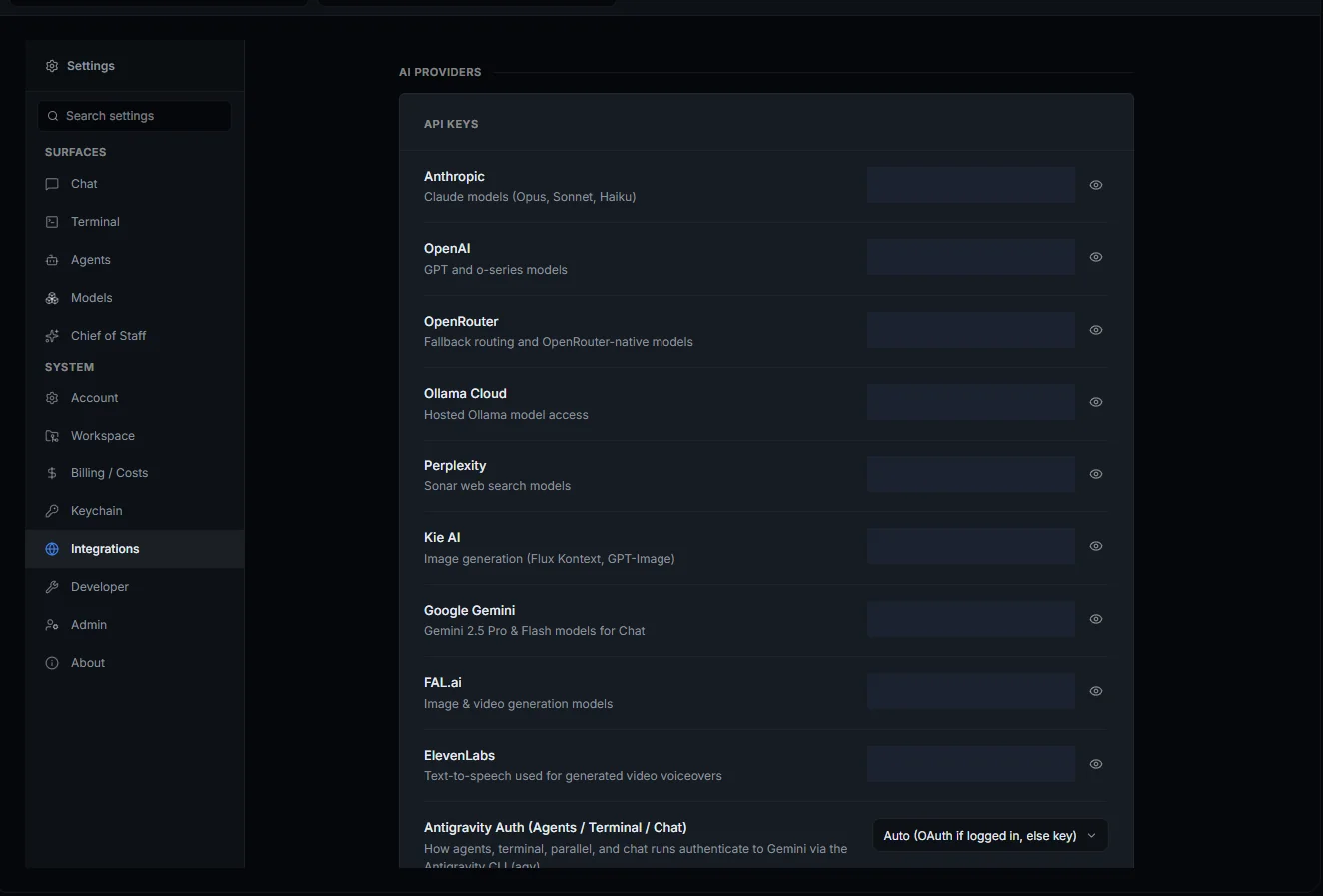
Open Settings > Integrations and add at least one provider credential. The interface only exposes models and tools for credentials and runtimes that are available.
Good starting choices are:
| Credential | What it enables |
|---|---|
| OpenRouter | Broad model catalog, metered fallback routing, utility features, and embedding fallback |
| Anthropic | Direct Claude API access |
| OpenAI | Direct OpenAI chat, Codex-related features, and embeddings |
| Gemini API models | |
| Perplexity | Search-oriented models |
| Kie AI or fal.ai | Image and video generation |
| v0 | Page and UI generation on the Designer page |
| Firecrawl | Web scraping and crawling tools |
Credentials are stored by the CPLai service or native secure storage according to the integration. Never paste secrets into project files, prompts, tickets, or documentation.
Connect optional CLI subscriptions
Open Settings > Integrations and Settings > Developer tools to inspect authentication and runtime tools. Typical engines include:
- Claude Code for Claude subscription-backed terminal and agent runs;
- OpenAI Codex for Codex tasks and race agents;
- Antigravity for Google-backed CLI runs;
- opencode for OpenRouter-backed model execution.
You do not need every CLI. Chat can use provider APIs without local AI CLIs, while Terminal, Projects, Agents, and Parallel only offer execution paths whose required runtime and authentication are available.
Create the operating structure
CPLai work is scoped through a hierarchy:
Company
  Team or capability
    Project
      Agents, plans, tickets, files, and runs
Start with Companies. Create or open a company, enable the capabilities it needs, create a project, and hire agents from the relevant team. The active company and project affect Chat context, ticket visibility, reporting, knowledge retrieval, and agent execution.
See Companies, Project Setup, and Agent Hiring.
Send your first Chat message
- Open Chat from the sidebar, or press
Ctrl+N. - Choose the correct company and project context.
- Select a model or leave Smart/Auto routing enabled.
- Choose a conversation mode and tools appropriate to the task.
- Type a message and press
Enter.
The conversation and its messages are persisted by the CPLai service. Model availability, tool approval, attachments, Smart Context, saved prompts, and export behavior differ slightly by interface. See Chat.
Run your first race
Parallel racing sends one task to multiple isolated runners and lets you compare their output.
- Open Parallel from the sidebar. On web it is shown to administrators only.
- Enter a prompt and choose the task mode.
- Choose a repository when the task should edit code, or use no-directory mode for output-only work.
- Select the available runners.
- Start the race and review live output, changed files, previews, and scores.
- Pick a winner only after reviewing the changes.
For a repository race, picking the winner records your choice only. Applying its changed files to the working repository is a separate confirmed step that shows the target repo, branch, and changed files first, is blocked while the repo has uncommitted work, and creates a commit there. It does not automatically push or merge a protected remote branch. Revert creates a normal git revert commit, so history is preserved.
Connect knowledge
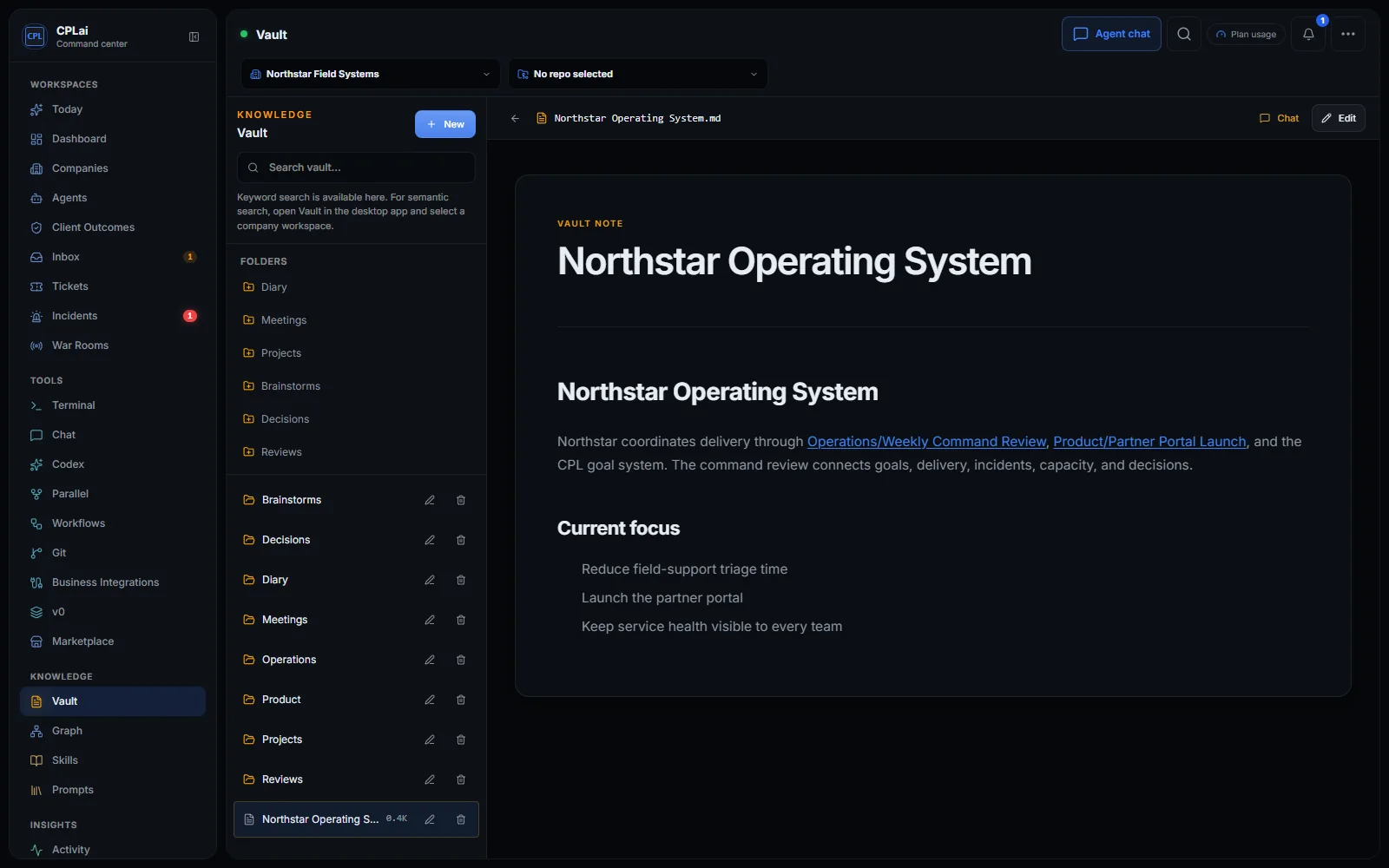
Set the vault folder under Settings -> Vault & search -> Vault and librarian, then use Vault and Graph to browse the knowledge base. Knowledge recall can combine meaning and keyword matches, use local Ollama embeddings, or use OpenAI or OpenRouter embeddings. Configure providers and retrieval mode in the desktop app's knowledge retrieval settings. Individual Chat and Vault search features have additional requirements described in their guides.
See Vault, Knowledge Graph, and Agent Memory Files.
Where to go next
| Goal | Guide |
|---|---|
| Understand every page and route | Product Surface Map |
| Configure the application | Settings |
| Work with companies and teams | Companies |
| Build and execute plans | Projects and Plans |
| Ask several models for one evidence-backed decision | Council |
| Isolate branch-backed implementation work | Development Workspaces |
| Operate persistent workers | Agents |
| Collaborate live with humans and agents | War Rooms |
| Ask how CPLai itself works | Ask Peak |
| Triage work | Inbox and Tickets |
| Monitor the service | System Status |
| Review spend and value | Usage, Costs, ROI, and AI Insights |
| Learn all shortcuts | Keyboard Shortcuts |