Workflows
Last reviewed November 8, 2026 (checked against the app).
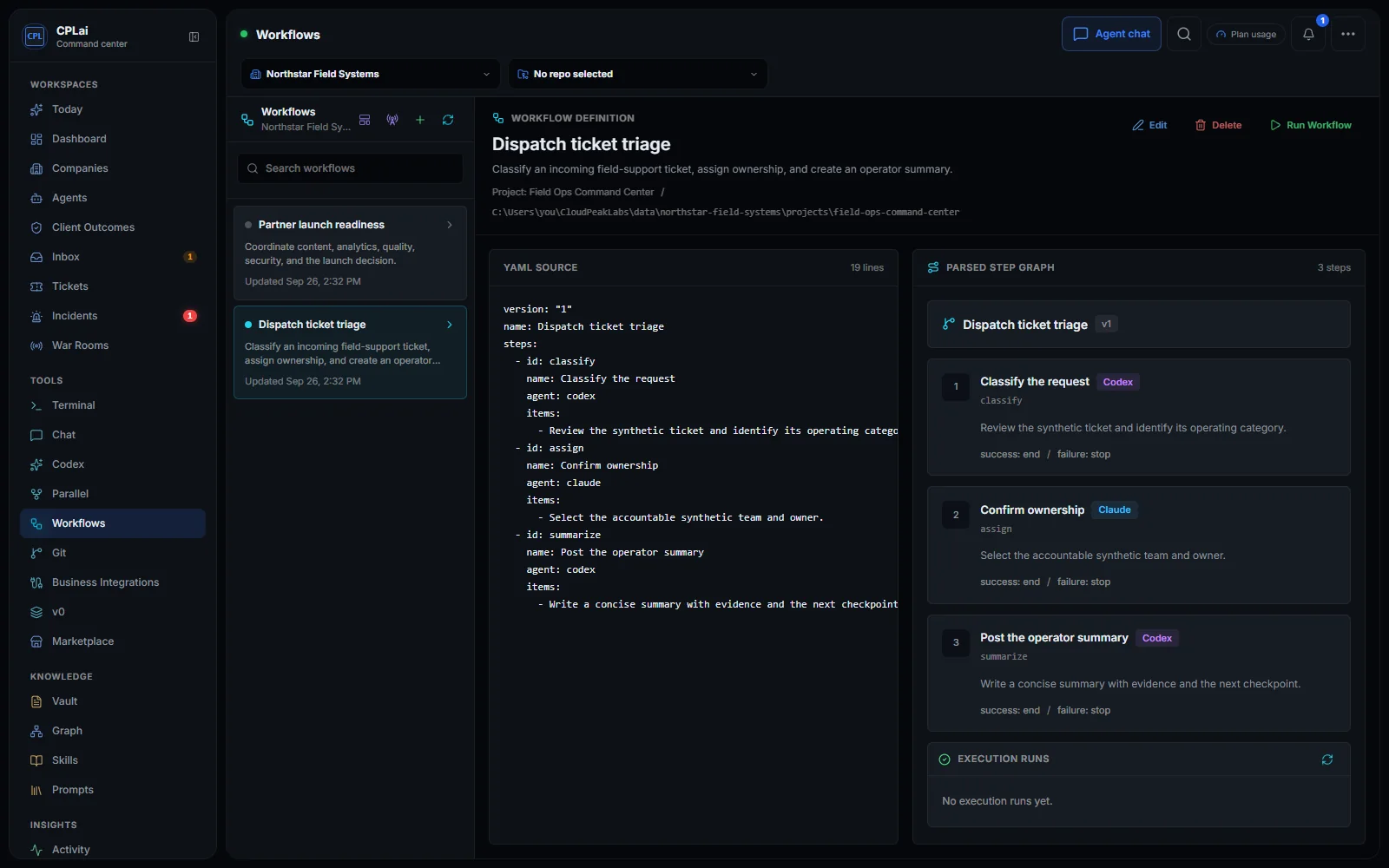
Workflows are persisted YAML definitions for repeatable, ordered AI work. Each step names an execution engine, contains one or more work items, and routes to another step or a terminal outcome on success or failure.
Open Workflows
Choose Workflows in the desktop or web sidebar. Workflows belong to a workspace, and the page always shows the workspace selected in the top bar (desktop) or the context bar (web). Switching workspace there switches the workflow list.
With All Workspaces selected, the page lists your workspaces instead of workflows. Pick one to see its workflows. You can still browse the templates, but you need a workspace before you can create anything.
When the page is narrow (the agent chat dock open on a smaller screen, or the web dashboard on an iPad with the dock open), the workflow list folds into a button named after the open workflow at the top of the page. Press it to open the list over the page, with all its buttons. Pick a workflow, press Escape or press outside the list to close it. The editor and the run history then share the page as two tabs, Editor and Run history. A dot on Run history shows when a run is going or has stopped at a step. Switching tabs keeps your unsaved changes.
Start from a template
Every install ships a set of starter workflows. Choose the template button at the top of the workflow list to open the gallery. A workspace with no workflows yet opens the gallery automatically.
| Category | Templates |
|---|---|
| Build | Fix a bug with proof; Build a feature with a second opinion; Race two implementations; Architecture decision by council |
| Quality | Security review; Safe dependency update; Close test gaps; Release readiness check |
| Content | SEO audit and fixes; Draft a blog post |
| Knowledge | Codebase onboarding brief; Docs refresh |
Choose Use template to create an editable copy in the current workspace. Nothing runs until you select an execution project and choose Run. Edit the copy freely; the built-in template does not change.
Each card lists the engines the template uses (Claude, Codex or Antigravity). A template never names a specific agent: each step runs on one of the workspace's enabled agents of that type, autonomous agents first, and never on a console identity or the Merge Desk. To pin a specific agent, add its id as agent_id on the step in the YAML editor. If the workspace has no agent of a type the template needs, the card says so. Hire one, or change those steps to an engine you have.
Templates marked You fill in the goal contain a blank in double square brackets, such as [[describe the bug]]. Replace it with your own text and save. Run stays disabled until every blank is filled in.
Codebase onboarding brief is a good first run: it only writes one new file, docs/ONBOARDING.md, on the run's own branch.
Create and edit a workflow
Desktop
Choose New Workflow, give it a name, and edit the YAML source, or switch the editor from YAML to Visual to use the visual builder. The desktop editor parses and validates as you type. Save a valid definition before running it.
Web
Choose New Workflow and edit either the YAML source or the shipped Visual Builder. The visual builder can change the workflow name and description, add/remove steps, edit step IDs and names, select agents, edit work items, and set success/failure routes. Visual changes update the YAML definition.
The visual builder is available on both desktop and web.
In Phase strategy -> Execution, choose Single agent, Race candidates, or Council and synthesis. Race and Council phases support two to four participants. Review the phase's candidates before running the workflow.
How do I turn an outcome into a workflow?
Use Start Work and choose the Build route for a repository change. CPLai creates an editable workflow with four phases: Plan the outcome, Implement in an isolated worktree, Verify the change set, and Review and prepare hand-off.
Review the generated work items, save the definition, select an execution project, and start the run. Creating the workflow records the plan; it does not start execution by itself.
An Outcome workflow keeps its branch, working copy, step attempts, and recorded results together. Use its run detail for implementation review. Client Outcomes is the separate surface for delivering work and collecting client feedback.
YAML structure
A minimal definition looks like this:
name: "Build and verify"
description: "Implement a change, then run verification"
version: 1
steps:
  - id: implement
    name: "Implement"
    agent: claude
    items:
      - "Make the requested change"
    on_success: verify
    on_failure: stop

  - id: verify
    name: "Verify"
    agent: codex
    items:
      - "Run the relevant tests"
      - "Report failures with evidence"
    on_success: end
    on_failure: stop
Workflow fields
| Field | Purpose |
|---|---|
name |
Display name |
description |
Optional operator-facing summary |
version |
Definition schema version |
steps |
Ordered step definitions |
Step fields
| Field | Purpose |
|---|---|
id |
Unique routing identifier |
name |
Display label |
agent |
Execution engine: claude, codex, antigravity, or ollama for a local-model agent (one whose model runs on your Ollama or vLLM server). The builders show ollama as "local model" |
items |
Prompted work items for the step |
on_success |
Next step ID or end |
on_failure |
Next step ID or stop |
Step IDs must be unique. Every non-terminal route must point to an existing step. A workflow needs at least one valid step and must not create an invalid route graph.
Run a workflow
Select a workflow and an execution project. The project supplies the repository and project context. Each run starts from the project's landing branch, freshly fetched (the remote's default branch unless the project names another), on its own branch. It does not build on whatever branch your checkout happens to have open. A repository with no remote uses its checked-out commit.
- On desktop, choose Run. The CPLai service executes the workflow and the timeline displays the saved run state.
- On web, choose Run Workflow. The CPLai service starts the run and the page polls while it remains active.
Only one active run for the selected workflow should be launched from the page at a time. A run snapshots the YAML used at dispatch so later edits do not rewrite its historical step graph.
Execution belongs to the CPLai service. Leaving the workflow page does not cancel it. Reopen the saved run to inspect its current state rather than starting another copy.
Read run history
Select a saved run to inspect its overall status, current step, timestamps, and per-step state. Web shows the six most recent entries first and can expand the rest. Refresh the list when another operator or agent started the run.
How do I inspect an Outcome's work?
Open the run detail. For a run with an Outcome working copy, Outcome evidence shows its branch, base commit, and individual step attempts.
- Replay journal opens an attempt's saved events. Choose Load more events to continue. Replay again to refresh the saved history. Older runs may identify their journal as legacy and retain its original limits.
- Open trust history opens Trust Center focused on that attempt.
- Inspect changes loads changed files and a read-only comparison against the base. Select a file to inspect its original and modified content. Files without a preview show an explanation.
Replay displays recorded events; it does not run the work again.
How do I review and verify the changes?
When the Outcome run is completed and has a working copy:
- In Review changes, choose Start hunk review. A hunk is a group of changed lines in a file.
- Choose a Source file, inspect its diff, and enter a Review reason.
- Choose Accept hunk, Reject hunk, or Reset decision for each group. Resolve all undecided hunks before continuing.
- Choose Create review branch. CPLai shows the resulting branch and commit when it is ready. Inspect accepted result lets you compare the accepted result; Show source changes returns to the original changes.
- Under Verify reviewed commit, select a Verification pipeline, inspect its commands, and choose Run verification. If none are available, create executable checks in Verifiers, then reopen the review.
- Expand a verification result to inspect status, output, exit codes, and any process evidence. Results identify whether they belong to this reviewed commit or an earlier commit.
If verification waits for a human decision, enter a Verification decision reason and choose Approve and continue verification. The linked Inbox ticket also identifies that gate.
When the source has changed since review began, the page marks the snapshot as earlier. Wait for the Outcome to finish, then choose Refresh source review before reviewing its latest changes.
Tip: A ready review branch and a successful verification are separate milestones. Publishing or merging a pull request remains a separate repository action.
How do I request a revision?
Use Request a revision on the reviewed Outcome. Select the Producing step, choose a Hunk to revise or Whole outcome, and enter Revision feedback. If a verification failed for this reviewed commit, you can select it as the Verification failure to repair.
Choose Request revision from producing agent or Request repair from producing agent. The panel shows the remaining revision attempts and revision history. Follow the new attempt in Outcome evidence, then refresh the source review and verify the updated result.
A revision requires a completed Outcome, a current source review, an eligible producing attempt, and remaining revision capacity. Finish active verification before requesting another revision.
How do I choose a race result within an Outcome?
When a workflow phase has a race strategy, the run detail shows its candidates and their saved summaries. While it is Waiting for your choice, choose Inspect [candidate] changes, review the diff, then choose Merge [candidate] and continue. This selects the candidate for the Outcome's working copy and lets the workflow continue.
Council strategy records show candidate evidence and the synthesis run when available. Its journal appears in Outcome evidence. These strategy panels appear only on runs that contain such phases.
Cancel or delete
Choose Cancel on desktop or Cancel run on web to ask the CPLai service to cancel the active workflow run.
Deleting a workflow removes the persisted definition. On web, it does not delete repository files. Review run history and references before deleting a definition used by other operators.
Trigger an agent from a signed external event
The Event triggers panel is available on both desktop and web Workflows. It connects an inbound JSON event to one agent without storing the signing secret in the event-source record.
- Store the webhook secret in a company resource in Settings -> Keychain (the Shared Keychain card).
- In Workflows, create a signed source. Select a recipe, enter a unique lowercase slug, and point the source at the resource ID and secret field.
- Create a trigger for that source. The JSON match is a recursive subset, so
{"action":"opened"}matches a larger GitHub payload with that action. - Use
{{source}},{{delivery_id}}, and{{event}}in the prompt. CPLai always adds the event ID to the run's wake context for auditability. - Send JSON to
/api/events/ingest/<source-slug>with the recipe's delivery and signature headers.
The receiver limits request bodies to 1 MiB, verifies the signature before dispatch, rate-limits each source and trigger, and deduplicates on source plus delivery ID. A replay returns the first delivery and never starts a second run. Disabled or paused agents, exhausted run budgets, failed launches, rejected signatures, and unmatched events remain visible in the delivery log.
GitHub recipe
Use provider github, signature header X-Hub-Signature-256, prefix sha256=, and delivery header X-GitHub-Delivery. In the GitHub webhook settings, choose application/json and use the same secret stored in the CPLai company resource. A pull-request trigger can match:
{"action":"opened","pull_request":{"state":"open"}}
GitHub signs the raw request body with HMAC-SHA256. Do not reserialize the payload before calculating or testing the signature.
Stripe recipe
Use provider stripe, signature header Stripe-Signature, prefix v1=, and delivery header X-CPL-Delivery-ID. If a gateway cannot add that delivery header, CPLai falls back to the payload's top-level id. Store the endpoint signing secret from Stripe in the referenced company resource. CPLai validates the t=<timestamp>,v1=<signature> value against the raw timestamp.payload bytes and rejects timestamps outside its replay window. A payment-failure trigger can match:
{"type":"invoice.payment_failed"}
Inbound email recipe
Configure the mail gateway to POST a normalized JSON payload and use provider email, signature header X-CPL-Signature-256, prefix sha256=, and delivery header X-Message-ID. The signature value is sha256= followed by the lowercase HMAC-SHA256 hex digest of the exact request bytes. A subject-routing trigger can match:
{"subject":"Support escalation"}
If the gateway does not support signed delivery, put a small trusted relay in front of CPLai. Do not expose an unsigned source or place the shared secret in the payload, URL, workflow, or trigger prompt.
Current limitations
These capabilities are not present in the current workflow pages and should not be described as available:
- parallel workflow branches;
- saving your own workflows as templates;
- workflow import/export controls.
Troubleshooting
Run is disabled
Save a valid definition, select an execution project, and make sure the workflow has no active run. A workflow created from a template also needs every [[...]] blank replaced with your own text.
YAML is rejected
Check required fields, unique step IDs, supported agent values, and every route target. Use the visual graph to find broken transitions.
History does not match the edited YAML
That is expected for an older run. Run detail uses its saved YAML snapshot when available.