Web Dashboard and Remote Access
Last reviewed October 28, 2026 (checked against the app).
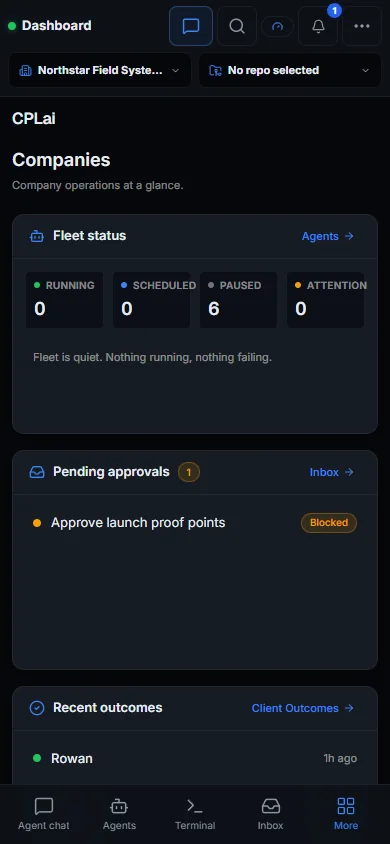
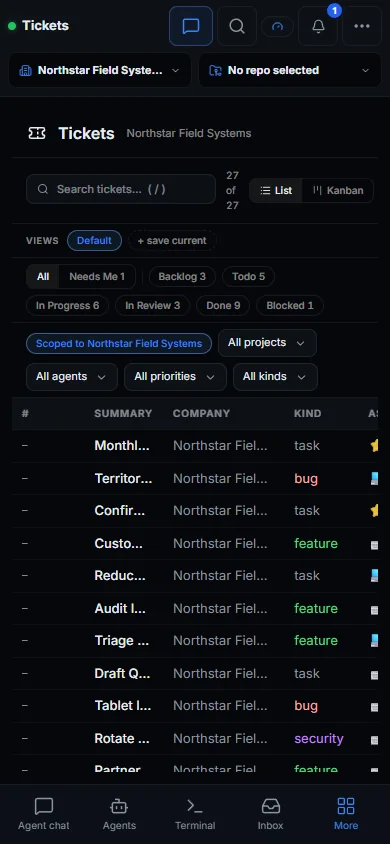
The web dashboard mirrors CPLai's operational surfaces in a browser. It is responsive, installable as a PWA, and designed for desktop and mobile access. Some desktop-only operations degrade or use server-side equivalents on web.
How do I find the current dashboard address?
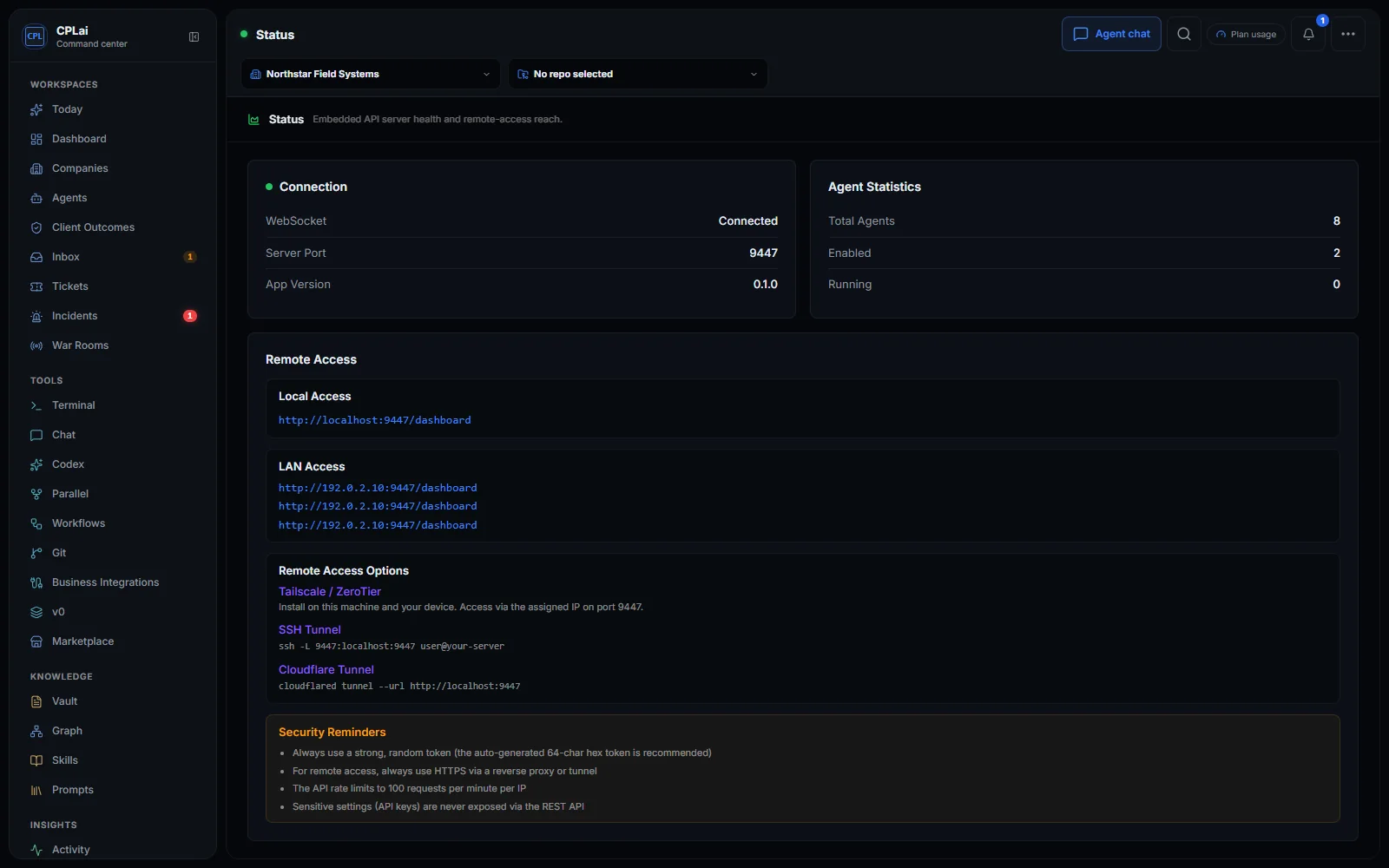
Open Trust Center, then Status, in CPLai and use an address under Reach the dashboard (on this machine or on your network) displayed by the running instance. Do not reuse a port copied from an older session.
For remote access outside the local network, configure a trusted VPN or HTTPS tunnel under Settings and point it at the current CPLai service. See System Status.
How do I sign in?
- Open the dashboard address.
- Enter your CPLai email and password.
- Select Sign In.
The browser uses an authenticated session. Signing out removes the local browser session and disconnects its live event stream.
How do invitations work?
An invitation link opens the public /invite/:token route. The recipient reviews the invitation and completes the account flow. Expired, revoked, malformed, or already-used invitations show an unavailable state instead of opening the protected dashboard.
Invitation and user administration is restricted by role. Instance administrators manage users and security from Settings -> Admin (the old /admin address redirects there); company administrators manage company membership from the company Users tab.
How does the web shell work?
Sidebar
The sidebar uses one direct navigation model grouped into Workspaces, Tools, Knowledge, and Insights. Destinations keep their actual names: for example, Terminal opens Terminal, Workflows opens Workflows, and Skills opens Skills. Core surfaces do not move behind a Labs menu or an alternate layout.
Use the collapse control to reduce the sidebar to an icon rail without changing which destinations are available. The Command Palette remains available for keyboard search and direct navigation.
Top bar
The header keeps the page title, connection status, Agent chat, Command Palette search, notifications, and Workspace tools visible. Workspace tools contains account details, appearance, Files, Settings, help, shortcuts, usage, installation, and sign-out controls.
Global context bar
The Workspace and Repo selectors have their own row below the primary header actions. Choose a workspace, then one of its repositories, and confirm that context before creating scoped work. On short touch screens, including phones in landscape, these selectors move into Workspace tools to leave room for the conversation or terminal.
App-wide chat dock
The Agent chat launcher opens the right-side agent dock on larger screens and the full-page agent conversation on phones. Search the agent picker, select an agent, and continue its conversation. Drafts remain associated with the selected agent when navigating away and back. Terminal has its own ownership rules so the terminal assistant does not overlap the global dock. General model chat remains available on the Chat page.
File Browser
The File Browser opens beside the workspace on wide screens and overlays it on tablet or phone widths. Close the panel to return to the full workspace. Server-side allowlists limit which roots are visible through web access.
Right-click a file and choose Send to Chat or Send to Agent to open the destination picker. The Chats tab offers a new chat and recent conversations. The Agents tab lists enabled agents, putting agents from the detected company first when the file path matches a project or company folder. The file is attached to the selected composer without being sent, so you can add instructions first.
Desktop-only OS actions such as Open, Open in VS Code, Explorer, recycle bin, and Vercel deployment are not exposed by the web File Browser.
Mobile navigation
Phones open Agent chat by default. The bottom bar provides Agent chat, Agents, Terminal, Inbox, and More. More includes Dashboard and the rest of the available pages. Phone landscape uses the same navigation, with a shorter header. The chat composer follows the visible viewport when the on-screen keyboard opens.
On iPad, the compact navigation rail leaves room for the Agents directory beside the fleet or selected agent. The directory follows Company → Team → Group → Agent, matching desktop organization. Narrow containers offer Browse agents and Show fleet controls. Fleet management and infrastructure remain available in an expandable section below the live fleet.
Terminal session tabs occupy a separate row from terminal actions. When space is limited, select Tools to show the actions. Toggling Tools does not restart or unmount terminal sessions.
How do company and project routes work?
- Selecting a company updates the active company and opens
/companies/:id. - Company-scoped agent links fold into the company Agents tab when possible.
- Projects open at
/projects/:idwith Git, Files, Plans, and Tickets tabs. - Ticket and Inbox detail links preserve the selected ticket in the route.
- Chat and Workflow routes preserve the selected conversation or workflow.
See Companies, Agents, and Projects and Plans.
How do I connect another CPLai installation?
Open Agents and use the Fleet Instances panel in Mission Control. Register the remote base URL, save a personal API key created on that remote installation, and run the health check. The same API-backed workflow is available in the desktop app and web dashboard; instance pairing is not a Settings section.
The saved token remains write-only and keychain-backed on the controlling host. See Pair another CPLai instance for the full workflow.
How do I work with a project on another installation?
Open a paired installation's company, choose Projects, and select a project card. The workspace shows that project's plans, completion progress, assigned agents, recent activity, and terminal controls. Check or clear plan steps to update the plan on the remote installation.
Select Terminal, Claude, Codex, or Antigravity to launch on that installation. CPLai uses the project's repository directory when one is configured. In the web workspace, Running project terminals lets you attach an existing matching session.
Desktop also provides a read-only Files view, agent Chat, and shared remote terminal tabs. It restores surviving remote terminal sessions when you reopen the project workspace. The web workspace presents terminals in inline panels.
This workspace opens an existing remote project. Creating a tracked Git branch and worktree is a separate development workspace workflow. See Worker enrollment when you want the installation to accept dispatched work.
What is different from desktop?
| Area | Web behavior |
|---|---|
| Terminal | Sessions run through the server-side terminal API and WebSocket stream |
| Files | Access is restricted to server-allowlisted roots; file delivery uses the Chat/Agent destination picker instead of desktop OS open actions |
| Codex and agent execution | Runs on the CPLai host, not on the browser device |
| Native dialogs | Replaced with browser uploads, downloads, or server-side paths |
| Remote Access configuration | Desktop owns local tunnel process configuration; web shows status and shared settings where supported |
| Graph | A tab on the Vault page (/vault?tab=graph), like desktop; /graph redirects there |
| Dashboard and Admin | Both surfaces have the Dashboard; Admin is a role-gated section inside Settings on both |
| Mobile | Web provides bottom navigation and a More sheet |
Public race shares
A generated race-share link opens /races/share/:token without the normal dashboard session. The public page presents a redacted result selected for sharing. Revoke or expire the share when it should no longer be accessible.
Public benchmark cards
Benchmark-card links open /cards/:token. They are designed for a polished public result card rather than the full internal race workspace. See Parallel Agent Racing.
Public spectate links
A spectate link opens /spectate/:token and shows an agent run as a read-only chat: the agent's own words, with a "Working..." line while it uses its tools. Tool calls, their output and raw run output are never sent. Administrators create one from the run's Spectate control in Agent Detail (New link), and list or revoke issued links there and in Settings. Automated agent sessions cannot mint public links through the headless service.
See Agents.
Client review links
A client review link opens /review/:token without a normal dashboard session. The client identifies themselves once per browser, sees the published prototype, leaves notes, and records a decision. Uploaded builds are served under /api/review-assets/:token/... with a sandbox policy, so they run in a throwaway origin. Revoking the link, closing the review, or letting the link expire makes the page show "no longer available". See Client Outcomes.
How do I approve a client outcome?
An operator can create a one-time decision token from an authenticated Client Outcomes page, then choose Copy link to copy the complete public address. The client opens /outcomes/approval/:token without a normal dashboard session, reviews the client-safe delivery view, and chooses Approve or Reject with an optional comment. The operator can revoke a request while it is still pending.
The token is the access credential. It expires after seven days by default and can record only one decision. See Client Outcomes.
How do I tell whether the dashboard is healthy?
- The top bar shows Connected or Disconnected.
- Trust Center's Status tab shows the live-updates connection, server port, version, agent counts and the service's self checks.
- A page-level error banner indicates that a specific API call failed even when the shell itself loaded.
Troubleshooting
The browser redirects to Login
The saved session is missing, expired, or invalid. Sign in again. A bearer token used by CLI agents is not a substitute for the normal browser account session.
Reads work but writes fail
Confirm that the browser origin is allowed by the running server and that the remote-access origin did not change. Restart the serving instance after changing boot-time origin configuration.
The page loads but says Disconnected
The HTML and REST server may be reachable while the WebSocket connection is not. Check Trust Center's Status tab, proxy WebSocket support, authentication, and tunnel configuration.
A local file action is unavailable
The browser cannot receive unrestricted native filesystem access. Use an allowlisted root, the project Files tab, or the desktop app for native file dialogs and local-only operations.