Goals
Last reviewed October 28, 2026 (checked against the app).
Goals represent company objectives and can be nested into a hierarchy. Their displayed progress can be calculated from linked tickets or entered directly when no tracked tickets are attached.
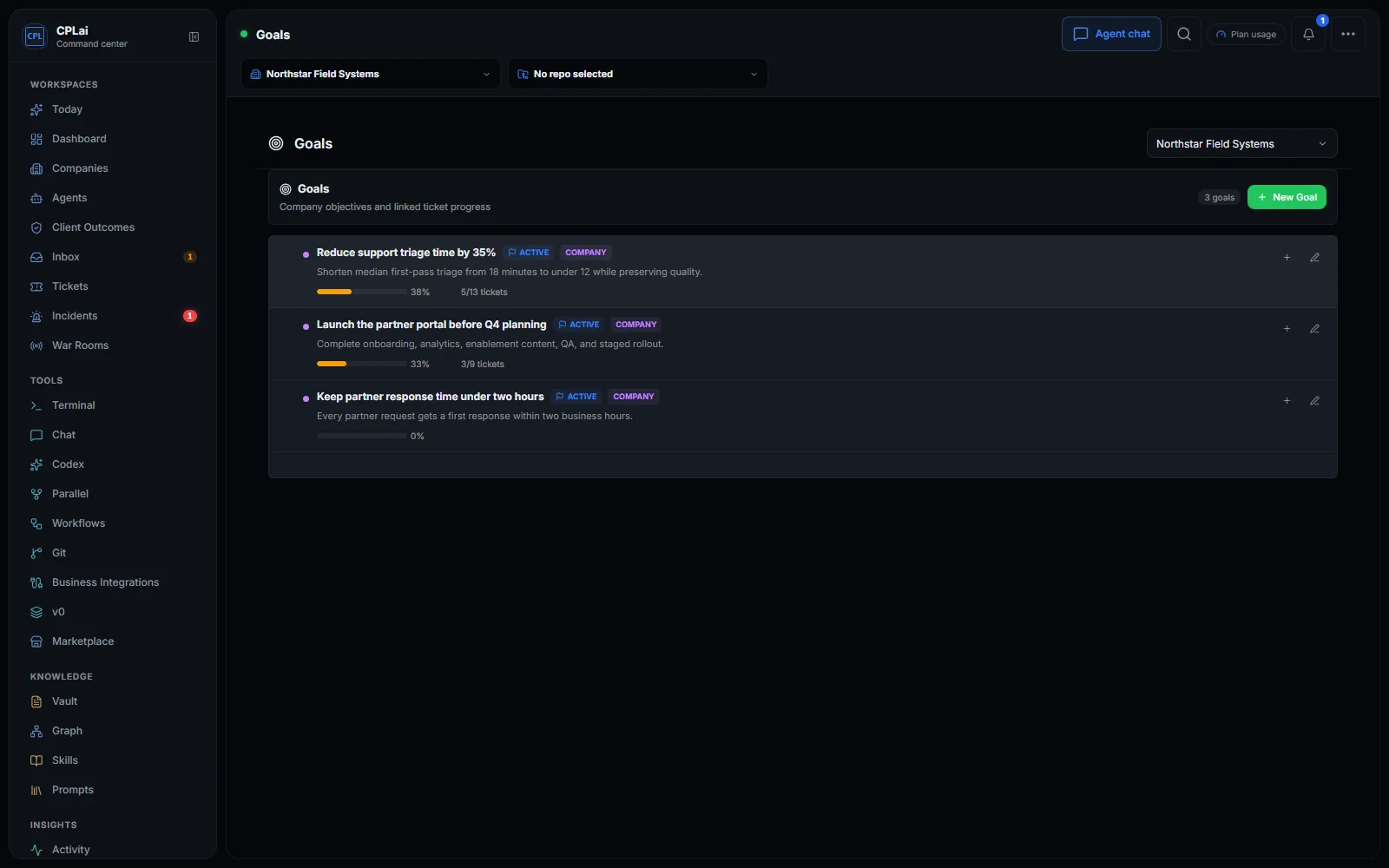
Open Goals
Use either route:
- open the standalone Goals page from the Command Palette (
Ctrl+K, search "Goals"), at/goalson the web dashboard, or from a goal notification. It is not listed in the sidebar on desktop or web; - open Companies, select a company, and choose the Goals tab.
The company tab shows that company's goal tree. On the web dashboard the standalone page shows the same tree for the company you pick in its selector. On desktop the standalone page starts on All companies and lists every company's goals together; use its company selector to narrow it. The standalone page is useful when goals are your primary operating view.
Create a goal
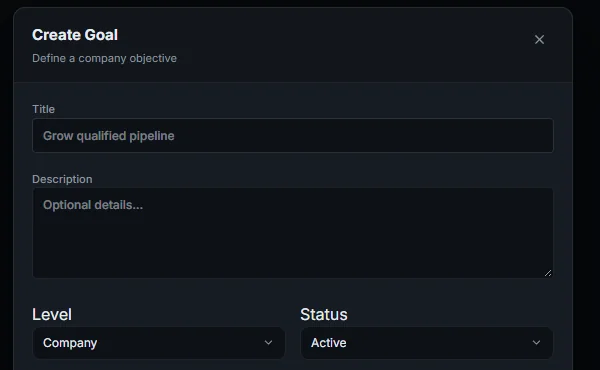
Users with the required company role can choose New Goal and set:
- title and description;
- level (Company, Team, or Agent);
- status;
- optional parent goal;
- target date;
- manual progress percentage (web dashboard only; desktop creates goals at 0 percent and has no progress field).
The parent must be another goal in the same company. Use child goals to break a broad objective into measurable outcomes.
Goal status
A goal is Active, Achieved, Paused, or Abandoned, shown as a colored badge. Use status to describe the objective's lifecycle; use progress to describe how much work is complete.
The goals API accepts those four values. Ticket words are mapped: completed and done save as achieved, cancelled and archived save as abandoned. Any other status is rejected with an error. Goals saved with older words before this check are read with the same mapping.
Progress from tickets
When a goal has linked tickets in todo, in_progress, in_review, blocked, or done, the displayed percentage is:
done linked tickets / all counted linked tickets
For example, two done tickets out of five counted tickets displays 40 percent. When a goal has no counted linked tickets, a parent goal shows the average of its sub-goals, and a goal without sub-goals uses its saved progress_pct.
The company Overview, the company cards, and the Goal Progress figure on the Companies dashboard average this same value across active goals, so they match the Goals tree on desktop and web.
Changing a ticket status can therefore change goal progress without editing the goal. Archived or otherwise excluded ticket statuses are not counted by this view.
Edit, nest, and delete
- choose Add child goal (the + on a row; on desktop it appears when you hover the row) to create a goal beneath it;
- open the editor to change fields, status, or date: choose Edit goal on the row on web, or click the row on desktop;
- the parent can be changed only on desktop (the web editor sets the parent at creation only), and manual progress can be changed only on web;
- delete from the edit dialog only after the confirmation step.
Before deleting a parent, review its children and ticket links. A deleted objective does not mean the underlying ticket work was completed.
Permissions
The instance administrator and company roles allowed to manage goals see create/edit controls. Read-only users can inspect the hierarchy and progress but cannot mutate it. If expected controls are missing, verify your current account and company grant.
Troubleshooting
Progress is different from the saved percentage
Linked counted tickets override manual progress. Open the goal's tickets and review their statuses.
Progress that agents report through the progress API (PATCH /api/goals/{id}/progress) can only go up. If an agent's update inflated progress, an administrator can lower it through that same API call with correction: true and a required note; there is no button for this in the app. The web Edit Goal dialog's progress field is a direct edit and can set a lower value.
A goal is missing
Confirm the selected company. Goals are tenant-scoped. The web standalone page shows one company at a time; on desktop, set the standalone page's selector to All companies to see every company's goals.
Create or edit is unavailable
Your company role may be read-only. Ask an administrator to review the company grant rather than sharing an admin account.